March 26th, 2026

Workorder pricing flows were updated to improve charge accuracy, equipment handling, and modifier-based recalculations.
Scheduling and calendar experiences were refined, including better reschedule behavior and a new option to hide inspection duration in online scheduling.
Workorder syncing flows now provide clearer support for Spectora sync scenarios.
Invoice flexibility improved with better control over which charges appear on custom invoices.
Several UI polish updates improved clarity across activity, booking, quote, and assistant experiences.
What changed: A new setting allows teams to show or hide inspection duration in the online scheduler.
Before: Duration display behavior was fixed and could not be toggled.
Now: Teams can control whether duration is visible during online scheduling.

Why it matters: This gives teams more control over how availability is presented to customers.
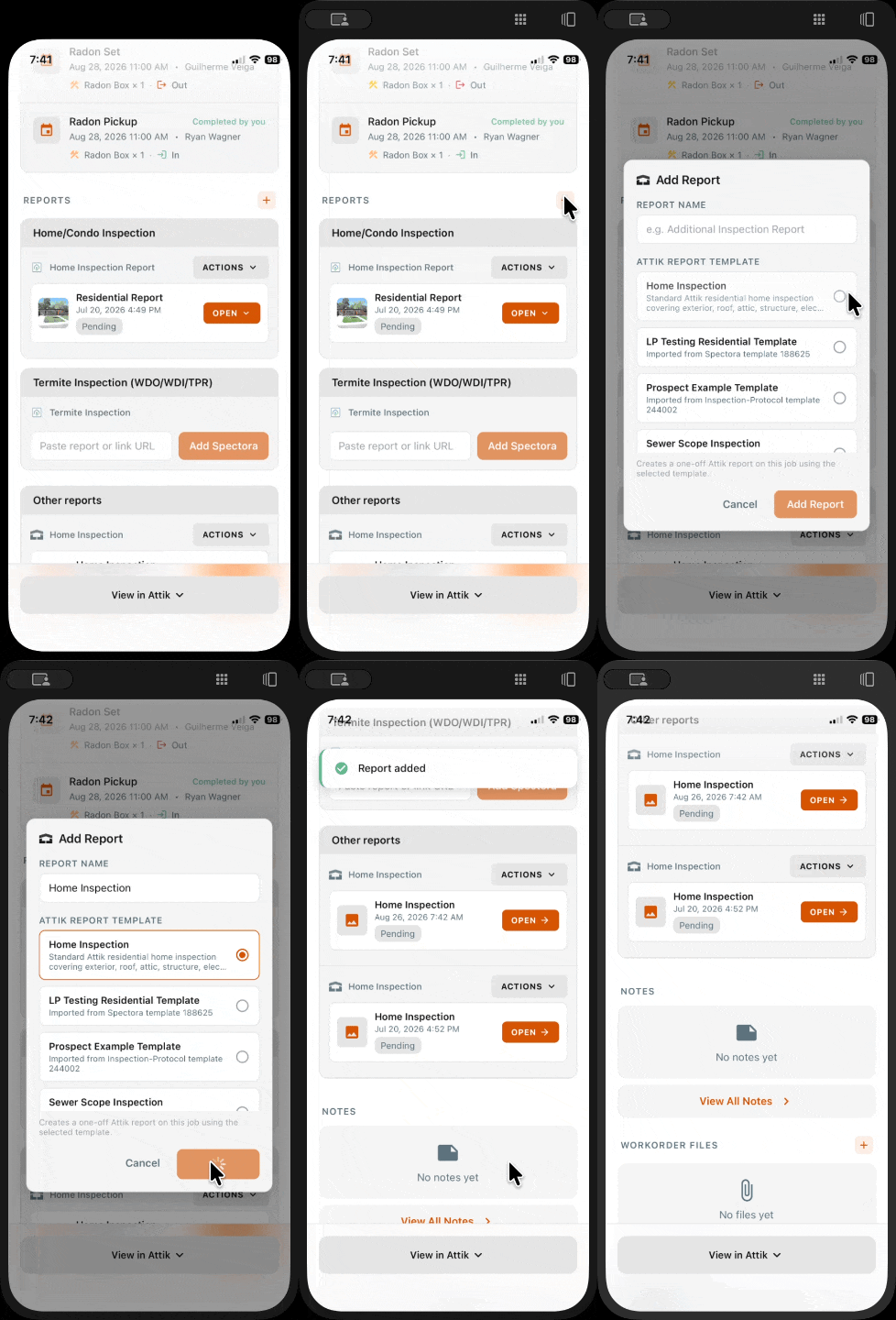
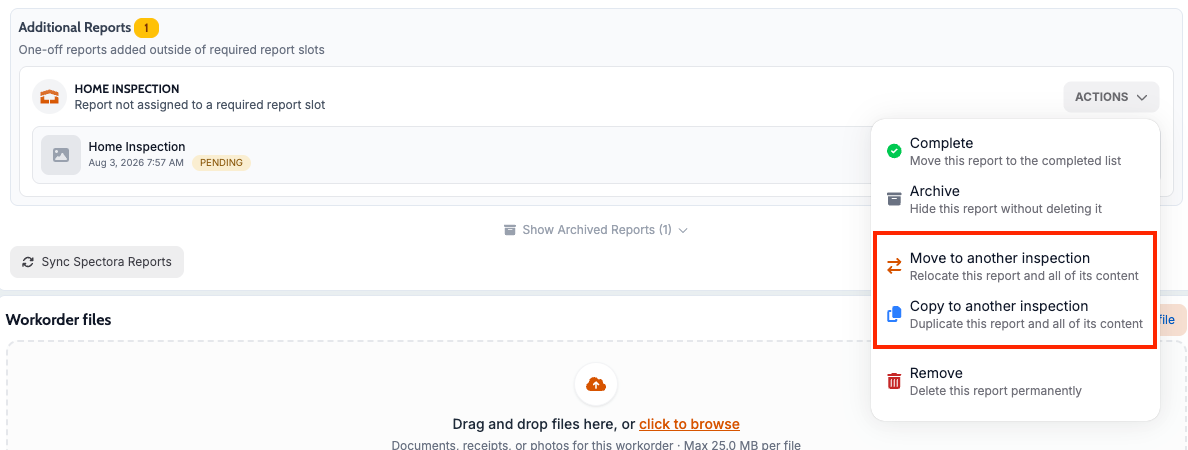
What changed: Users can now add one-off reports in supported report flows.
Before: Report options were more limited for ad hoc needs.
Now: Users can create one-off reporting entries when needed.

Why it matters: This supports real-world exceptions without forcing users into rigid report patterns.
What changed: Trend-oriented frontend support was added for agent usage and inspection count over time.
Before: These metrics were less accessible in trend view contexts.
Now: Users can work with more complete trend data experiences for agent activity and inspection volume.

Why it matters: Better trend visibility supports staffing and operational planning decisions.
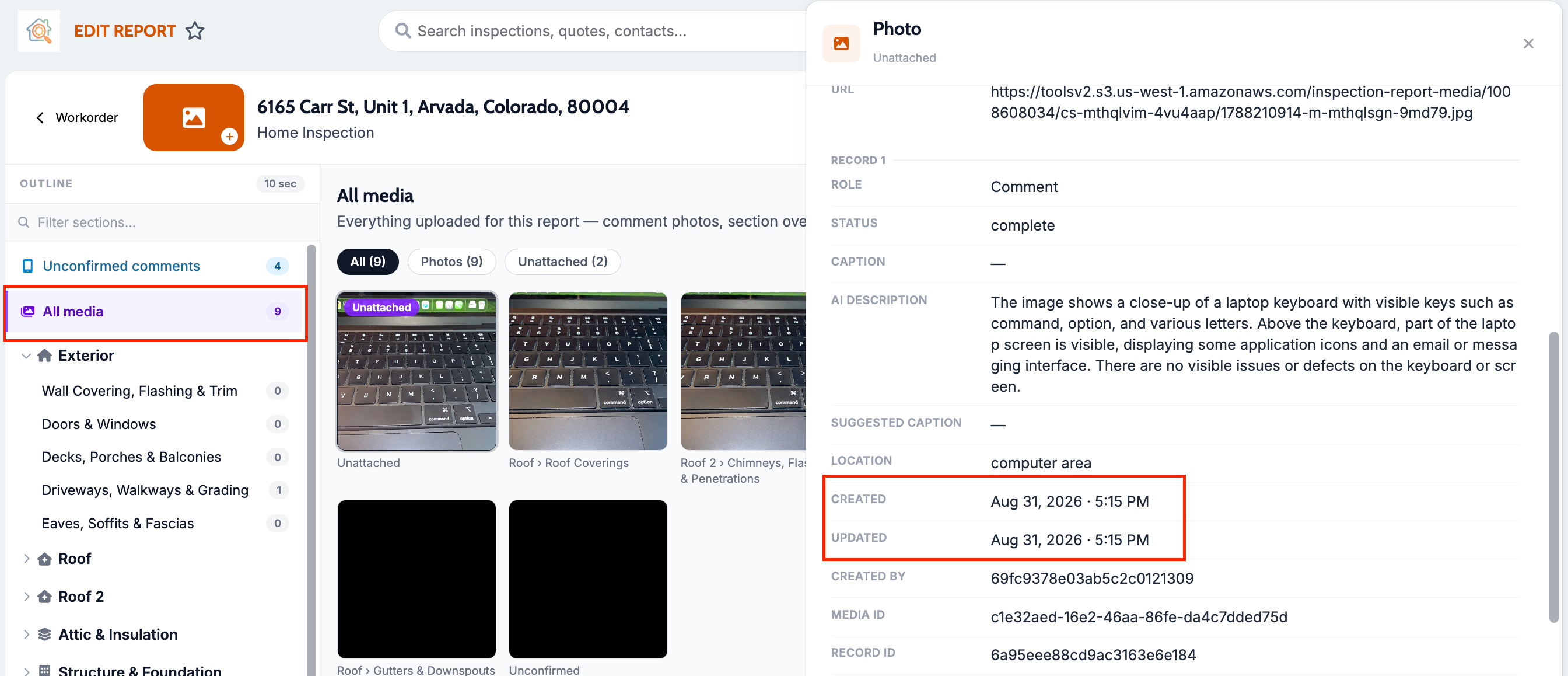
What changed: A new โSync Spectora jobโ action was added in inspection actions so teams can manually pull in updated report changes when needed.
Before: If report updates were delayed or out of sync, users had fewer direct in-workflow recovery options and often had to wait or troubleshoot.
Now: Users can trigger a sync from the inspection workflow to refresh report data without leaving their normal work area.

Why it matters: This gives teams a faster recovery path when report data needs to catch up, reducing delays in client-facing workflows.
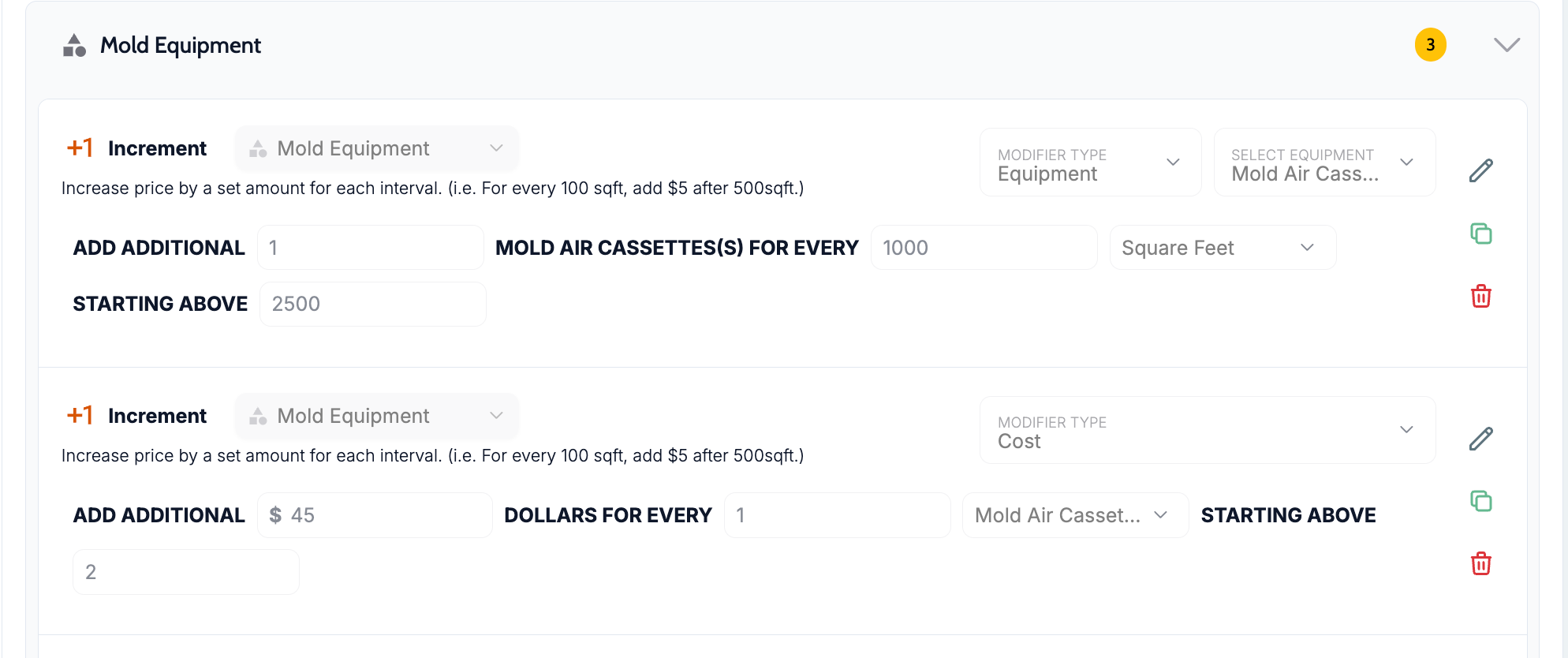
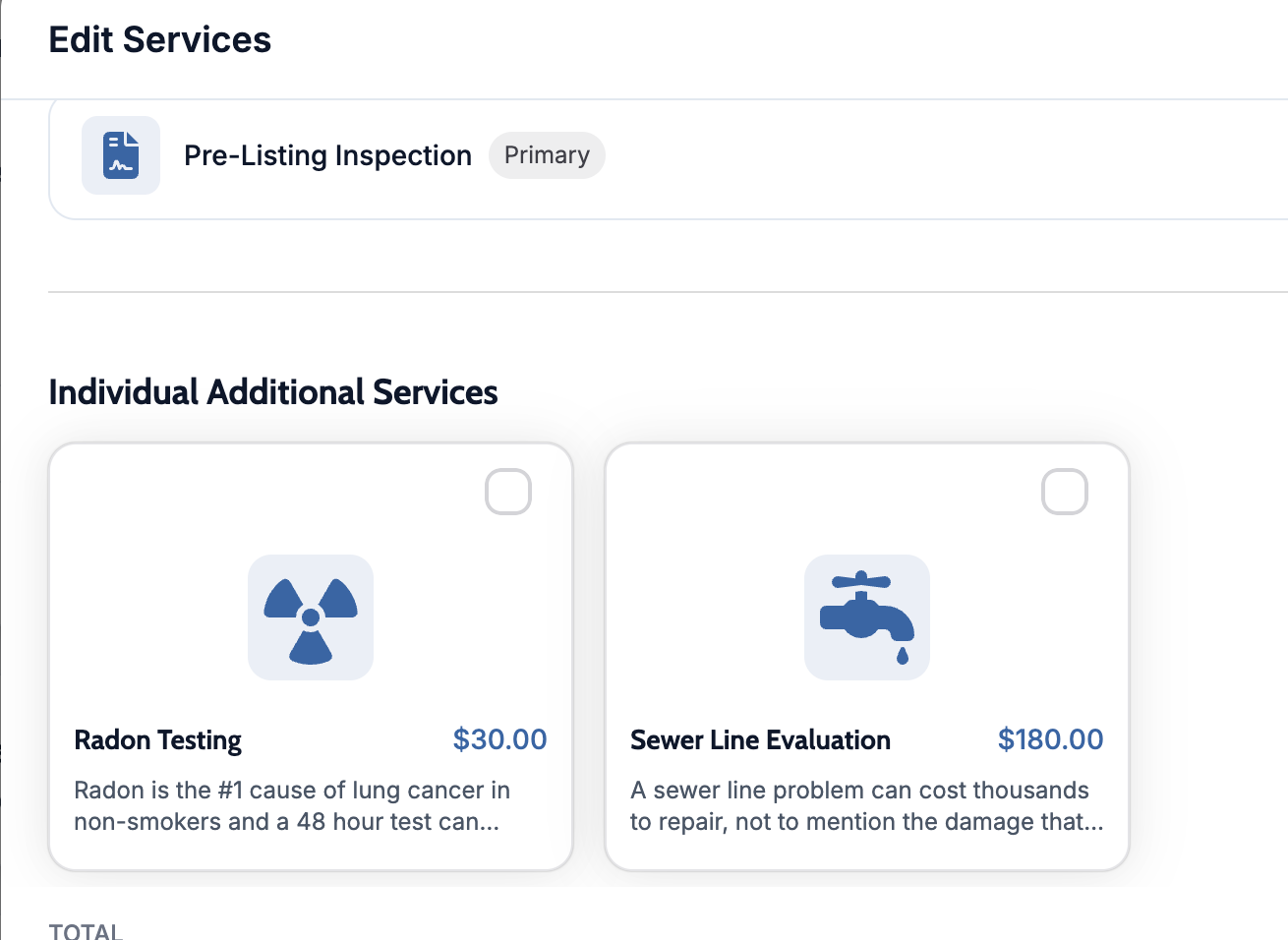
What changed: The Edit Charges experience now supports equipment count and improved recalculation behavior when modifier fields change.
Before: Related values did not always adjust as smoothly when charge inputs changed.
Now: Charge updates react more reliably as users edit modifiers and equipment-related details.

Why it matters: Faster, more predictable editing helps teams finalize workorders with less friction.
What changed: Users can choose which charges appear on custom invoices.
Before: Invoice charge visibility was less flexible in specialized billing scenarios.
Now: Teams can tailor invoice output to show only relevant charges.

Why it matters: Cleaner invoices are easier for customers to understand and approve.
What changed: Calendar rendering/interactions and reschedule workflow behavior were improved.
Before: Some calendar/reschedule interactions were less smooth and required extra effort.
Now: Scheduling updates are more intuitive and reliable in day-to-day use.

Why it matters: Better scheduling UX saves time for teams managing high appointment volume.
What changed: Multiple interface refinements improved visual clarity and usability across inspection activity, booking & quotes.
Before: Some screens had rough edges in layout and interaction details.
Now: Interfaces feel cleaner and more consistent in everyday use.

Why it matters: Small UX improvements compound into faster navigation and better user confidence.
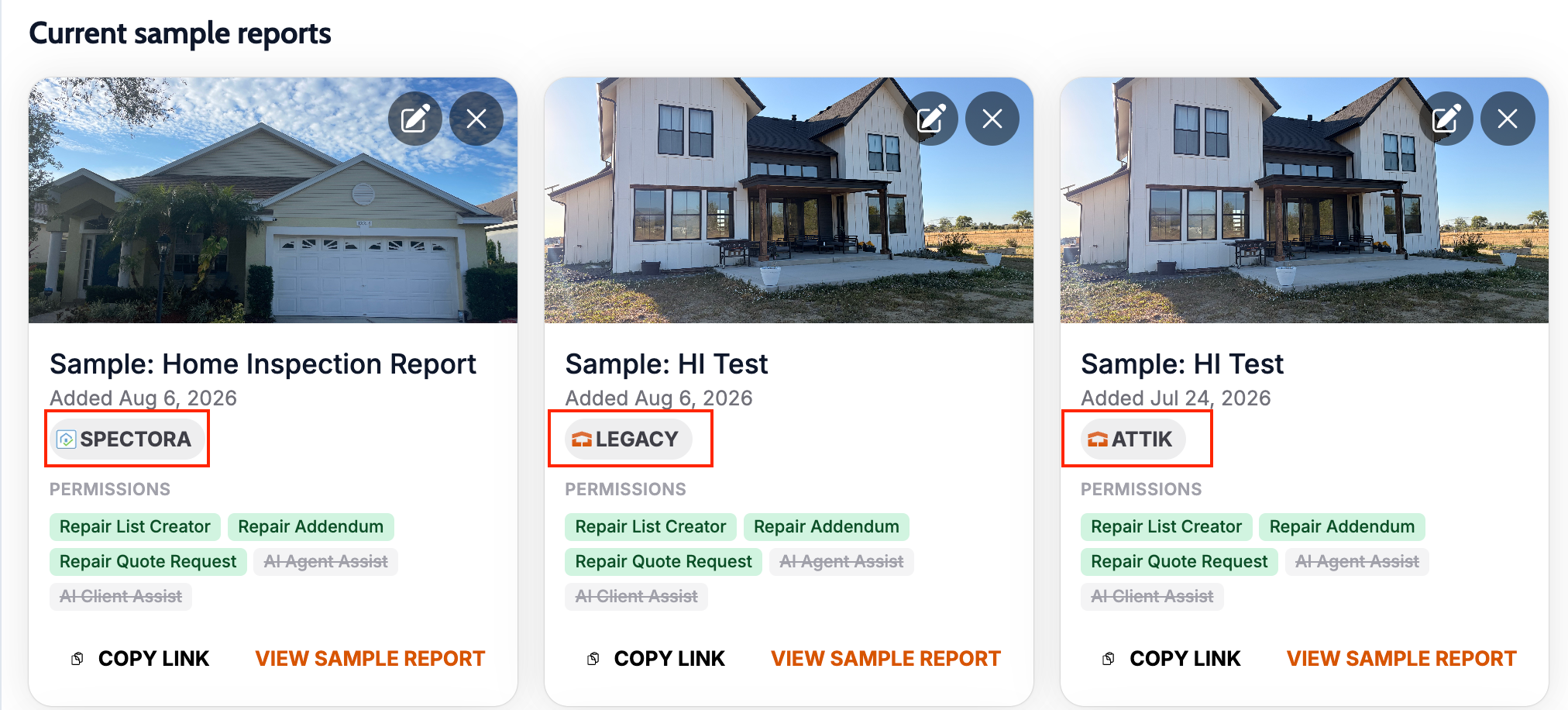
What changed: The sample report experience was improved so teams can more reliably open, share, and use sample reports in client and sales conversations.
Before: Sample report usage could feel clunky in some flows, especially when teams needed quick access for demonstrations or outbound communication.
Now: Sample reports are easier to access and use in real workflows, making it simpler to send prospects and clients through a polished preview experience.


Why it matters: A smoother sample report flow helps teams communicate value faster and creates a more professional pre-booking experience.
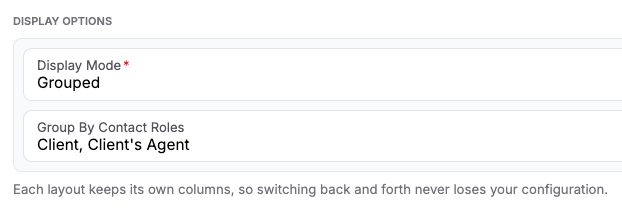
What changed: Contact-role access behavior in the client portal was tightened so each person on a job sees only the portal sections and actions that match their role (for example, client vs agent views).
Before: Teams could run into edge cases where portal access felt inconsistent when one person had multiple roles on a job, which made support and walkthroughs harder.
Now: Portal access is more role-accurate and predictable, so users are less likely to see the wrong options or miss the options they should have.
Why it matters: A clearer, role-specific portal experience reduces confusion for clients and agents and lowers support overhead.
What changed: Pricing flows were improved to better handle duration-aware logic and charge conversion behavior.
Before: Pricing adjustments required more manual correction in some cases.
Now: Workorder pricing updates behave more consistently and accurately across common edit scenarios.
Why it matters: Fewer pricing inconsistencies reduce rework and improve confidence during checkout and approvals.
What changed: Charge recalculation behavior was corrected for modifier-driven updates.
Before: Some edits could leave pricing values out of sync until additional manual changes were made.
Now: Related charges update more reliably as users make modifier changes.
Why it matters: This prevents pricing mismatches and reduces billing correction work.
What changed: Automated email sends were fixed so one person attached to a job in multiple roles does not receive duplicate copies of the same message.
Before: Some recipients could get the same automation email more than once, which looked like spam or a system error.
Now: Each recipient gets the expected single send from the automation flow, even if they appear on the job in more than one role.
Why it matters: This improves trust in communication, reduces inbox noise, and prevents client confusion.
What changed: Several scheduling issues were fixed across lock-state messaging, reschedule behavior, and slot-selection modal interactions.
Before: Users could encounter confusing lock cues, awkward reschedule steps, or inconsistent slot modal behavior during booking changes.
Now: Rescheduling interactions are more stable and understandable, and slot updates are more dependable while moving jobs.
Why it matters: Reliable schedule-edit flows reduce rework for office teams and improve confidence when changing appointments.
What changed: Defect-card indexing in report views was corrected so item numbering and sequence display align properly for users reviewing findings.
Before: Some report readers could see defect numbering that looked off or inconsistent, making navigation and discussion harder.
Now: Defect cards display more accurate numbering/order, so users can reference findings more clearly during review and follow-up.
Why it matters: Clearer defect indexing improves report readability for clients, agents, and internal teams.
March 13th, 2026

AI-powered report help is now available directly inside supported report views.
Calendar scheduling got a broader set of upgrades, including recurring-event controls and stronger visibility improvements.
Agreement workflows now split more cleanly between required initials and smarter template behavior.
Teams can manage payment setup, sample reports, and bundle discount display with clearer settings controls.
Workorder, quote, and report workflows picked up several meaningful quality-of-life updates.
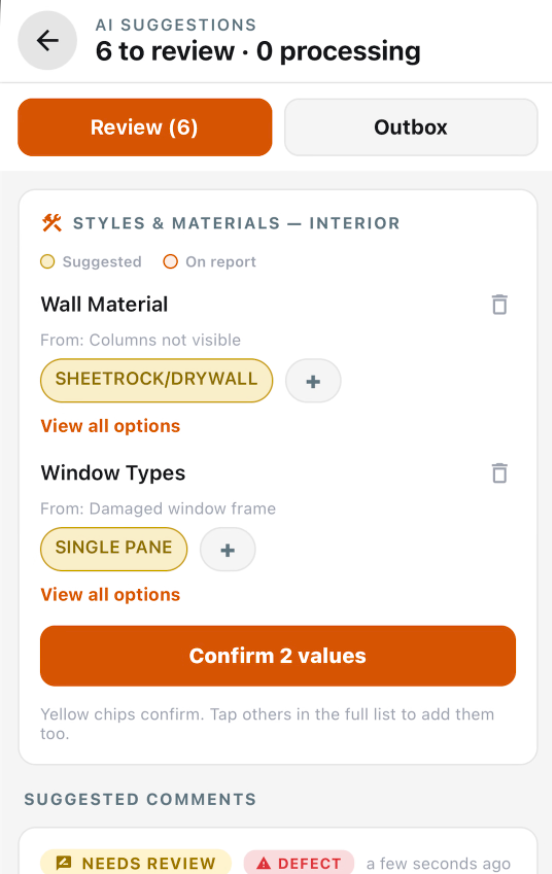
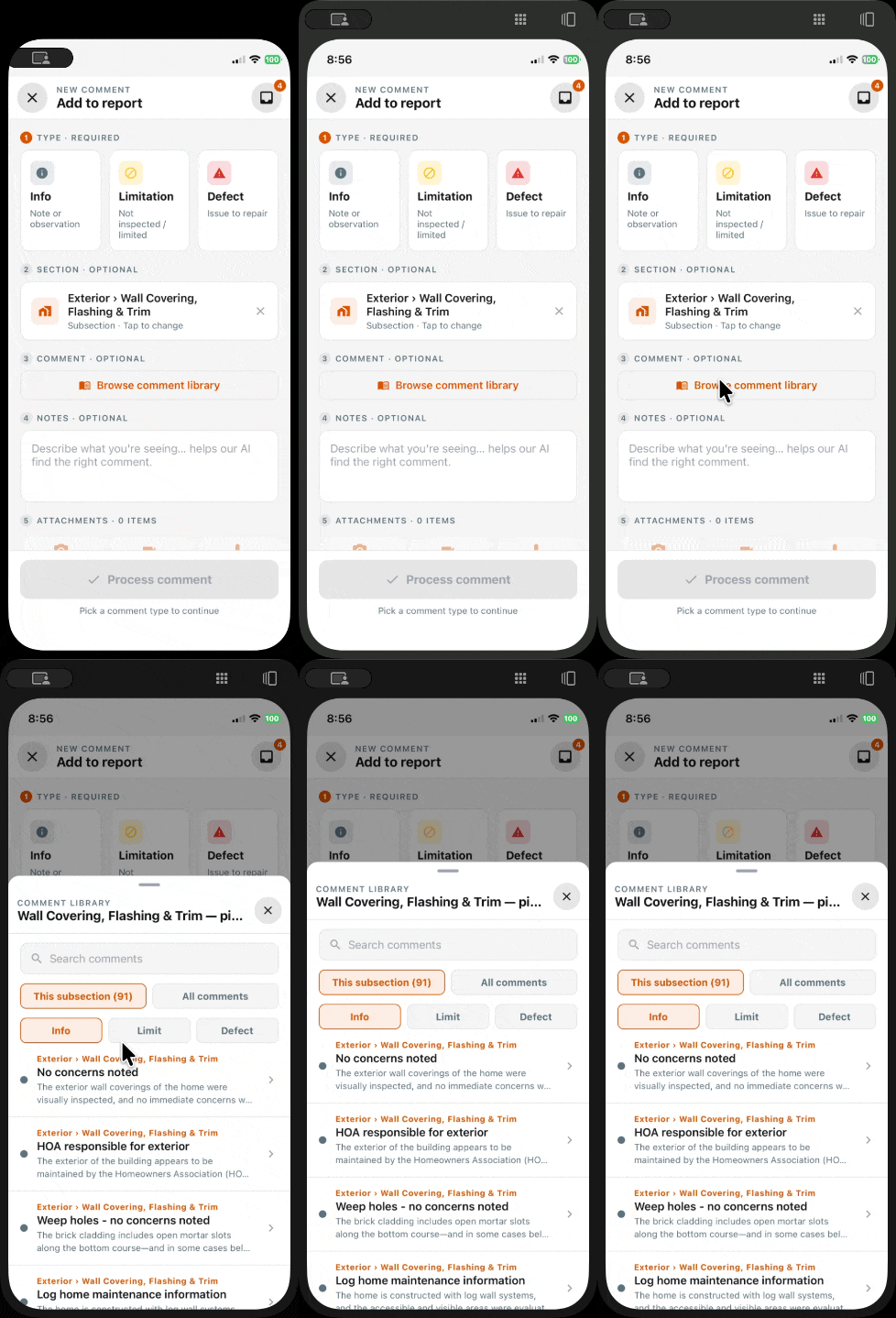
What changed: Supported report views now include AI Agent Assist, giving agents in-context help while reviewing a report.
Before: Agents had to interpret report details on their own or switch between the report and outside notes to explain findings and next steps.
Now: Agents can open AI Agent Assist, ask questions about the report, and launch help directly from report sections and supported defect views.

Why it matters: This makes report walkthroughs faster and gives agents more confidence when explaining findings to clients.
What changed: New calendar settings options give teams more control over how calendar information is displayed and managed.
Before: Teams had fewer settings-based ways to tailor the calendar experience to their scheduling preferences.
Now: Calendar-related visibility and scheduling controls are available through dedicated settings options.

Why it matters: This makes the calendar easier to tune to each team's workflow instead of relying on one default experience.
What changed: The calendar now supports broader recurring-event management and cleaner event editing behavior.
Before: Recurring event changes were more limited, and teams had fewer ways to manage event-series updates cleanly.
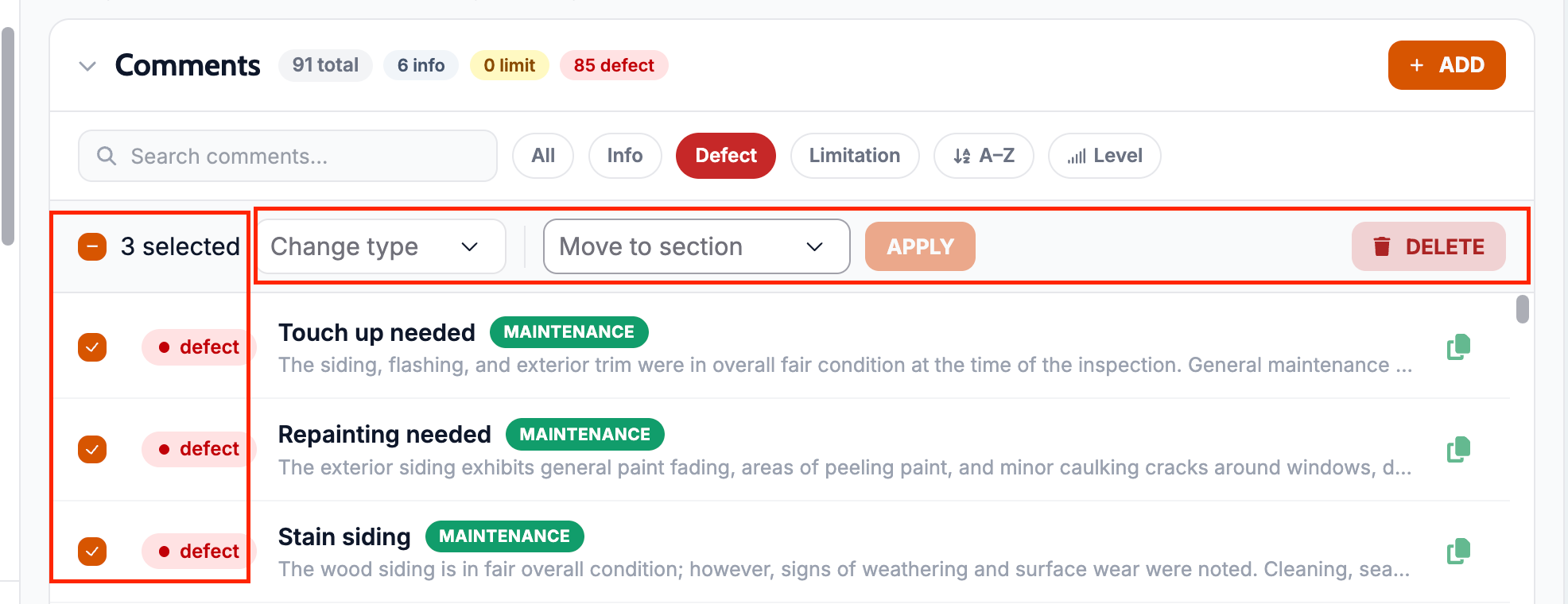
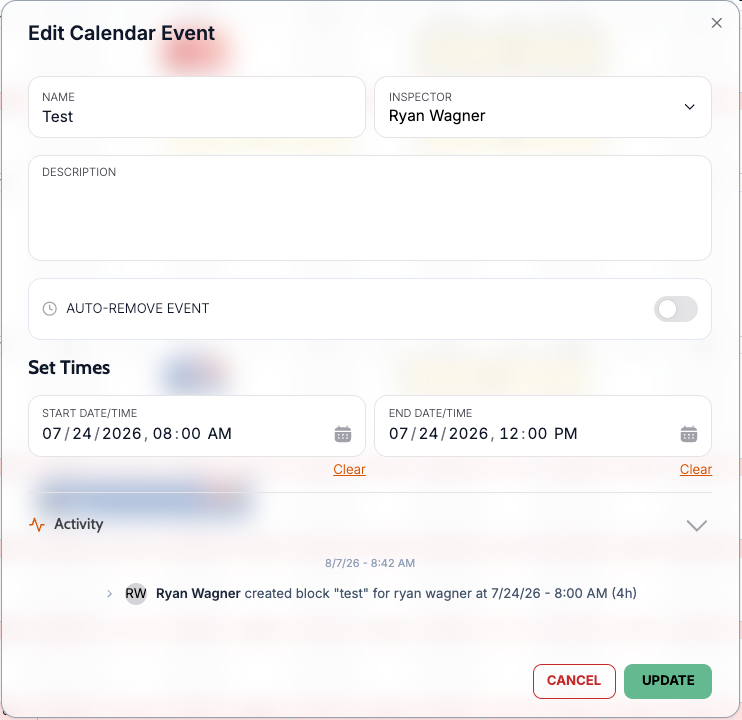
Now: Teams can work with recurring events more cleanly and use improved edit and delete options for event series. Durations can now be changed from the calendar by clicking and dragging a block.


Why it matters: Scheduling changes are easier to manage without as many workarounds in the day-to-day event flow.
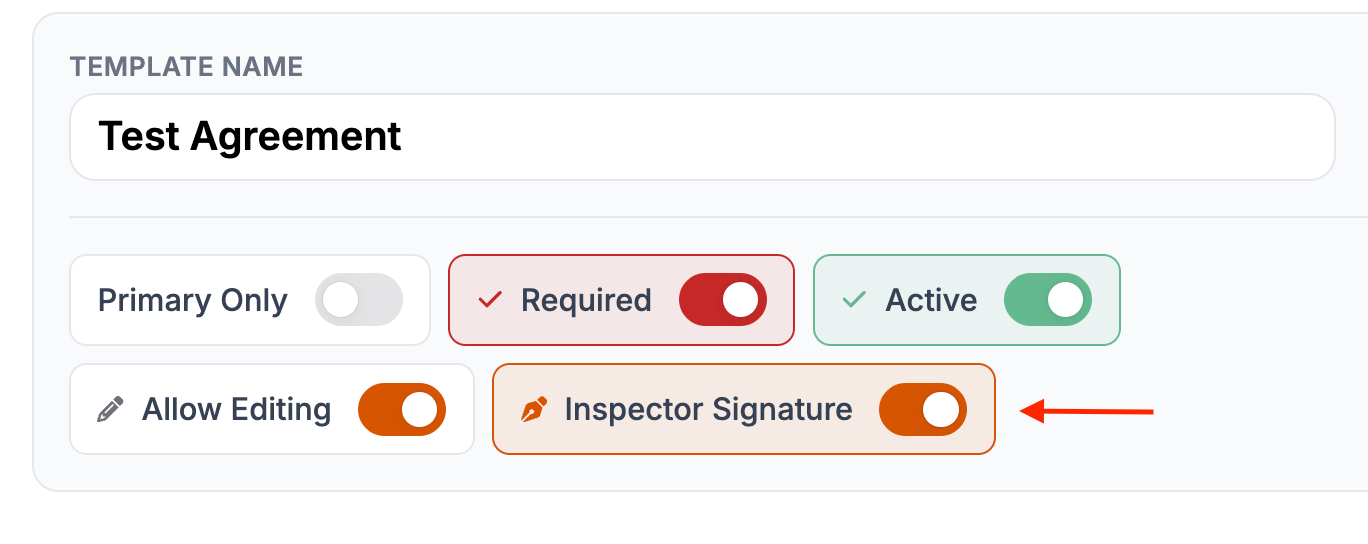
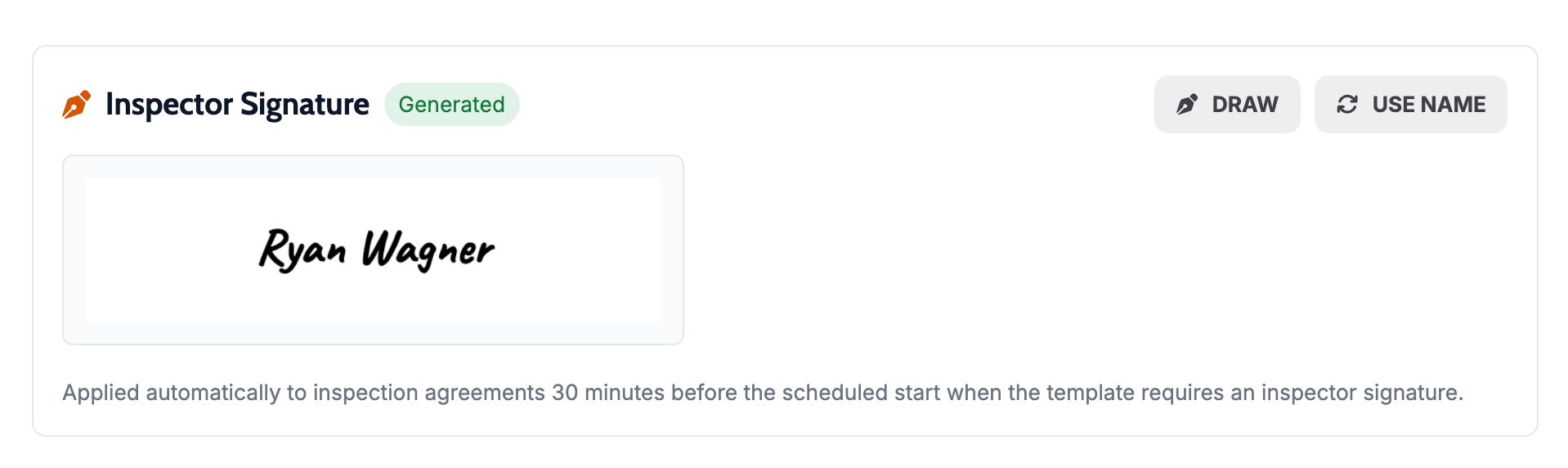
What changed: Agreement templates can now require initials before a client signs.
Before: Teams could require a signature, but had fewer ways to make clients actively acknowledge specific sections inside the agreement.
Now: Templates can include initials requirements so clients must complete those fields before signing.

Why it matters: This gives teams a clearer way to capture acknowledgment for important sections without relying on a single final signature alone.
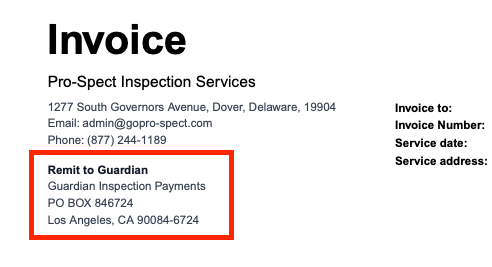
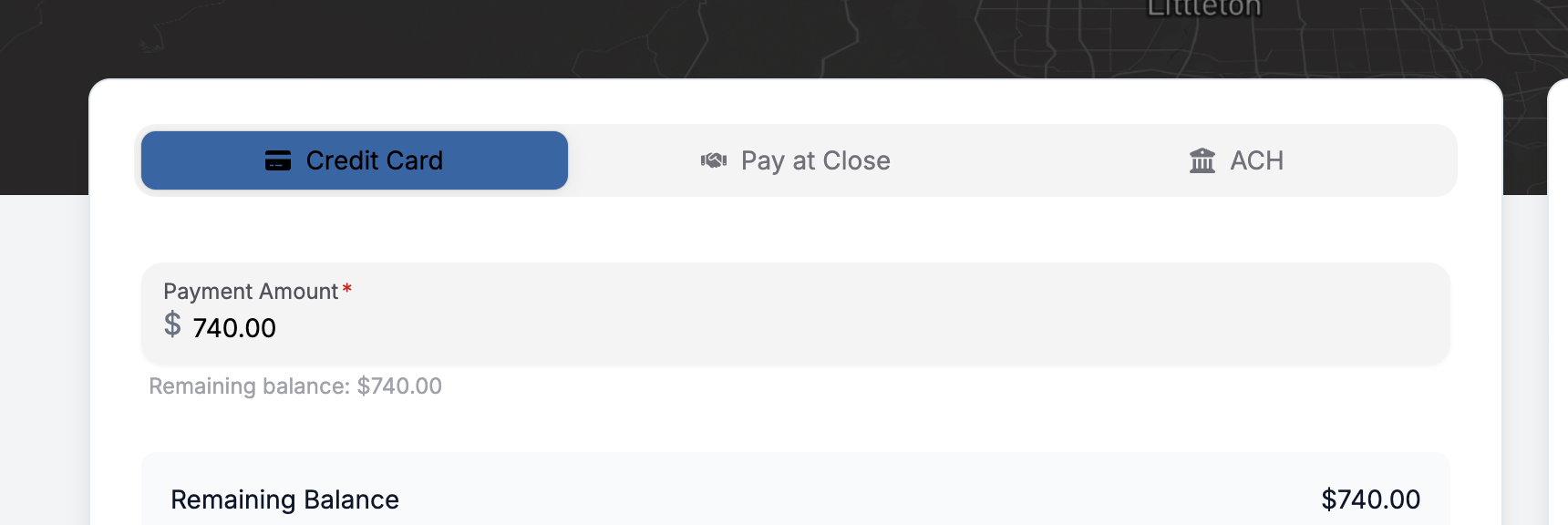
What changed: The Payment Settings experience is now available with setup areas for Guardian Payments and Pay at Close.
Before: Payment settings were not available in the same usable way for teams trying to manage payment configuration.
Now: Teams can access Payment Settings, review Guardian Payments, and configure Pay at Close from the settings area.
Why it matters: Payment configuration is easier to find and manage in one place.
What changed: Teams can now manage Sample Reports more intentionally from settings.
Before: Example-report workflows were more limited for teams trying to maintain polished reports for sharing and demonstration.
Now: Teams can search for eligible reports, add them as samples, and manage that sample-report list from one place. Sample reports also anonymize the data from the selected inspection.


Why it matters: This makes it easier to keep useful example reports ready for training, sales, and implementation conversations.
What changed: Agreement templates now support Primary Only behavior and templates that do not lock reports.
Before: Agreement behavior was less flexible when multiple services were on a job, and teams had fewer controls over which agreements should affect report access.
Now: Teams can configure some agreements to apply only to the primary service and allow others to exist without locking report access.

Why it matters: This reduces unnecessary signing friction and gives teams more control over how agreements behave in real-world service combinations.
What changed: Email templates can now be marked with Enable manual send.
Before: One-off email send pickers could surface templates that were not meant for manual sending.
Now: Teams can turn manual sending on only for the templates that should appear in activity and worklist email pickers.

Why it matters: This keeps manual send lists cleaner and helps staff choose the right template faster.
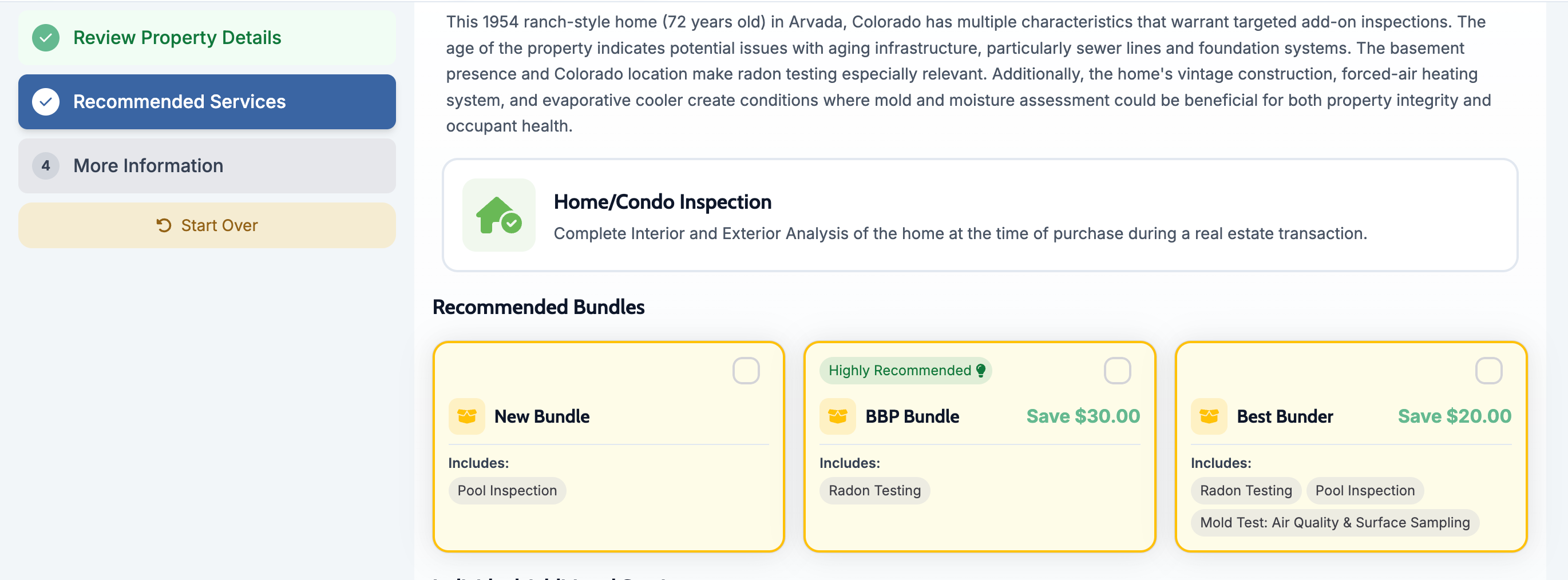
What changed: The Show bundle discount vs primary fee setting now lives in Scheduling Settings.
Before: Bundle discount display behavior was less clearly managed and not centralized in the scheduling settings area.
Now: Teams can control whether bundle discounts are shown against the primary fee from a dedicated settings toggle.

Why it matters: This gives companies clearer control over how bundled pricing is displayed in the places their team uses most.
What changed: Report and quote-related presentation picked up improvements across PDF export, report headers, and related user-facing cleanup.
Before: Export and presentation flows had more rough edges across some report and quote experiences.
Now: Teams benefit from cleaner export behavior and better report presentation in supported areas.
Why it matters: This improves the polish of customer-facing outputs and internal review workflows.
What changed: Required reports no longer force a Spectora template to stay attached once one has been selected.
Before: After choosing a Spectora template on a required report, teams could get stuck without a clean way to remove it.
Now: Teams can unset the Spectora template when a required report should no longer be tied to one.
Why it matters: This prevents configuration dead ends and makes required report setup more flexible.
What changed: Payment-related totals were corrected in batch and related views.
Before: Refunded payment totals and related rollups could display misleading values.
Now: Payment totals use the corrected values from the backend calculations.
Why it matters: Teams can trust what they are seeing when reviewing payment and batch information.
What changed: The send-quote popup in Online Scheduler no longer shows a Draft label where it created confusion.
Before: The popup included draft wording that did not fit the intended send flow.
Now: The popup is cleaner and more aligned with the actual action being taken.
Why it matters: This removes friction at a point where users are trying to send quickly and confidently.
What changed: Service update behavior was corrected so settings changes are more reliably reflected.
Before: Updating a service could fail to fully populate or reflect the expected information.
Now: Service update flows are more dependable.
Why it matters: This reduces confusion when teams are editing service configuration.
March 6th, 2026

Workorders: You can upload reference files to a work order for inspectors and office staff, and scheduling admins can permanently delete a job when it was created in error.
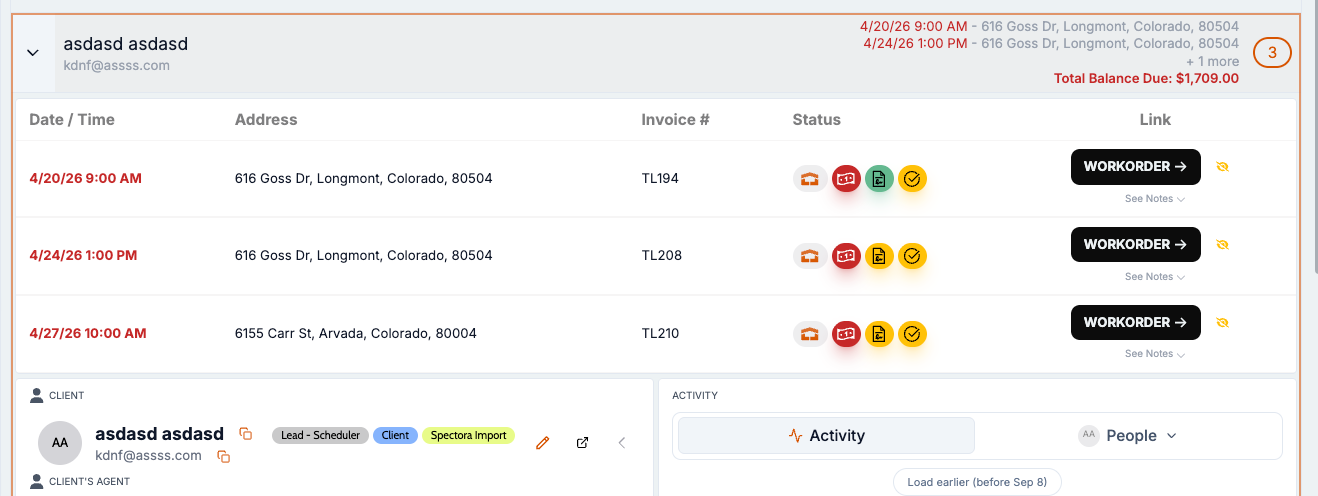
Contacts and scheduling: The online scheduler treats primary and CC email as the same contact and asks users to confirm which profile they mean, so you avoid duplicate contacts when someone books with an email that appears on multiple profiles.
Quotes and pricing: Quotes can be set to "On Hold" so they stay out of active worklists and close-rate calculations; bundle discount is shown relative to the primary service fee everywhere; and manual equipment count overrides now persist after save.
Reports and activity: Report skins are improved (summary filters, media visibility, buying agent in header, section layout); the inspector balance widget uses short names and adapts to the list; and you can manually send or resend action-flow emails from the work order activity screen with optional recipient and content overrides.
What changed: Office staff and inspectors can attach reference files to a work order (e.g. build facts, permit data) and view them on the work order page and in the mobile app.
Before: Work order attachments were limited to report-related items from Spectora; no way to add internal-only reference files.
Now: A dedicated attachments area on the work order lets you upload, view, and remove files; files are for internal use only; inspectors can open them from the app in the field.

Why it matters: Teams keep all job-related documents in one place without affecting client or agent report access.
What changed: Scheduler looks up contacts by primary or CC email and shows a confirmation step so the user can confirm or choose the right profile instead of creating a duplicate.
Before: Lookup used only primary email, so the same person could get multiple contact records.
Now: Match on primary or CC email; verification step shows first and last name only; user confirms or selects profile; scheduler permissions support CC-email lookup.
Why it matters: Fewer duplicate contacts and clearer identification when a shared email appears on more than one profile.
What changed: Quotes can be marked "On Hold" and are excluded from active worklists and from close-rate and pipeline calculations.
Before: On-hold quotes still appeared as pending and counted in pipeline and close-rate.
Now: Set quote to On Hold from lists and quote bar; on-hold quotes filtered out of default worklists and excluded from close-rate; exports and Reports Hub support the status.

Why it matters: Schedulers focus on quotes that need action; close-rate reflects only pending, accepted, and rejected quotes.
What changed: From the work order activity feed you can manually send or resend an action-flow action (e.g. email or SMS) and, for emails, override recipients or content.
Before: No way to send an action from that screen or resend with different recipients.
Now: Trigger send from activity screen; for email, resend with different recipients or content overrides without re-running the full flow.

Why it matters: Faster follow-up and recovery when a contact changes or an email needs to go to someone else.
What changed: Scheduling admins can permanently delete a job so it is fully removed from the system, not only cancelled.
Before: Jobs could be cancelled but remained in the database and in lists.
Now: Scheduling-admin users see a delete option on the work order; after confirmation, the job is permanently deleted.

Why it matters: Admins can clean up mistaken or duplicate jobs without leaving cancelled records.
What changed: Bundle discount/savings is shown relative to the primary service fee everywhere (scheduler, quote, invoice table, add-on recommendations).
Before: In some places discount was shown relative to add-on pricing, making savings look smaller.
Now: One consistent display value (savings off primary fee) in quote modal, invoice table, scheduler, and client-facing quote.
Why it matters: Clients see the full value of bundling; regions can enable bundles with correct savings messaging.
What changed: Home inspection report skin updated: summary filters, media count/visibility, buying agent in header, section text above photos, less wasted space, wind mitigation and inspector signature aligned with PDF.
Before: Some sections and filters didnโt match PDF or expectations; multi-image visibility and layout varied.
Now: "Summary Items" filters; defect cards show media counts and clearer carousel; buying agent in header; section text above photos; overview hidden for four-point where applicable; wind mitigation and signature sections match PDF.
Why it matters: Regions can use the home inspection report skin without layout or visibility blockers.
What changed: Inspector names show as first name + last initial; widget height adapts to number of inspectors; full name in tooltip.
Before: Full names could overflow; fixed size could feel cramped or wasteful.
Now: Abbreviated names and adaptive height for easier scanning.

Why it matters: Better readability and use of space on calendar and dashboard.
What changed: When Flexfund notifies Attik that a payment has been funded, we now record the funded amount on the payment and when any linked PAC fees are considered funded, so you can see exactly what was funded and when.
Before: Funded amounts and whether a fee had been marked funded were not fully captured, so reporting and reconciliation could be incomplete.
Now: Payment records show the funded amount when Flexfund sends it, and fee records show when they were marked funded. Exports and internal views can use this for accurate payment and fee status.
Why it matters: You get a clearer picture of Flexfund payments and fee funding for reporting and reconciliation, without missing or inconsistent data.
What changed: In the Reports Hub and in data exports that include quotes, quote status filters and labels now match what you see in the appโincluding the new "On Hold" statusโand the "created by" field shows the correct person's name.
Before: Quote filters in exports sometimes didn't support every status or show who created the quote consistently, so reports could be incomplete or misleading.
Now: When you filter or export quotes, status options (including On Hold) and date filters work as expected, and the creator is resolved to a display name so you know who created each quote.
Why it matters: Reports and exports that include quotes are accurate and consistent with the app, so you can trust them for pipeline and team reporting.
What changed: When you create or update a job in Attik, it can sync to HubSpot as a deal. New jobs sync after a short delay; updates sync right away. Contact roles (e.g. client, agent) are sent to HubSpot so the right people appear on the deal.
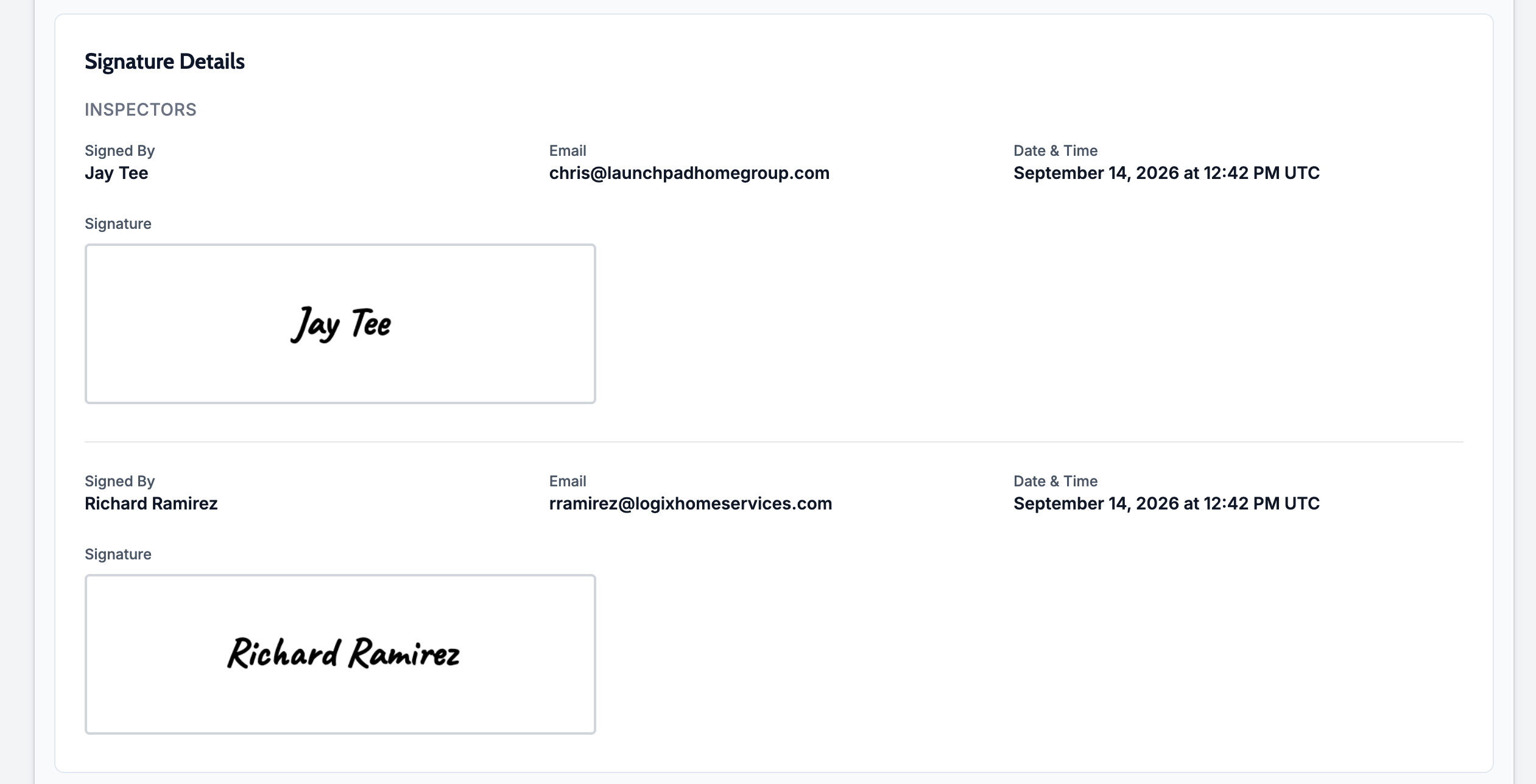
Before: New jobs might not create or update a HubSpot deal, or the deal might not show the correct contact roles, so your CRM could be out of date or missing context.
Now: New inspections create or update a HubSpot deal with the right timing, and contact roles are mapped to the deal so your sales team sees who's involved without re-entering information.
Why it matters: Your CRM stays in sync with Attik jobs and contact roles, so you don't have to update deals manually and deal records are more useful for follow-up.
What changed: For ProPair instances, we now apply ProPair-specific branding and rules for sample reports and quotesโincluding how sample report addresses and quote usage are restrictedโso demos and samples behave correctly.
Before: Sample reports and quotes did not have ProPair branding or the right restrictions, so they could be used in ways that didn't match the intended use.
Now: ProPair instances show the correct branding, and sample report and quote usage are restricted so they're used only as intended (e.g. demos and samples, not live jobs).

Why it matters: ProPair teams get consistent branding and controlled use of sample reports and quotes, so demos look right and misuse is prevented.
What changed: Manual equipment count override on the work order now persists after save and is restored when reopening the quote.
Before: Price reflected the override but equipment count reverted to modifier value after save.
Now: Backend stores manual-change flag; frontend sends and restores equipment quantities so override is kept after save and reload.
Why it matters: Inspectors get the correct equipment count; inventory and pricing stay consistent.
What changed: We fixed a timing issue that could affect new jobs right after theyโre created. Charges and automated follow-ups now apply correctly from the start.
Before: Right after creating a job, charges or automated actions (like emails) could be missing, wrong, or delayed until something was refreshed or updated.
Now: As soon as you create a job, its charges and any workflow steps (e.g. emails, notifications) are set up correctly and run as intended.
Why it matters: You can create a job and trust that pricing and follow-ups are correct immediately, with no need to reopen or re-save the job to fix them.
March 2nd, 2026

Thumbtack: Demo mode and sample reports let you run Thumbtack in test mode and save reports as samples for prospects.
Payments: Guardian batch filtering, fee-aware refunds and voids, and more reliable refund processing improve how you manage and review payments.
Scheduling and reports: Max square footage is enforced for online booking, flat-rate modifiers support piece pay, repair lists support view links and filtering, and required report types can be soft-deleted.
Images in Emails: Images can now be added into email templates and linked to specific URLs youโd like to redirect clients/agents to.
What changed: You can run Thumbtack in a demo/test mode and save existing reports as sample reports for sharing with prospects.
https://www.attik.ai/settings/sample-reports

Before: Thumbtack ran only in live mode; there was no way to mark or reuse a report as a sample.
Now: Test mode is available for Thumbtack, and you can save a report as a sample and list samples for your company. Sample reports are handled so they don't trigger inspection checks.

Why it matters: Demos and sales conversations can use real-looking sample reports without affecting live inspections or quotes.
What changed: In preparation for transition to Attik standalone, a minimal Spectora integration will create jobs in Spectora with address, inspector, and report templates only, and stores the Spectora job ID on the inspection.
Before: Spectora job creation required full service matching and a heavy payload.
Now: When you create a job in Attik standalone the integration will create a Spectora job with just the essentials. Templates are driven from Attik, and the Spectora job ID is saved on the inspection for later sync and linking. Cancelled inspections can trigger cancellation of the linked Spectora job.
Why it matters: Standalone and lighter integrations can go live without full service parity, and Attik stays in control of which report templates are used.
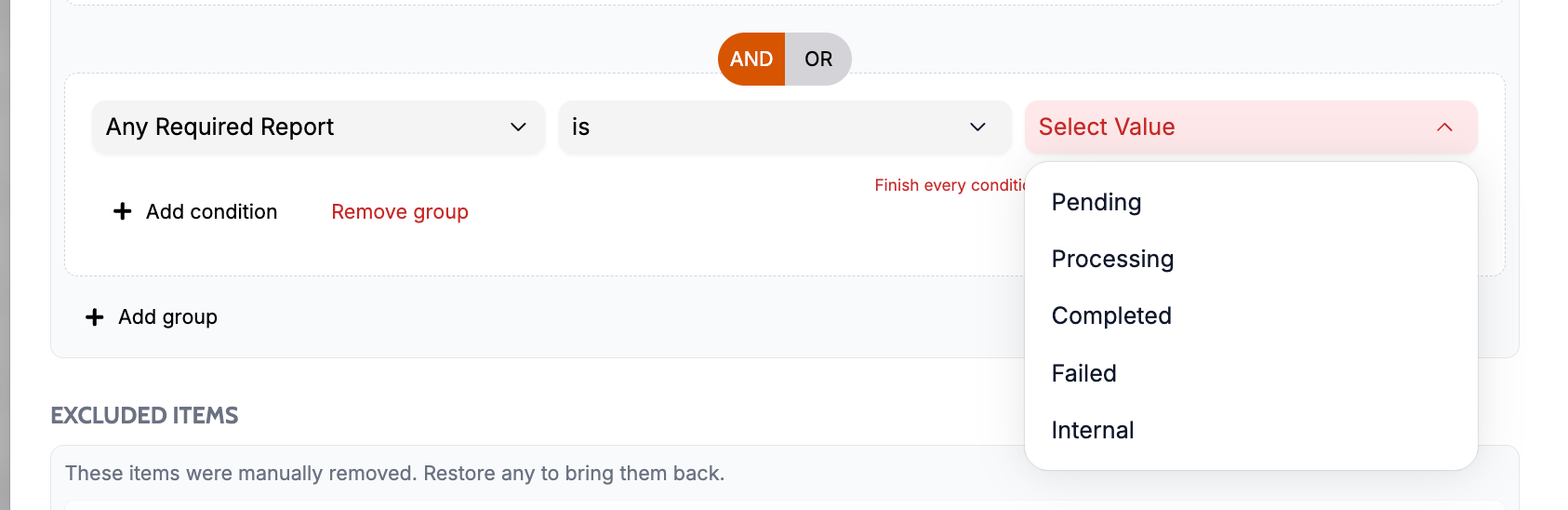
What changed: Action flows can run only for jobs created in Attik or only for jobs created in Spectora, using a new condition based on job creation source.
Before: Flows could not be limited by where the job came from (Attik vs Spectora).
Now: When building a flow, you can add a condition on job creation type (Attik or Spectora) so communications and automations target the right segment.

Why it matters: You can tailor messages and automations for one source without affecting the other.
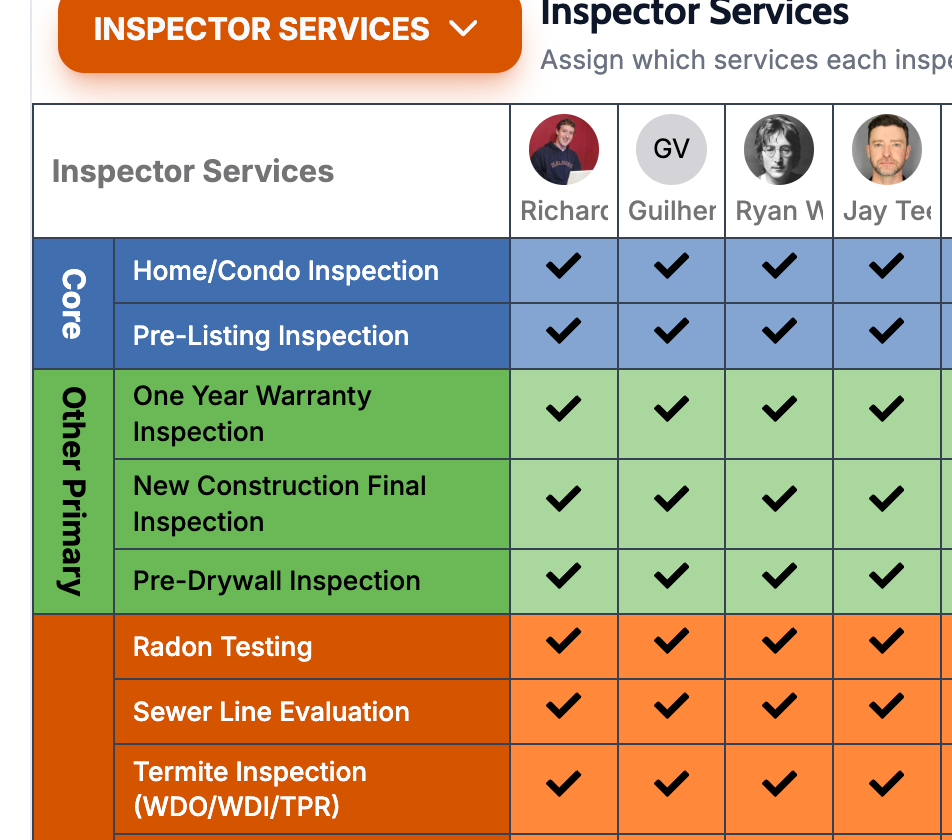
What changed: Modifiers can now add a "flat rate" component that feeds into inspector pay, so piece pay can vary by job attributes (e.g. square footage, equipment count, units) instead of only by price.
Before: Modifiers affected cost, time, equipment, and admin only; flat rate pay came from service or inspector settings, not from modifiers.
Now: In service settings you can choose "flat rate" as a modifier add type. That modifier contribution is used in payroll so inspector pay reflects piece-rate rules (e.g. per sq ft, per unit).

Why it matters: Companies that pay by piece or by job attributes can align pay with their rules without workarounds.
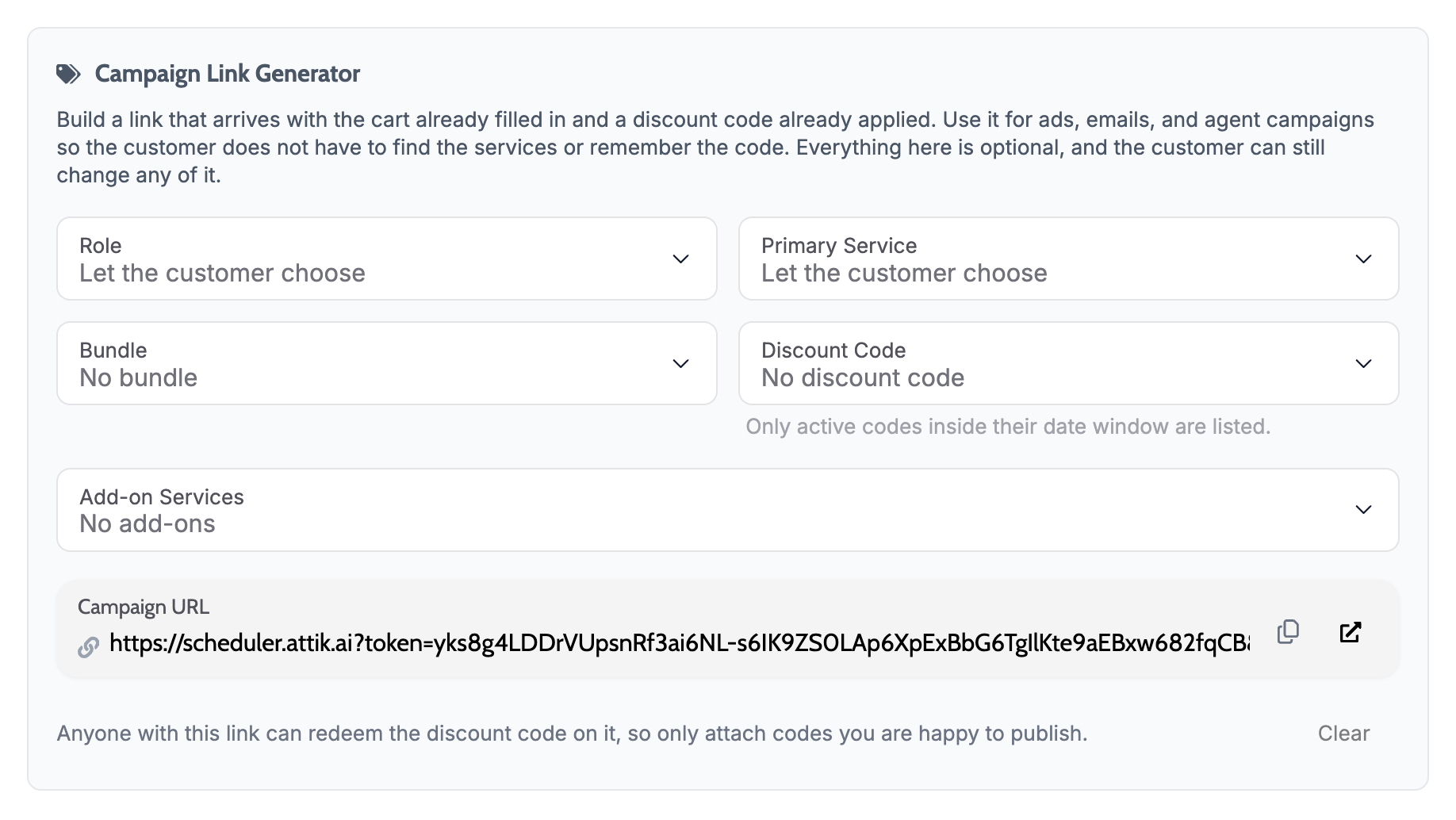
What changed: Image blocks can now be added in email templates and can be turned into clickable links, with URL validation so only valid links are used.
Before: Image blocks in emails were not supported.
Now: You can assign a URL to an image block so recipients can click through; invalid URLs are caught so emails stay correct.

Why it matters: Marketing and follow-up emails can use clickable images for clearer calls to action.
What changed: Contact and performance stats now break down by role, so you can see how each role (e.g. customer, point of contact) is performing.
Before: Stats were aggregated without role-level detail.
Now: You get a role-level performance breakdown in the contact stats aggregation.

Why it matters: You can evaluate and improve performance by role and tailor follow-up by contact type.
What changed: When you remove a required report type, it is now soft-deleted (marked inactive) instead of permanently deleted.
Before: Deleting a required report type removed it entirely, which could break references in services and reports.
Now: "Delete" sets the type to inactive so it no longer appears in active lists but remains in the system for history and references.

Why it matters: You can retire report types safely without losing links to existing reports or services.
What changed: On the Repair Lists page, you can now filter repair lists by status (e.g. pending, complete) and view them in smaller, manageable pages instead of one long list. When you need to know how many items you have, you can show a total count.
Before: Long repair lists were hard to scan, and you couldn't narrow the list by statusโso you had to scroll through everything to find what you needed.
Now: Filter by status to see only the repairs you care about, and move through the list page by page. You can optionally see the total number of items so you know how many repairs match your filter.

Why it matters: You spend less time scrolling and searching. You can work with large repair lists without slowing down and stay focused on the statuses that matter to you.
What changed: You can send a view link for a repair list to selected contacts and extra email addresses. A new "repair-addendum" contact job role is available.
Before: There was no built-in way to send a view link for a repair list, and the repair-addendum role did not exist.
Now: A "send view link" action sends a link to the repair list to chosen contacts and emails. The repair-addendum role can be assigned where needed so that agents can create repair addendums in the same place they can create repair lists.


Why it matters: Sharing repair lists with customers and addendum signers is simpler and role assignment is clearer.
What changed: A new permission option was added for scheduling Attik standalone jobs (beta Attik scheduler).
Before: Scheduler access was not controlled by a dedicated permission.
Now: Permissions data includes a "beta Attik scheduler" option so you can control who can use the Attik scheduling feature.


Why it matters: You can roll out or restrict the scheduler by role or user.
What changed: The issue with the monthly recurring events not saving has been resolved..
Before: Monthly recurrence could only be saved for a set calendar date every month.
Now: Monthly recurrence allows for a set day of the week and a set week of the month variables to be saved.

Why it matters: Recurring monthly jobs and schedules behave reliably across the app.
What changed: Guardian payment batches can be filtered by payment type and date range; refund and void logic is fee-aware and more reliable; and batch details come from your data instead of external calls where possible.
Before: Batch listing was less flexible; refunds and voids didn't consistently account for fees; some batch data depended on external APIs.
Now: You can filter batches by type and date. Refunds and voids respect settlement status and fees. Queued refunds are processed automatically when transactions become refundable or voidable. Batch details are derived from stored data for speed and reliability.

Why it matters: Payment and batch reconciliation are easier and refunds match what you expect.
What changed: When a property's square footage is over your "Max Sq Ft Online" limit, the online scheduler no longer allows the customer to pick a time slot or complete the booking; they are directed to contact you for a custom quote.
Before: Users could sometimes get past the "contact for custom quote" message (e.g. via the summary bar or Next) and still schedule, which could lead to incorrect pricing or bookings over the limit.
Now: The max square footage check is enforced so that over-limit properties cannot reach the scheduling step in a way that allows slot selection or booking. Backend validation can reject requests that exceed the limit.
Why it matters: Online bookings stay within your size policy and avoid misquoted or invalid appointments.
What changed: Updates to your Spectora calendar hold block data now finish correctly every time.
Before: In some cases, those updates could stop partway through, so calendar hold block data in Spectora didnโt always match what you have in Attik.
Now: Updates run to completion, so your Spectora calendar hold blocks stay in sync with Attik.
Why it matters: You can rely on Spectora showing the same calendar hold block information as Attik, without manual checks or fix-ups.
What changed: When you sync a Spectora job, the system now syncs the related calendar events as well, instead of sometimes skipping them.
Before: In some cases, event sync was skipped even when a Spectora sync was requested, so Spectora-linked events didnโt always update when the job did.
Now: Syncing a Spectora job triggers event sync as expected. Only events that arenโt tied to Spectora are skipped, so your calendar stays in line with your Spectora jobs.
Why it matters: You can trust that events linked to Spectora jobs will update when you sync, so your schedule stays accurate without extra steps.
February 24th, 2026

You can send an email from a template directly on the work order, with a preview and full control over who receives it, including one-off addresses.
Contact role variables in email and SMS templates let you pull the right name and details for each role (e.g. client, client's agent, listing agent).
Images can be added to email templates and render with consistent sizing and styling in the builder and in sent emails.
Access to the Reports Hub is now controlled by a permission and when selected accessible from the side menu by clicking the โData Exportsโ option.
An AI Assistant has been added to the Reports Hub to help create your desired report output using natural language.
Action Flow: Manual Email Preview, Edit & Send
What changed: You can send an email from a template on the work order, see a preview before sending, and choose recipients (To, CC, Bcc). You can add custom email addresses that are not on the order.
Before: Emails were sent only by automations; recipients were limited to contact roles on the order.
Now: From the work order you can preview a template email, send it, and add or change recipientsโincluding one-off addresses.
Preview Email from Activity Screen:

Choose recipient(s):

Edit template text & send email:

Why it matters: Faster follow-up and more flexible communication without leaving the work order.
Email Templates: Contact Role Variables
What changed: Email and SMS templates (and agreements) now support variables that pull from a specific contact role so the right name and details appear in the right place.
Before: Template variables were not role-specific.
Now: Templates can use role-specific variables (e.g. client's name, listing agent's email) for clearer, targeted messages.

Why it matters: Fewer wrong-name or wrong-role mistakes in templates.
AI Report Assistant in the Reports Hub
What changed: When you create or edit a custom report in the Reports Hub, you can open the AI Report Assistant in a chat-style window to describe the report you want in plain language. You can apply that configuration to the report form with one click, run the report, or keep chatting to add filters, change the sort order, add a pivot, and so on. If you already have a report open, you can ask the assistant to change it and it will update the configuration accordingly.
Before: Report configuration had to be done entirely by hand. You chose the entity, columns, filters, aggregation, and sort order yourself by filling out the form step by step.
Now: You can describe the report you want in natural language, and the AI suggests a complete configuration. You apply it to the form, make any tweaks you want (either in the form or by sending follow-up messages in the chat), and then save and run the report.

Why it matters: Setting up one-off and recurring reports is faster, especially if you prefer to describe what you want rather than clicking through every option in the form.
Reports Hub now Available in Menu
What changed: The Reports Hub can now be set as a permission so users can access this feature vis the side menu.
Before: The Reports Hub was only accessible through a URL.
Now: Those with the permission can access the Reports hub by choosing the โData Exportโ option on the left hand menu

Why it matters: The Reports hub provides users with access to report on all the data stored in Attik.
Booked Jobs: Option to Create as Confirmed
What changed: Companies can turn on a single setting so that every new booked jobโwhether created online by a client or internally by your teamโis created as confirmed instead of unconfirmed. When the setting is on, new jobs land as "scheduled and done" without a separate confirm step.
Before: Every new inspection was created as unconfirmed. Staff or clients had to complete a confirm step before the job was treated as confirmed.
Now: In scheduling settings you can turn on "Create booked jobs as confirmed." With this on, all new booked jobs (online and internal) are created as confirmed. The setting applies everywhere jobs are created, so the behavior is consistent. Companies that still want a confirm step can leave the setting off.

Why it matters: Teams that don't need a separate confirm step can avoid it entirely. Those that do can keep the current flow. The choice is per company and applies to every booking source.
Inspector Teams: Multiple Teams per Inspector
What changed: Inspectors can now be assigned to more than one inspector team. Calendar filtering by team, payroll and team bonuses, and the settings UI all support inspectors who belong to multiple teams.
Before: Each inspector could be in only one inspector team. If you wanted to group people by region and by specialty, you had to choose one or the other.
Now: You can add an inspector to as many teams as you need. They appear in calendar filters for each of their teams and are counted correctly for payroll and team bonuses. In Settings, you add or remove team membership per team; an inspector can be a member of several teams at once.
Why it matters: Managers can organize and filter inspectors in different waysโfor example by region and by specialtyโwithout being blocked by a single-team limit.
Service Area: Invalid Polygon Error
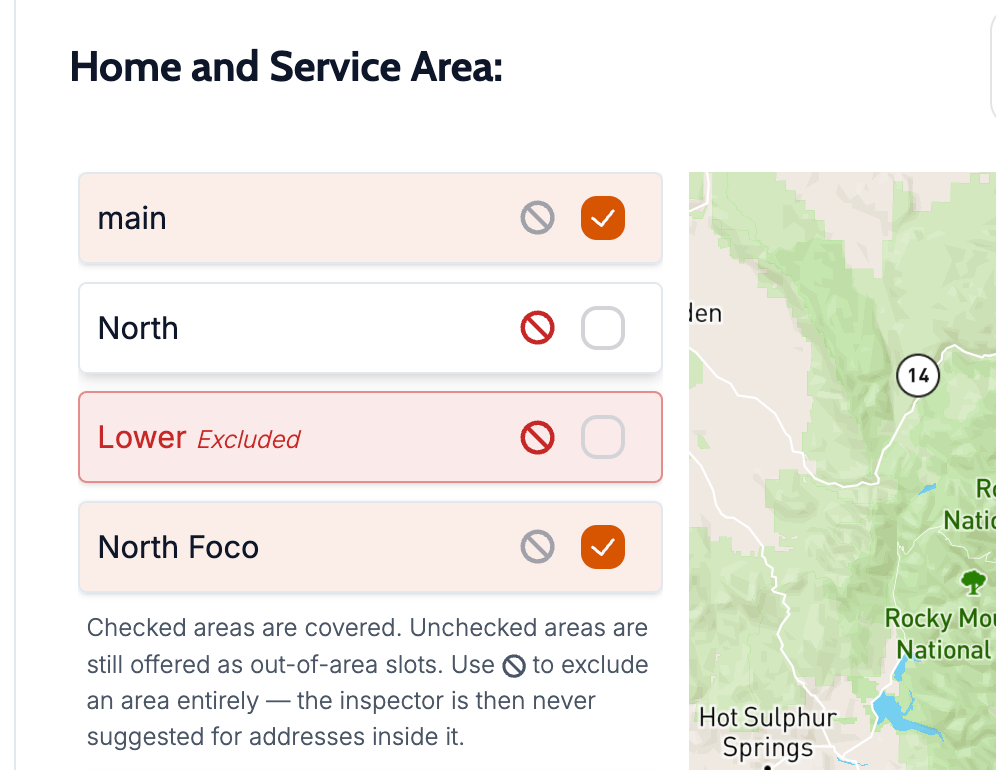
What changed: Saving or editing certain service areas could show an "invalid polygon" error even when the drawn shape was valid. The system now validates and normalizes polygon rings correctly so valid areas save without errors.
Before: Editing some service areas could block save with an invalid polygon message.
Now: Valid polygon boundaries are accepted and saved; the system checks closure and normalizes coordinates so you are not blocked by false errors.
Why it matters: Schedulers and admins can update service areas without being blocked by incorrect validation.
Calendar: New Event Button No Longer Covers Save
What changed: After you move events on the calendar by drag-and-drop, a "Save X Change(s)" button appears so you can persist those changes. That button was sometimes covered by the "New Event" button in the bottom-right. The layout and stacking have been adjusted so the save control stays visible and clickable.
Before: When you had unsaved drag-and-drop changes, the New Event (Add Event) control could sit on top of the save button. You couldn't click save and could assume your changes were lost or that the UI was broken.
Now: The save control remains visible and clickable when you have unsaved calendar changes. The Add Event icon is still available and no longer covers the save action.
Why it matters: You can reliably save drag-and-drop calendar changes without hunting for the button or worrying that it's hidden.
Discount Codes: Automatic Expiration
What changed: Discount codes that have passed their end date are now automatically set to Inactive. Expired codes are no longer shown as active in the discount code list, so staff don't see or use them by mistake.
Before: Codes that had passed their end date stayed active until someone manually marked them inactive. Staff could still see and use expired codes, which led to confusion and manual cleanup.
Now: The system automatically deactivates codes when their end date has passed. The discount code list reflects only valid, active codes (or your chosen filters). Staff no longer need to deactivate expired codes by hand.
Why it matters: Staff see only valid, active codes and are less likely to offer or apply expired promotions. Manual cleanup of old codes is no longer required.
February 16th, 2026

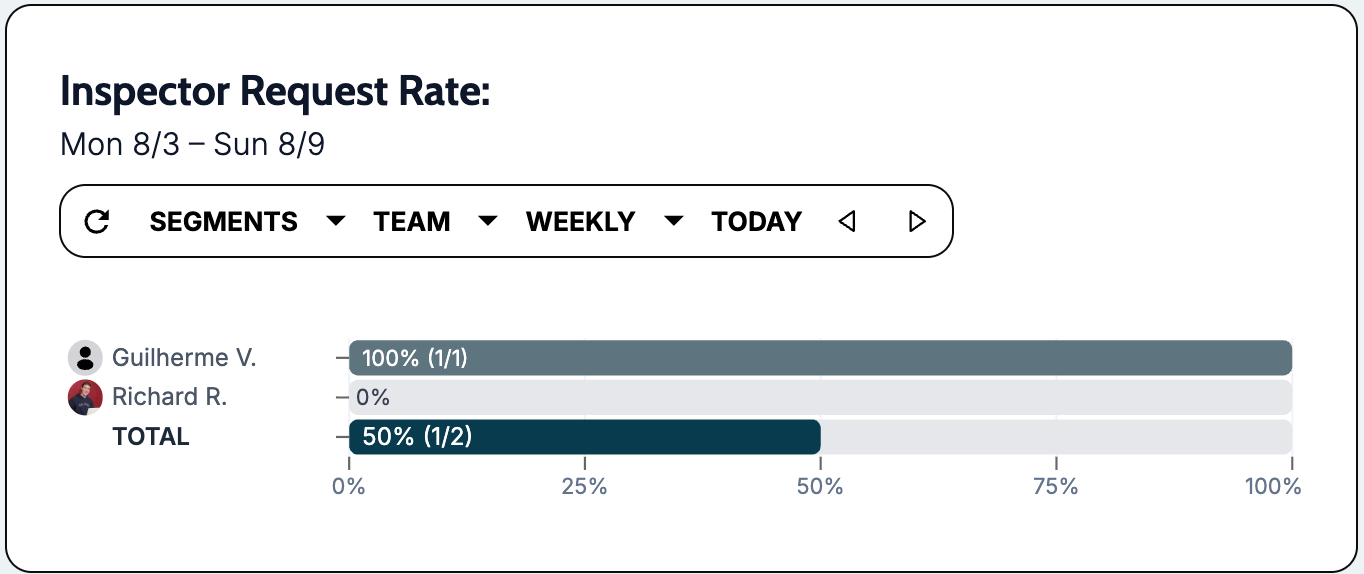
The dashboard now separates jobs scheduled online from those scheduled internally, so you can evaluate scheduler performance and see close rates and ticket metrics per channel.
The inspector calendar has a new filter so you can focus on specific inspectors, services, or teams. The filter lives in the calendar header and updates the calendar (and slot scheduler) to show only matching events and availability.
The reschedule flow shows a clear "no slots found" message when there are no available times, with simple next steps instead of a blank calendar.
Work orders display a booking details box (who scheduled, confirmed, or canceled and when), and report metadata (e.g. browser tab title) now matches the actual job address.
The inspector calendar now supports recurring events.
Dashboard: Online vs Internal Scheduler
What changed: The dashboard now shows two distinct views: jobs scheduled online (by the client or agent via the scheduler link) and jobs scheduled internally (by staff in Attik). Each view has its own metrics so you can compare channel performance.
Before: Online and internal bookings were mixed in one set of stats, so it was hard to see how well internal scheduling staff were performing.
Now: You can see internal-only stats for evaluating CSR/scheduling staff, and separate online metrics (close rate, average ticket, volume) so you can invest in the right channel.

Why it matters: Clearer performance insights and better decisions about scheduling channels.
Inspector Calendar: Inspector, Service, and Team Filtering
What changed: A filter control was added to the inspector calendar so you can narrow the view by inspector, service, or team. The filter sits in the calendar header (next to the month). Your choices drive what appears on the calendar and, where used, the slot scheduler.
Before: The calendar showed everyoneโs events in one view with no way to focus on a single inspector, service, or team.
Now: You open a filter dropdown in the calendar header and pick one or more inspectors, services, or teams. The calendar and slot scheduler then show only events and availability that match your selection.

Why it matters: Dispatch and office staff can focus on one inspector or team, see capacity by service or team, and keep the reschedule and slot views relevant without switching context.
Workorder Booking Details Box
What changed: A new booking details box on the work order shows who scheduled, confirmed, or canceled the job and when.
Before: Those details were not visible in one place on the work order.
Now: You see scheduled by/at, confirmed by/at, and canceled by/at in a single, easy-to-scan box.

Why it matters: Quick accountability and audit trail for scheduling and confirmation.
Calendar Revamp
What changed: The inspector calendar was revamped with recurring events. The slot scheduler treats recurring events as blocked time.
Before: There was not the ability to create recurring events.
Now: Recurring events appear on the calendar and block slots.

Why it matters: Efficiency in blocking inspector calendars for any recurring events.
Phone Number on User Profiles
What changed: User accounts now store a phone number. Admins can view and edit it when managing users; the number appears on the userโs account page as read-only for the profile owner.
Before: Phone was not stored on the user record, so it was not available in one place across the app.
Now: In Settings โ Users โ [user] โ Data, you can set and update that userโs phone. The profile owner sees their phone on the Account page but cannot edit it there.
Why it matters: One consistent place for user phone numbers for contact and display.
Auth for Mobile App
What changed: The backend now supports the mobile app authentication flow: email/phone OTP and Google sign-in, with session and company membership handled correctly.
Before: The app relied on hardcoded config and no real sign-in.
Now: Inspectors can now sign in with OTP or Google; the backend manages sessions and company context for the app.
Why it matters: Secure, proper sign-in and company context for the mobile app.
Session Company Options and Switch (Mobile)
What changed: New endpoints let the mobile app load the current user's companies and switch the active company in the session.
Before: The app could not list or switch companies from within the session.
Now: The app can fetch company options and switch the active company, so users with multiple companies can change context without signing out.
Why it matters: Multi-company inspectors can switch companies in the app when needed.
Reschedule Modal: No Slots Found State
What changed: When the reschedule flow finds no available slots, it shows a dedicated "No Slots" state instead of an empty calendar.
Before: A successful search with zero slots could look like a blank or broken screen.
Now: A clear message explains that no slots are available and suggests trying another week, changing filters, or contacting support.

Why it matters: Users know what's going on and what to do next.
Thumbtack: Quote Submission and Categorization
What changed: The app can submit quotes to the Thumbtack-style flow and supports more flexible repair-list categorization: partial runs (only some items), category reduction, and downgrading roofer to handyman when appropriate. The search wording for pros/handymen was updated, and the category section has an explainer and company color styling.
Before: Quote submission and categorization options were more limited; wording and guidance on the categorization flow were less clear.
Now: You can submit quotes through the dedicated flow; categorization can be run on selected items only, with options to reduce categories or move roofer to handyman. The category section explains the process and shows a warning when submissions happen in rapid succession.

Why it matters: Clearer workflows, better control over which items get categorized, and more accurate contractor matching.
Action Flow Company Access Control
What changed: Action flow pages now enforce company access: users only see and use action flows for their company.
Before: Company boundaries for action flows were not enforced on the page.
Now: If you don't have access to the flow's company, you see a clear access-denied message instead of the flow.
Why it matters: Prevents using the wrong company's flows and keeps data scoped correctly.
Report Meta Title Matches Actual Job
The report's metadata (including the browser tab title) now uses the correct job data so the address in the title matches the report.
Quote Created By and Employee Stages
Quotes are no longer saved with a generic โsystemโ creator when the logged-in user is known. The system now sets the creator from the current user when creating quotes and handles invalid creator values in employee-stage aggregations so pipelines and reports stay correct.
Repair List PDF: Recommendation typo fixed
The recommendation text shown on the repair list PDF had a typo. That text has been corrected so the PDF shows the right wording.
February 6th, 2026

Jobs can be locked with an optional reason, giving teams clearer control over when work is editable.
Action flows can use delivery delays and time windows.
Email builder copies keep links to shared blocks instead of duplicating them.
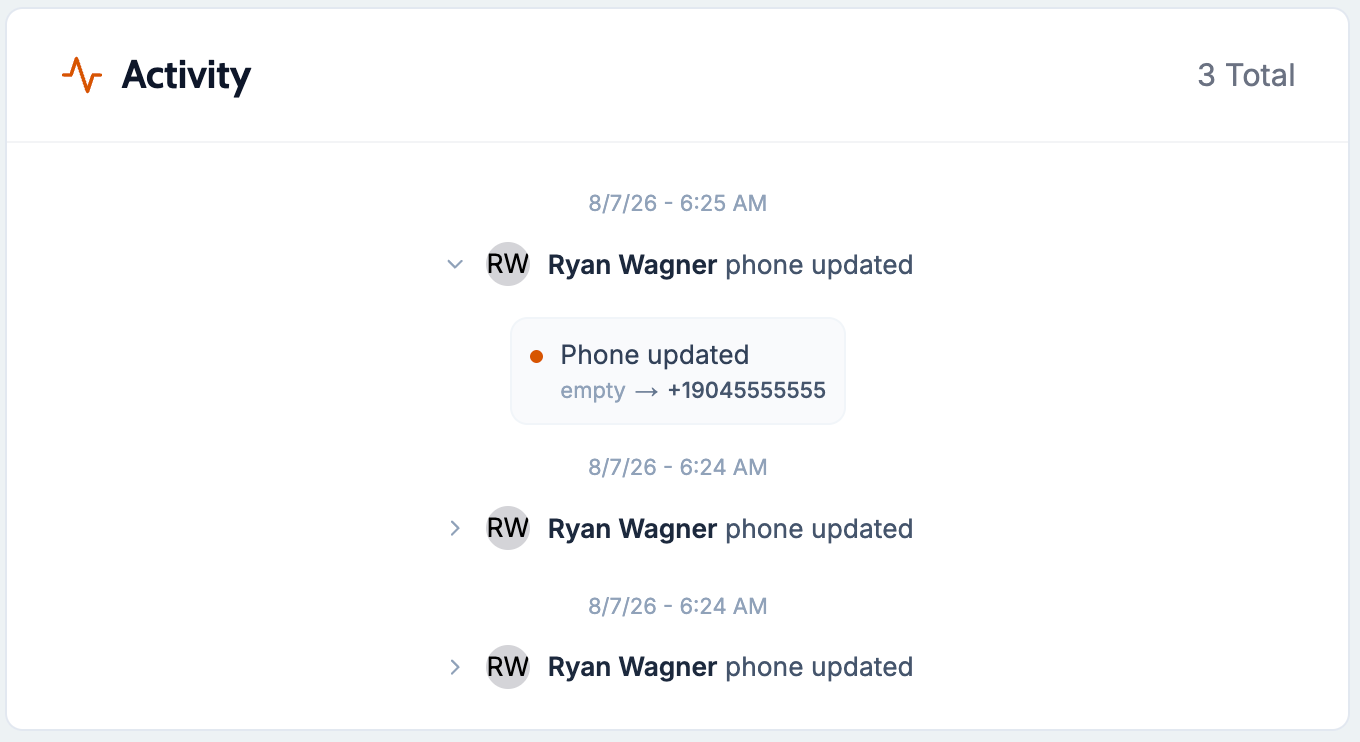
Job timelines now show a clear activity feed so you can see who changed what and when.
Services can be marked so they never appear as a primary option in the online scheduler.
Payroll and commission calculations now respect discounts so inspector pay stays accurate.
Lock Job Updates and Optional Lock Reason
What changed: Jobs can be locked so they aren't edited by mistake, and you can optionally record a reason for the lock.
Before: Locking was less visible and there was no place to say why a job was locked.
Now: When a job is locked, the reason can be shown so the team knows why it's read-only. Please Note: This feature is blocked when a job is linked to a Spectora job.

Why it matters: Teams can protect finished or sensitive jobs and communicate why they're locked.
Action Flow: Delivery Delay
What changed: Action flows can use a delivery delay and/or time window so emails send at the right time.
Before: Emails sent immediately when the flow ran.
Now: You can delay or schedule when actions run.

Why it matters: Teams have more customizability for when their actions can send.
Inspector Block: Choose Which Inspector(s) to Show (ATT-225)
What changed: In the email builder, the inspector block can now use a โPrimary onlyโ toggle to show just the first (primary) inspector in the email.
Before: The inspector block always showed every assigned inspector on the job; there was no way to show only the primary inspector.
Now: When editing the inspector block in an email template, you choose to show only the primary inspector, or all inspectors listed. Recipients see only the inspector(s) you selected.

Why it matters: Template editors can control who appears in the โYour Professional Inspector(s)โ block so the email matches the intended messageโfor example, only the primary inspector when thatโs who the client should see.
Activity Feed (Job timeline and change history)
What changed: Each job has an activity feed that shows what changed, when, and by whom (including changes from Spectora and other integrations).
Before: Change history was harder to see in one place.
Now: You can open a job and see a timeline of notes, field changes, assignments, and other updates in order.

Why it matters: Managers and client care can quickly see what happened and who did it without digging through multiple screens.
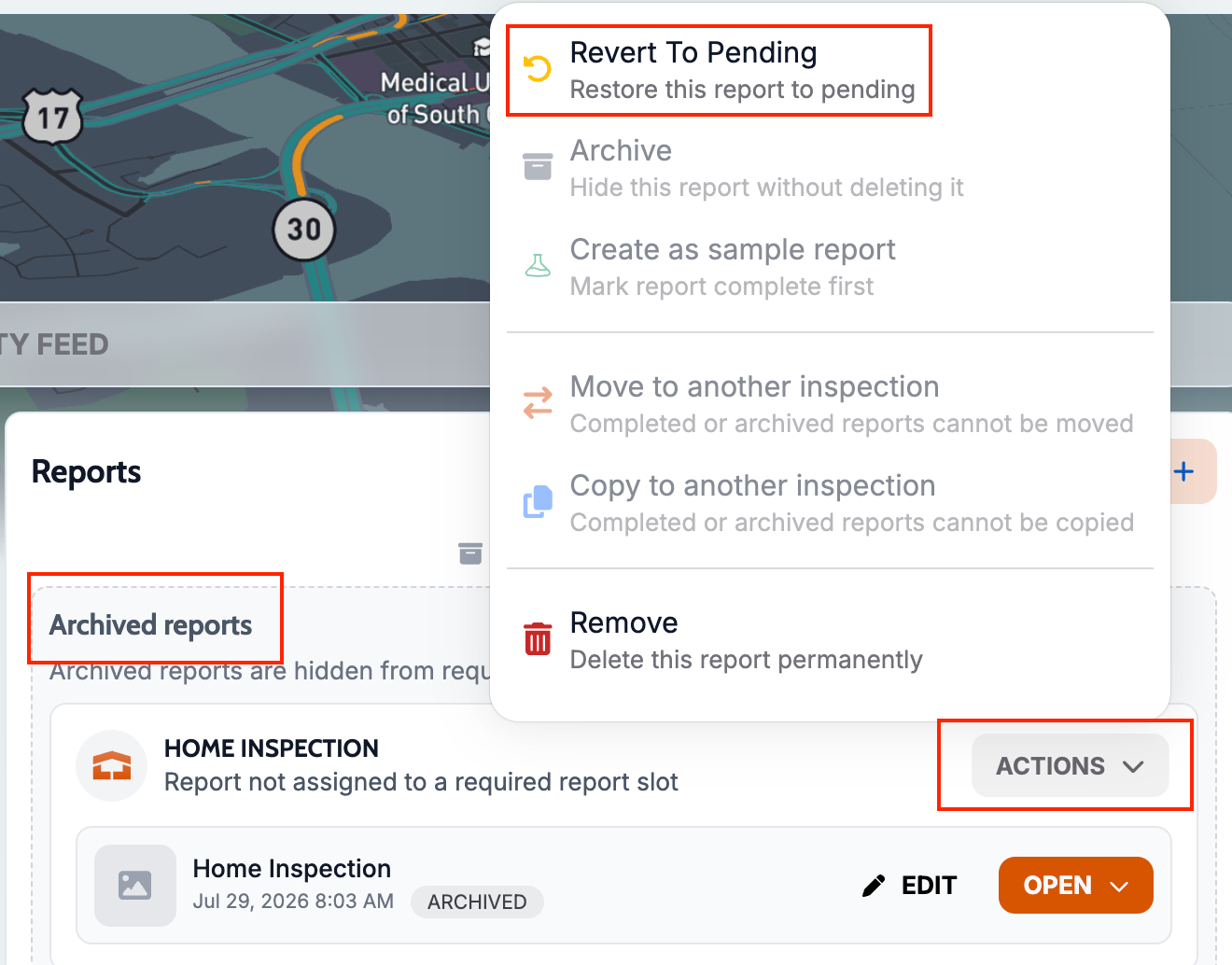
Revert to Pending for Reports
What changed: You can move a completed report back to pending. A โRevert to Pendingโ action was added to the report Actions menu so reports marked complete by mistake or needing rework can be returned to pending.
Before: Once a report was marked complete, there was no way to undo it; the Complete action was disabled and nothing else was available.
Now: For a completed report, the Actions dropdown includes โRevert to Pending.โ Choosing it sets the report back to pending and clears the completed timestamp so you can correct mistakes or do more work.

Why it matters: Teams can fix accidental completions or pull a report back for rework without workarounds.
Updated Help Center Feature
What changed: Access to the changelog, knowledge base, feature roadmap and Attik Team support chat have been updated for simple access for permissioned users.
Before: All of these features were accessible to all users through separate menu options.
Now: A single widget under the โHelp Centerโ menu option provides easy access to all of these features. This access is now associated with the โHelp Centerโ user permission.

Why it matters: This widget provides a simple way to access important information about Attik all in one location.
Email Builder: Copy Preserves Global Block References
What changed: When you copy a block or flow that uses shared (global) blocks, the copy keeps the link to those shared blocks instead of duplicating them.
Before: Copying could create duplicate copies of shared blocks, making them harder to manage.
Now: Copies reuse the same shared blocks, so updates to a shared block apply everywhere it's used.
Why it matters: Fewer duplicate blocks and simpler maintenance when you change shared content.
Payroll and Commission with Discounts
What changed: A toggle has been added to the discount code settings to apply the discount to inspector pay. Payroll and commission calculations now take discounts into account so inspector pay is based on the correct amounts.
Before: Discounts were not fully reflected in payroll and commission logic.
Now: When a discount applies to a charge, it's included in the data used for pay and commission so numbers stay accurate.

Why it matters: Pay and commission match what actually happened on the job, including discounted work.
Calendar
Larger drag handler and icon
Events block now show job specific details and allow for their own event specific notes.
Online Scheduler
Updated flow to improve the AI service recommendation experience.
Updated verbiage and imagery.
Updated Contact Email setting requires a unique email address to schedule an inspection.
Schedulers now have the option to send themselves a quote if they arenโt ready to book.
February 2nd, 2026

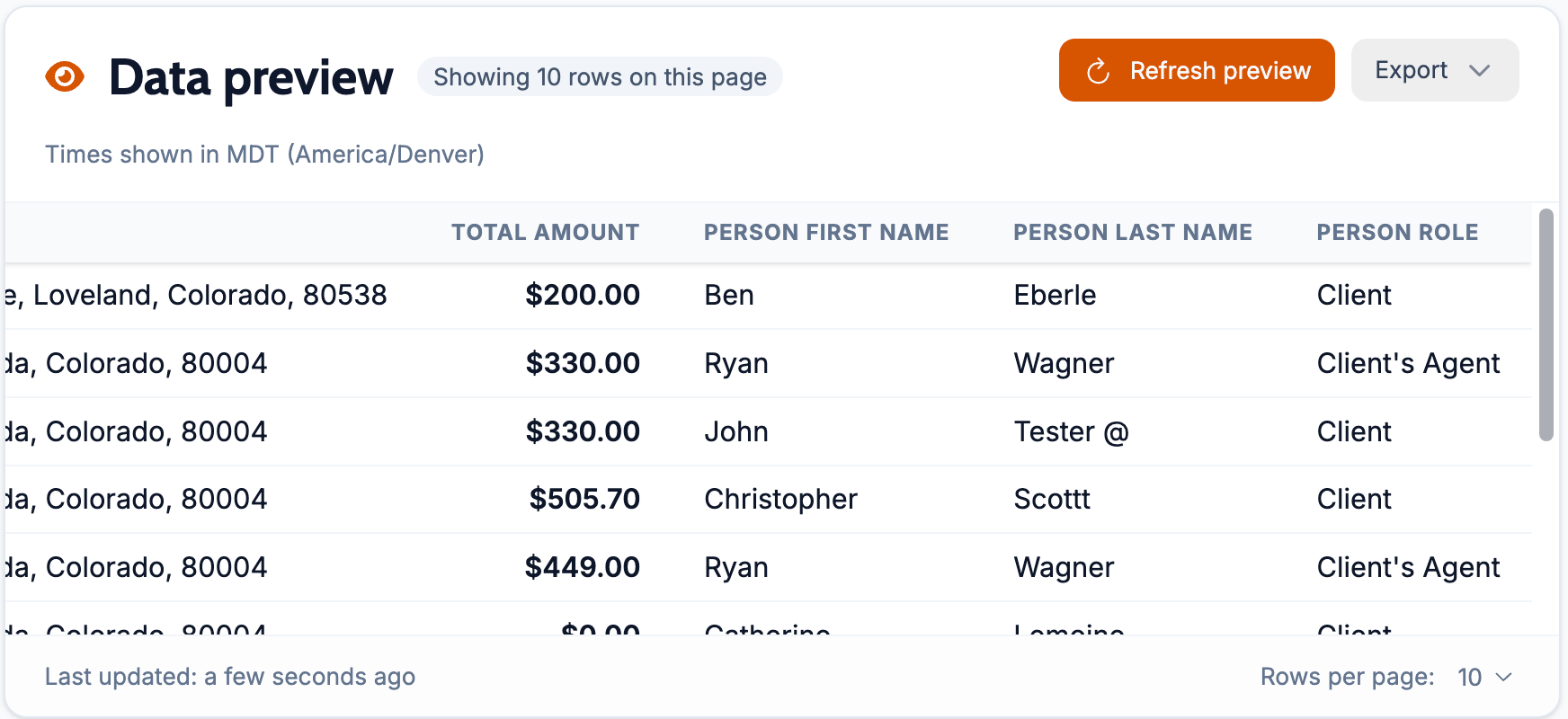
Teams can build and run custom exports with fewer steps.
Repair list quote requests are more guided and easier to manage.
Drafts and scheduling flows are smoother and more reliable.
Report access and client guidance are clearer and more consistent.
Services can be marked so they are never booked as the primary service online or in the scheduler, reducing mistaken standalone bookings.
Data Exports
What changed: A full report export workspace is now available with saved reports and run history.
Before: Exports required extra steps and were harder to reuse.
Now: Reports can be created, saved, edited, and run from one place.

Why it matters: Teams can pull the exact data they need without rebuilding reports each time.
Repair List Quote Requests with Thumbtack!
What changed: Repair list quoting now supports category-based requests, guided questions, and clearer status signals.
Before: Requests were manual and only let you using entered providers
Now: Categories guide the request flow and make it easier to see what has been submitted. The tumbtack flow matches the categories with professionals directly. This beta version is a powerful step for the quote request feature.

Why it matters: Teams can move from repair lists to quote requests faster with fewer missed items.
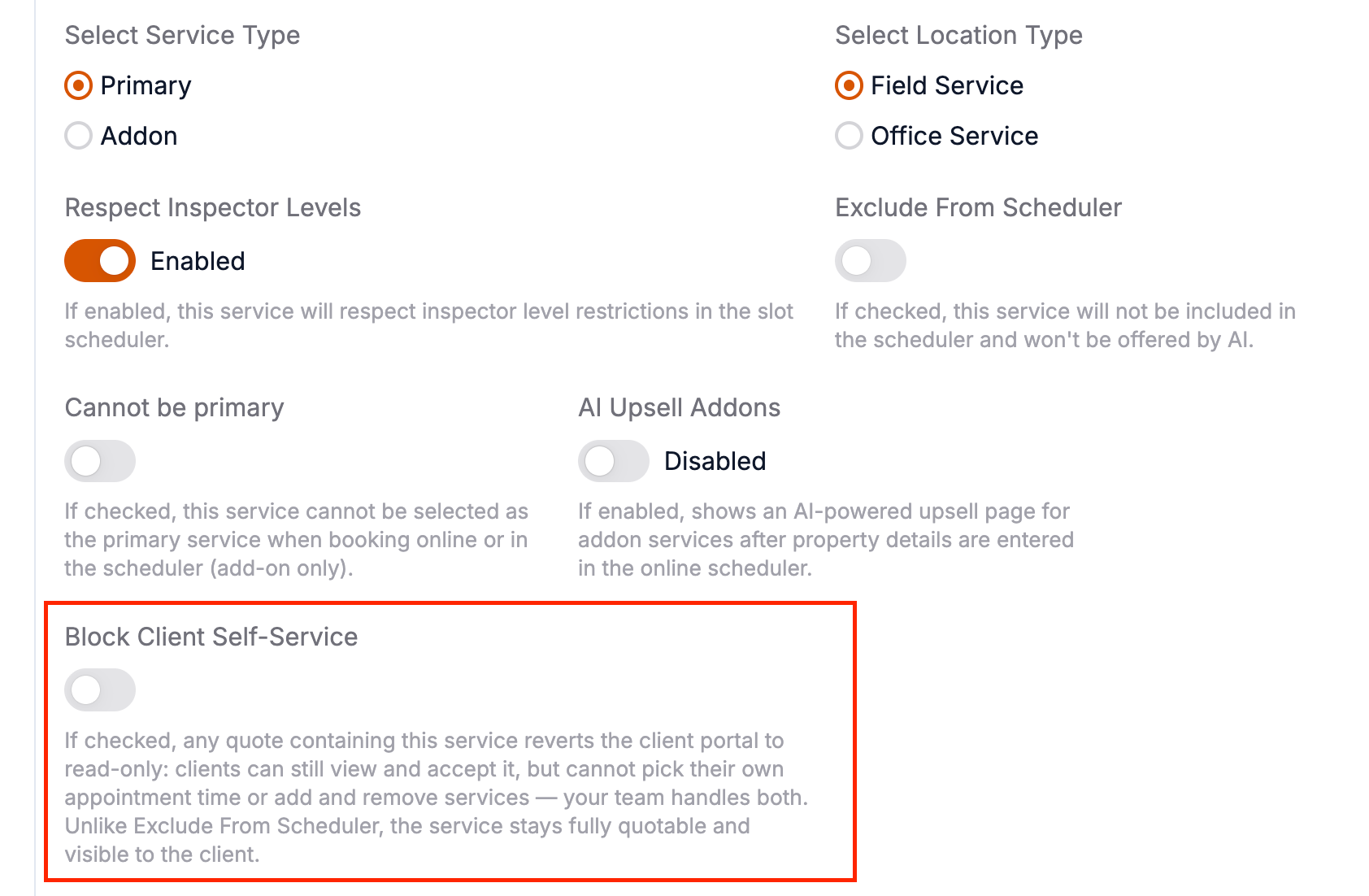
โCannot Be Primary" flag on services
What changed: A new setting lets you mark specific services so they cannot be chosen as the primary service when booking.
Before: Any service could be selected as the primary service in online search and in the scheduler, so add-ons or follow-up services were sometimes booked as standalones by mistake.
Now: Services marked with this setting no longer appear as primary options in online booking or in the scheduler; they can only be added as add-ons or secondary services.

Why it matters: You control which services are offered as main offerings versus add-ons, so customers and staff cannot accidentally book the wrong thing as the primary service.
Drafts in Scheduling
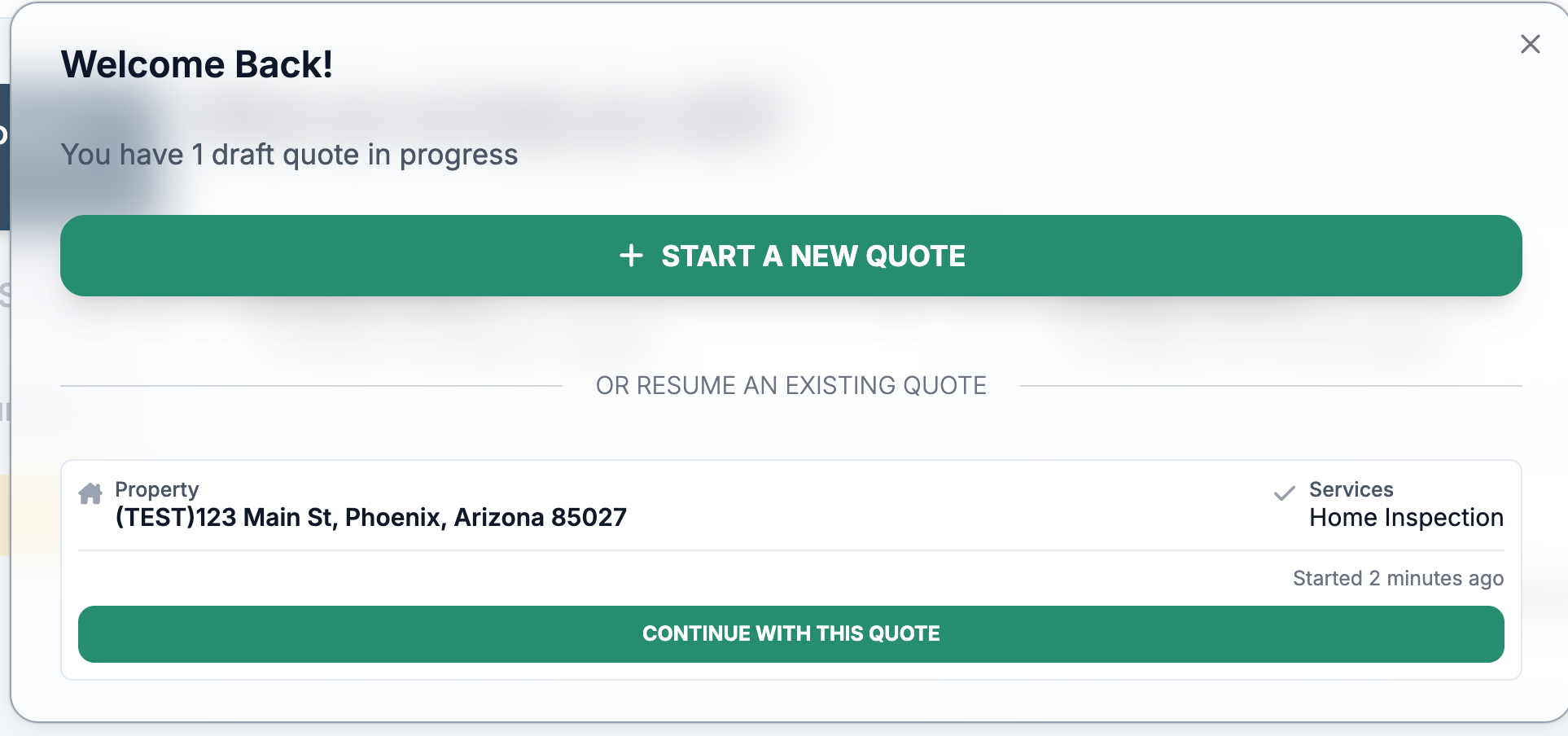
What changed: Draft quotes can be saved, resumed, and managed directly in scheduling.
Save Draft

Before: Drafts were easier to lose and harder to resume.
Now: Drafts are visible in the scheduler on reload

Why it matters: Teams can pause and resume work without re-entering details.
Merge Contacts
What changed: A full merge flow helps combine duplicate contacts with side by side comparisons.
Before: Duplicate contacts were harder to clean up and verify.
Now: Merge options and history are visible during the process.
Merge contacts

Search for contact to merge with

Select the contact you would like to merge with and move on to compare the information

Choose which values you would like to use in your merged contact profile and then you can finalize the details and merge.


Why it matters: Teams can keep records clean without manual cleanup.
Worklist Unconfirmed Orders
What changed: Unconfirmed orders now appear as a dedicated worklist view.
Before: Unconfirmed work was harder to find quickly.
Now: The worklist surfaces unconfirmed items directly.

Why it matters: Teams can follow up faster and reduce missed confirmations.
Invoice Flag Access
What changed: Jobs marked for invoicing have clearer access rules for reports.
Before: Report access could feel inconsistent for invoiced jobs.
Now: Access follows the invoicing path more predictably.
Why it matters: Clients see the right next step without confusion.
Report Lock Guidance
What changed: Locked report screens now explain what to do next.
Before: Locked reports were less clear about next steps.
Now: Guidance is clearer and more consistent across report views.

Why it matters: Clients can unblock themselves without extra support.
Quote Lead ID Tracking
What changed: Lead tracking is built into the quote screen with safer removal.
Before: Lead details were harder to set or remove during quoting.
Now: Lead details are easier to manage with confirmation prompts.
Why it matters: Teams keep marketing attribution intact with fewer mistakes.
Office Staff Email Alerts
What changed: Email delivery issues trigger a group alert for office staff.
Before: Delivery failures could be easy to miss.
Now: The office team gets a clear notification when a message fails.

Why it matters: Follow up happens faster and fewer messages are lost.
Required equipment details in quotes
What changed: Quotes now include more detail about required equipment.
Before: Some quote details were missing or incomplete.
Now: Requests include clearer equipment needs.
Why it matters: Providers receive better context and can respond more accurately.
Merge contacts page access restored
What changed: The merge contacts page now loads correctly on staging.
Before: The page returned a not found screen.
Now: The page loads as expected.
Why it matters: Teams can complete merges without detours.
Client report list clean up
What changed: The client report list hides internal or incomplete reports.
Before: Clients could see reports that were not ready for them.
Now: Only completed, client ready reports appear.
Why it matters: Clients see only the right reports.