Attik Update - Smarter Worklists, Zestimate and Agreement Updates
Summary
Worklists can filter and show required report status, contact roles, who scheduled the job, and more custom fields
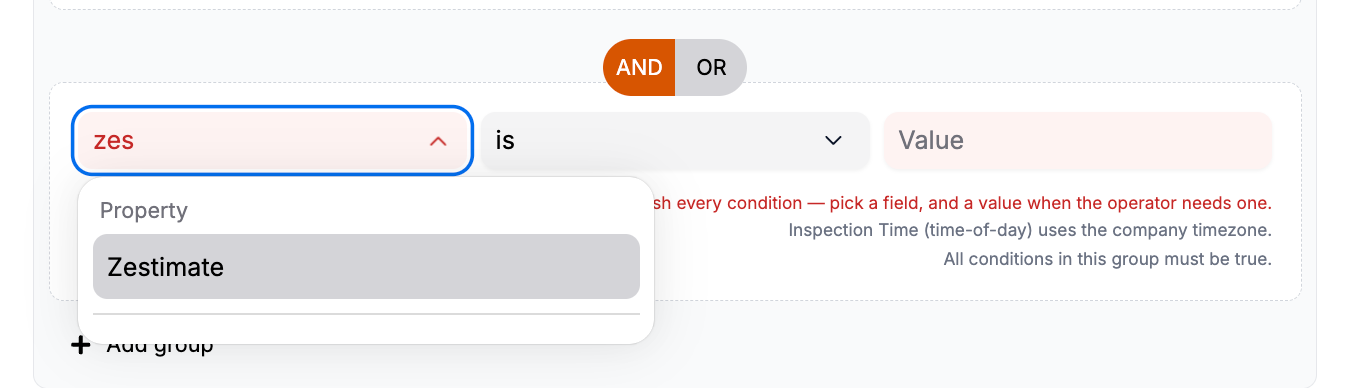
Zestimate is now visible in internal scheduler and can be used as a condition
Actions can now be triggered for Abandoned quotes
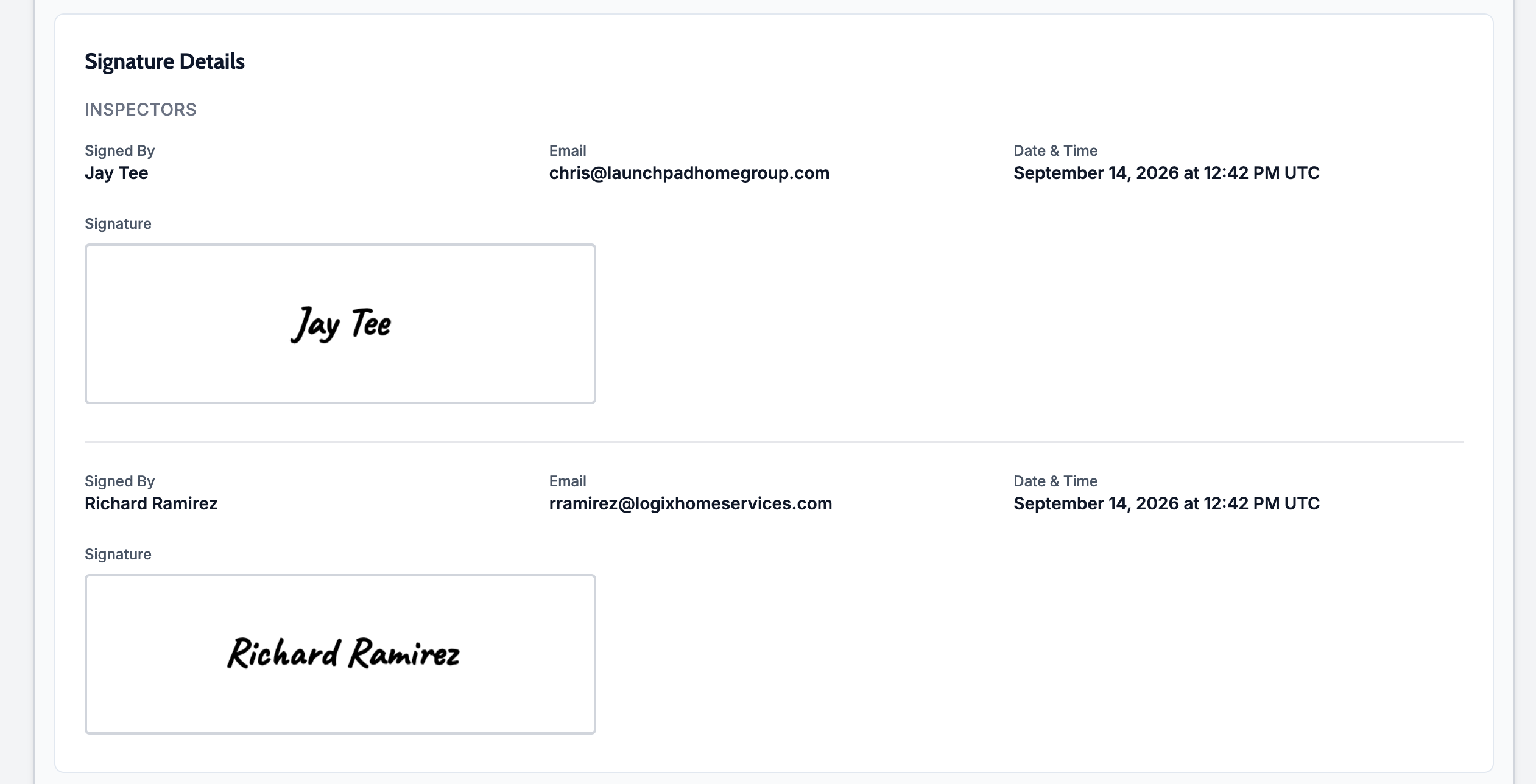
Agreements can collect a signature from every inspector on the order
New Features
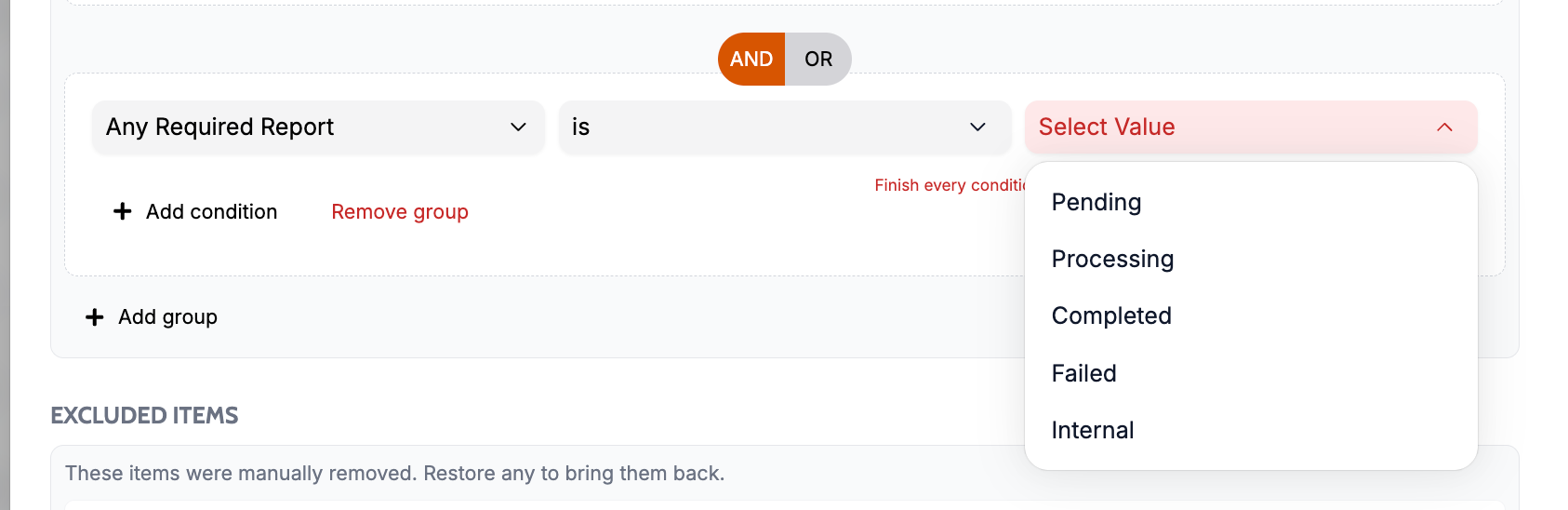
Required report status on worklists and action flows
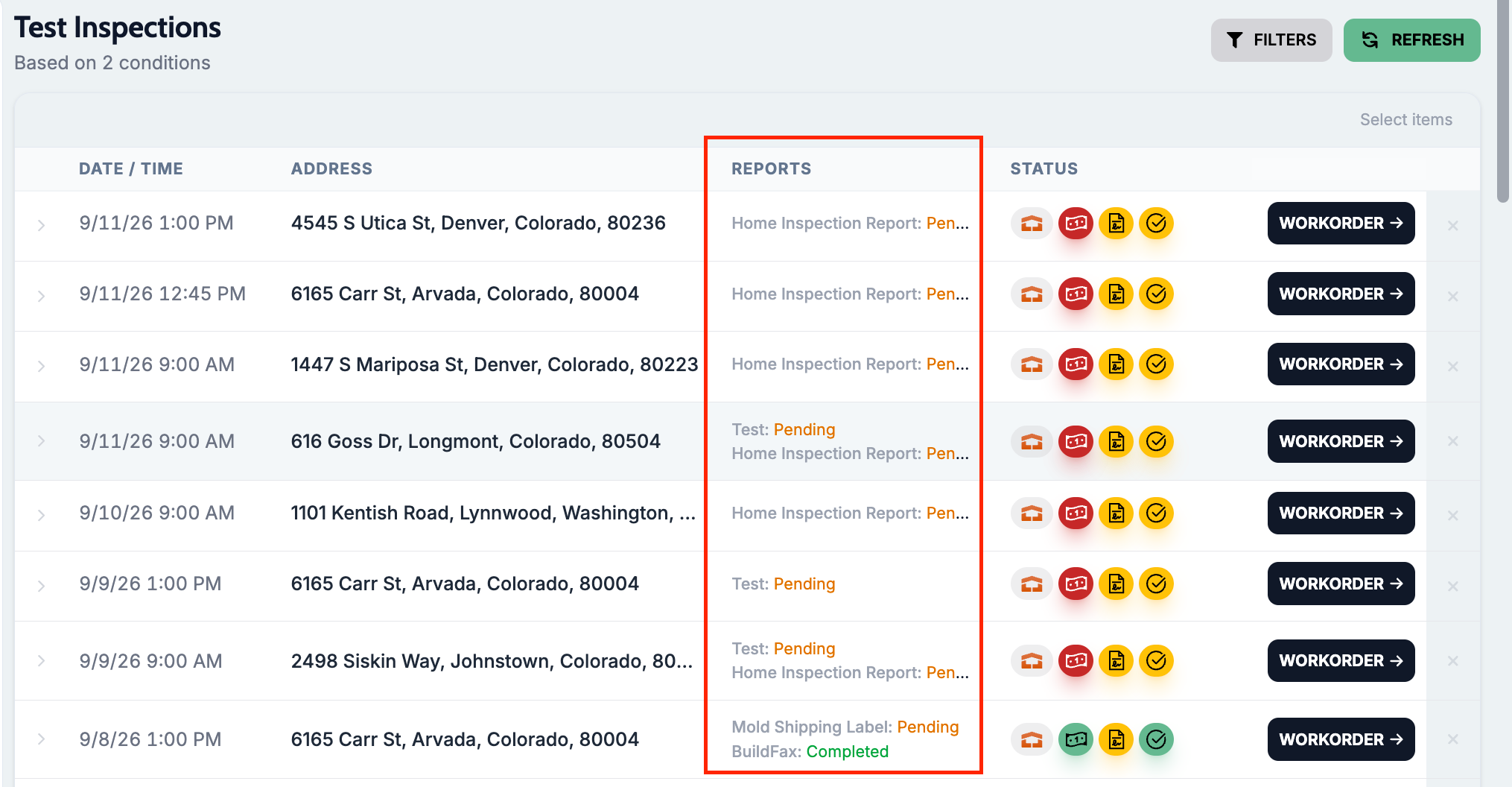
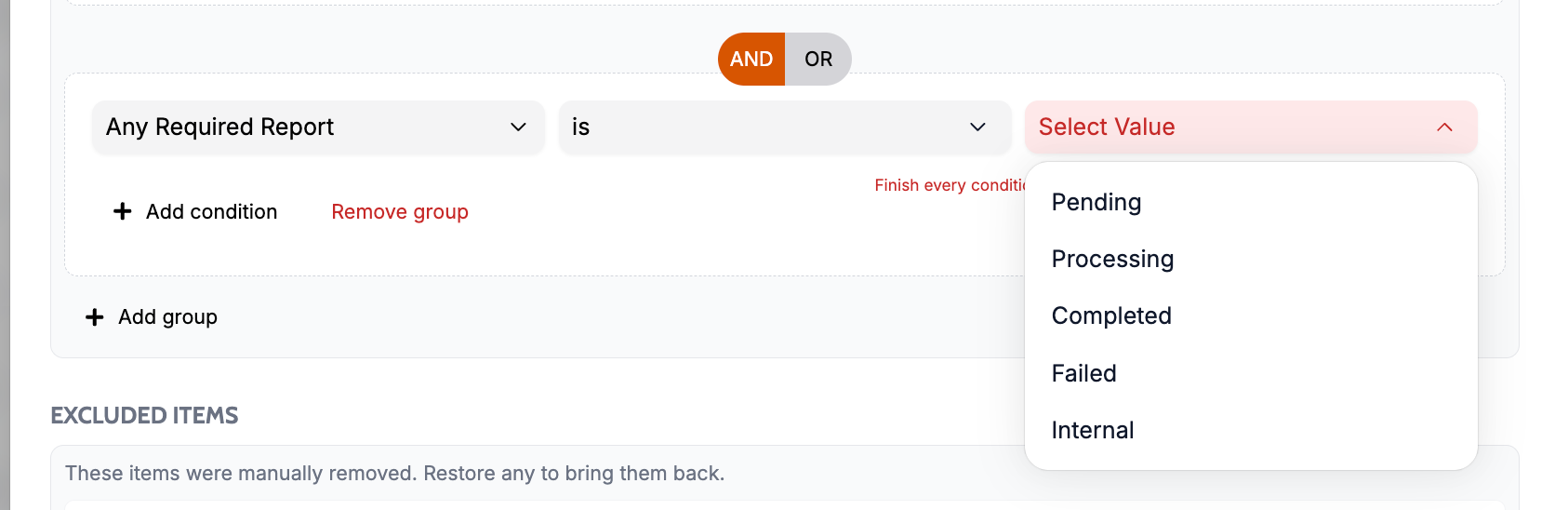
What changed Worklists and action flows can filter on Any Required Report status (Pending, Processing, Completed, Failed, Internal). Worklist rows can show the Reports column so you see each required report bucket at a glance.
Where to find it:
Open a worklist (or create a custom inspection worklist)
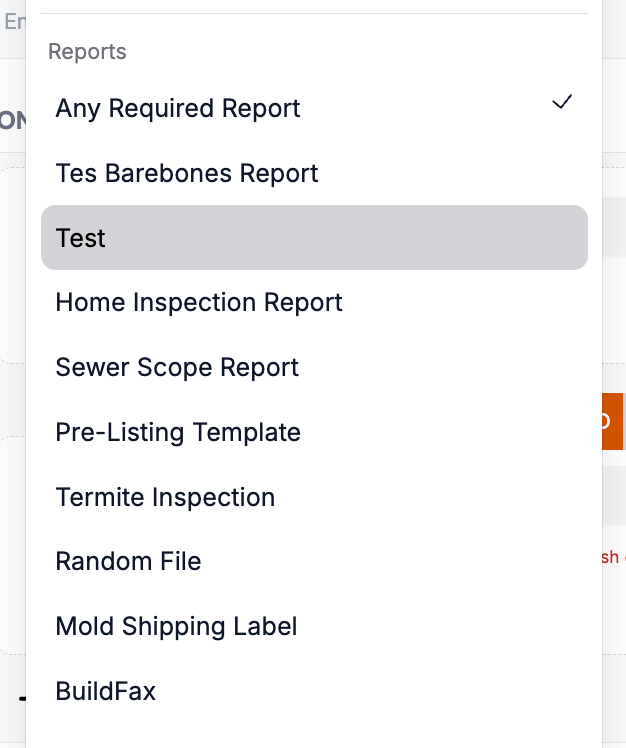
Add a condition under Reports → Any Required Report, or add the Reports column under Visible Columns
In Action Flows, add the matching Reports condition when building a flow
Contact role filters
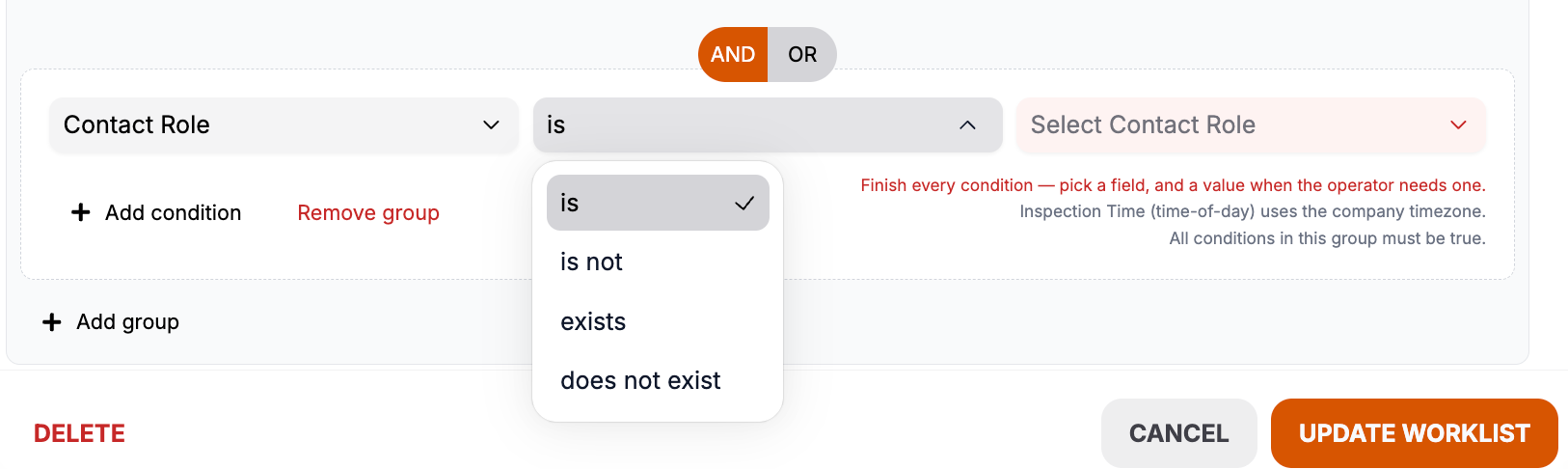
What changed Inspection worklists can find jobs where a Contact Role exists or does not exist (for example no buyer's agent).
Where to find it:
Create or edit an inspection worklist
Add a Contact Role condition and choose exists or does not exist
Scheduled By filter
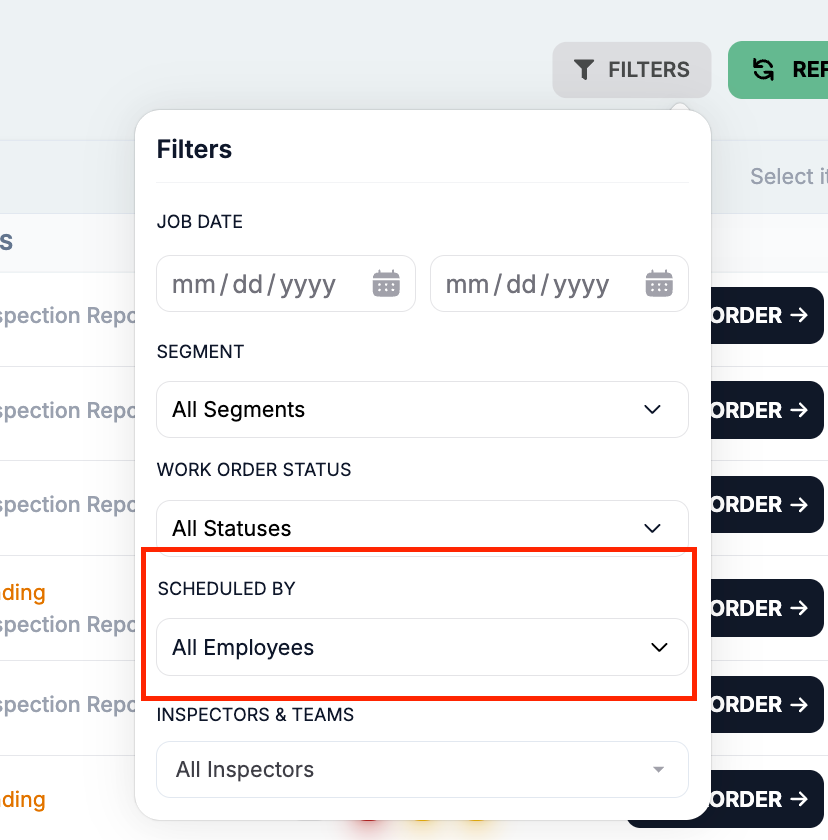
What changed Inspection worklists can be filtered by the staff member who scheduled the job.
Where to find it:
Open an inspection worklist
Use Scheduled By in the filter bar
Inspector licenses and certifications
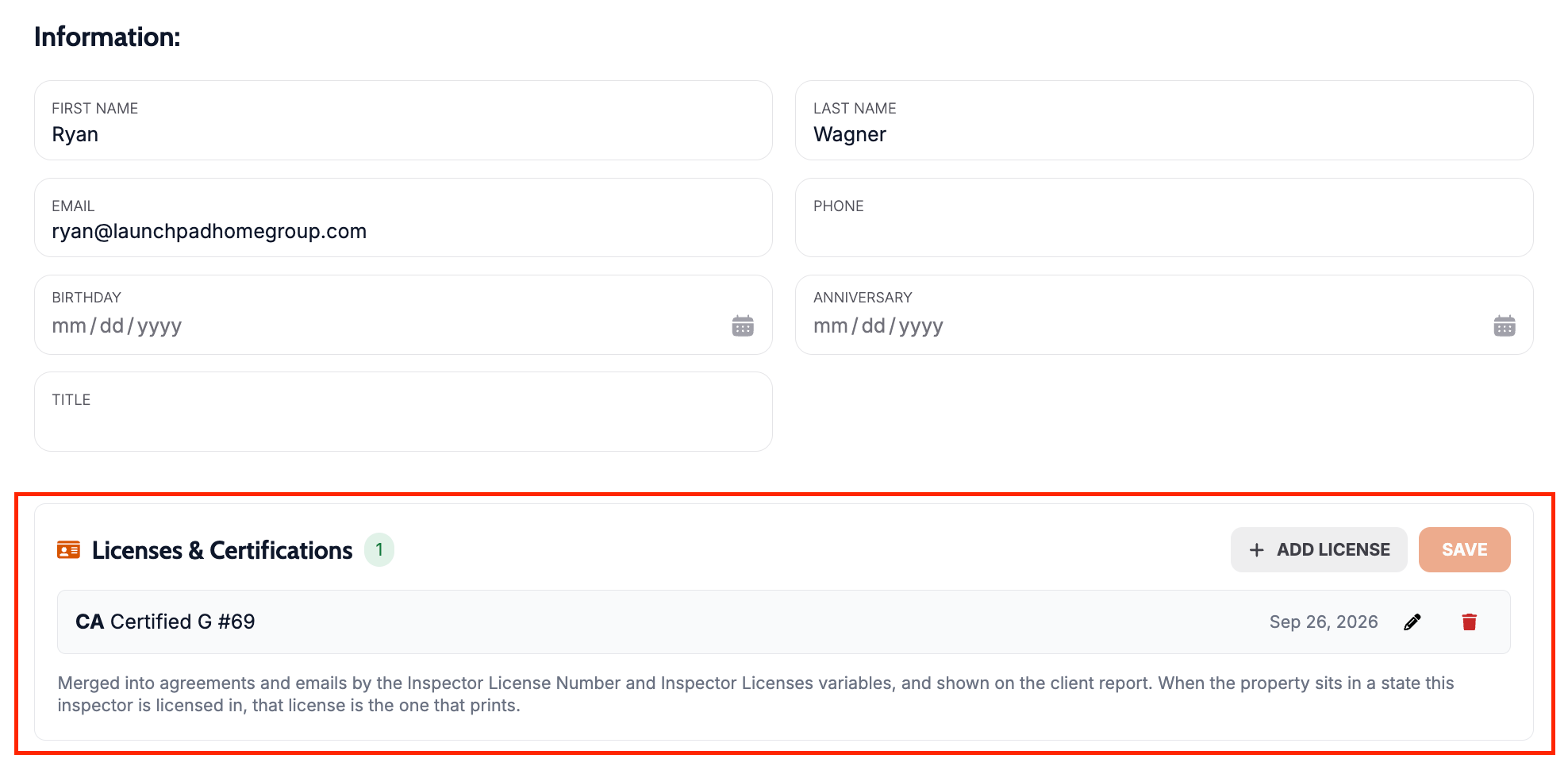
What changed Inspector profiles can store multiple license entries. Agreement and report templates can pull Inspector License Number and Inspector Licenses.
Where to find it:
Settings → Staff → Inspectors → open an inspector → Licenses & Certifications
In agreement or report templates, insert Inspector License Number or Inspector Licenses
Zestimate on the scheduling form
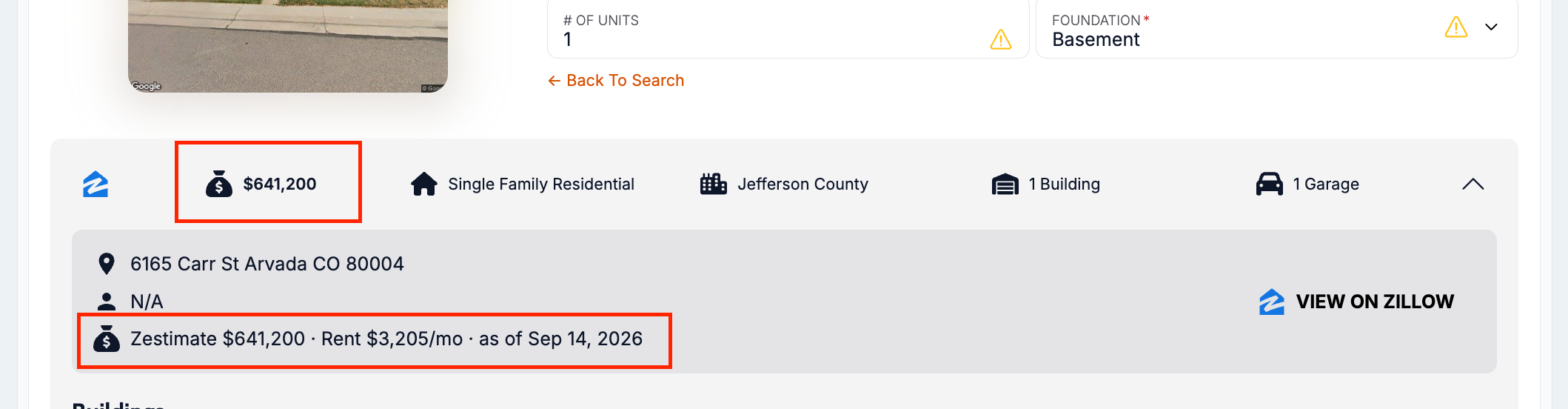
What changed The internal scheduling form shows the property Zestimate and saves it on the inspection property record. Action flows can use the value in conditions.
Where to find it:
Open Schedule for a job
Check property details for the Zestimate
Client Care Dashboard comparisons
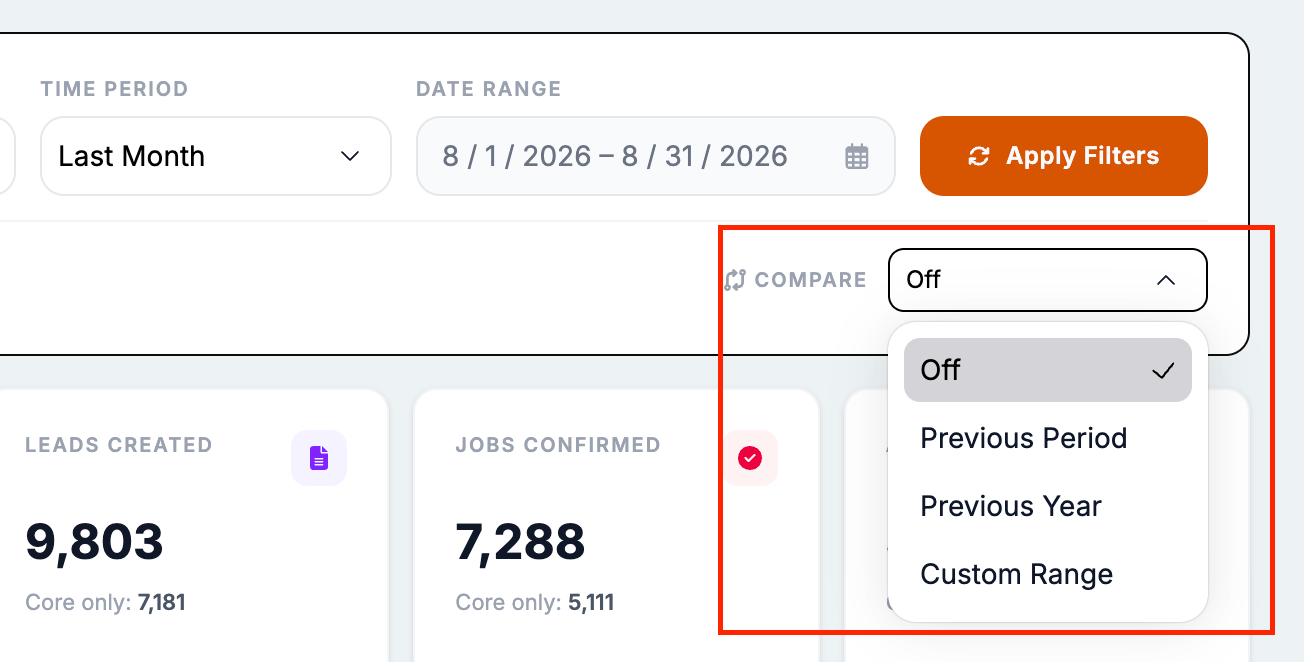
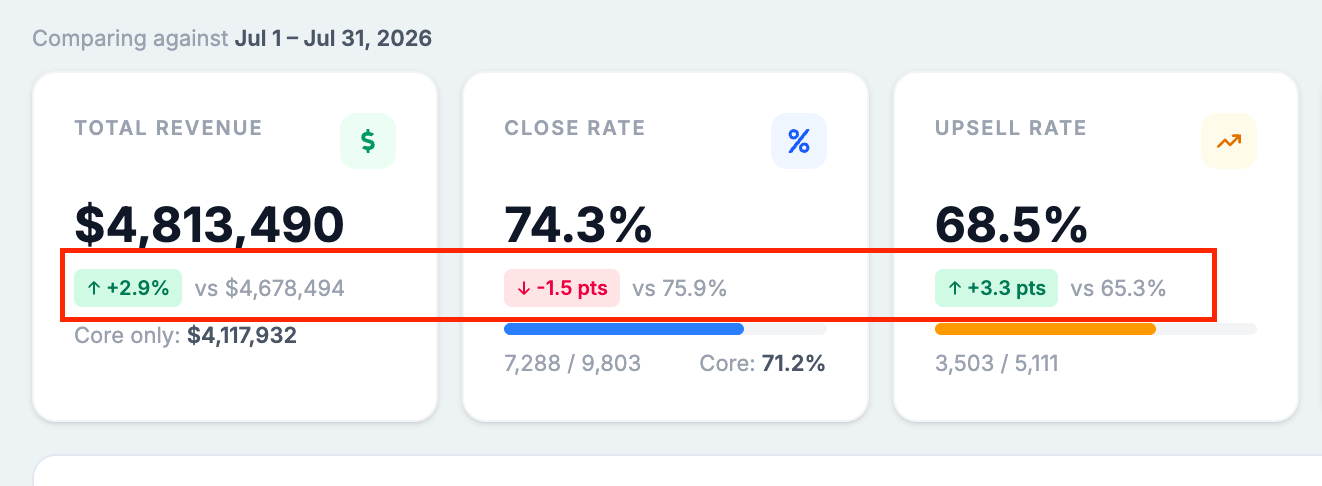
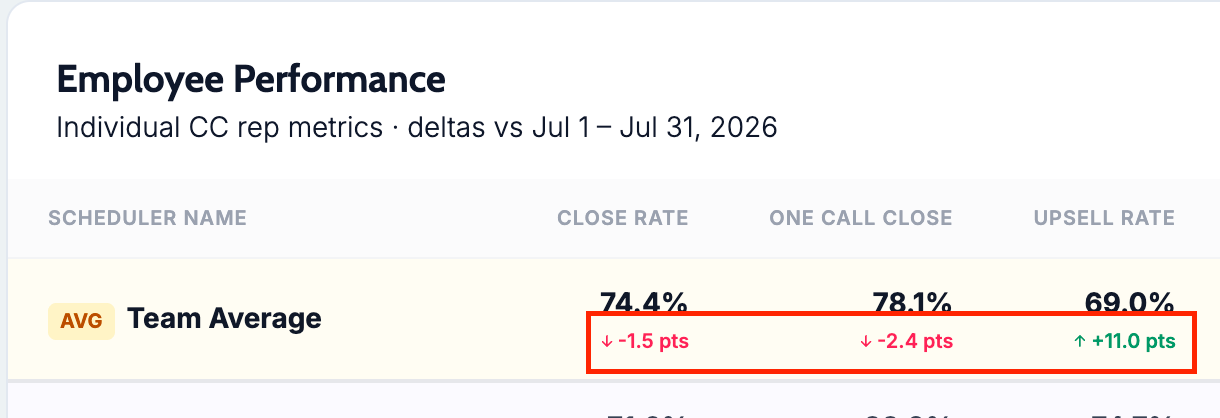
What changed The Client Care Dashboard can compare the current range to another period (including week-over-week behavior).
Where to find it:
Open the Client Care Dashboard
Turn on Compare and choose Previous Period
Abandoned quote follow-up in Action Flows
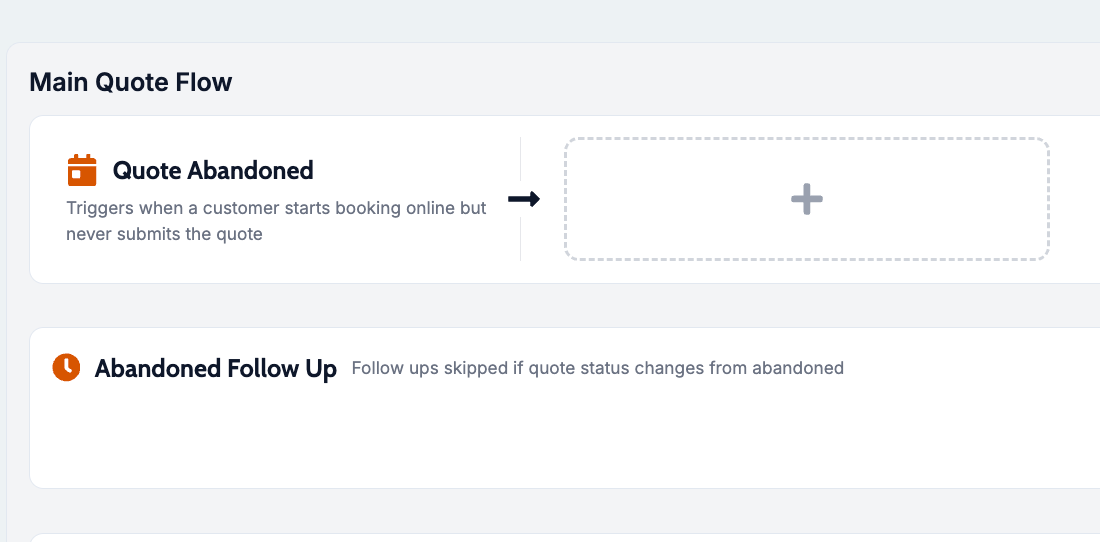
What changed Quote action flows can react when a quote is abandoned, run abandoned follow-up, and Reject Quote after a delay.
Where to find it:
Open Action Flows → Create New Flow
Choose New Quote
Add Quote Abandoned or Abandoned Follow Up, and optionally Reject Quote
Multi-inspector agreement signatures
What changed When Inspector Signature is on, agreements can show a signature line for every inspector listed on the order, with the primary inspector first. Inspectors without a saved signature image get a typed signature so lines are never blank. Clients still use Sign Agreement / Draw Your Signature.
Where to find it:
Open the agreement template
Turn on Inspector Signature
Confirm on an order that lists more than one inspector
Reject Quote action
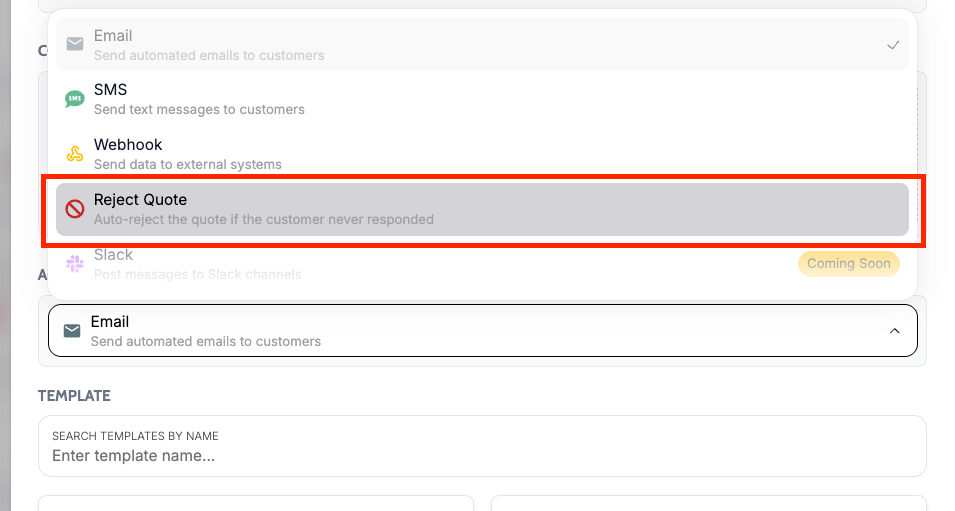
What changed Action Flows can use a Reject Quote action that auto-rejects the quote if the customer never responded.
Where to find it:
Open Action Flows and create or edit a quote-related flow
Add an action and choose Reject Quote
Improvements
Hidden custom fields as worklist columns
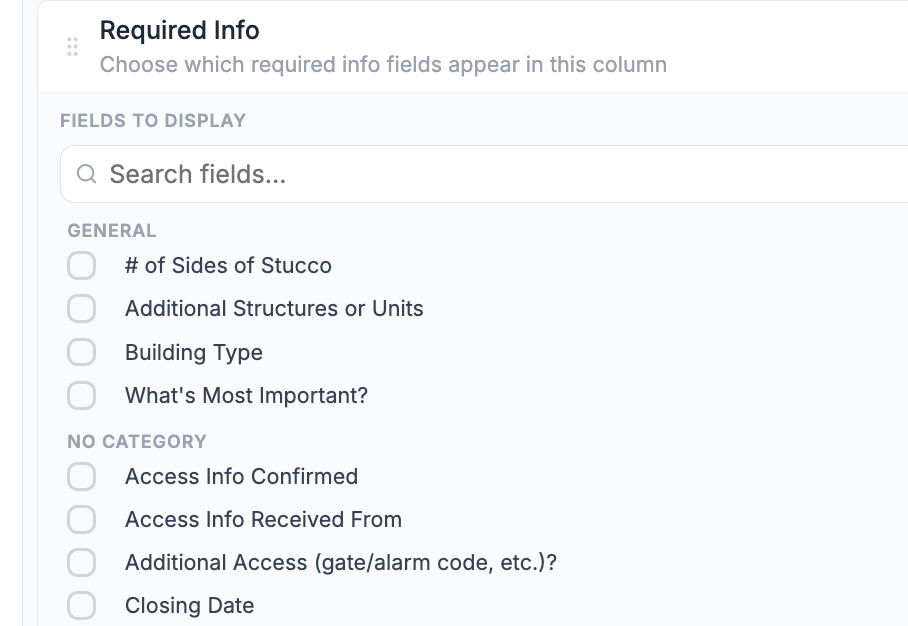
What changed Worklist columns can include custom booking fields that are hidden from clients. Fields are searchable and follow work order order.
Where to find it:
Open the worklist
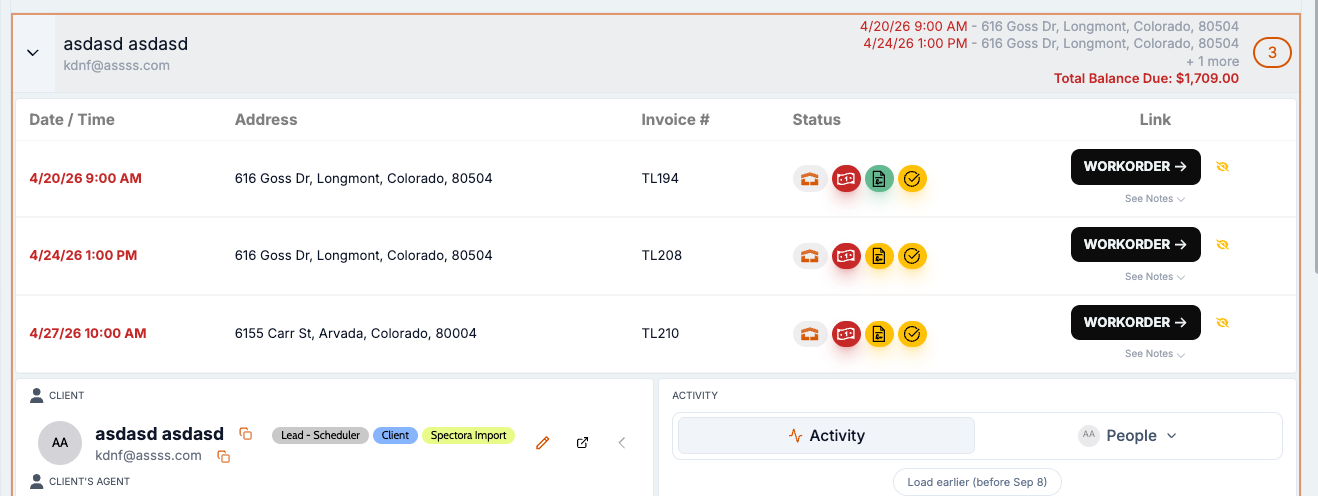
Edit columns under Visible Columns (and Grouped Table Columns when using a grouped layout)
Worklist settings on Not Paid, Open Invoices, and custom Inspections
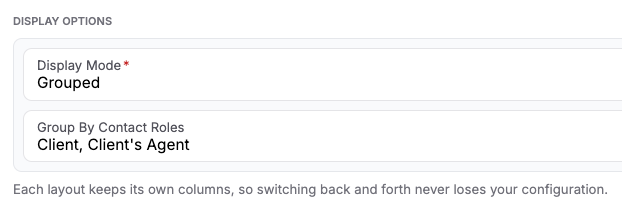
What changed Default worklists have Display Mode (Single Items or Grouped Items).
Where to find it:
Open Worklists
Under Default Worklists, hover a list name and click the pencil
In {name} - Settings, open Display Options and set Display Mode
Market Share month labels
What changed Market Share columns and variance views are labeled by inspection month, with clearer ranges and a transaction freshness indicator.
Where to find it:
Open Admin → Market Share
Bug Fixes
Internal scheduling shows next-day and same-day slots
What changed Reschedule and Dispatch slot calendars no longer hide valid same-day or next-day slots because of Online Booking Cutoff Time. Online booking still uses that cutoff.
Where to find it:
Reschedule a job, or use Dispatch / Schedule → Dispatch & Scheduling slot views
Applies to: Existing and future records
Canceled Pay at Close no longer blocks charges
What changed After Pay at Close is canceled or deleted, staff can add or edit charges again. Active Pay at Close orders still enforce the payment limit.
Where to find it:
Open the work order → Charges & Payments → Add/Edit Charges
Applies to: Existing and future records
Continue to Agreement opens the FlexFund tab
What changed On the client pay page, Continue to Agreement opens the FlexFund agreement, including when a pending Pay at Close order already exists. The page refreshes to show agreement status.
Where to find it:
Client portal → Pay → Pay at Close → Continue to Agreement
Applies to: Existing and future records
Pay at Close invoice remit-to
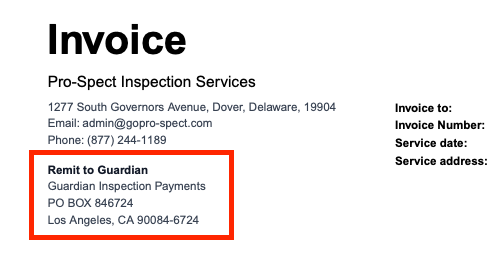
What changed Pay at Close invoices keep the inspection company in the header and add a dedicated Remit to Guardian section so closing checks go to the right place.
Where to find it:
Download a Pay at Close or due-at-closing invoice
Applies to: Existing and future records
Agreement template block order is preserved after save
What changed A block you add and position in an agreement template now stays where you placed it after saving and reopening, instead of jumping to the bottom. Where to find it:
Open an agreement template.
Add a block, drag it into position, and save.
Reopen the template and confirm the order. Applies to: Existing and future records