Attik Update - Payroll Hours & Paystubs, Uncancel Jobs & Cancelled Follow Ups
Summary
Payroll gets an Hours table that flags clocked time that doesn't match the schedule, UKG pay statements on your own pay sheet, payday email timing, and a new Weekly Timesheet report
Cancelled jobs can be uncancelled, and new Cancelled Follow Ups help win them back, with cancellation reason filters and a Duplicate Order/Error reason
Reports Hub adds inspector filters, import warnings, and a searchable catalog, plus many fixes; queued refunds can be cancelled and the activity feed names who took payments
Market Share gets an Opportunity Share view, the Client Care dashboard loads faster, and lab appointments and EverHome pushes now only apply to jobs booked in Attik
Earlier in this update: Inactive Fields on work orders, EverHome hand-off changes, manual payment notes, and fixes for manual address entry, Edit Property, and the calendar after daylight saving time
New Features
Uncancel a job
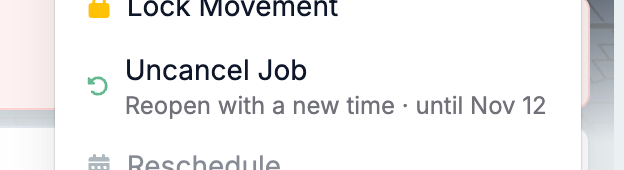
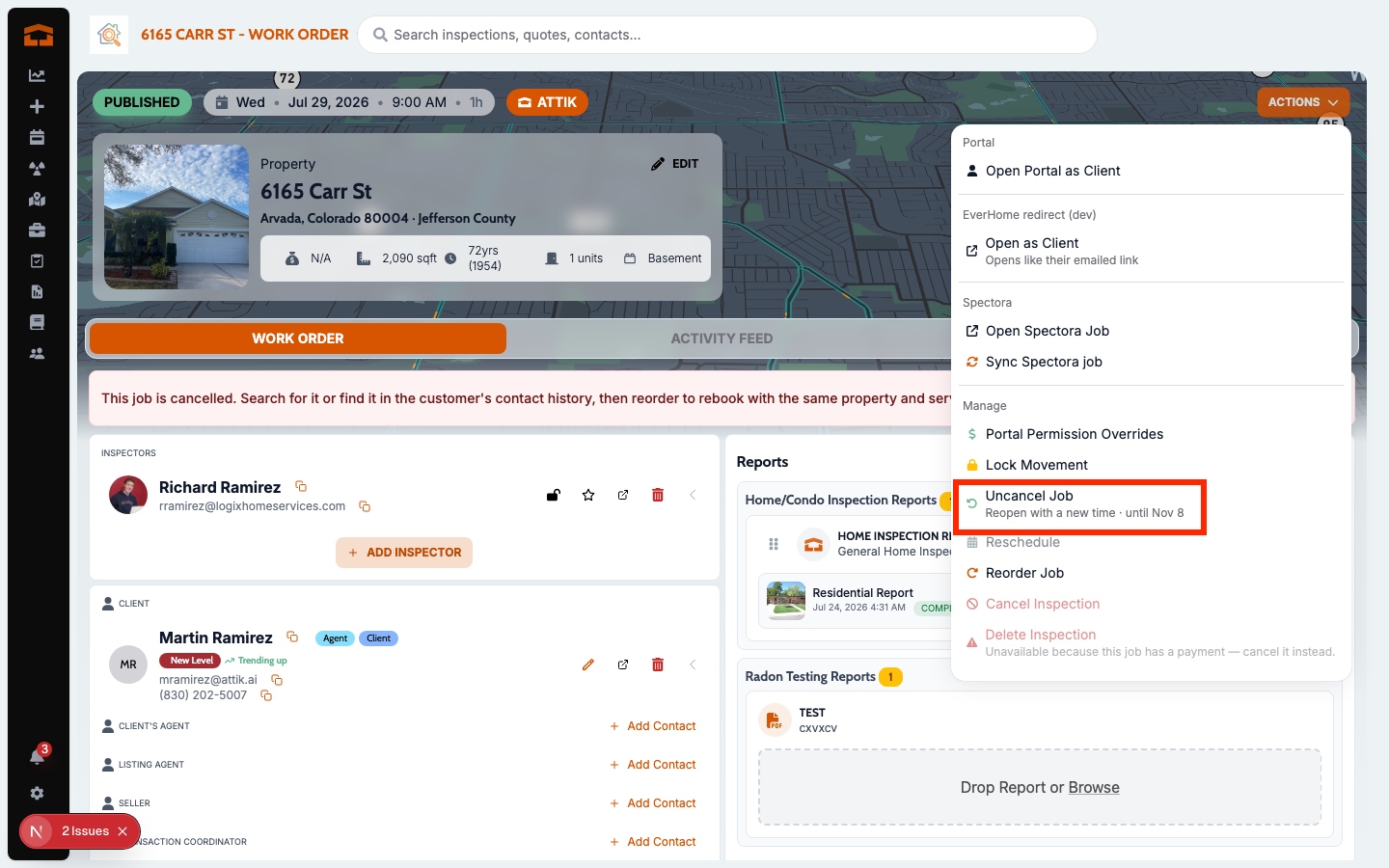
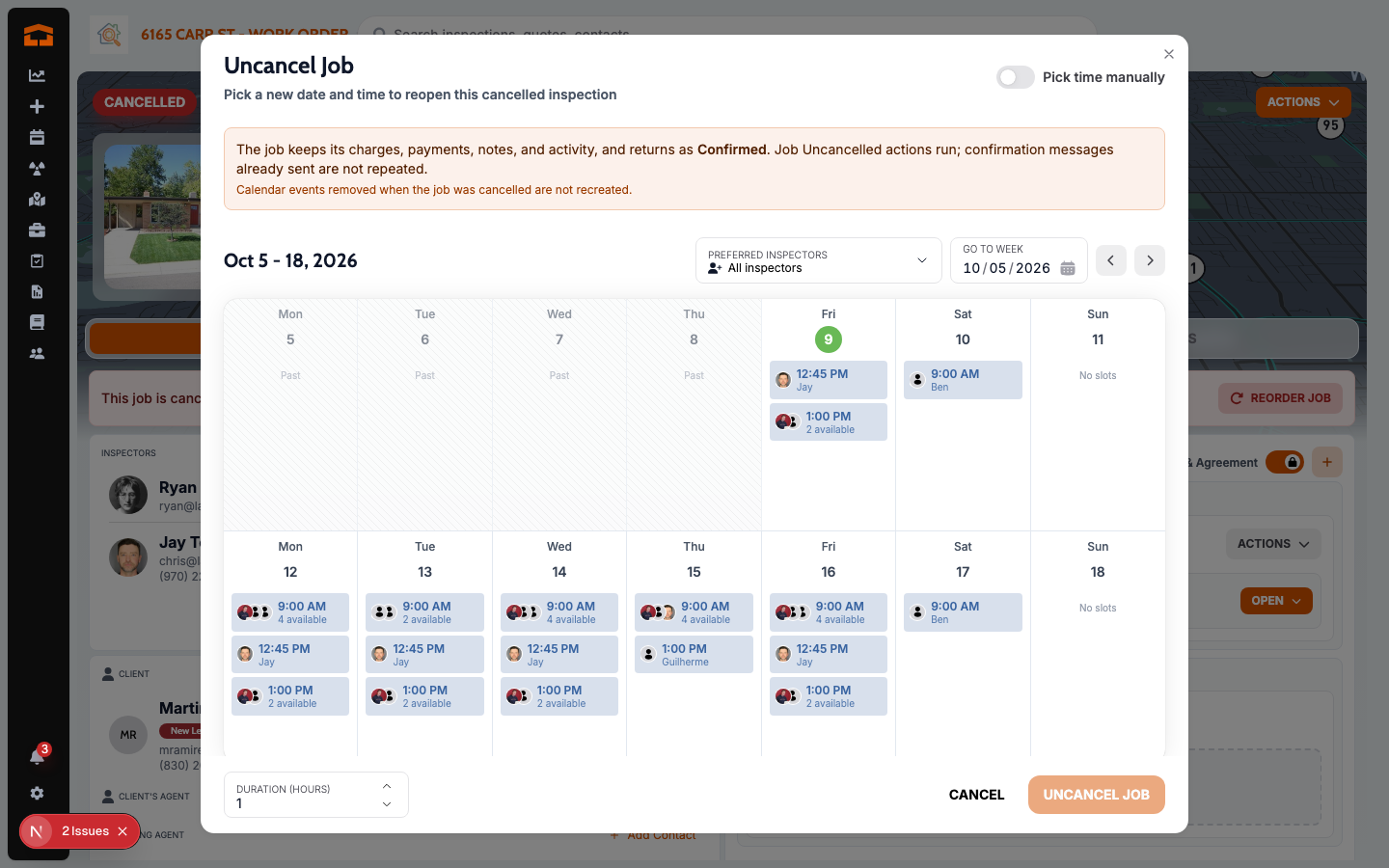
What changed: A cancelled job can now be reopened on the same work order by picking a new time, for up to 30 days after it was cancelled. The job goes back to the status it had before the cancel, its calendar events are put back for the primary inspector, and any Job Cancelled messages still waiting to send are stopped. Jobs synced from Spectora can't be uncancelled.
Where to find it:
Open a cancelled work order.
Open the work order actions menu and click Uncancel Job.
Pick the new date and time and save.
Cancelled Follow Ups for cancelled jobs
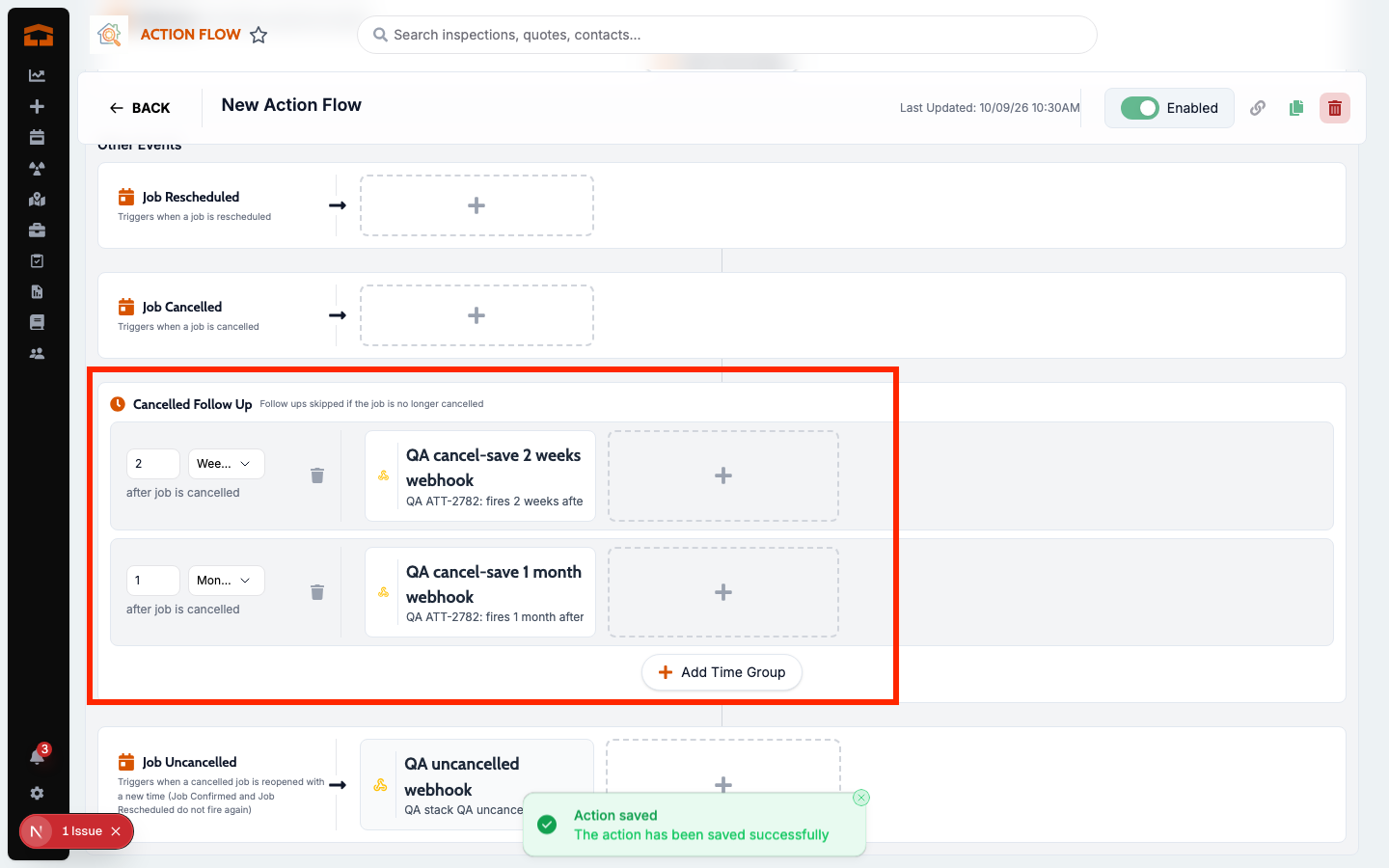
What changed: Action Flows now have a Cancelled Follow Up section for messages that go out days, weeks, or months after a job is cancelled, to help win the job back. They send in your company's time zone and respect the action's Communication Window. On the work order, a flow paused by the cancel shows Paused by cancel, and Stop Follow Ups ends the sequence for that one job.
Where to find it:
Open Action Flows and open a flow.
Add actions under Cancelled Follow Up and set how long after the cancel each one sends.
Setup:
Add at least one Cancelled Follow Up action to a flow. Nothing sends until you do.
Cancel a queued refund
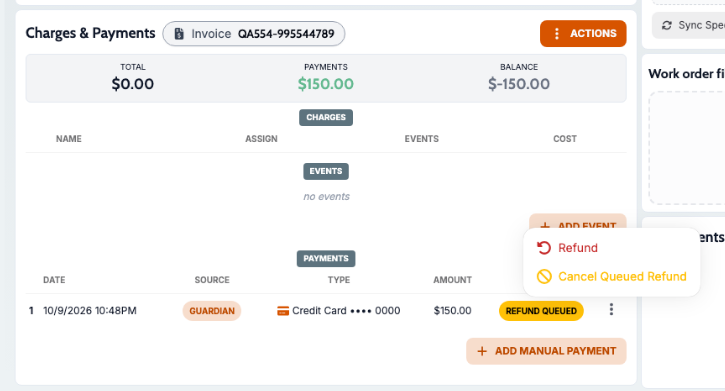
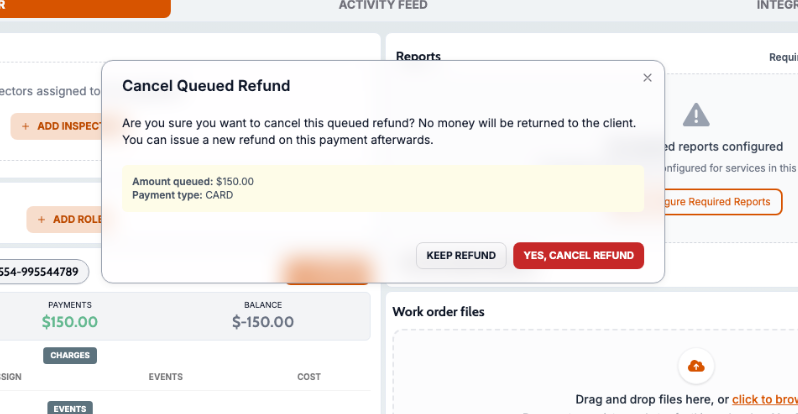
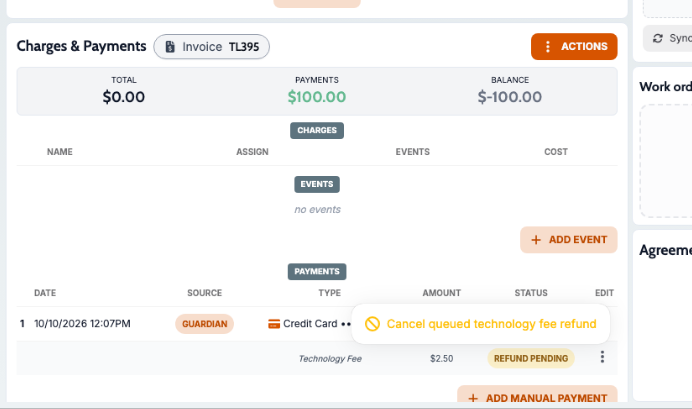
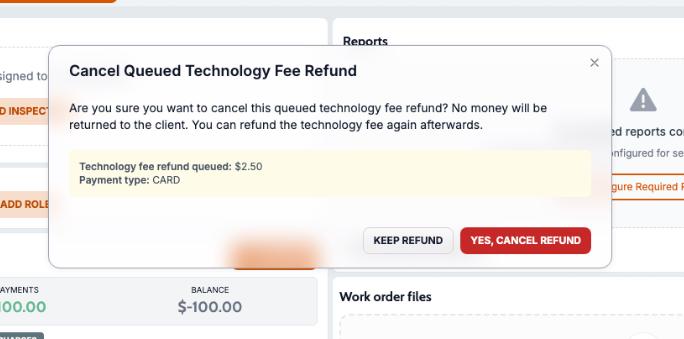
What changed: Staff can now cancel a refund that is still queued, before the payment processor runs it. No money moves, the refund stays in the payment history marked as cancelled, and it no longer counts toward the job's refunded total. Options for both the full queued amount or only the technology fee.
Where to find it:
Open a work order.
In Charges & Payments, open the payment's action menu.
Click Cancel Queued Refund and confirm.
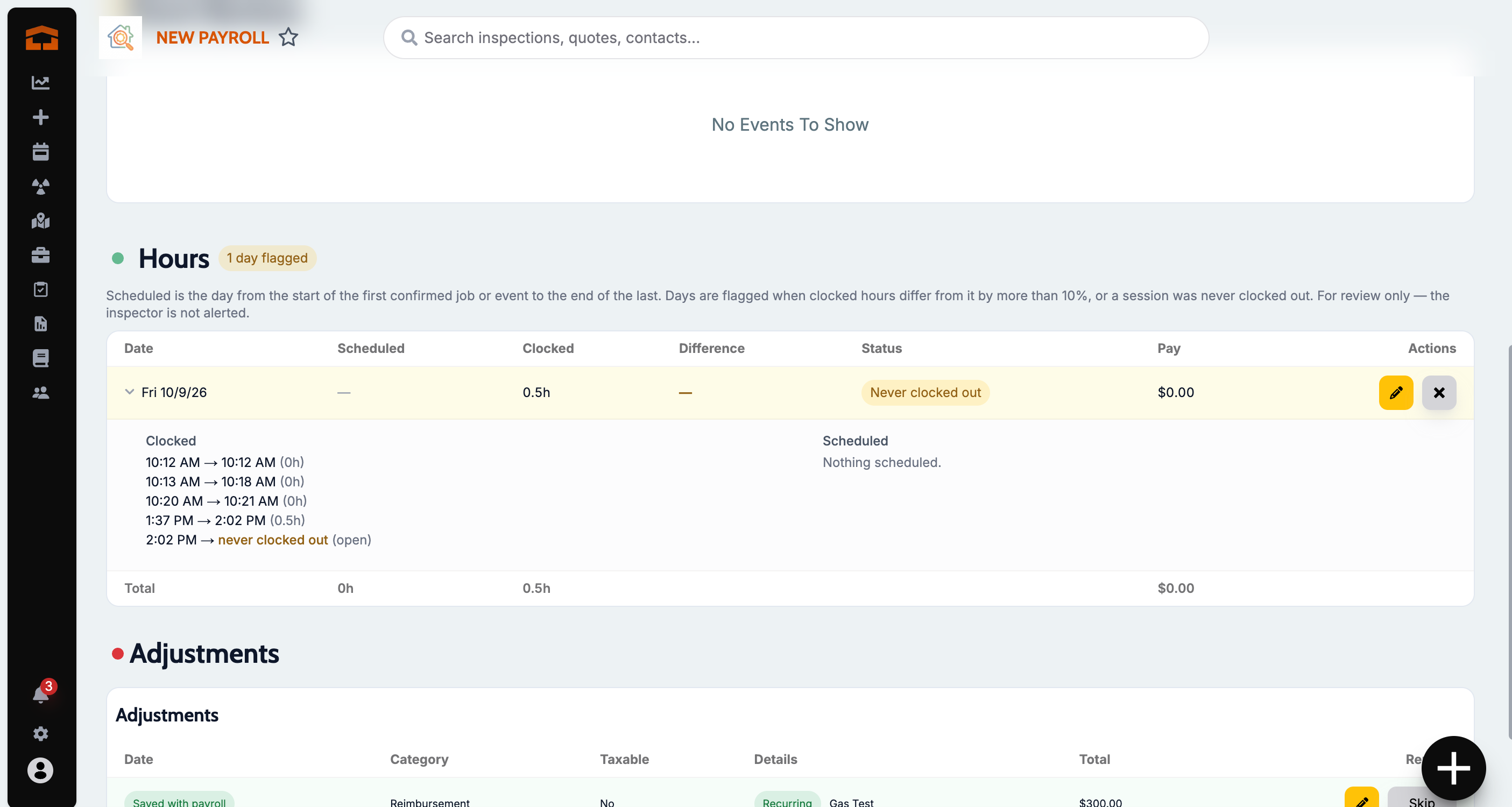
Hours table on the pay sheet
What changed: Each pay sheet now has one Hours table with a row per day: scheduled span, clocked hours, the difference, status, and pay. Days where clocked hours don't line up with the inspector's confirmed jobs and events are flagged, a past day with an open session reads Never clocked out, and you can expand a row to see the sessions, any requested edit, and the jobs behind the schedule. Office staff see the table without the schedule columns.
Where to find it:
Open Payroll.
Open an employee's pay sheet and scroll to Hours.
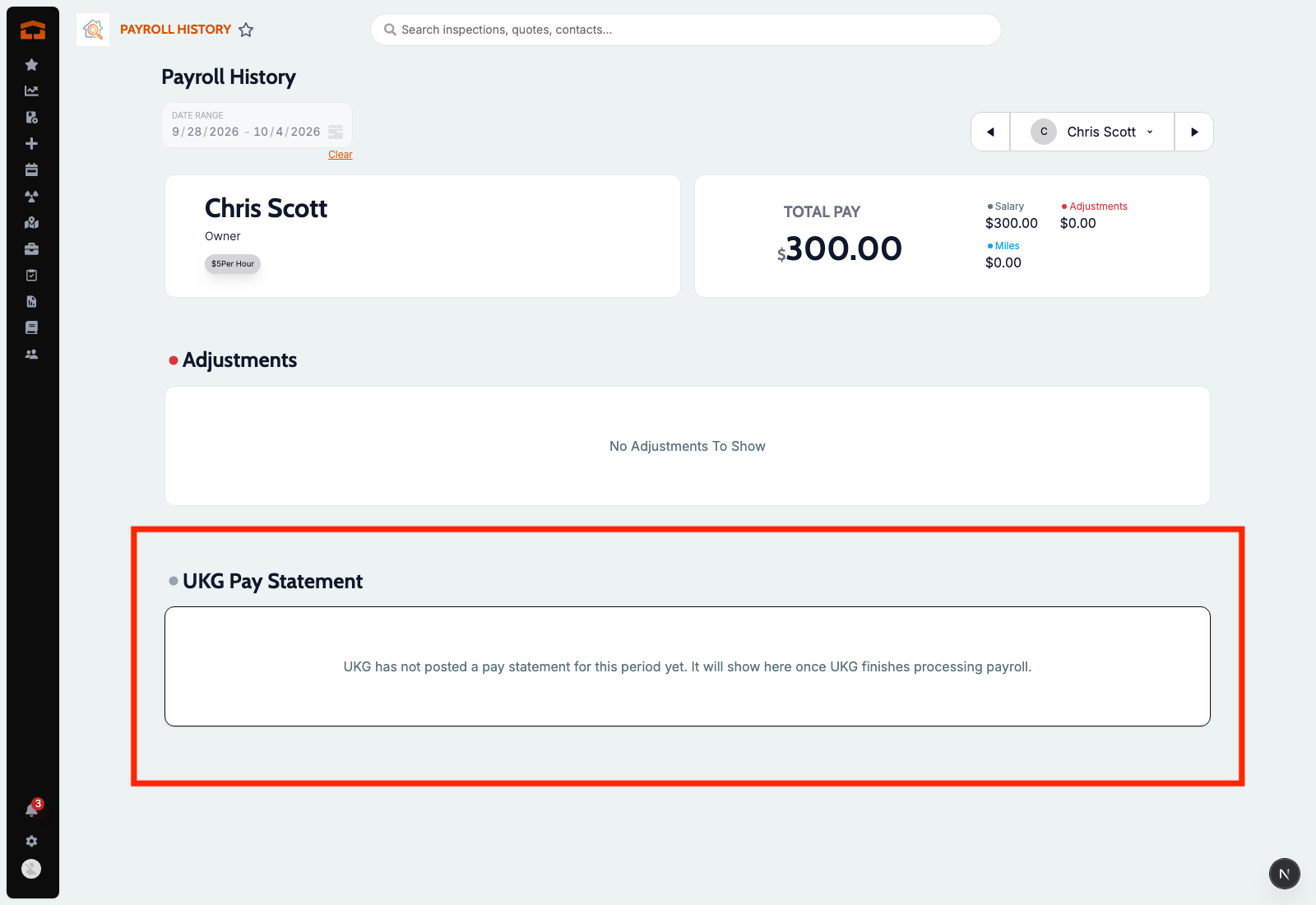
UKG pay statement on your own pay sheet
What changed: When UKG has posted a check for the pay period, employees can see their UKG pay statement at the bottom of their own pay sheet: gross pay, taxes, deductions, and take-home pay, with the earnings, tax, deduction, and direct deposit lines. Each statement is visible only to the employee it belongs to.
Where to find it:
Open your pay sheet in Payroll.
Scroll to the UKG Pay Statement section.
Setup:
A super admin enters the employee's external payroll ID in their staff settings.
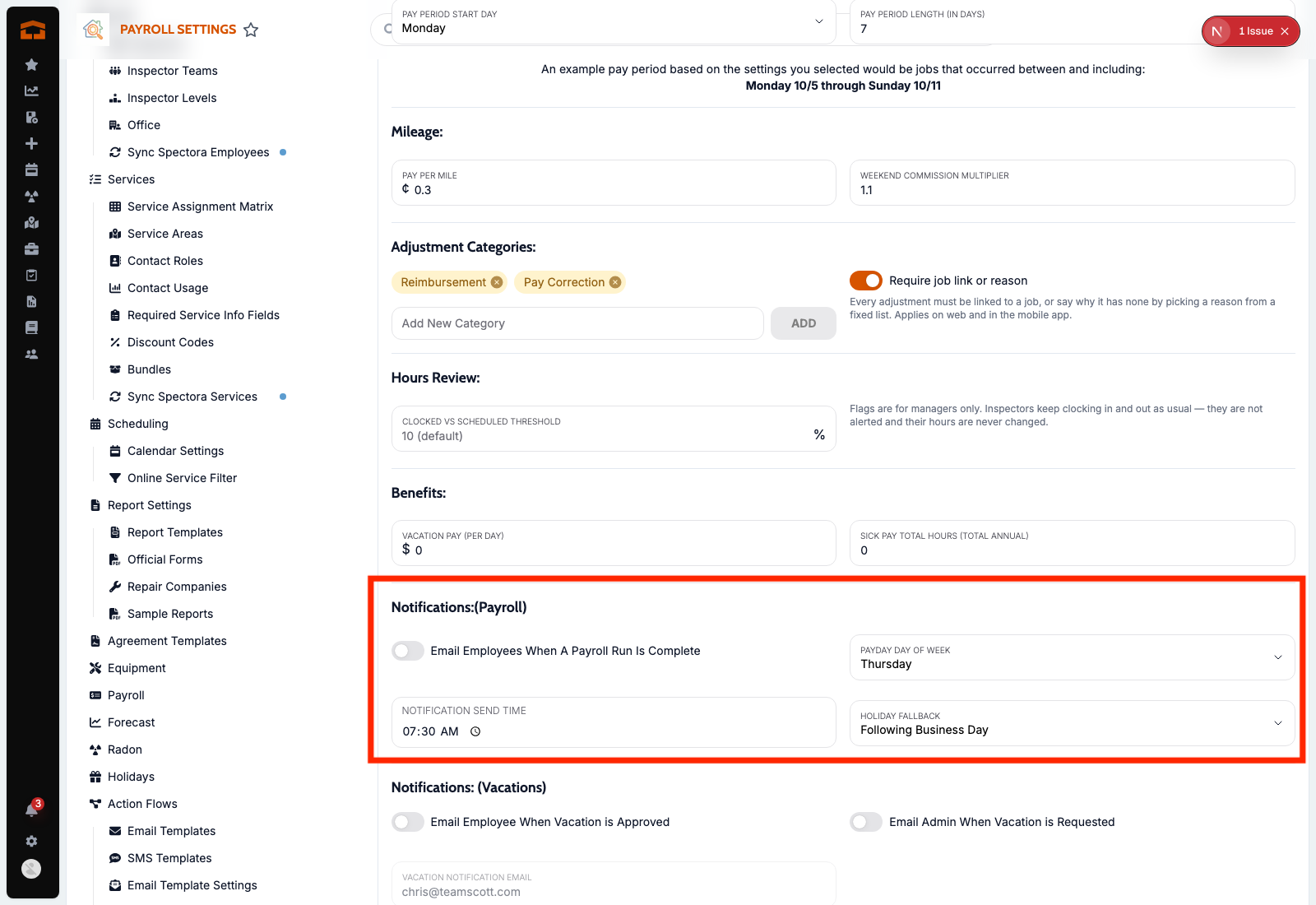
Pay sheet emails go out on payday
What changed: When a payroll run is published, pay sheet notification emails now wait and send on payday at a time you choose, instead of the moment the run is published. If payday lands on a holiday, the email moves to the business day before or after, based on your setting. Each run in payroll history shows its payday.
Where to find it:
Open payroll settings.
In Payroll Notifications, choose the payday, the send time, and what happens on a holiday.
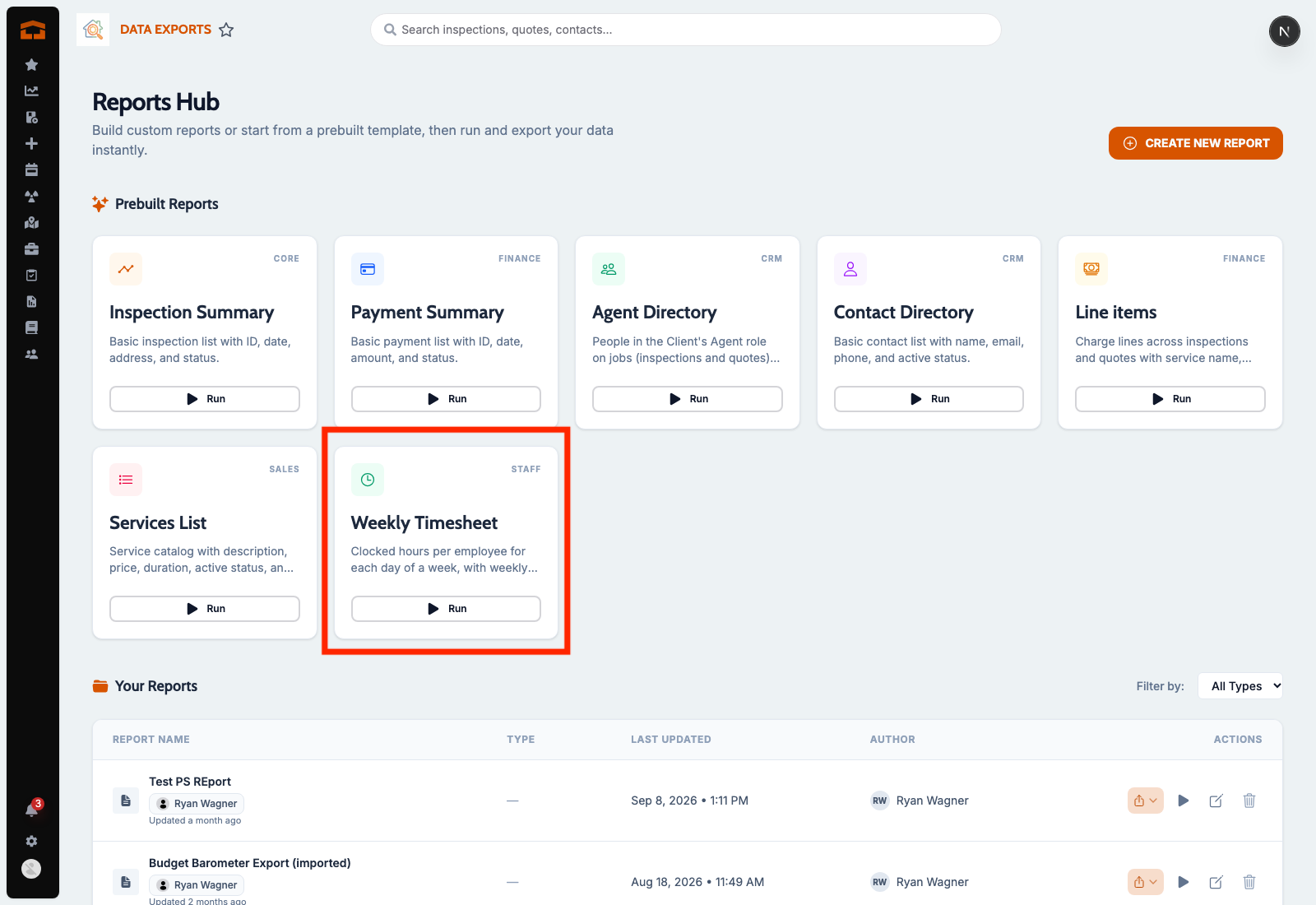
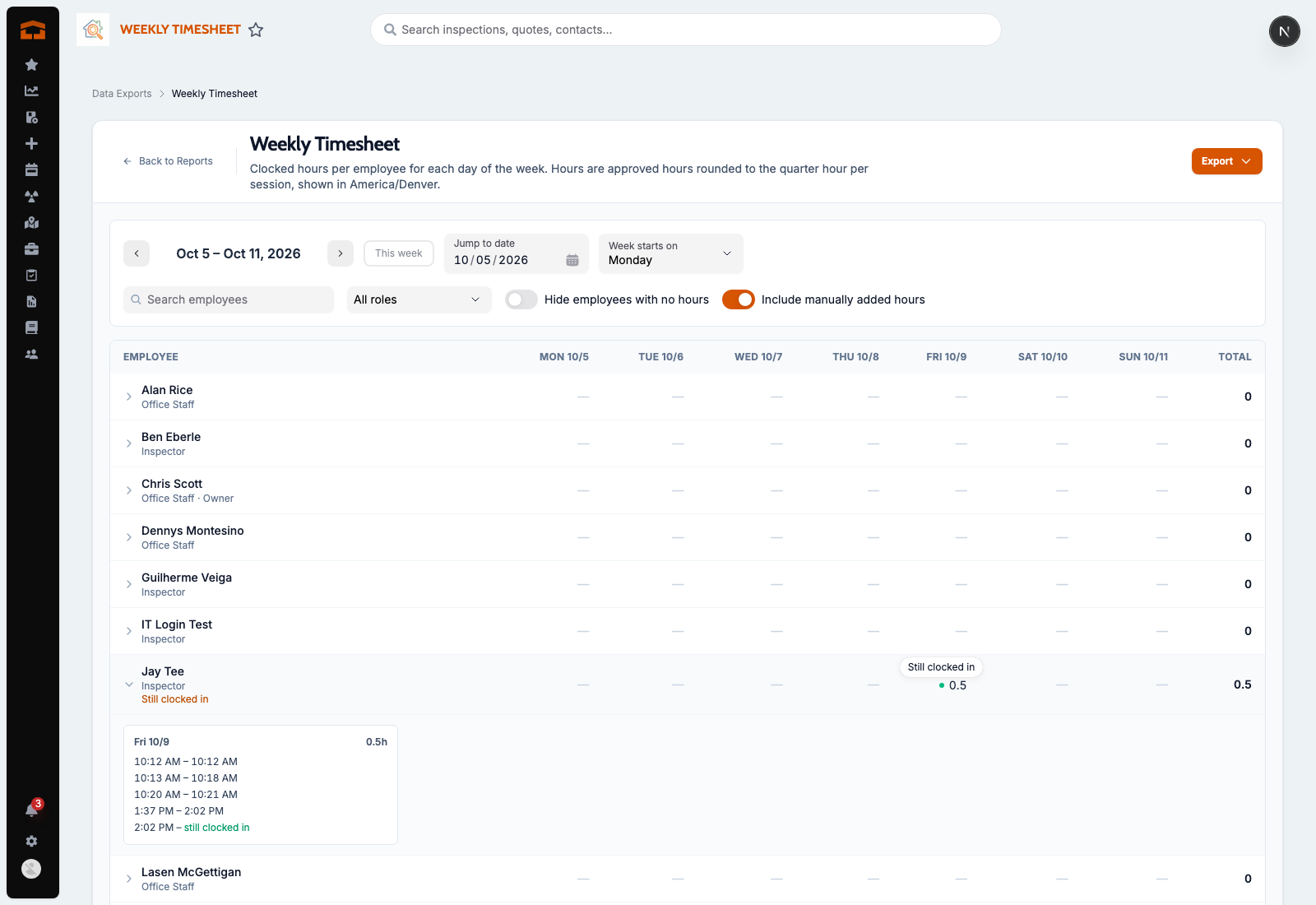
Weekly Timesheet report
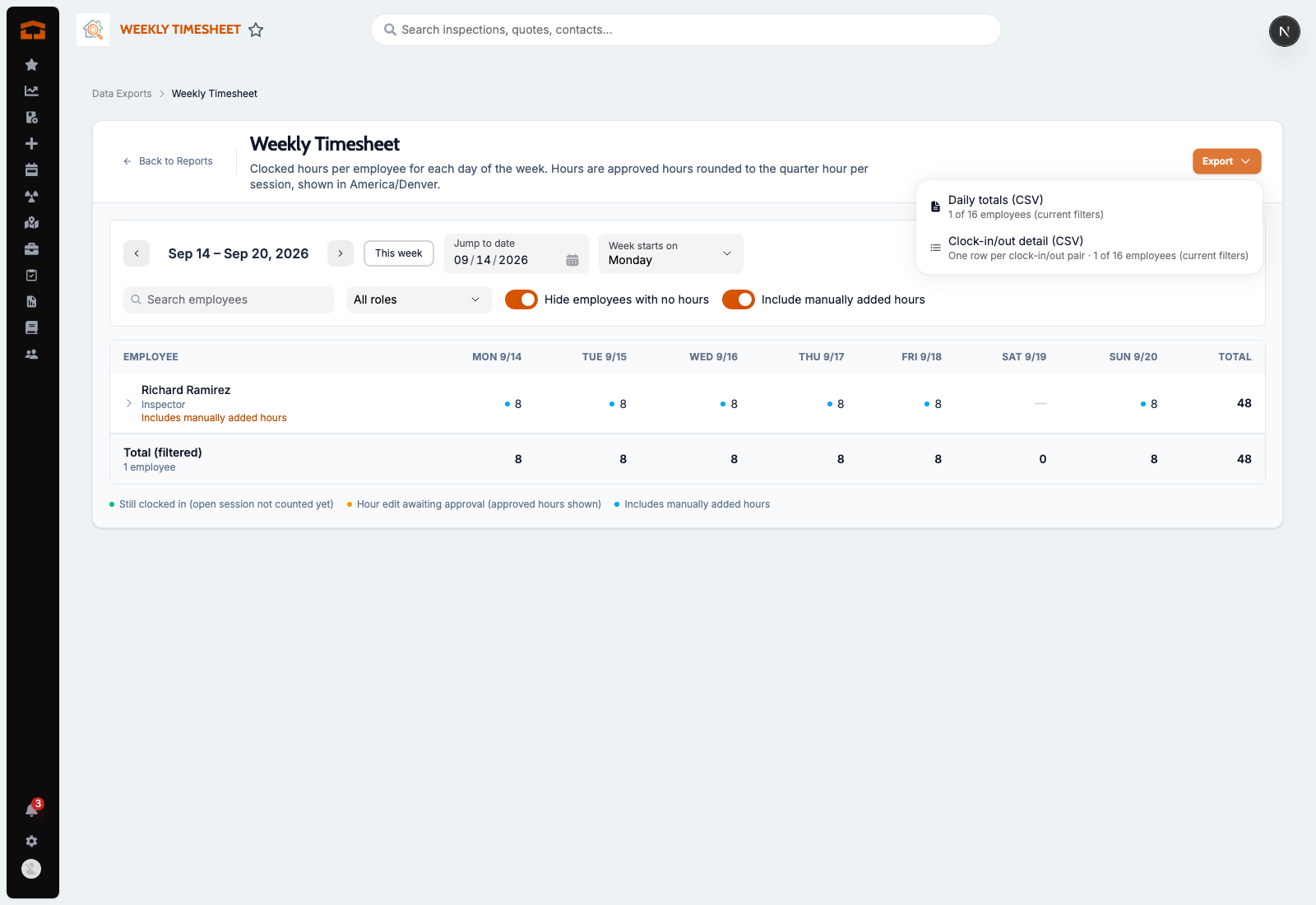
What changed: A new Weekly Timesheet report shows clocked hours for each employee for each day of a week, with weekly totals, and exports to CSV. The export lists each clock-in session's length separately from the approved day total.
Where to find it:
Open Reports Hub.
Under Staff, open Weekly Timesheet.
Setup:
Only staff with payroll or payroll adjustment permissions can open it.
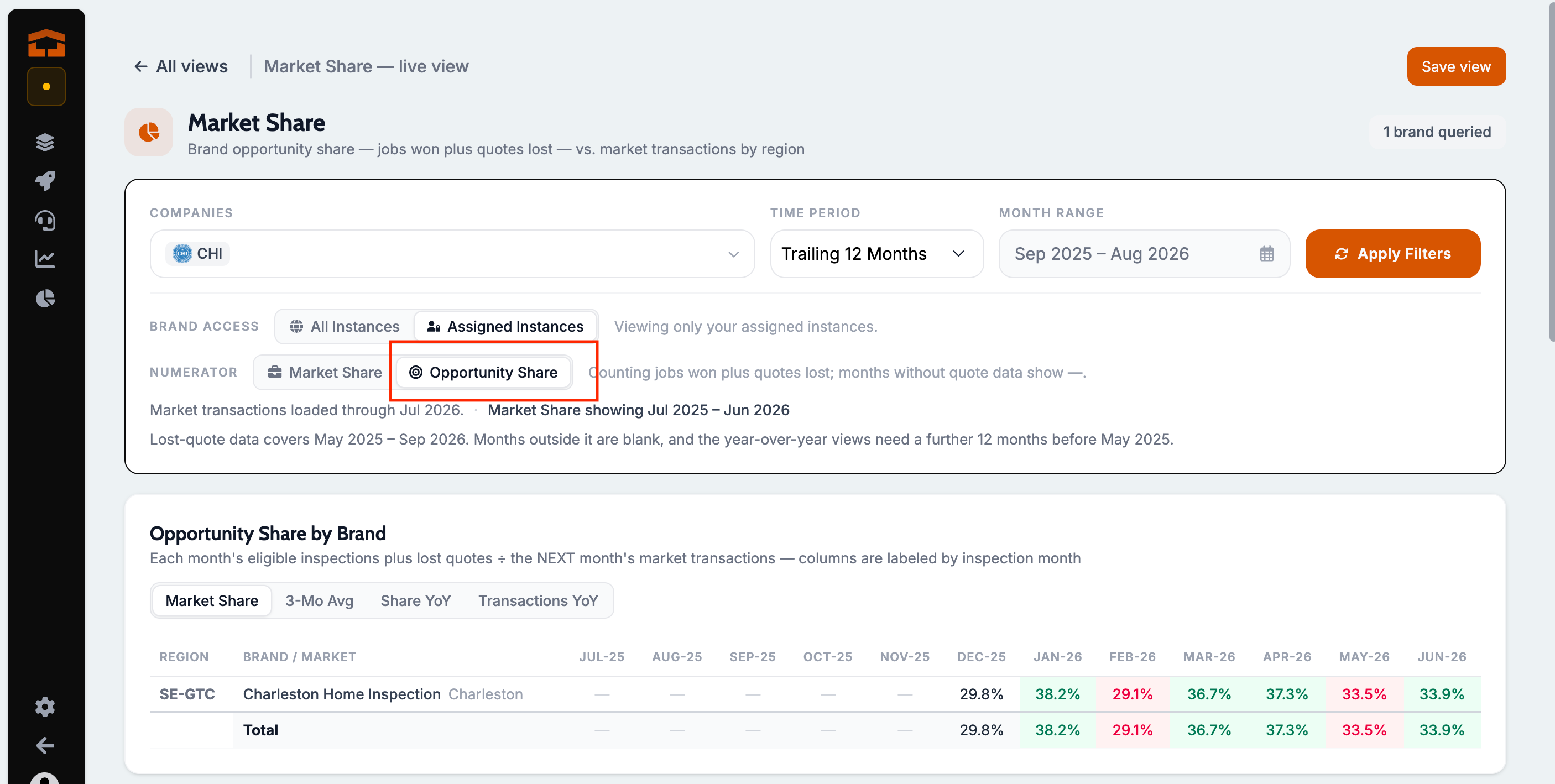
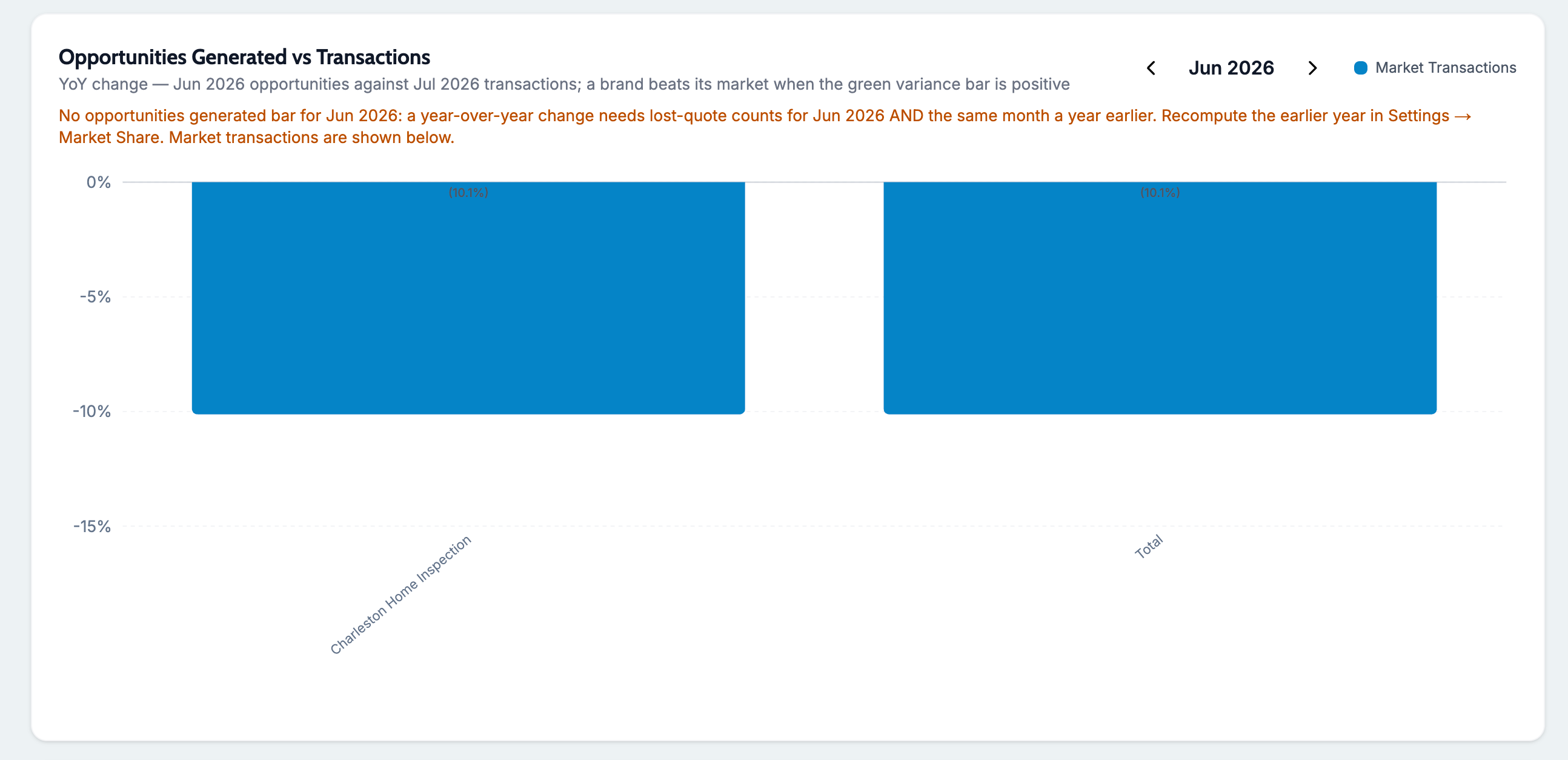
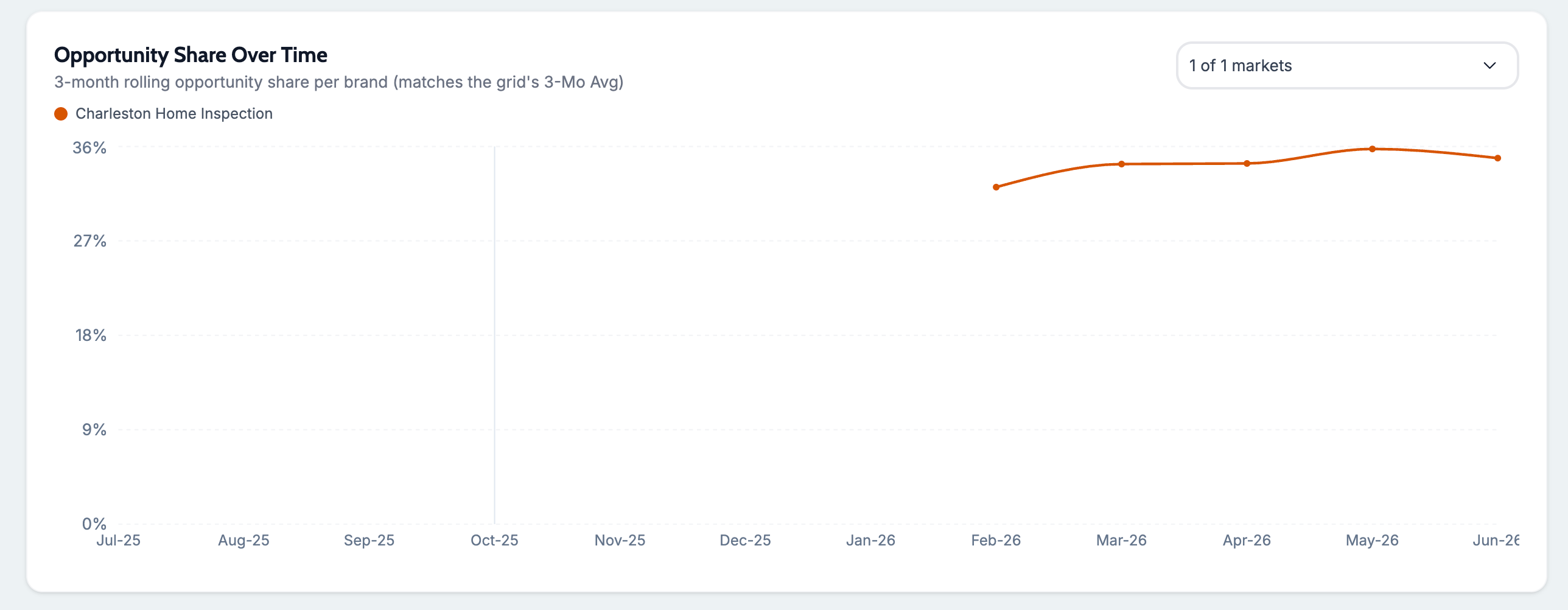
Opportunity Share on the Market Share dashboard
What changed: The Market Share dashboard has a new Opportunity Share view, with month-over-month color cues on the grid. Switching the view or grid mode now lets you save the dashboard view, and the variance chart keeps zero on its axis.
Where to find it: Admin Attik → Market Share
Improvements
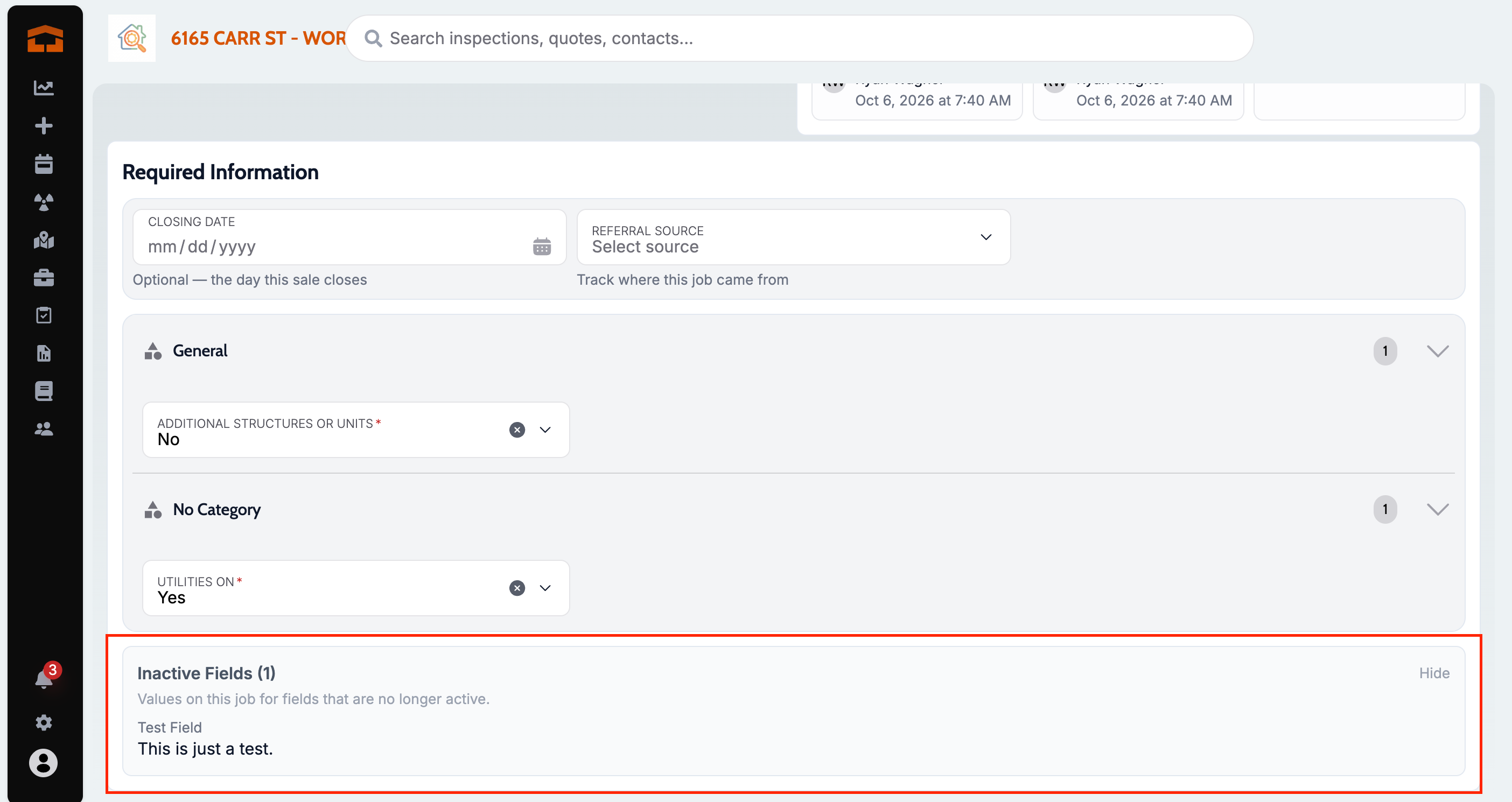
Inactive Fields on the work order
What changed: Values saved on a job for fields that are no longer active, such as a deleted required information field or a Spectora custom field brought in by a historical import, now appear in a read-only Inactive Fields list instead of being hidden. The list only shows up when a job has values like these.
Where to find it:
Open a work order.
In Required Information, click Inactive Fields to show or hide the values.
Faster hand-off to EverHome from the client portal
What changed: When a client opens their link and their job is ready for EverHome (paid, agreement signed, and reports complete), they are sent to EverHome right away instead of waiting for the full Attik client portal to load. Only jobs booked in Attik hand off to EverHome; jobs that came from Spectora, ISN, or a historical import open the Attik client portal as usual.
Where to find it: No new screen — takes effect when a client opens their client portal link.
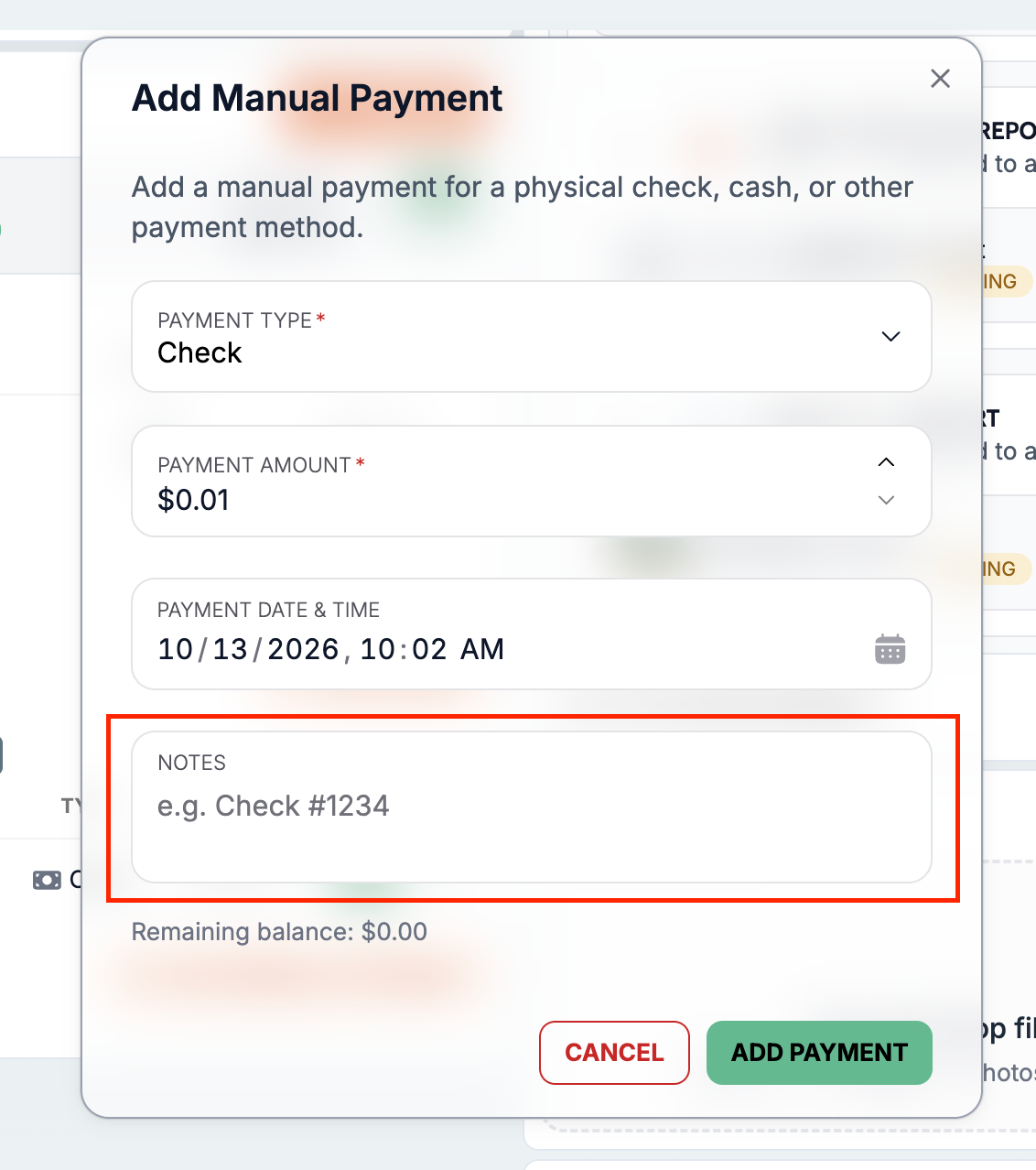
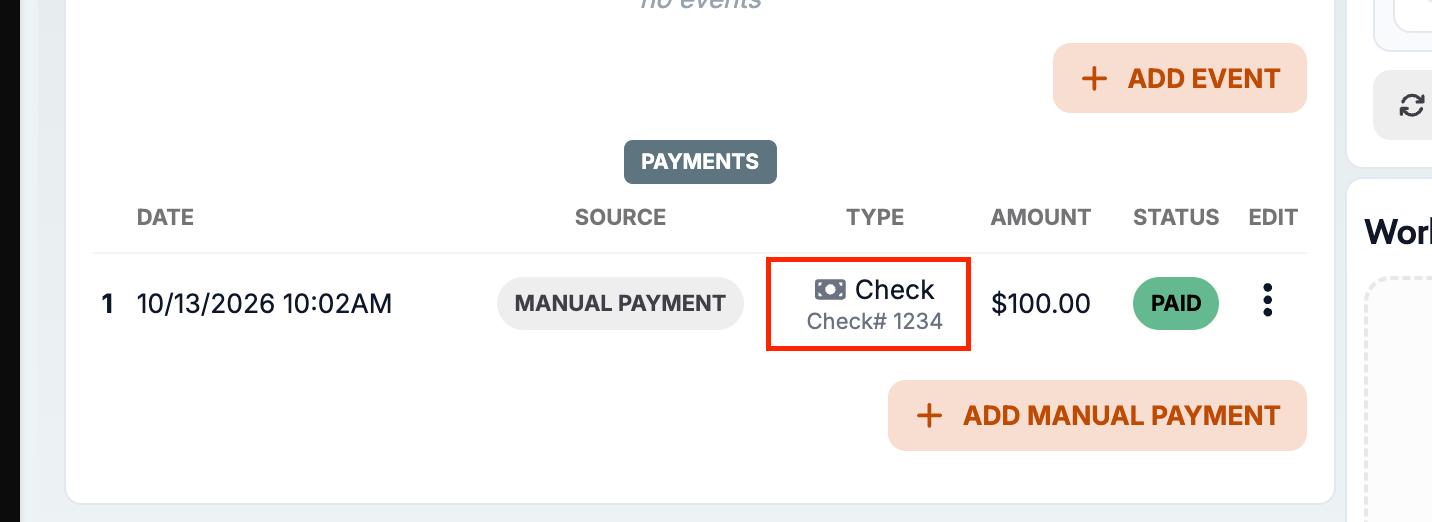
Add a note to a manual payment
What changed: When you add a manual payment, you can now type a note, such as a check number, of up to 500 characters. The note shows under the payment type in the work order's payments list, so payments are easier to match up later.
Where to find it:
Open a work order.
In Charges & Payments, click Add Manual Payment.
Fill in Notes, then click Add Payment.
See when EverHome skipped a report
What changed: If EverHome builds a homeowner portal but can't read one of the job's reports, the EverHome status now shows Portal built, report skipped instead of a success. A Reports not included list names each report it left out and what to do next.
Where to find it:
Open a work order.
In Integrations, expand EverHome.
Setup:
EverHome must be turned on for your company. The EverHome row doesn't appear otherwise.
Clearer error page if something goes wrong
What changed: If a page in Attik hits an unexpected error, you now see an Attik page that says Something Went Wrong with a Try Again button, and your navigation stays in place, instead of a bare "This page couldn't load" message. Our team is notified automatically.
Where to find it: No new screen — appears only if a page hits an unexpected error.
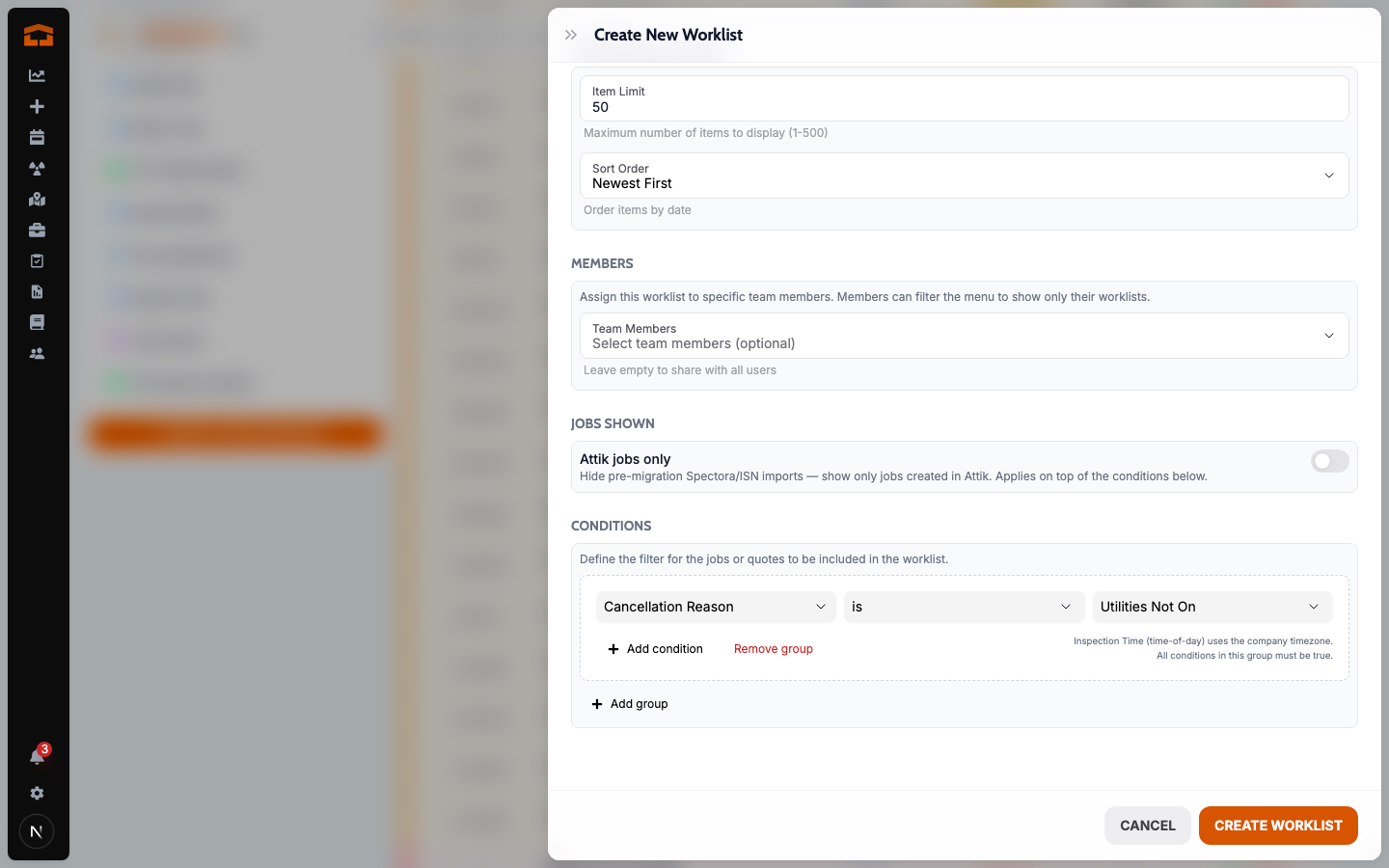
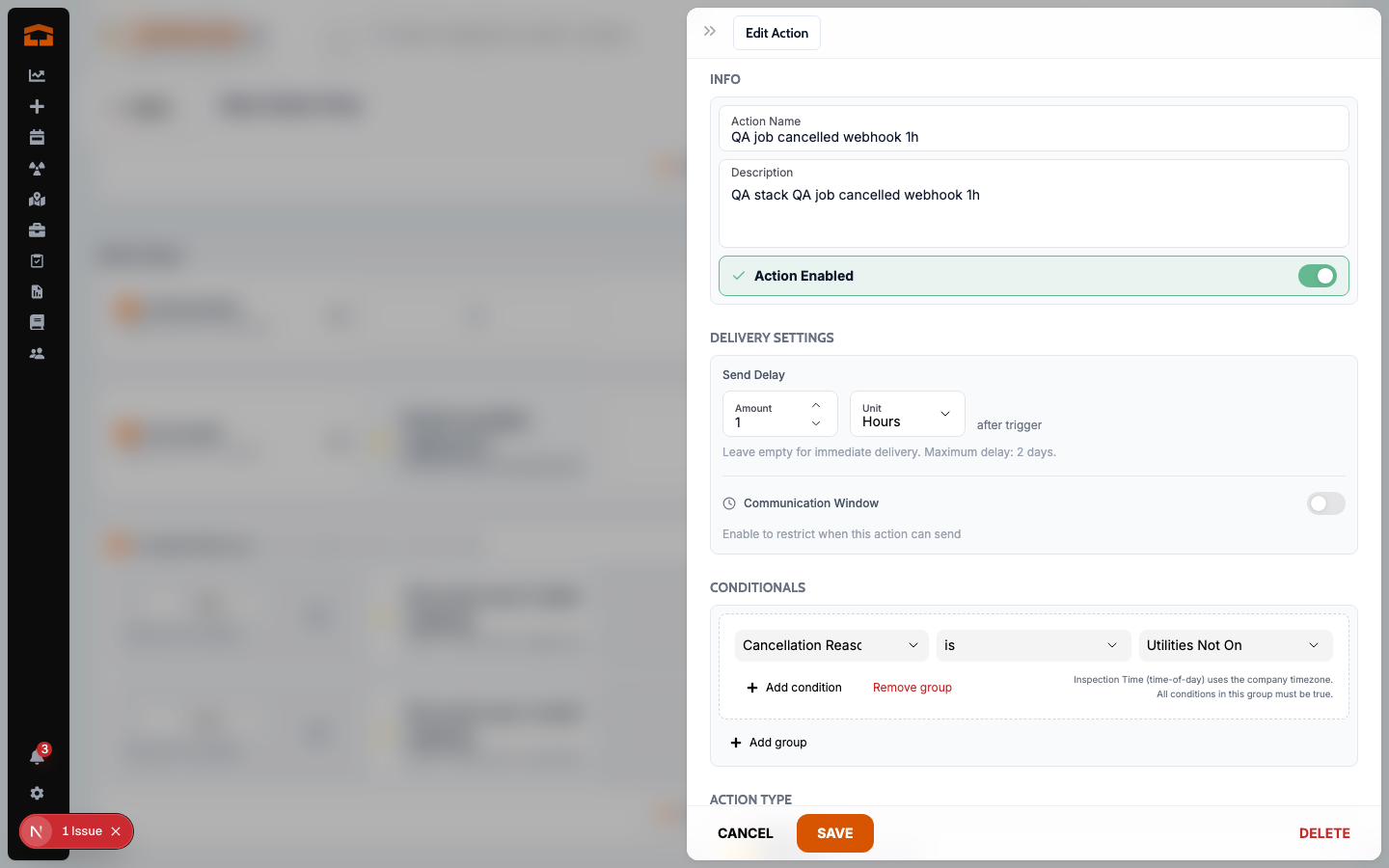
Filter worklists and action flows by cancellation reason
What changed: Worklists and action flow conditions can now filter inspections and quotes by cancellation reason. A reason only counts while the job is still cancelled or the quote is still rejected, and the reasons Attik writes on its own, such as auto-rejected quotes, can be picked too.
Where to find it:
Open a worklist or an action flow condition.
Add a cancellation reason condition and pick is or is not.
Duplicate Order/Error cancellation reason
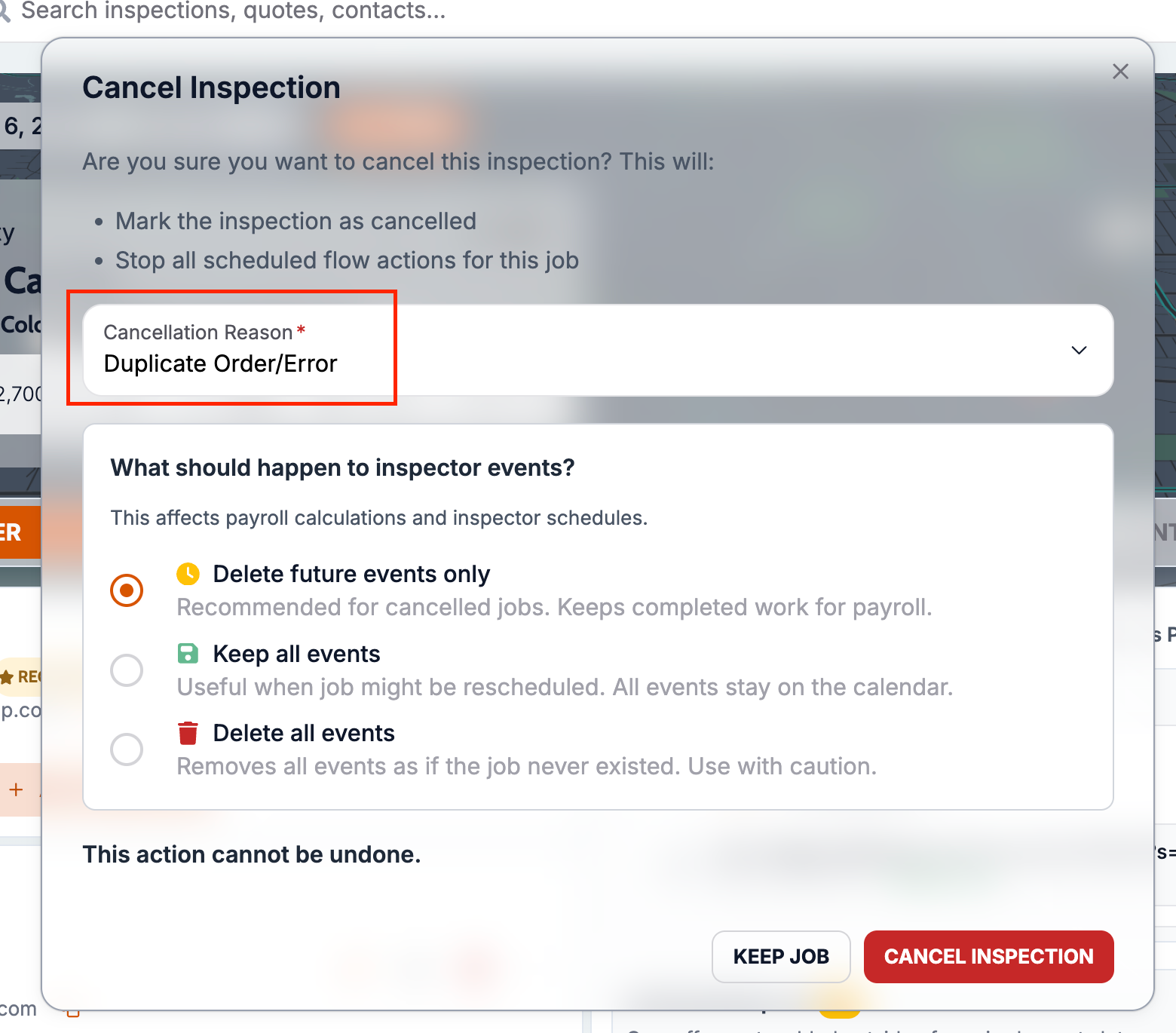
What changed: When cancelling an inspection or rejecting a quote, you can now pick Duplicate Order/Error instead of a generic reason. The same reason shows in Reports Hub.
Where to find it: The cancel dialog on a work order and the reject dialog on a quote.
Clearer Action Flows panel on the work order
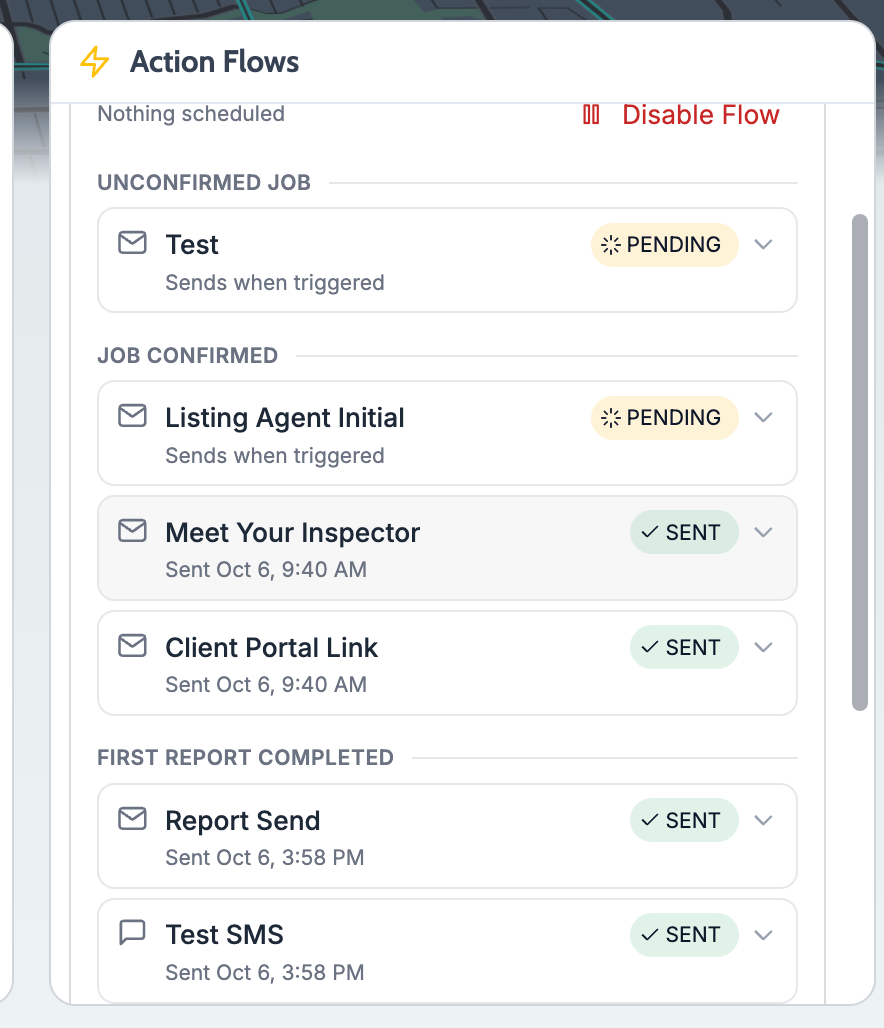
What changed: The Action Flows panel now groups actions under the trigger that fires them, in the order they happen, with a one-line summary of when each sent or will send, or why it didn't. Disabled and filtered actions are tucked into collapsed sections, and each flow shows its next scheduled send.
Where to find it:
Open a work order.
Open the Action Flows panel.
Activity feed names who took payments and refunds
What changed: The work order activity feed now names the staff member who took a card or ACH payment or requested a refund, instead of System. Queued refunds get their own entries when they are requested, completed, failed, or cancelled, and payments a client makes from their portal name that client.
Where to find it:
Open a work order.
Open the Activity feed.
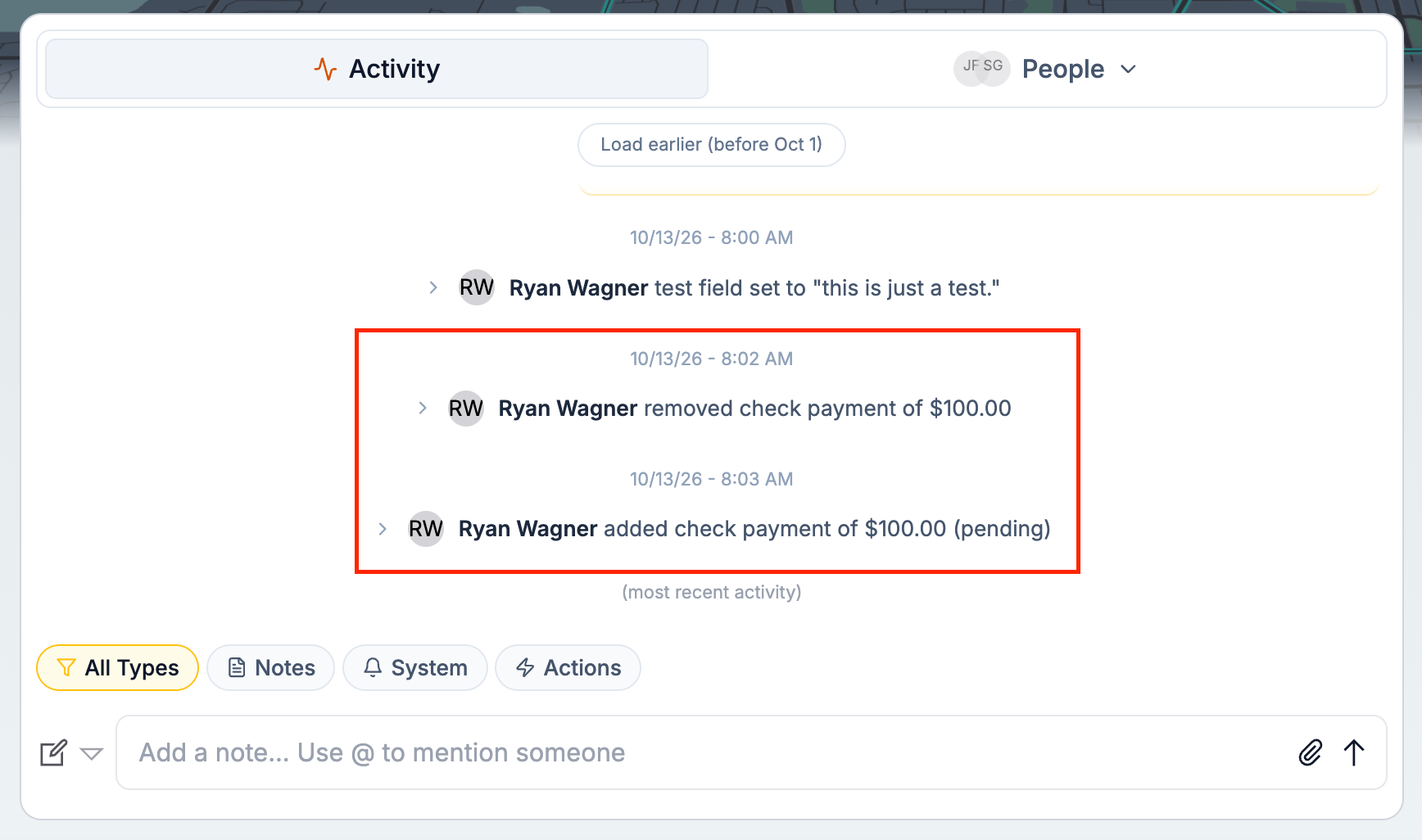
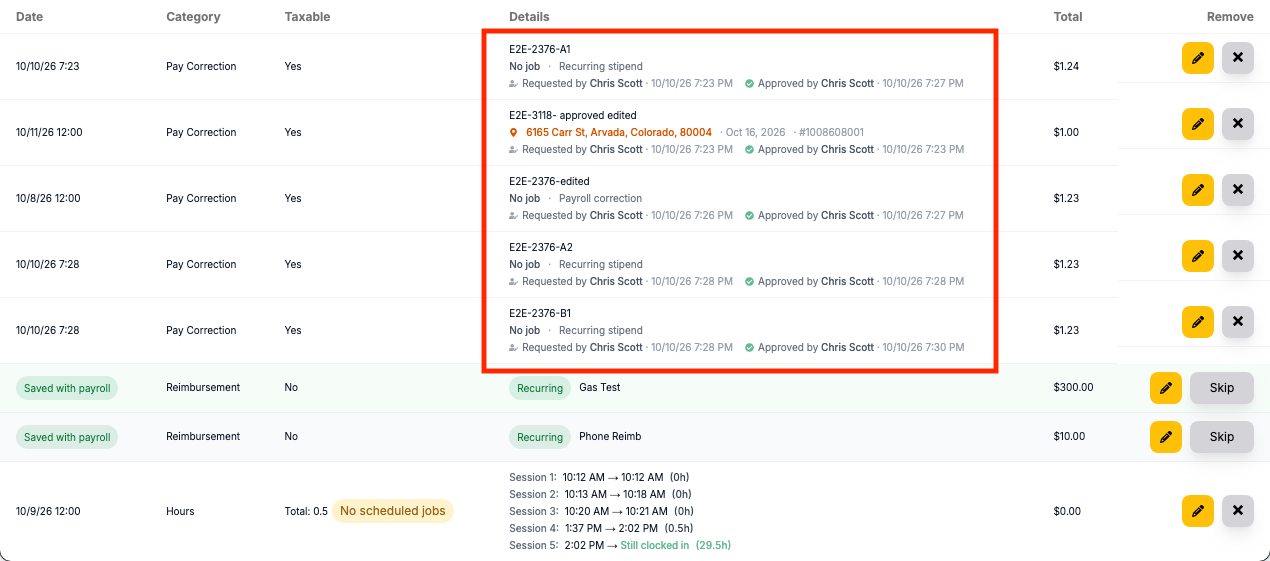
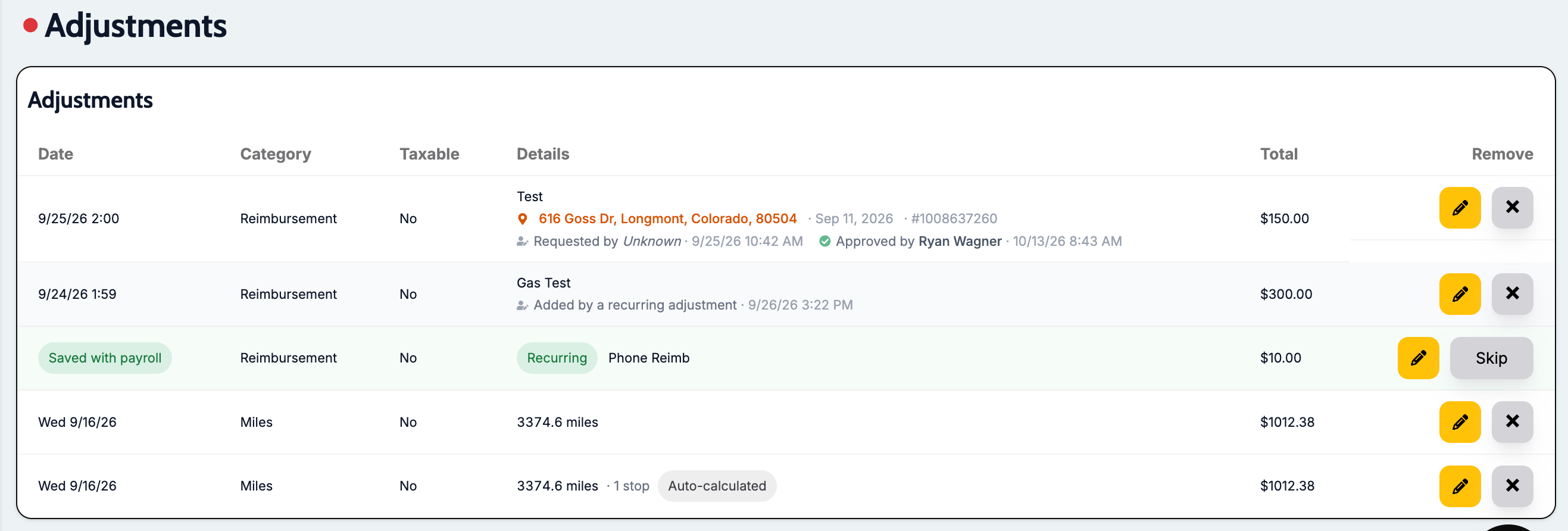
Payroll adjustments show who requested and approved them
What changed: Each payroll adjustment now records who requested it and who approved it, and shows both when you review it. Older adjustments show the requester as Unknown.
Where to find it: Manage Adjustments and the New Payroll pay sheet.
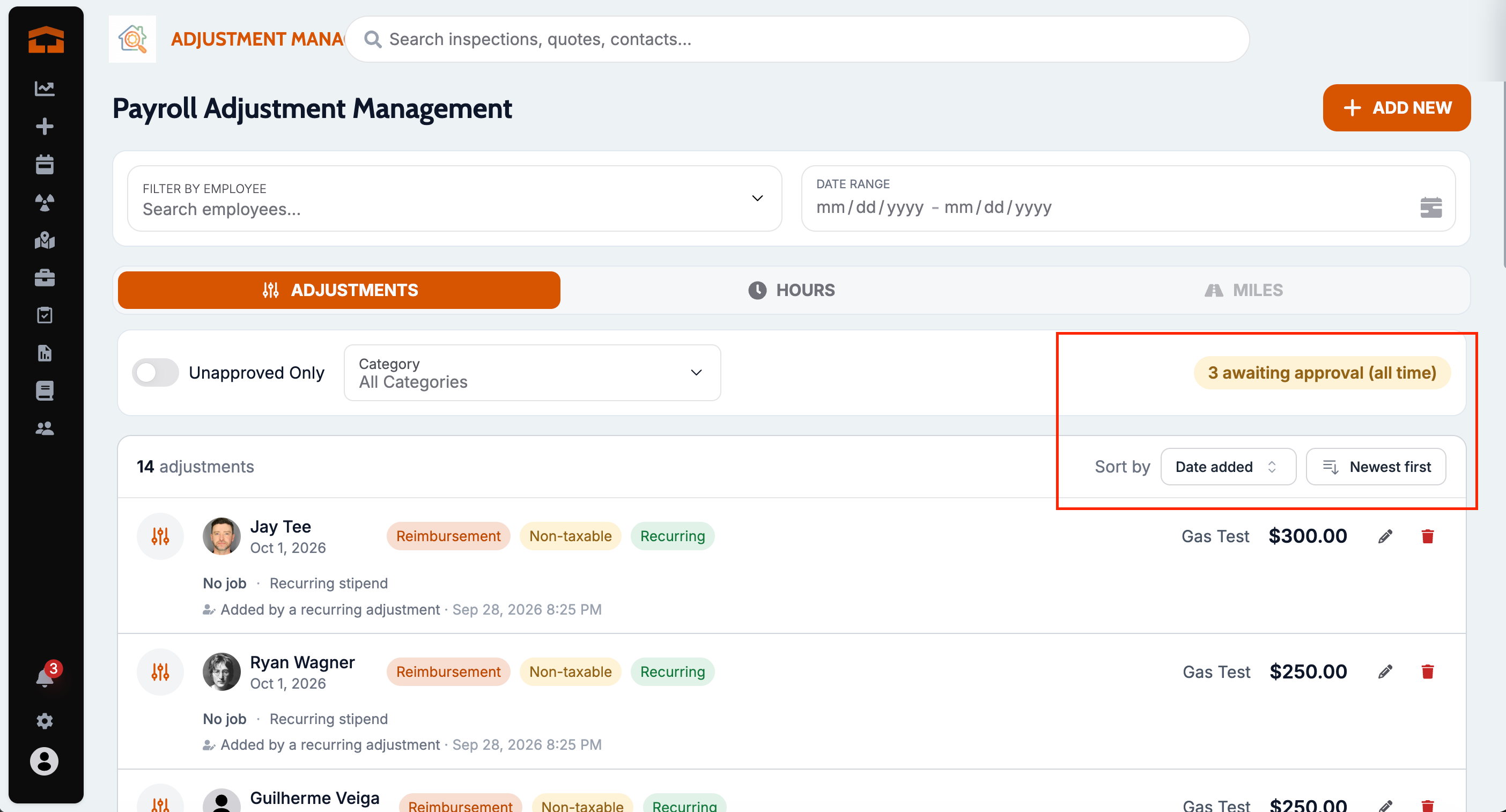
Sort and verify payroll adjustments
What changed: The adjustments list can now be sorted, and the awaiting-approval count says when it covers all time. On the Hours tab, the running and pending-edit filters now apply to the whole list, so the list and its count agree.
Where to find it: Manage Adjustments
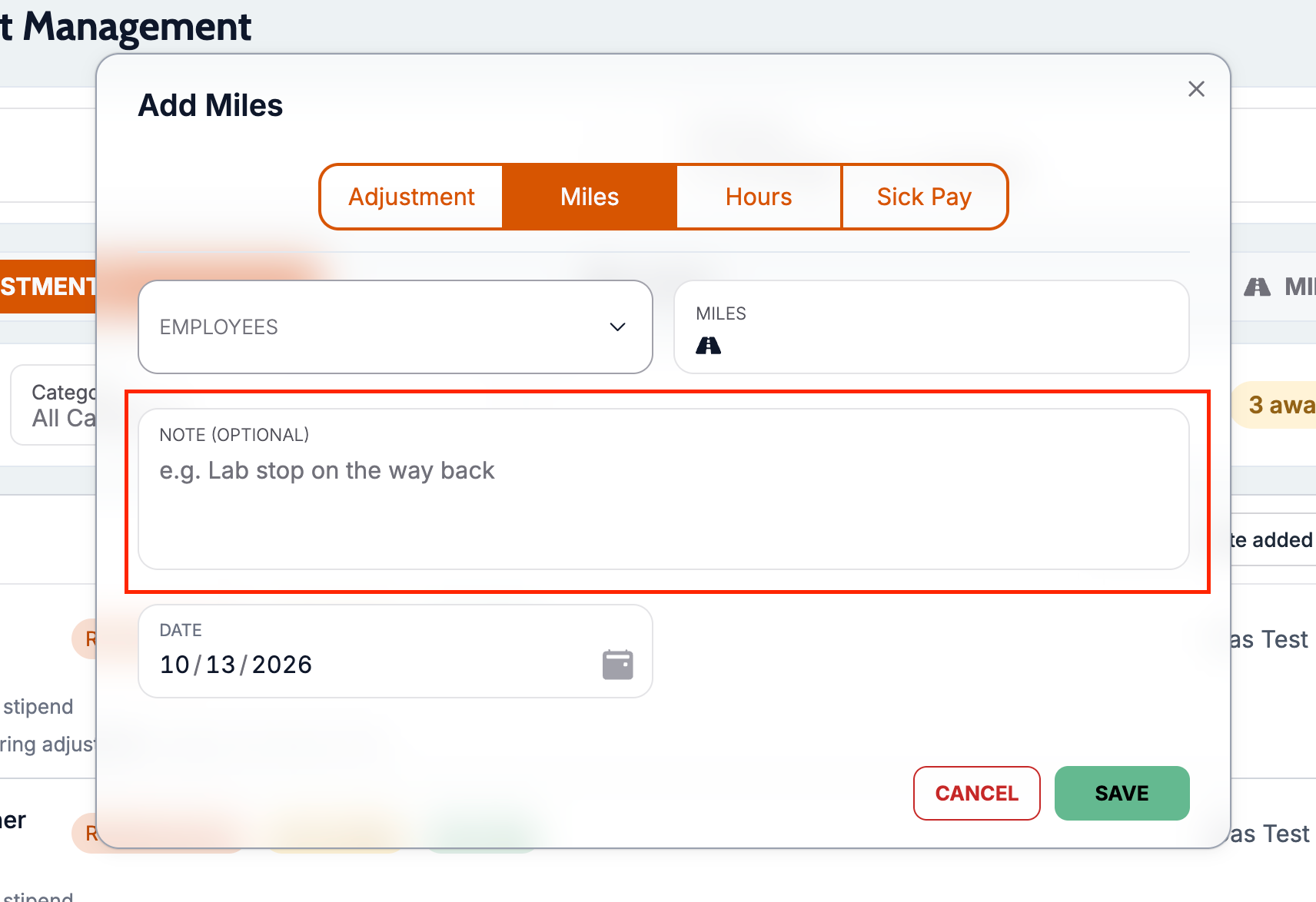
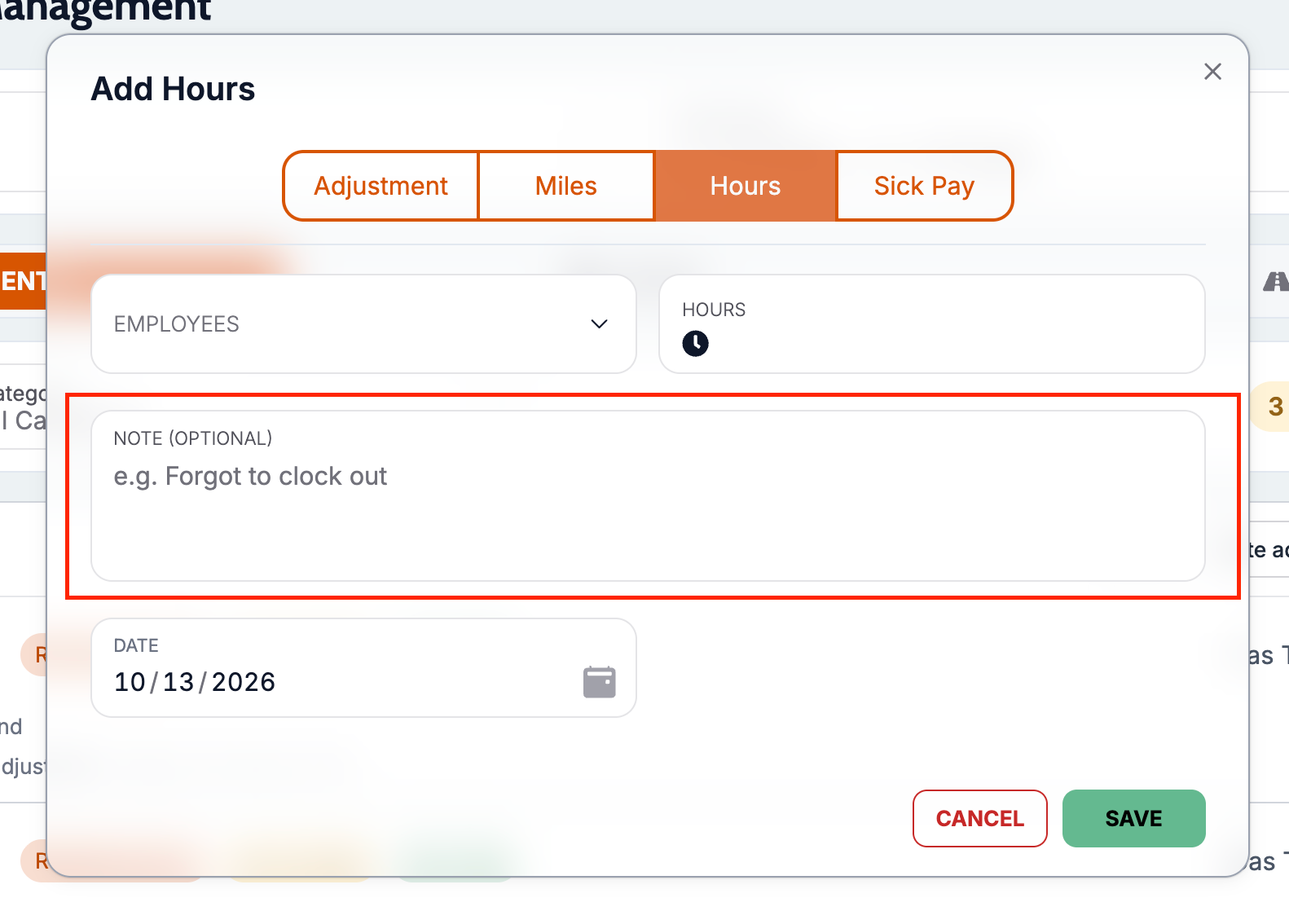
Notes on hand-entered miles and hours
What changed: Hand-entered mileage and hours entries can now carry a note.
Where to find it:
Open Payroll or Manage Adjustments.
Click Add Adjustment and pick the Miles or Hours tab.
Fill in Note (optional) and save.
Add a payroll adjustment from a work order
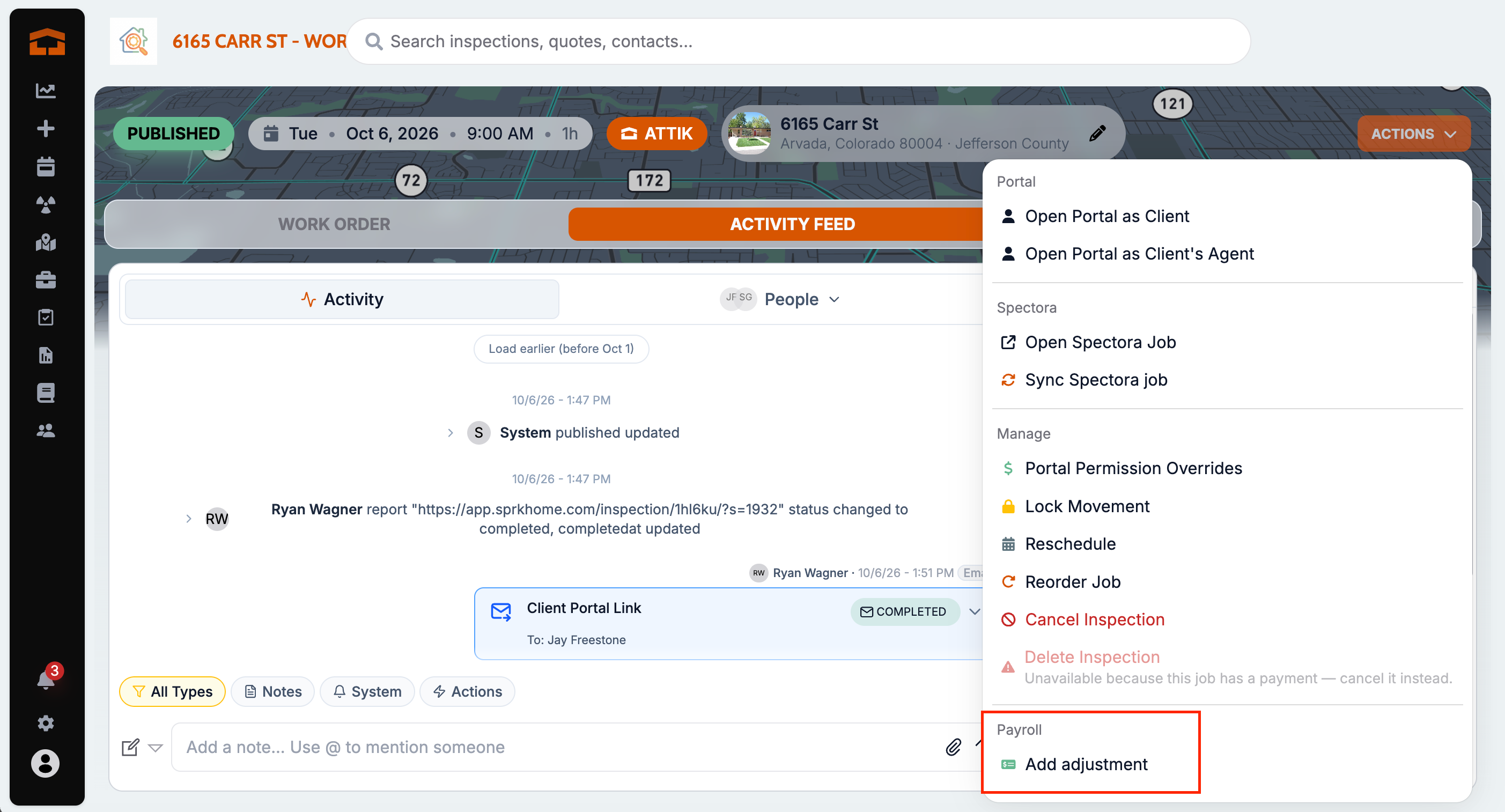
What changed: Office staff can add a payroll adjustment straight from a work order, and the option explains when nobody on the job is set up for payroll.
Where to find it:
Open a work order.
Open the work order actions menu and choose to add an adjustment.
Approved adjustments keep their linked job
What changed: Approved adjustments on the New Payroll pay sheet now show the job they're linked to, and editing one from the pay sheet no longer clears that link.
Where to find it: New Payroll pay sheet.
Filter inspection and quote reports by inspector
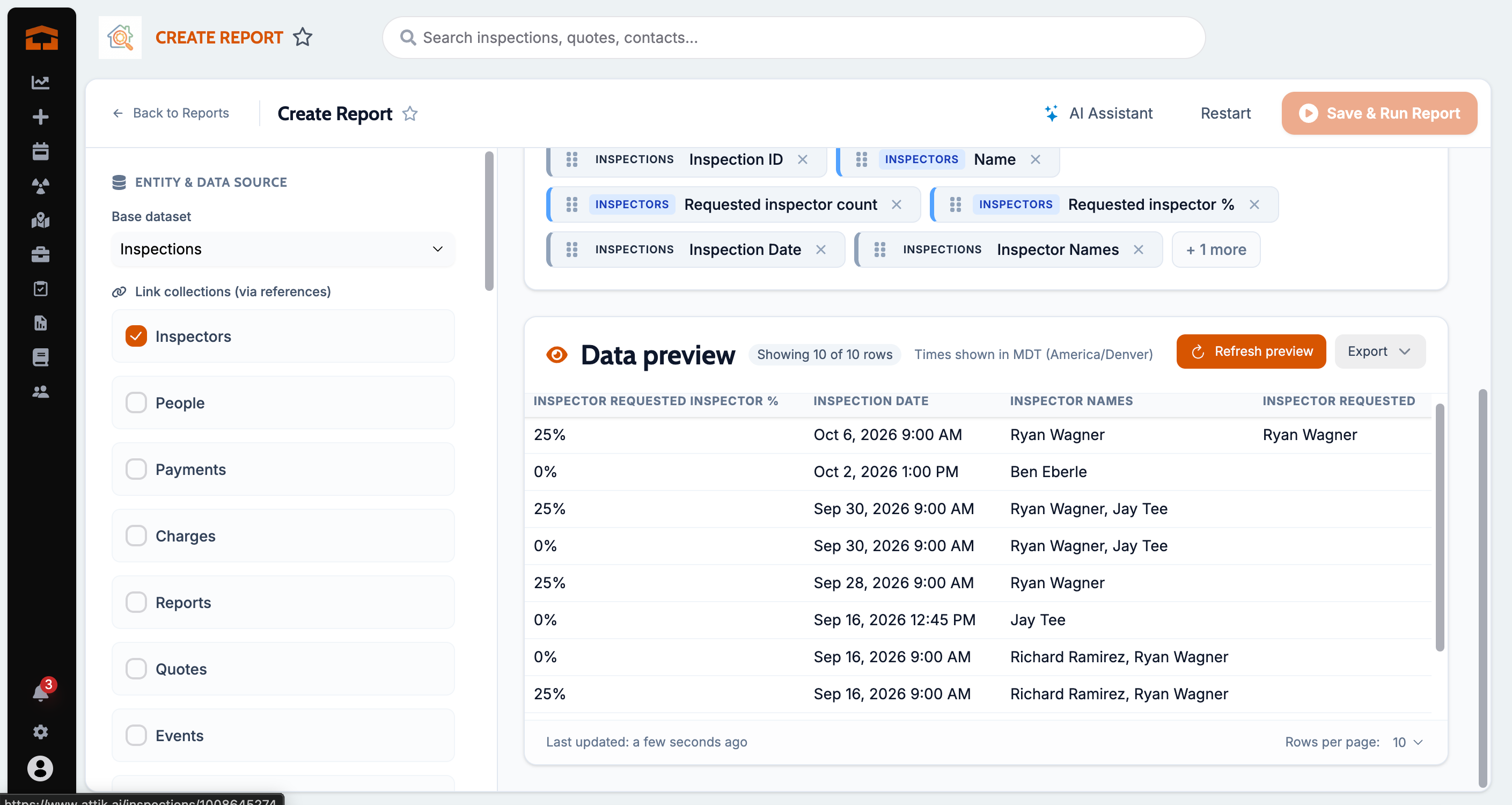
What changed: Inspections and quotes reports in Reports Hub now have Inspector and Requested inspector filters that work together with the service filters. Rows then list only the selected inspectors, and grouped or pivot reports count every inspector and charge on a job.
Where to find it:
Open Reports Hub.
Edit an inspections or quotes report and add an Inspectors filter.
Imported reports warn about filters that don't match
What changed: When you import a report from another company, its filters are now matched to the same-named staff, roles, and fields in your company. Anything that can't be matched shows in a notice on the report until you update the filters, instead of quietly returning no results.
Where to find it: Open an imported report in Reports Hub.
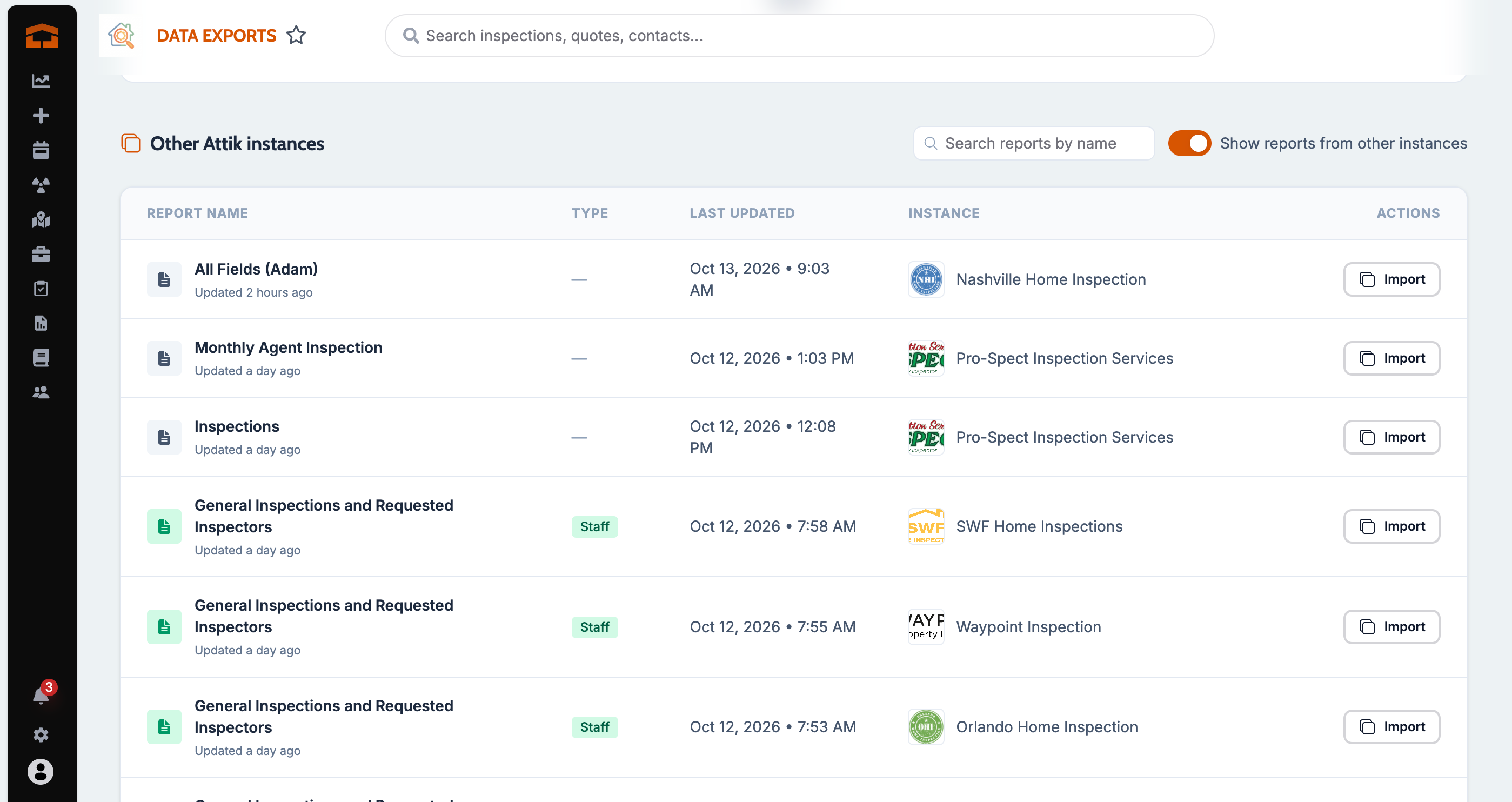
Search and page through other companies' reports
What changed: The list of reports from other Attik instances now has a name search, numbered pages, and the newest reports first, so older reports are easy to find.
Where to find it: Reports Hub → reports from other instances.
Save & Run opens the new report
What changed: Clicking Save & Run Report on a new report now opens its results, the same as an edited report, instead of going back to the Reports Hub list.
Where to find it: Reports Hub report builder.
Faster Client Care dashboard
What changed: The Client Care dashboard now loads from data prepared each day, so large date ranges are much less likely to time out. Typing a custom comparison year no longer crashes the dashboard, and ranges are capped at 10 years.
Where to find it: Admin Attik → Client Care
Inspector and contact columns in the Launchpad Revenue download
What changed: The Launchpad Revenue CSV download now ends each row with a column for each assigned inspector, plus the name, email, and role of each contact on the job.
Where to find it: Admin Attik → Launchpad Revenue → download.
Lab appointments only for jobs booked in Attik
What changed: PriorityLab and Breeze appointments are now created, updated, and cancelled only for jobs booked in Attik, so jobs imported from ISN or Spectora no longer flood the lab portal. A job converted to Attik gets its lab appointment right away.
Where to find it: No new screen — takes effect after the update.
Setup:
Applies only to companies using the PriorityLab or Breeze integration.
Bug Fixes
Spectora historical imports no longer add required information fields
What changed: A Spectora historical import no longer creates a new required information field for every Spectora custom field, so those fields stop cluttering your settings and the booking form. Values for fields you already matched to an Attik field still land in that field, and the rest are kept on the job under Inactive Fields. Fields created by earlier imports are not removed.
Where to find it: No new screen — takes effect on the next Spectora historical import.
Applies to: Future records only.
Imported jobs are no longer pushed to EverHome automatically
What changed: Jobs that came from Spectora, ISN, or a historical import are no longer sent to EverHome automatically when their reports are complete. Automatic pushes now only happen for jobs booked in Attik, and a manual push from the work order still works for any job.
Where to find it: No new screen — takes effect after the update.
Applies to: Future records only.
Calendar days stay correct after daylight saving time ends
What changed: Picking a day in the Calendar now always loads that day's inspections and events, and the highlighted day, the date header, and the jobs shown all match. This fixes weeks after daylight saving time ends, when some viewers, especially in Mountain time, saw the previous day's jobs. Everyone in a company now sees the same jobs on the same day, whatever time zone their computer is set to.
Where to find it: Calendar
Applies to: Existing and future records.
Entering an address manually no longer crashes the new order page
What changed: Typing an address with Enter Address Manually no longer freezes or crashes the page partway through, and Validating address... now clears once the address is checked. This works for any service, whatever order you fill in the fields.
Where to find it:
Open the new order page and pick a service.
Click Enter Address Manually and type the address.
Applies to: Future records only.
Edit Property saves what you typed
What changed: Save Changes in a work order's Edit Property window now saves every value on screen, including square footage, unit count, year built, and foundation, even if you click it right after typing. If a new value moves a service into a different price bracket, the price change confirmation appears before saving. Values that didn't save before this update need to be entered again.
Where to find it:
Open a work order.
Click Edit Property, change the property details, then click Save Changes.
Applies to: Existing and future records.
Unfunded ACH payments can't be refunded early
What changed: Refunding an ACH payment before the bank has funded it now queues the refund until the payment funds, so a later bank return can't pay the client back twice. Bank returns that arrive after a refund are still recorded, and ACH payments the processor declines now fail instead of staying pending.
Where to find it: Work order → Charges & Payments.
Applies to: Future records only.
Converted orders run payments, reschedules, and reminders
What changed: When an ISN or Spectora order is converted to Attik, payments, charges, reschedules, and reminders now process normally. The first Edit Charges save also keeps the imported price instead of showing it struck through against the catalog price.
Where to find it: No new screen — takes effect after the update.
Applies to: Future records only.
Payroll mileage follows each visit's service
What changed: Mileage now gives the job-day trip to every inspector on the job unless the primary service is an Office service, and judges each separate event by its own service. Inspectors who did the job no longer lose the trip after a reassignment.
Where to find it: Payroll pay sheets.
Applies to: Existing and future records.
Payroll lists include the last day of the period
What changed: Adjustments, hours, and miles dated on the last day of a pay period now show on the New Payroll pay sheet, including unapproved adjustments in the pending list.
Where to find it: New Payroll pay sheet.
Applies to: Existing and future records.
Reports show names instead of user IDs
What changed: Grouping or pivoting a Reports Hub report by scheduled by, confirmed by, or cancelled by now shows people's names instead of IDs, including inspectors who confirmed or cancelled jobs.
Where to find it: Reports Hub
Applies to: Existing and future records.
Linked collections work on Inspectors and Services reports
What changed: Inspectors and Services reports with a linked collection now preview again, and their totals and paging are correct. The inspector Name column fills in on its own and groups by full name. A failed preview now says what to change.
Where to find it: Reports Hub report builder.
Applies to: Existing and future records.
Linking a collection keeps your report setup
What changed: Linking a collection no longer clears the report's name, sorting, or totals, and unlinking one now also removes its hidden filters so the report isn't quietly narrowed.
Where to find it: Reports Hub report builder.
Applies to: Existing and future records.
Turning off totals now saves
What changed: Turning off aggregation on a saved report now sticks after you save.
Where to find it: Reports Hub report builder.
Applies to: Existing and future records.
Report previews show counts as numbers
What changed: Preview columns are now formatted by their type, so a count in a column named Total no longer shows as a dollar amount.
Where to find it: Reports Hub report preview.
Applies to: Existing and future records.
Client and event columns fill in on people reports
What changed: Reports built on people, such as clients with their events, now fill in every linked column instead of leaving all but Inspectors blank.
Where to find it: Reports Hub
Applies to: Existing and future records.
Include and Exclude service filters work together
What changed: A report that uses both an Include services and an Exclude services filter now applies both, instead of the second one replacing the first.
Where to find it: Reports Hub
Applies to: Existing and future records.
Rescheduled reminders show in the activity feed
What changed: Reminders that are re-queued after a job is rescheduled now show in the job's activity feed when they send.
Where to find it: Work order → Activity.
Applies to: Future records only.
Payment links work in Outlook
What changed: Payment buttons in client emails now stay clickable in Outlook and when the email is forwarded.
Where to find it: Client payment emails.
Applies to: Future records only.
App download links on every login email
What changed: Repeat login emails now include the App Store and Google Play download links, the same as the first invite.
Where to find it: Attik login emails.
Applies to: Future records only.
Sidebar no longer covers the page on narrow windows
What changed: On windows between tablet and laptop width, the sidebar no longer sits on top of the left edge of the page.
Where to find it: No new screen — takes effect after the update.
Applies to: Existing and future records.