Attik Update (Mobile App) - Smarter Suggested Comments & Photo Fixes
Summary
Suggested-match voice transcriptions, an unselect option on the comment radio, and AI comment matching that favors your notes over photo captions make the suggested-comments flow smarter.
Fixed annotated photos being saved at the wrong size, a rare case where deleting one comment’s photo could break another comment’s copy of it, a dropped-photo issue on rapid camera taps, and lag when accepting suggested comments.
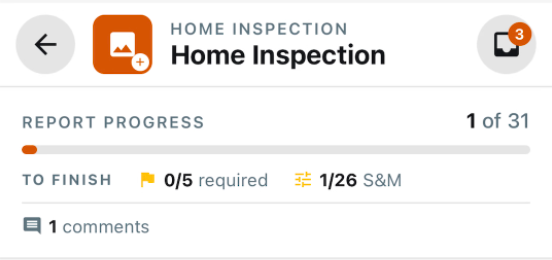
AI-assisted report audit now runs from the finish flow and flags missing content before completion.
New annotation shapes, colors, and text overlay, plus a faster hands-free camera.
Video support in the overview section and configurable AI photo caption preferences.
New Features
Rapid-capture camera for quick photo dumps
What changed: A dedicated fast-capture camera mode lets inspectors snap photos without being forced to write a comment at the moment of capture — comments can be attached afterward.
Where to find it: Mobile app → open a report → open camera.
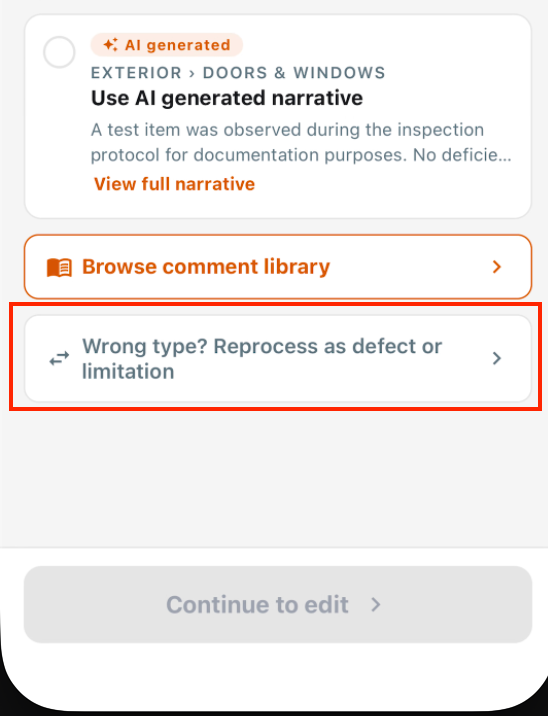
Reprocess a comment as a different type
What changed: If a comment was captured as the wrong type (defect vs. limitation vs. info), inspectors can now switch its type in place and have it re-matched against the correct comment library instead of deleting and recapturing.
Where to find it: Mobile app → open a comment → Reprocess As.
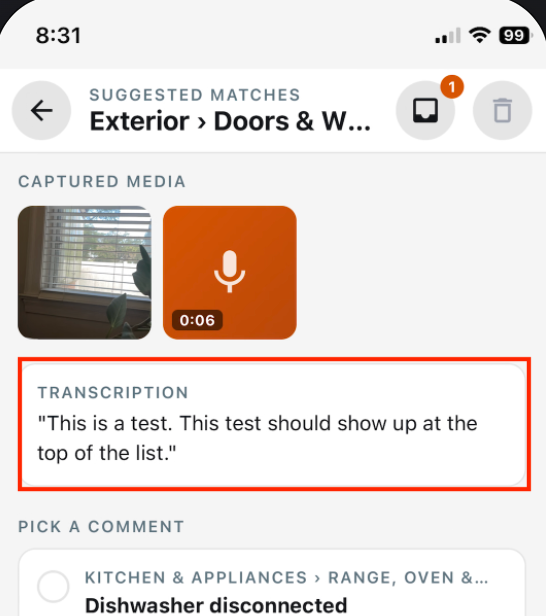
Voice transcription shown on suggested matches
What changed: When a captured comment includes a voice note, the suggested-matches screen now shows the transcribed text under the photo, the same way it already shows your typed notes.
Where to find it: Mobile app → Suggested Comments → match picker.
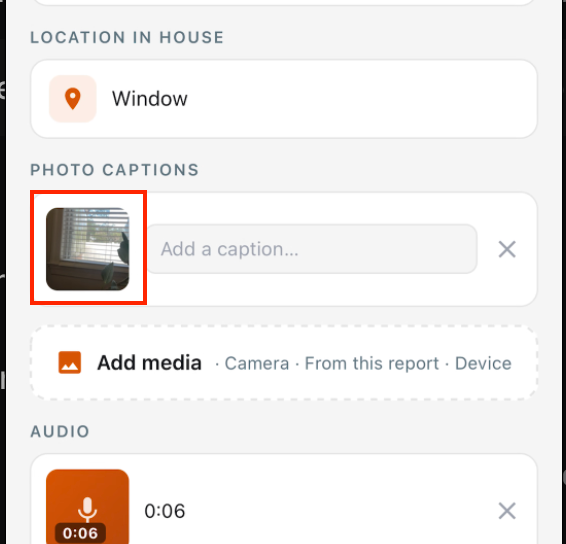
Annotate photos from the comment media viewer
What changed: Inspectors can now annotate photos directly from the media viewer when editing a comment, not just at initial capture (also available on web — see web update).
Where to find it: Mobile app → open a comment → click image → Annotate.
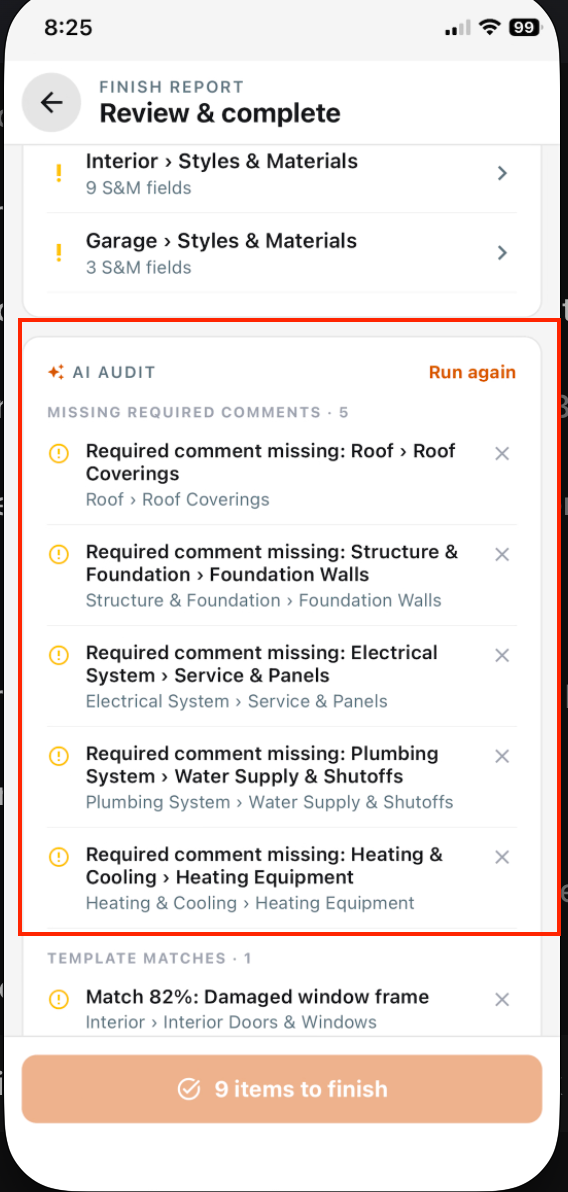
AI report audit on the finish flow
What changed: A finish-page audit now checks for missing required content, styles and materials issues, photo-related gaps, and template completion criteria.
Where to find it: Finish report flow → audit section on the final screen.
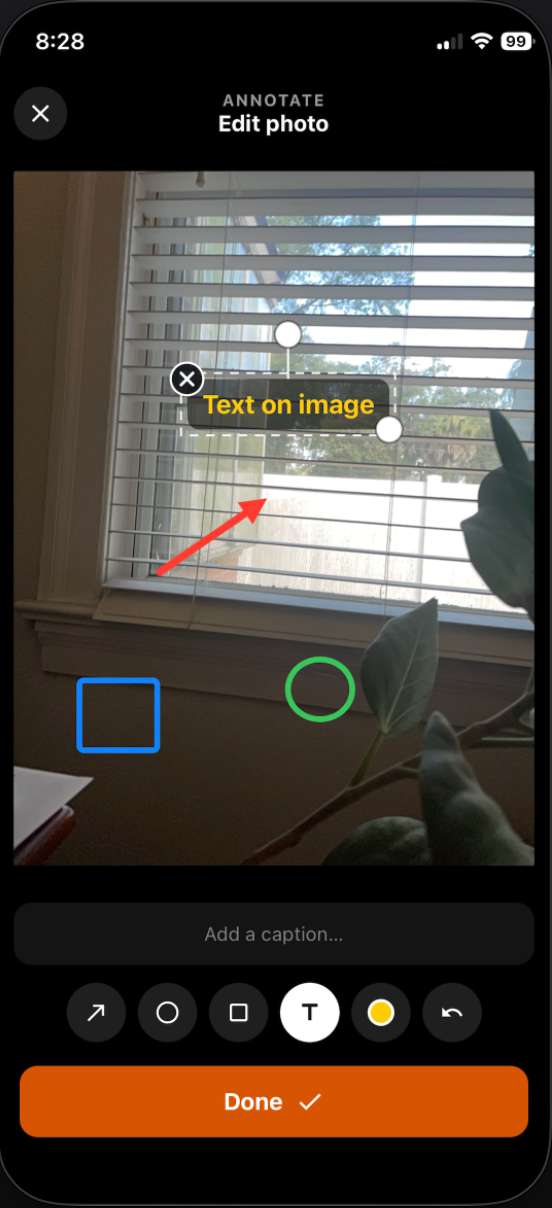
Annotation shapes, colors, and text
What changed: Photos can now be marked up with circle and square shapes, resize and rotate controls, color choices, and text overlays.
Where to find it: Report photo annotate screen.
Video in the overview section
What changed: Overview and observation sections can now include video, not just photos.
Where to find it: Report Overview / Observation section while adding media.
AI photo caption preferences
What changed: AI photo captions now support Off, Location only, and Description modes.
Where to find it: Settings → AI photo captions.

Improvements
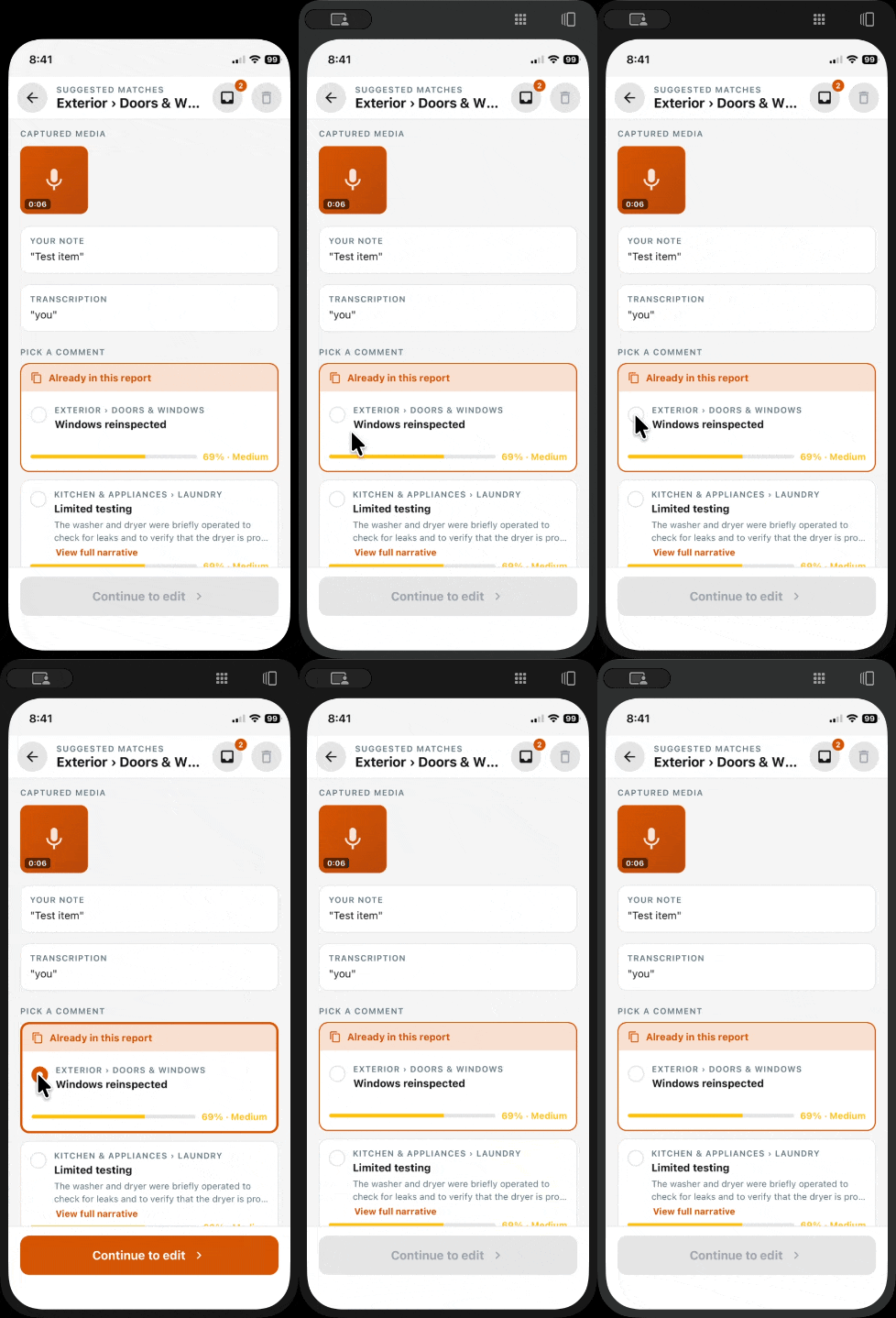
Unselect a suggested comment match
What changed: On the suggested-comments match picker, tapping an already-selected option now clears it instead of leaving you stuck with a choice you didn’t mean to make.
Where to find it: Mobile app → Suggested Comments → match picker.
AI comment matching favors your notes over photo captions
What changed: When both a photo caption and your typed or spoken notes are available, comment matching now gives priority to your notes — reducing mismatches where a caption alone suggested the wrong issue.
Where to find it: No new screen — takes effect automatically during comment matching.
New Styles & Materials type prevents conflicting suggestions
What changed: A new boolean (true/false) Styles & Materials field type keeps AI suggestions from recommending both “Yes” and “No” for the same item.
Where to find it: Mobile app → open a report → Styles & Materials.
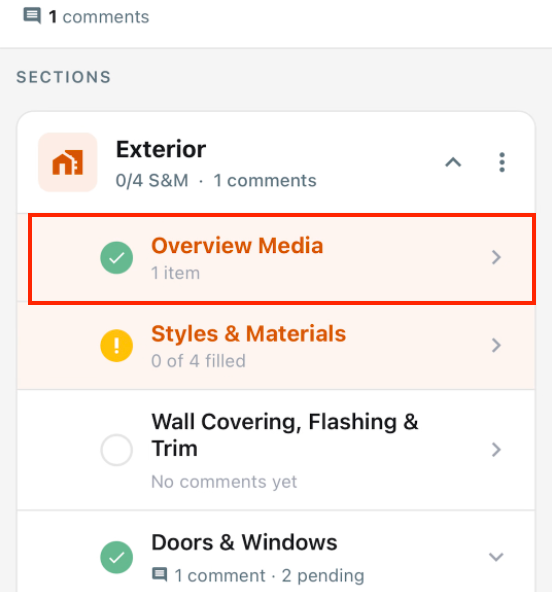
Overview Photos checkmark once a section has a photo
What changed: The Overview Photos outline row now shows a success checkmark once a section has at least one photo, matching the treatment already used for Styles & Materials.
Where to find it: Mobile app → open a report → outline → Overview Photos.
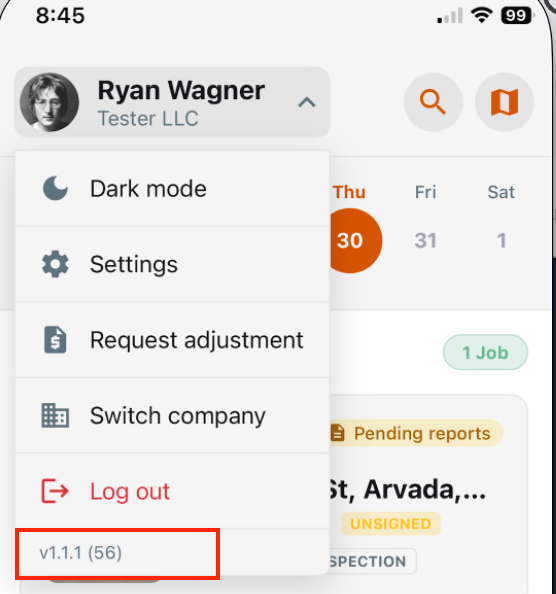
App version visible in mobile menu
What changed: The mobile user menu now shows the current app version, build number, and test-channel indicator for easier support troubleshooting.
Where to find it: Mobile app → user menu.
Faster offline comment syncing
What changed: Queued comments now upload with several in flight at once when reconnecting, instead of one at a time — meaningfully faster sync after large jobs done offline.
Where to find it: No new screen — takes effect automatically when the app reconnects.
Faster camera capture with hands-free shutter
What changed: The in-app camera is tuned for snappier capture, reduced blur, better flash timing, and hands-free triggering.
Where to find it: Report camera screen.
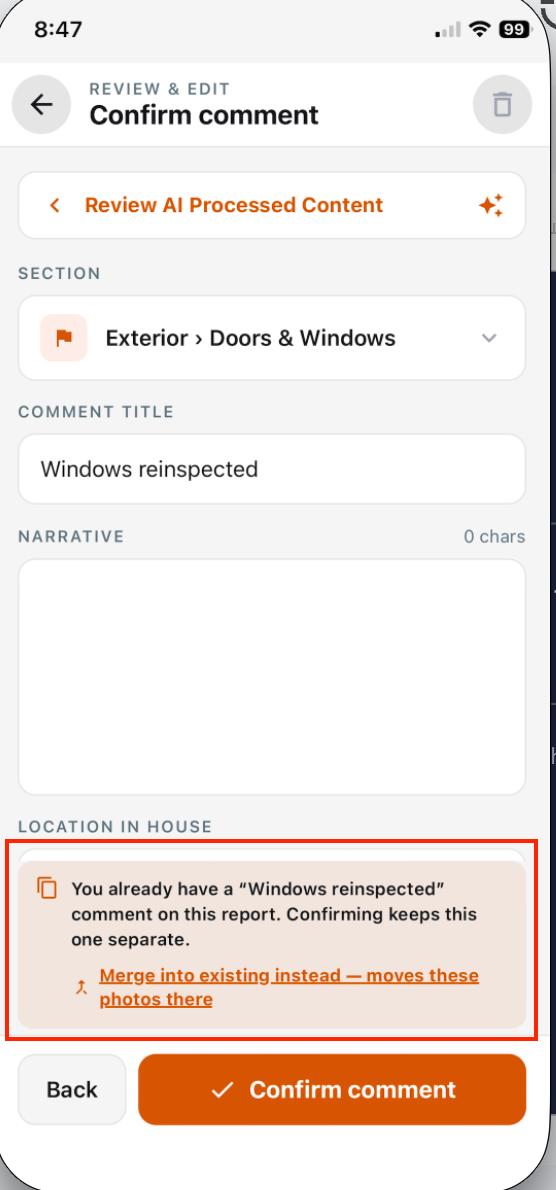
Comment merge is now an explicit choice
What changed: When confirming a comment, merging into an existing one is now a clear option instead of an action that appears to do nothing. Saving without merging is also supported.
Where to find it: Confirm comment flow.
Applies to: Existing and future records
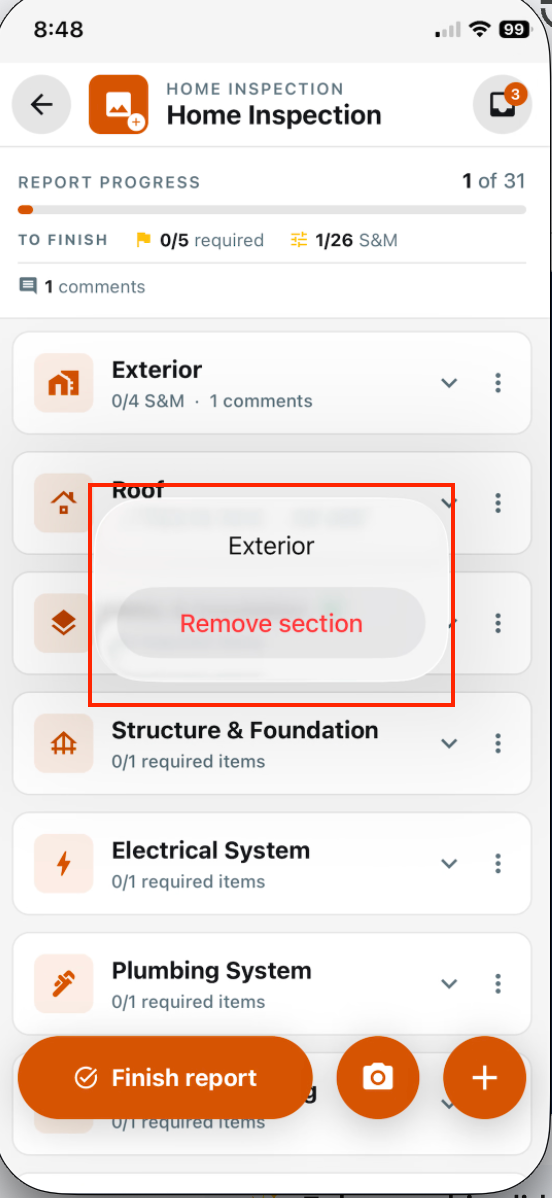
Entire section removal from the report outline
What changed: Inspectors can remove a whole report section in one action, instead of only removing subsections.
Where to find it: Report outline and section actions.
Applies to: Existing and future records
Bug Fixes
Fixed dropped photo on rapid camera taps
What changed: Confirming a photo too quickly after capture could cause the shot to be dropped entirely; capture confirmation is now disabled until processing finishes.
Where to find it: Mobile app → camera.
Applies to: Future records only
Fixed lag on accepting suggested comments
What changed: Accepting or merging a suggested comment could take up to a minute due to waiting on network activity; it now updates immediately and syncs in the background.
Where to find it: Mobile app → Suggested Comments.
Applies to: Existing and future records
Fixed annotated photos saving at the wrong size
What changed: Annotating a photo previously saved it at the on-screen preview size with letterboxing baked in, instead of the original photo’s full resolution and aspect ratio; annotated photos now keep their original quality.
Where to find it: Mobile app → open a comment → media viewer → Annotate.
Applies to: Future records only
Fixed shared photos disappearing when reused across comments
What changed: When the same photo was reused across multiple comments (e.g. “From this report”), deleting it from one comment could remove the underlying image entirely, breaking the other comment’s copy; shared photos are now only removed once nothing else references them.
Where to find it: Mobile app → open a comment → media.
Applies to: Existing and future records
Caption editing stays in sync while typing
What changed: Photo caption edits now keep typed characters, survive re-entry, and persist correctly through confirm.
Where to find it: Photo caption editing in report writing.
Applies to: Existing and future records
Review & Edit opens annotate reliably
What changed: Tapping a photo in Review & Edit now goes directly to annotate, and caption edits sync correctly instead of dropping out.
Where to find it: Review & Edit → photo list.
Applies to: Existing and future records
Caption field stays visible above the keyboard
What changed: The caption input on the annotate screen is no longer covered by the on-screen keyboard.
Where to find it: Photo annotate screen.
Applies to: Existing and future records
Overview is required before finishing a report
What changed: Reports now must include the Overview section before they can be completed.
Where to find it: Report finish flow.
Applies to: Existing and future records