Attik Update - Inspector Signatures, Quote Portal Controls & Report PDF Reliability
Summary
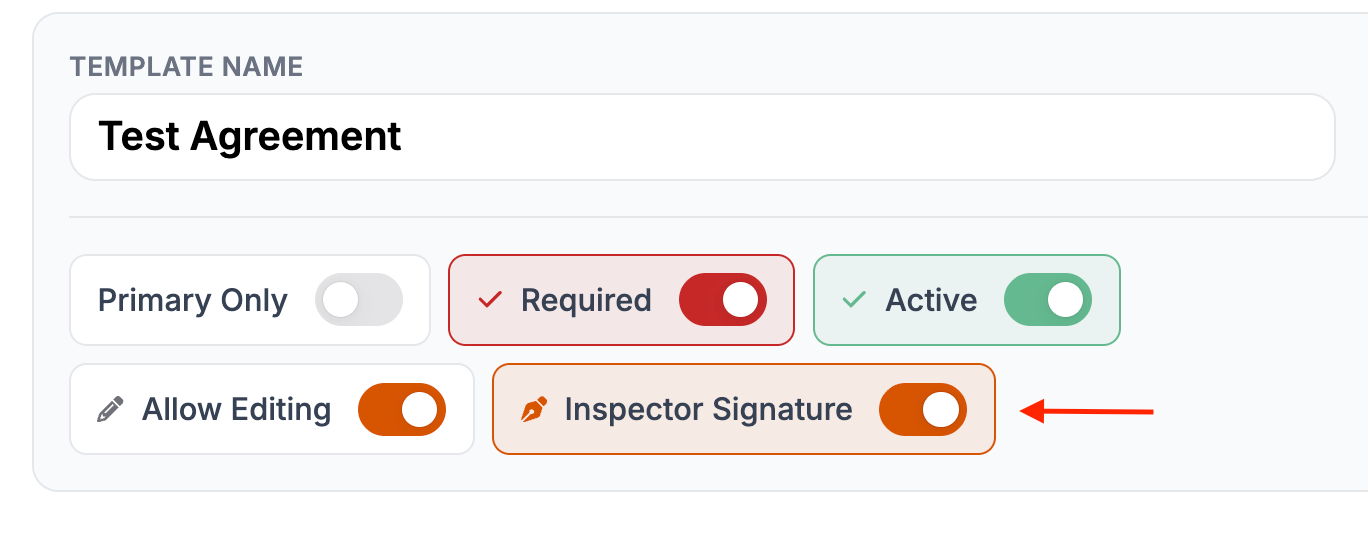
Inspectors can now sign inspection agreements alongside clients where required
Companies can turn off client self-scheduling per service in the online quote portal
Report PDFs load instantly instead of regenerating on every click, and a new defects-only Summary PDF is available
Fixed several bugs that could destroy photos, videos, or email template images when deleting other content
New Features
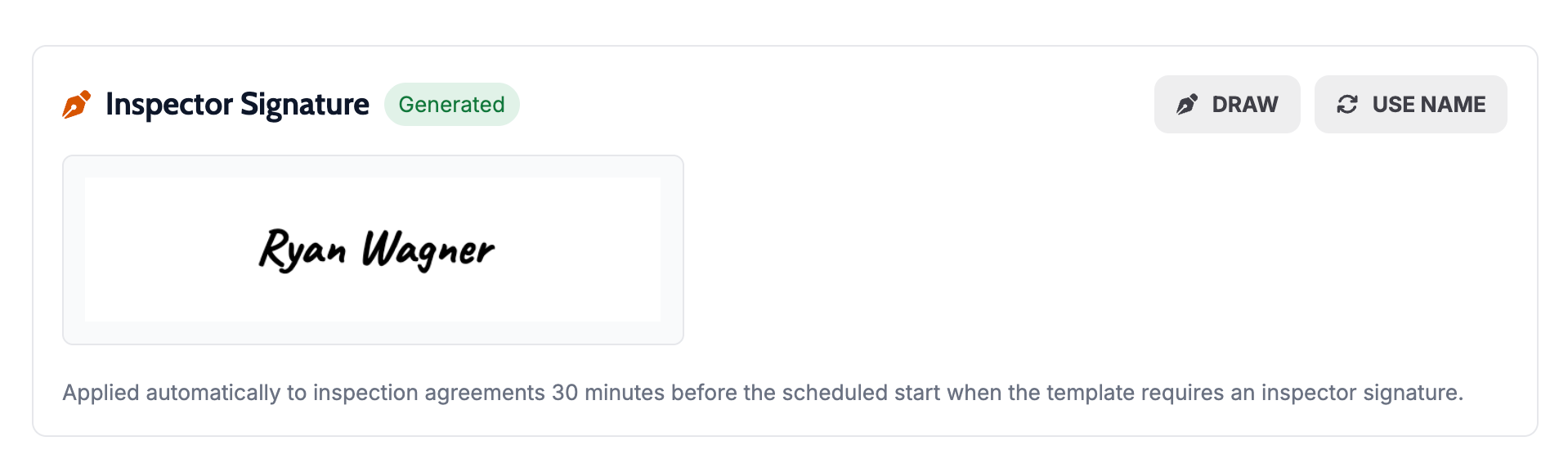
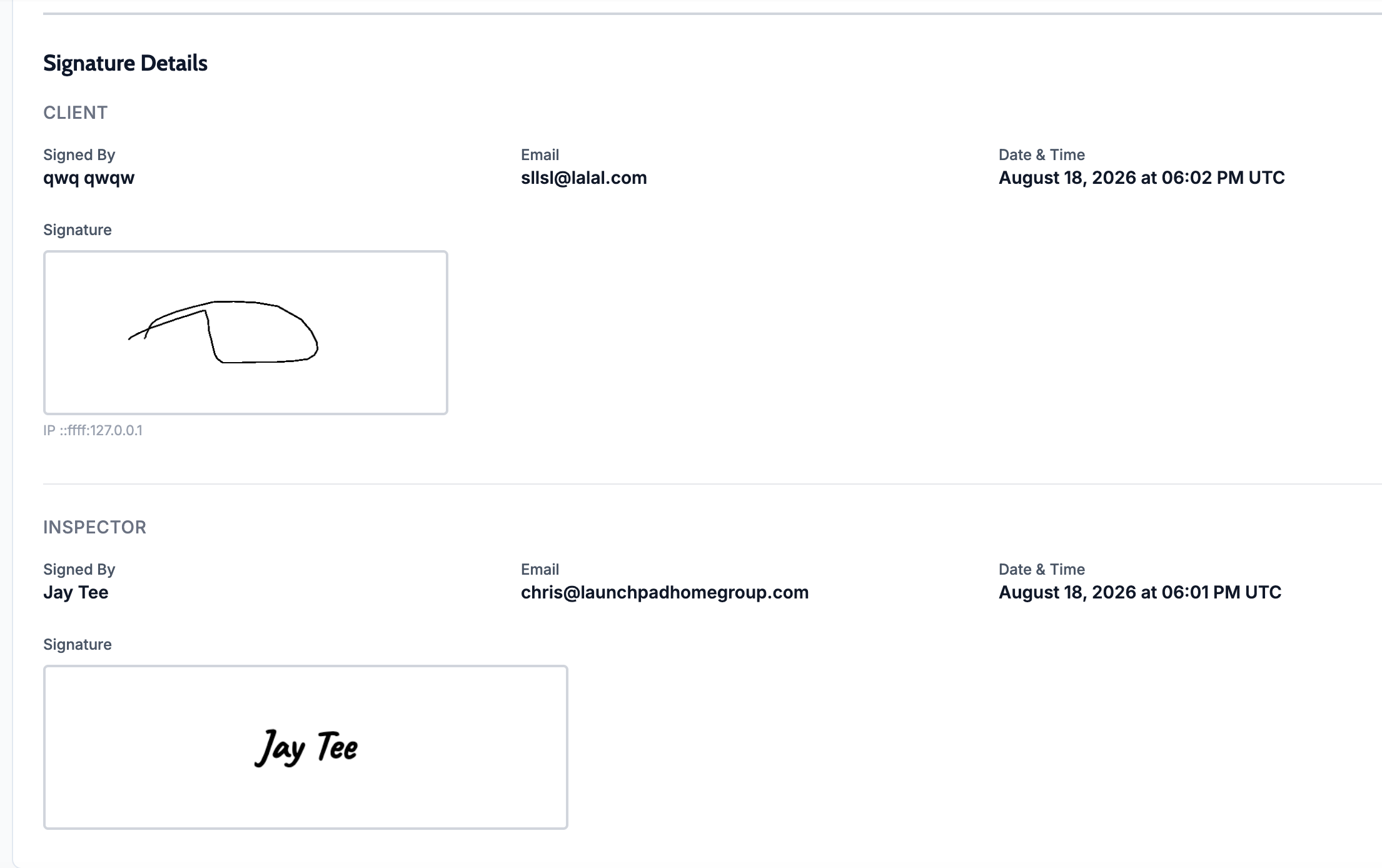
Sign inspection agreements as the inspector
What changed: Inspectors can now sign inspection agreements alongside the client for markets that require both signatures. The inspector’s signature is applied automatically at inspection time, with no extra action needed, and the correct inspector is recorded even after reassignment or on multi-inspector jobs.
Where to find it: Agreements on any inspection that requires inspector countersignature — no new screen, it happens automatically as part of the existing signing flow.
Turn off client self-scheduling for a service
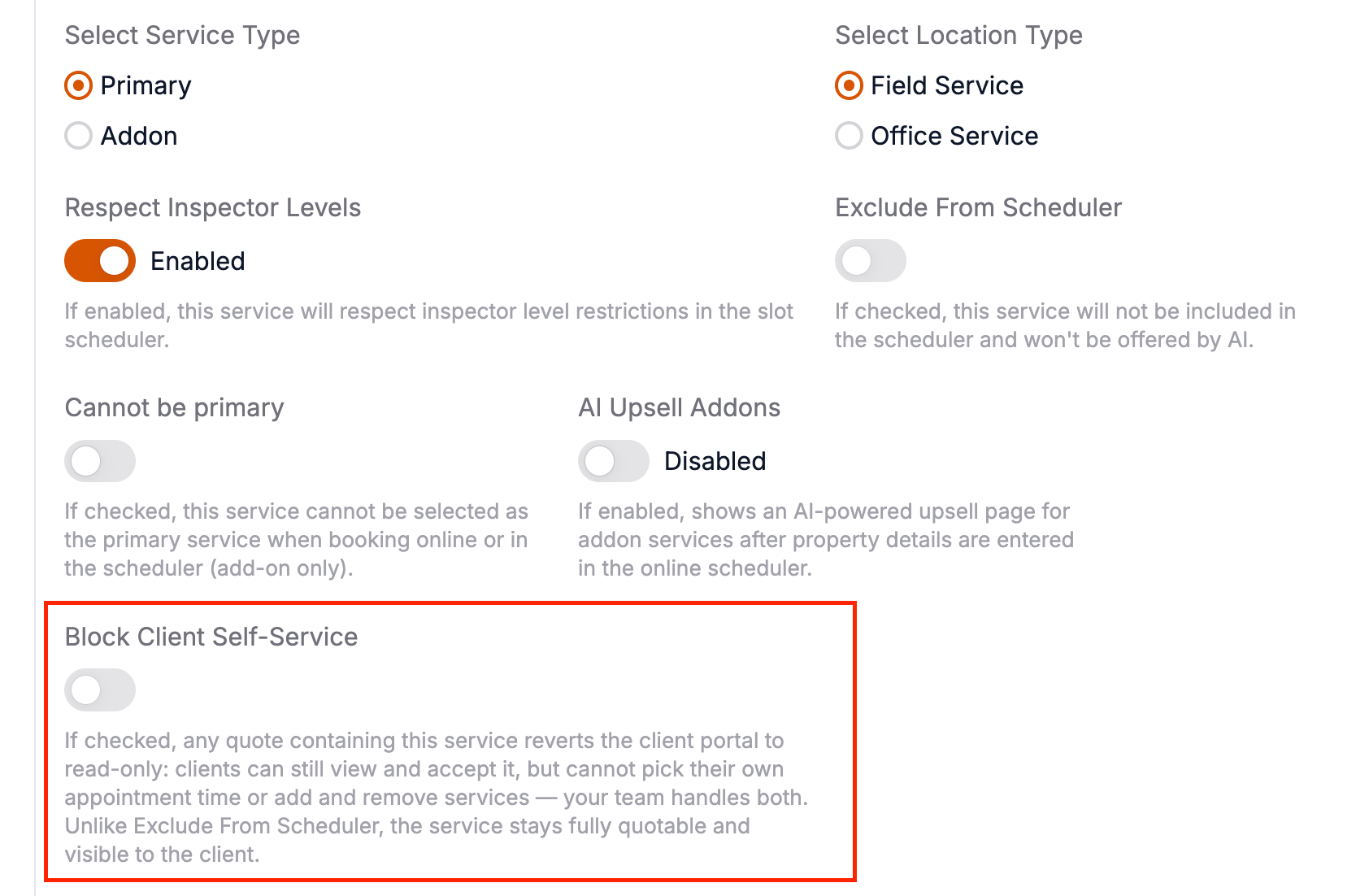
What changed: Companies can now disable client self-scheduling for a specific service in the online quote portal, instead of only at the whole-portal level. Clients can still accept a quote for that service; they just won’t be able to pick a date and inspector themselves when a service needs more information first.
Where to find it: Service settings for the quote portal.
Setup: Turn off self-scheduling on the individual service that requires it.
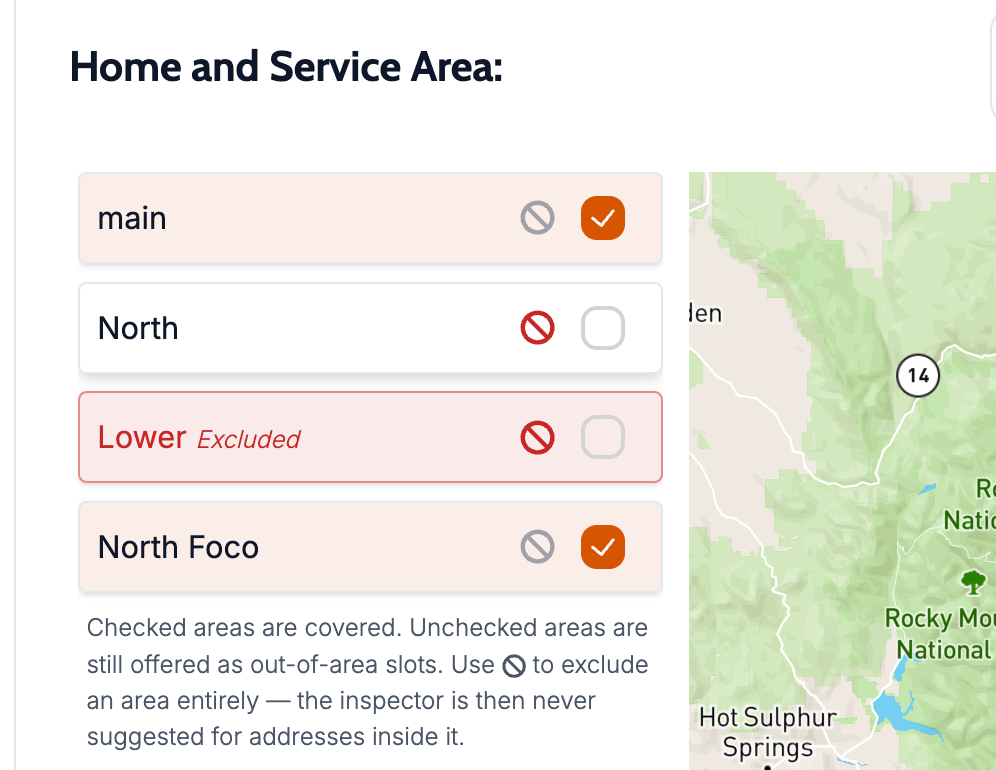
Exclude an inspector from a service area
What changed: Brands can now mark that an inspector doesn’t serve a given area. Out-of-area inspectors are excluded from scheduling suggestions entirely, instead of appearing as a distant “Outside” option that could take a slot from a closer, in-area inspector.
Where to find it: Inspector service area settings.
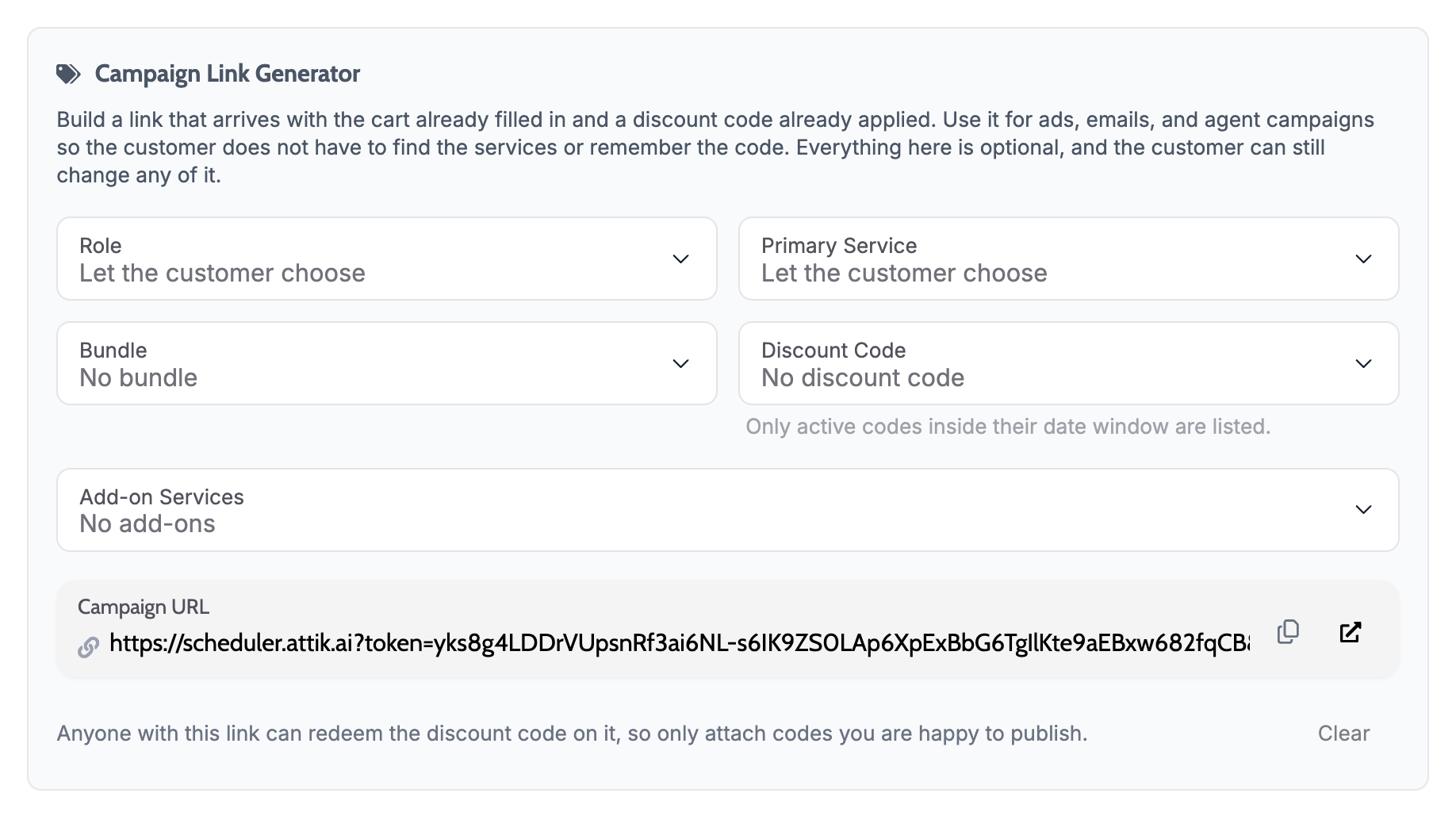
Pre-fill the cart and apply discount codes from a scheduling link
What changed: A scheduling link can now pre-populate the cart with specific services and apply a discount code automatically, so clients don’t have to select services or enter a promo code by hand.
Where to find it: Click through the Online ‘Generate Scheduler URL’ button in Schedule Settings.
Setup: Build the link with the desired services and promo code.
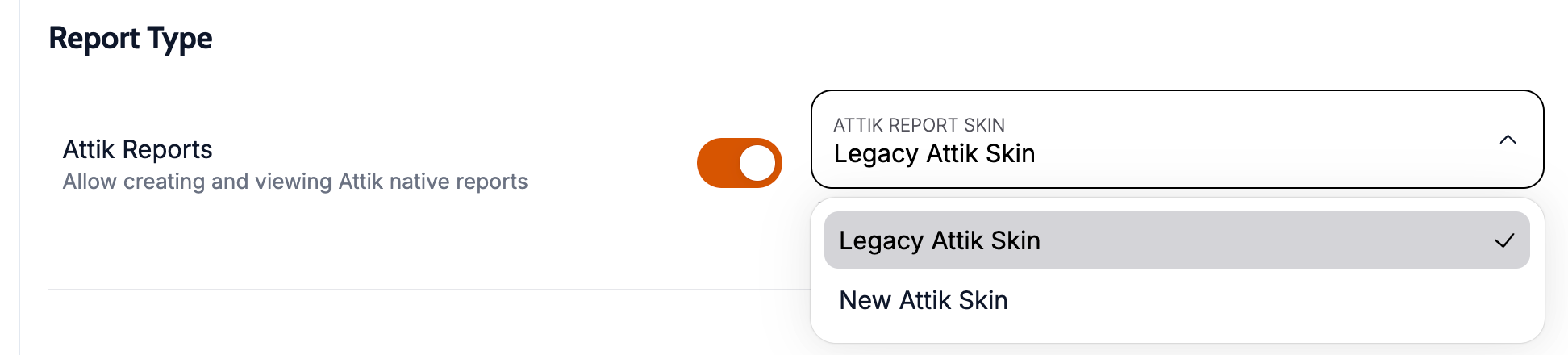
Choose the Attik report type and skin per company
What changed: Admins can turn the Attik report type on or off for a company, and choose which report skin its templates render in, without a manual database change. Every company defaults to the legacy skin until someone opts in.
Where to find it: Report Settings.
Setup: Enable the Attik report type and select a skin for the company.
New defects-only Summary PDF
What changed: Reports can now generate a separate Summary PDF that includes only the defect findings, instead of the full report. This matches the summary-only PDF option inspectors and agents expect.
Where to find it: Export PDF options on any Attik-native report.
Improvements
Report PDFs load instantly instead of regenerating
What changed: Opening or downloading a report PDF now serves a stored, ready copy in most cases instead of rebuilding it from scratch every time. PDFs still regenerate when the report actually changes.
Where to find it: Download/Open PDF on any report, QwikFix, email, and portal links that use the report PDF.
HomeBinder is now Haven
What changed: All HomeBinder branding across Attik, including client portal, email, and SMS copy, now shows Haven to match iGo’s rebrand.
Where to find it: Anywhere HomeBinder previously appeared — client portal, emails, and SMS.
Agent contact photos import automatically from ISN
What changed: ISN agent profile photos now come across automatically during historical import and attach to the matching Attik contact. A contact that already has a real photo is left alone.
Where to find it: Contact profiles for imported ISN agents.
Job activity feeds no longer show internal report noise
What changed: Job activity feeds no longer show unrelated internal report update entries, so the feed reflects only meaningful activity on the job.
Where to find it: Activity feed on any job.
Post-Inspection Revenue dashboard renamed to Post-Inspection Metrics
What changed: The dashboard is renamed to better reflect that it tracks adoption and value-add, not revenue. No metric, calculation, or permission changed.
Where to find it: Dashboards → Post-Inspection Metrics.

Auto-compress oversized report PDFs on upload
What changed: Uploading a report PDF over the size limit no longer gets rejected. Attik now compresses it automatically and stores the smaller file, so there’s no need to pre-process large PDFs before uploading.
Where to find it: Any required-report upload slot.
Bug Fixes
Deleting an observation no longer destroys its media
What changed: Deleting an observation in the web report editor no longer permanently destroys its photos, video, and audio. Deleted observations are now recoverable for 7 days, matching mobile.
Where to find it: Report editor, deleting any observation.
Applies to: Future records only.
A report on a removed service no longer disappears from the work order
What changed: If a report’s service is no longer charged on a job, the report now falls back to Additional Reports instead of disappearing from the work order entirely.
Where to find it: Work order, Additional Reports section.
Applies to: Existing and future records.
Grammarly no longer wipes activity-feed notes
What changed: Accepting a Grammarly suggestion or editing a word inline in the activity-feed note composer no longer collapses the entire note to empty.
Where to find it: Activity feed note composer.
Applies to: Existing and future records.
Add Equipment and Bulk Upload buttons stay reachable in large categories
What changed: The Add Equipment and Bulk Upload buttons no longer become unreachable once an equipment category has a large number of rows.
Where to find it: Equipment Settings.
Applies to: Existing and future records.
Deleting an image from one email template no longer breaks others
What changed: Deleting an image from an email template no longer removes it from every other template, action flow, or company that shares the same image file. Duplicating a template now produces an independent copy of its images.
Where to find it: Email template editor.
Applies to: Existing and future records.
Report findings show a real title instead of a truncated narrative
What changed: Findings in the v2 client report and PDF now show a proper heading instead of a truncated cut of the finding’s narrative text.
Where to find it: Client report and report PDF.
Applies to: Existing and future records only.
Launchpad Revenue pacing target now matches the budget table
What changed: The Launchpad Revenue pacing chart target now matches the table’s Budget column for months that start on a weekend, instead of undershooting it.
Where to find it: Launchpad Revenue dashboard.
Applies to: Existing and future records only.
Inspector Balance widget now accounts for recurring blocks
What changed: The Inspector Balance widget now subtracts recurring calendar blocks and time off the same way it already does for one-off blocks, so an inspector who is out isn’t shown as available.
Where to find it: Inspector Balance widget.
Applies to: Existing and future records.
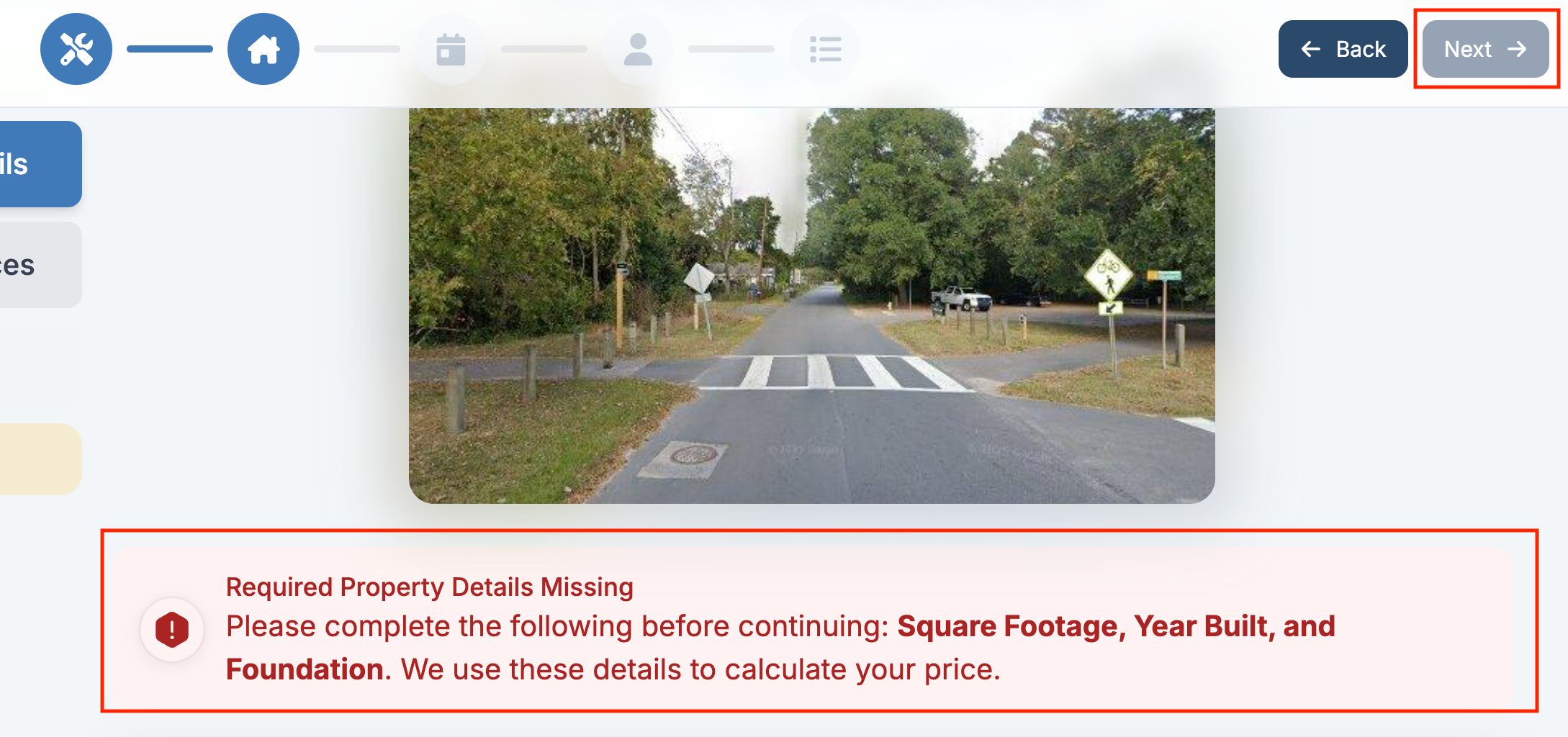
Online scheduler blocks submission without required property details
What changed: The online scheduler now requires Sq Ft, Year Built, and Number of Units before a client can continue, instead of only warning and allowing the flow to proceed.
Where to find it: Online scheduler, property details step.
Applies to: Future records only.
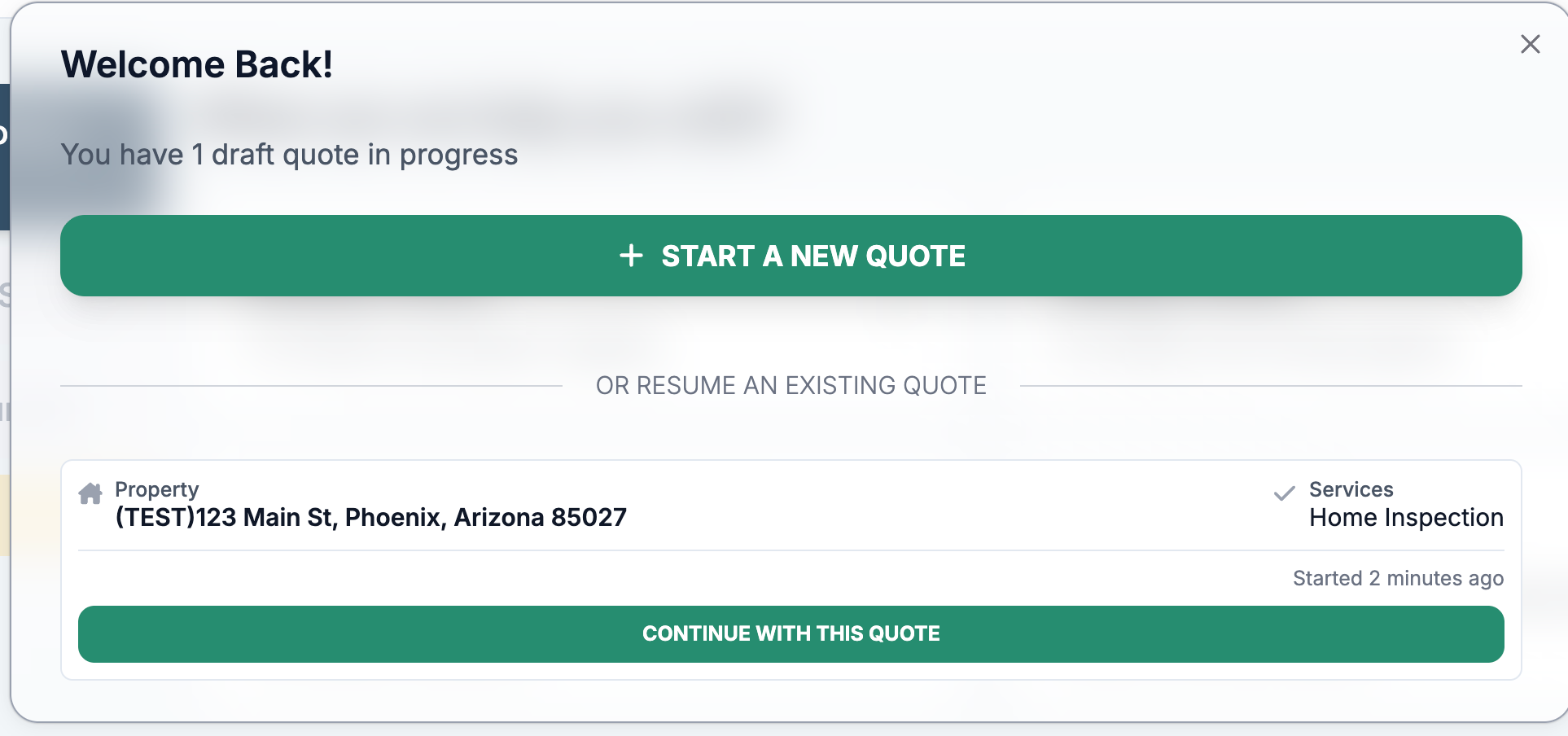
Draft quote total respects the pricing display setting
What changed: The resume-quote modal no longer shows a draft total when a company has pricing hidden in the online scheduler.
Where to find it: Online scheduler, resume-draft modal.
Applies to: Existing and future records only.
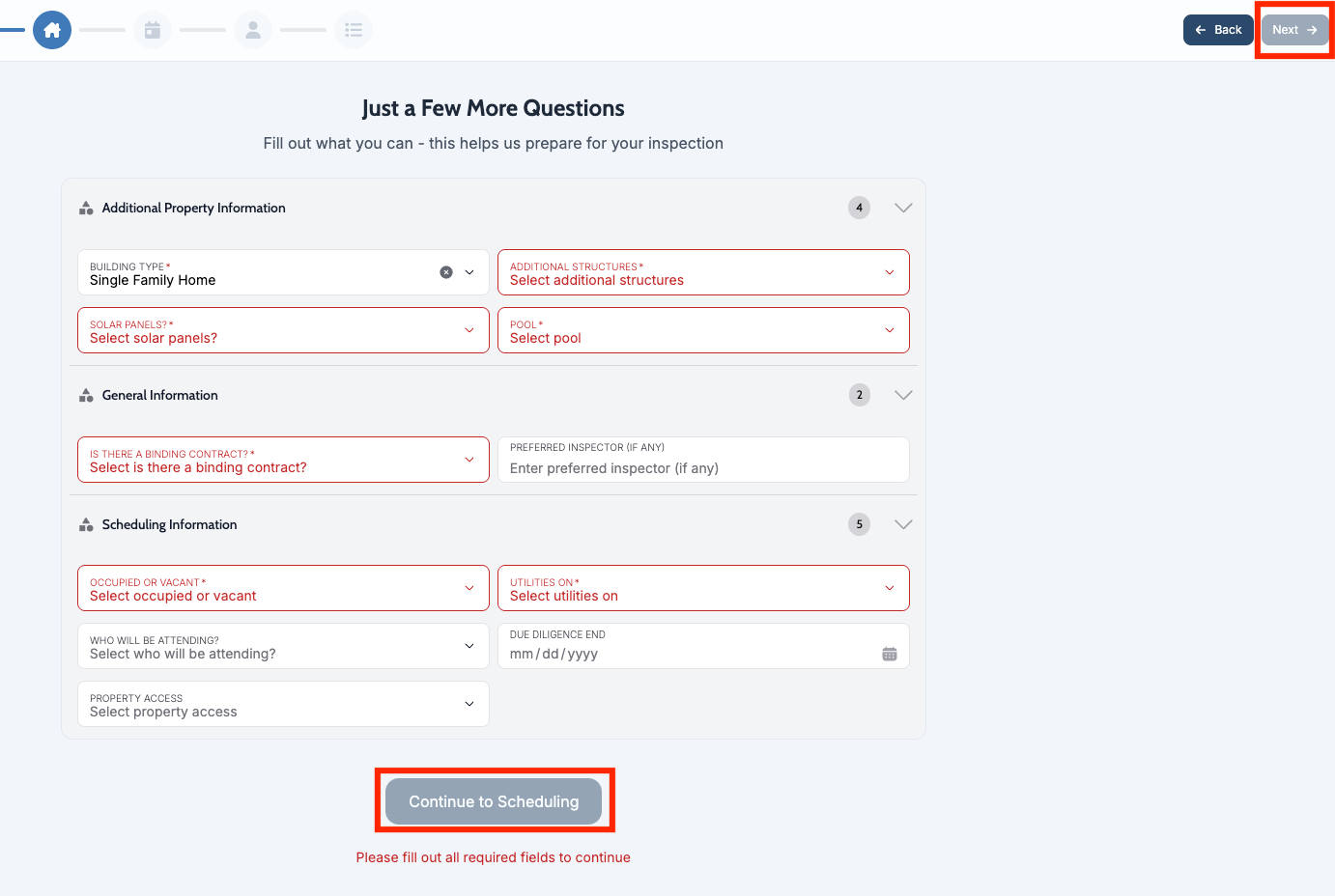
Online scheduler can no longer skip required info via navigation
What changed: Clients can no longer use the header Next button or the step calendar icons to bypass the More Information step in the online scheduler.
Where to find it: Online scheduler.
Applies to: Future records only.
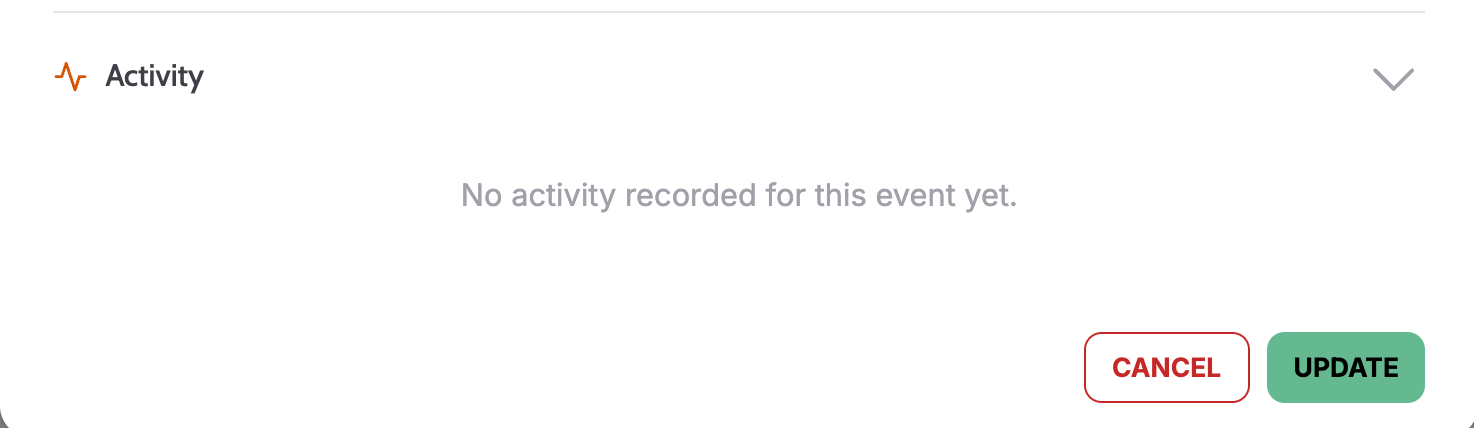
Activity accordion in Edit Calendar Event is now readable
What changed: The Activity accordion on one-off calendar blocks is now readable when expanded, instead of rendering illegibly.
Where to find it: Edit Calendar Event modal, Activity accordion.
Applies to: Existing and future records.
Informational items now appear on PDFs
What changed: Informational items that were missing from generated report PDFs now appear correctly.
Where to find it: Report PDF export.