Report Writer Update - Report Template Imports, Report Search & Smaller PDFs

Summary
Report templates and official forms can be imported from another company, and official forms get default field values, per-option checkboxes, photo removal, and clearer text
The report editor can search the whole report, shows who added each comment, and holds linked QC media such as drone or sewer scope video
Report PDFs are smaller and faster, can end with Standards of Practice, include limitations in the summary PDF, and pick a better cover photo
Client reports list the right inspectors, keep the template order, and fix Styles & Materials, overview grid, and long-section PDF issues
New Features
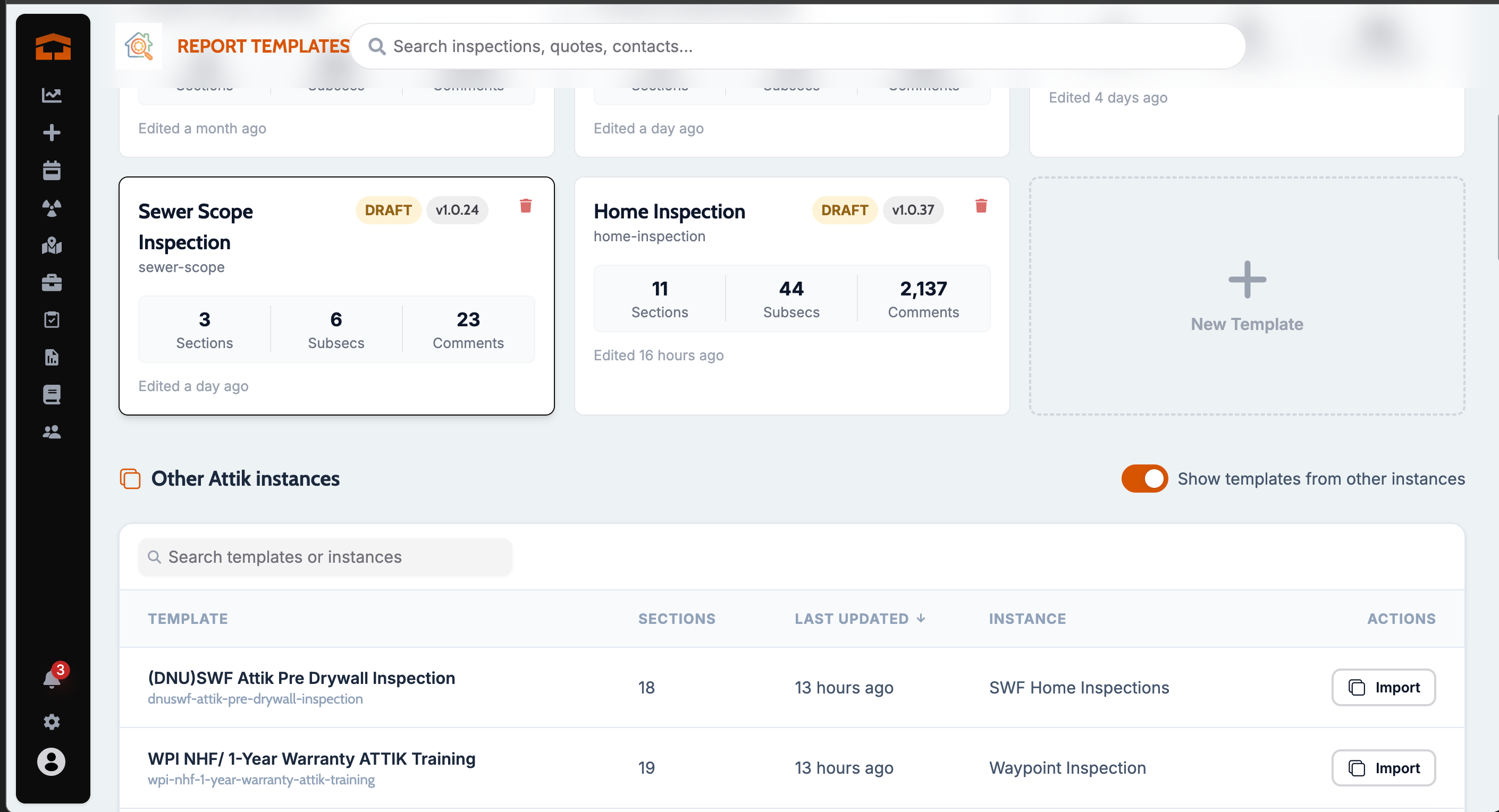
Import a report template from another company
What changed: If you belong to more than one Attik company, you can now import a report template from another company you have report template permission in. The copy arrives as a draft, along with its official forms as draft forms with their field mappings, so nothing generates until someone reviews it. A form whose name is already taken is labeled with the company it came from.
Where to find it:
Open Report Templates.
Choose to import from another Attik instance and pick the template.
Import an official form from another company
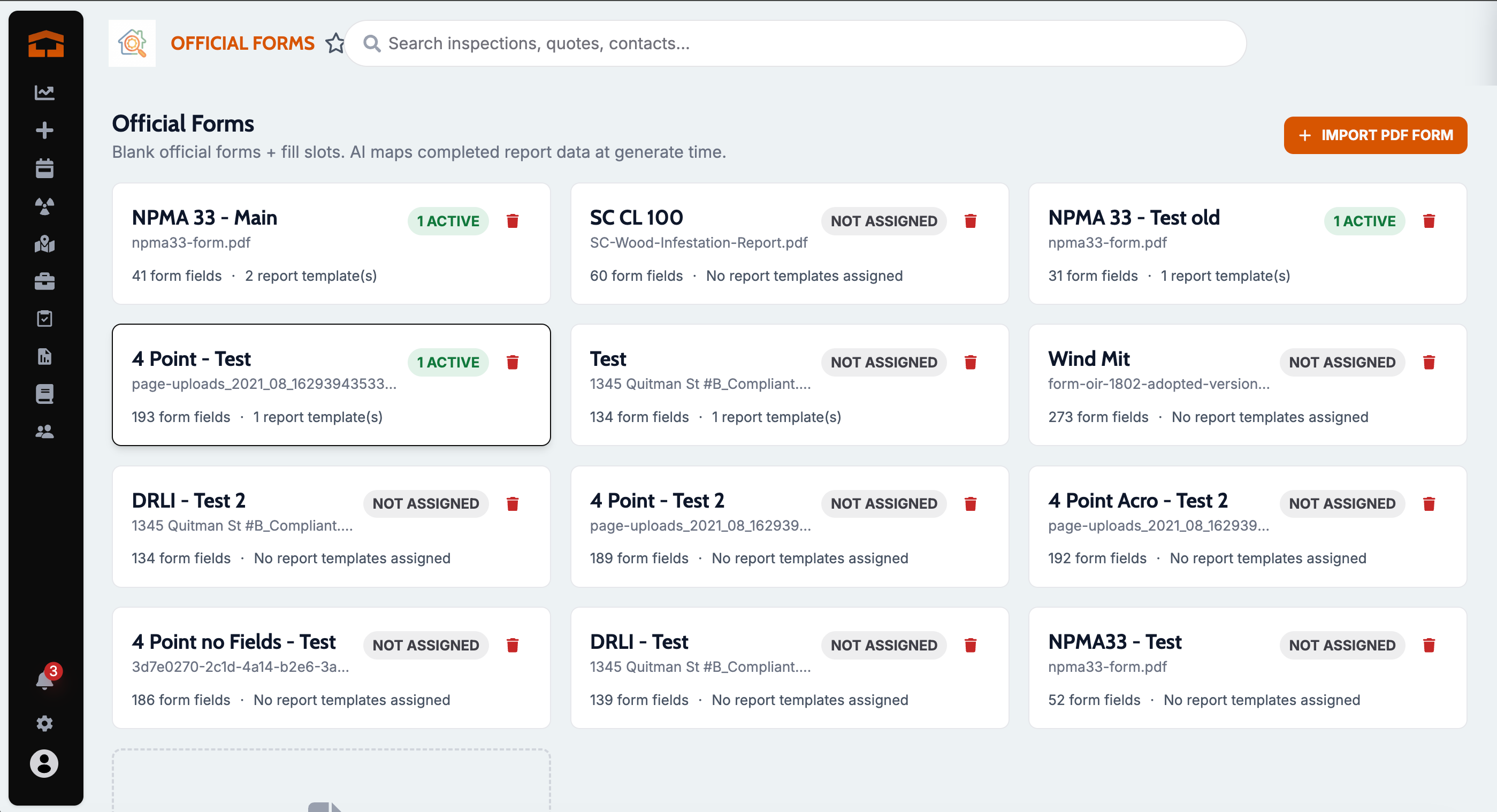
What changed: You can now import a single official form from another company you belong to. It brings the blank PDF and its fields and arrives as an unassigned draft. Field detection runs in the background, the progress steps follow the real import, and if an import fails, the draft keeps the error instead of disappearing.
Where to find it:
Open Official Forms.
Choose to import from another Attik instance and pick the form.
Default text or image for official form fields
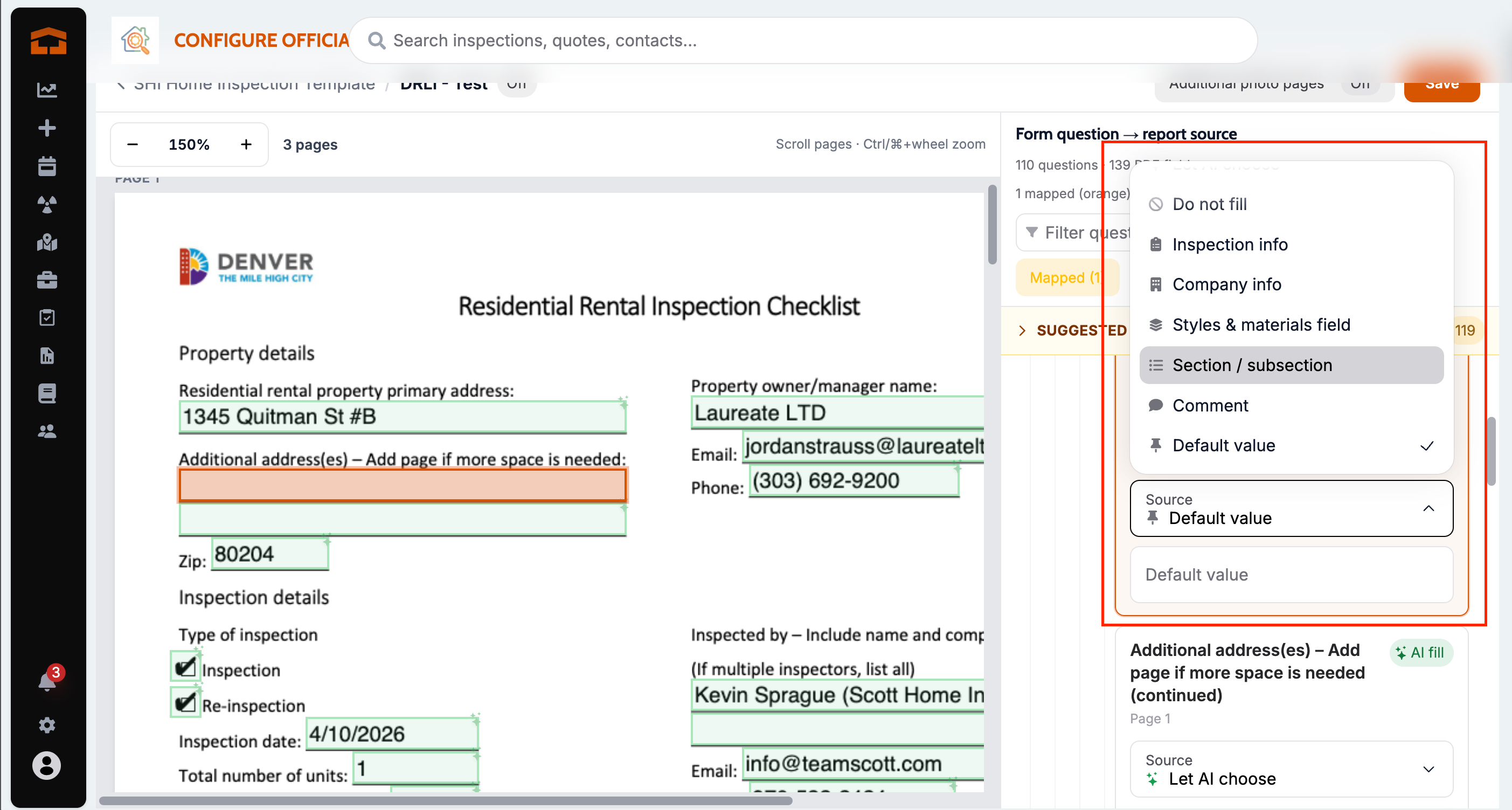
What changed: When mapping an official form, a field can now always fill with a saved default, such as a license number in a text field or a signature image in an image field. The default fills on every generated form. Defaults are not copied when a template or form is imported into another company.
Where to find it:
Open a report template's official form mapping.
Pick a field and set its default text or upload its default image.
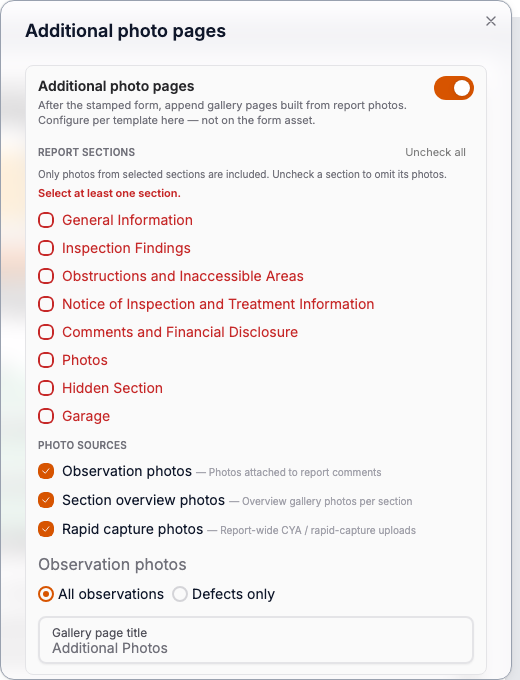
Remove photos from a generated official form
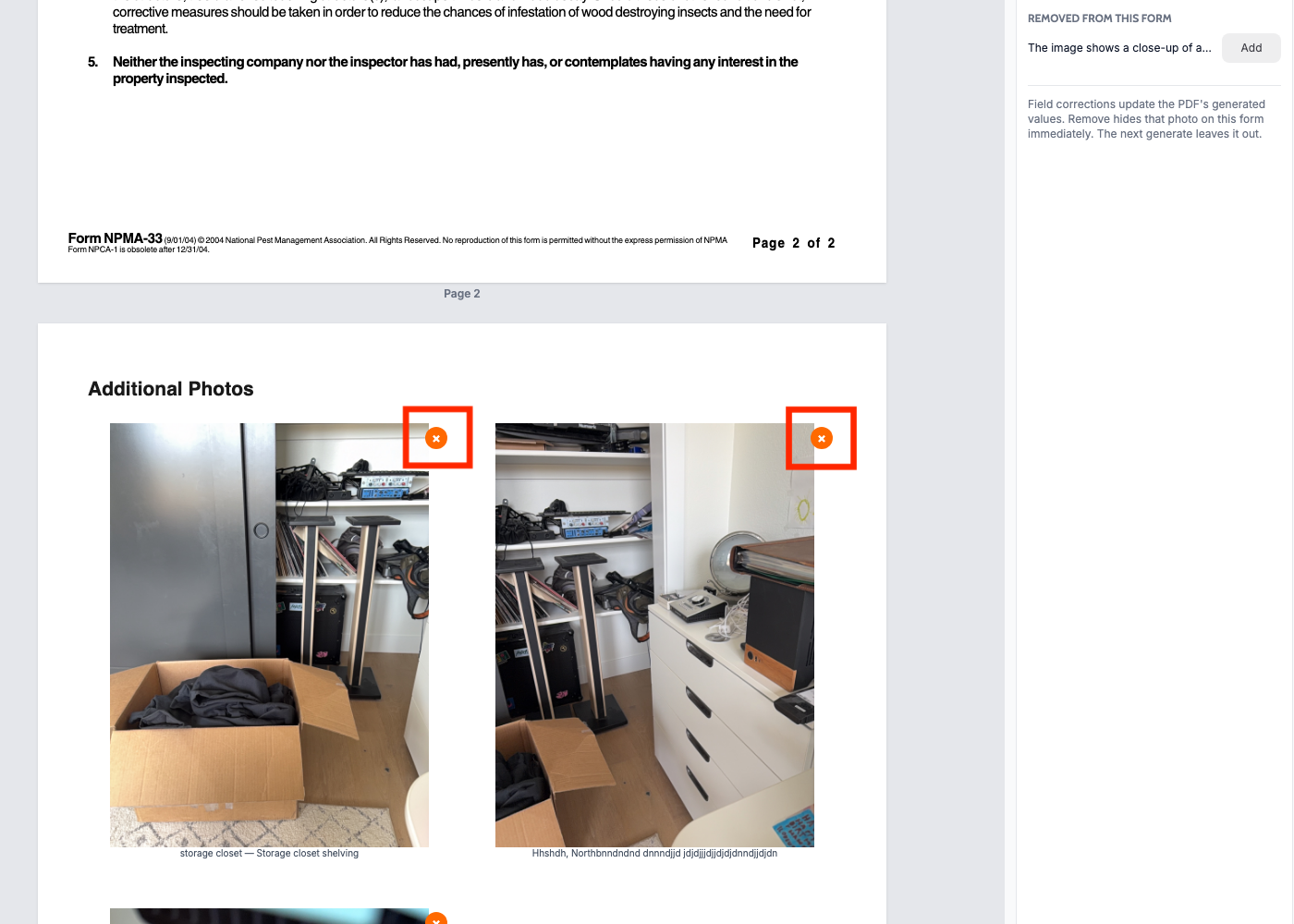
What changed: When reviewing a generated official form, you can now remove individual photos from its photo pages before delivering it, and add them back from the removed list. Long photo captions also wrap onto two lines instead of losing words.
Where to find it:
Open a generated official form for review.
Remove a photo from a photo page, or restore it from the removed photos list.
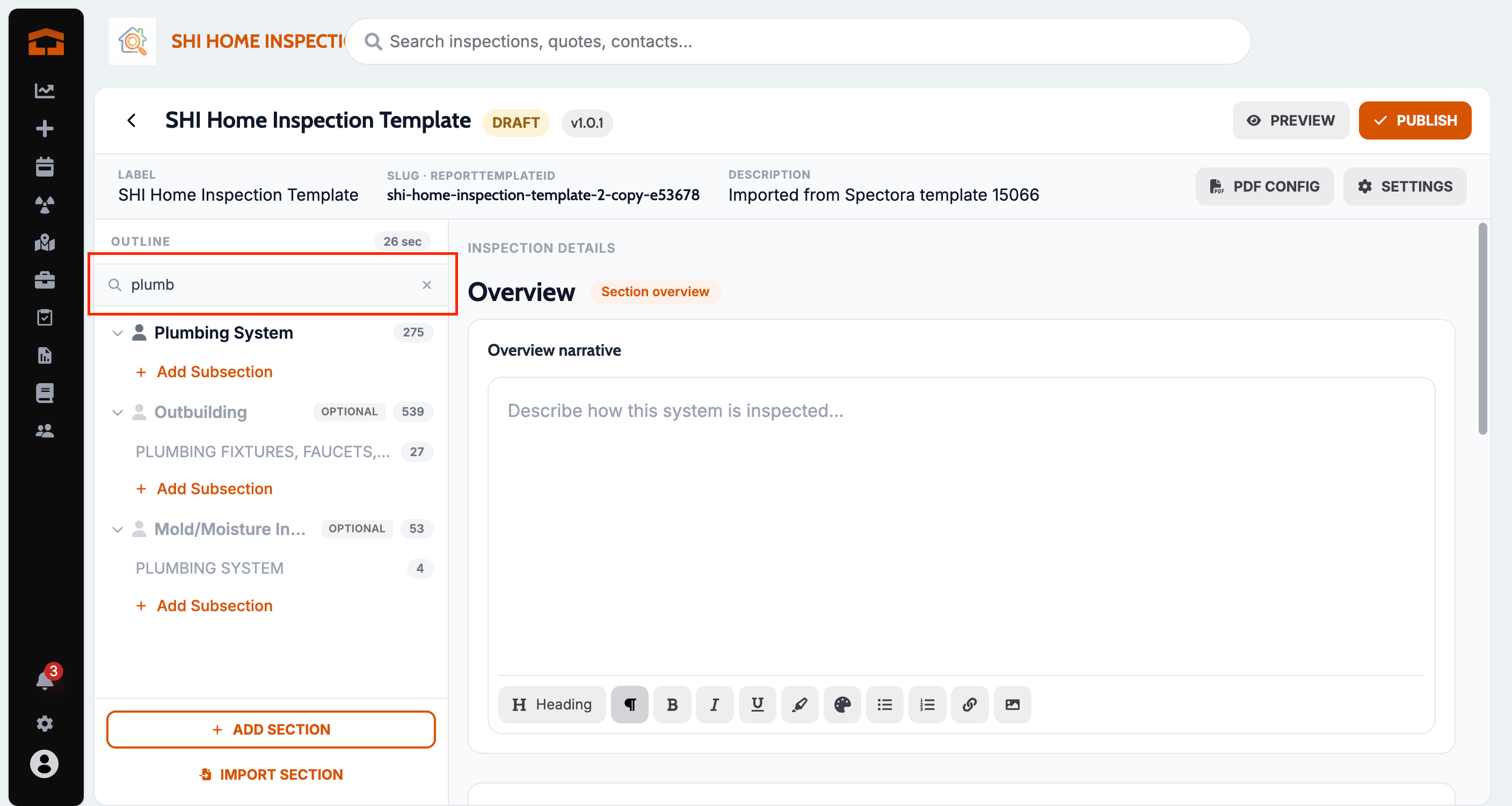
Search the whole report from the report editor
What changed: The report editor now has a search bar under the report header that finds template comments anywhere in the report, from any view. You can drag a comment into a different subsection, and Add comment now sits in the Add a Template Comment header.
Where to find it:
Open a report in the report editor.
Use the search bar under the report header, or drag a comment card onto another subsection.
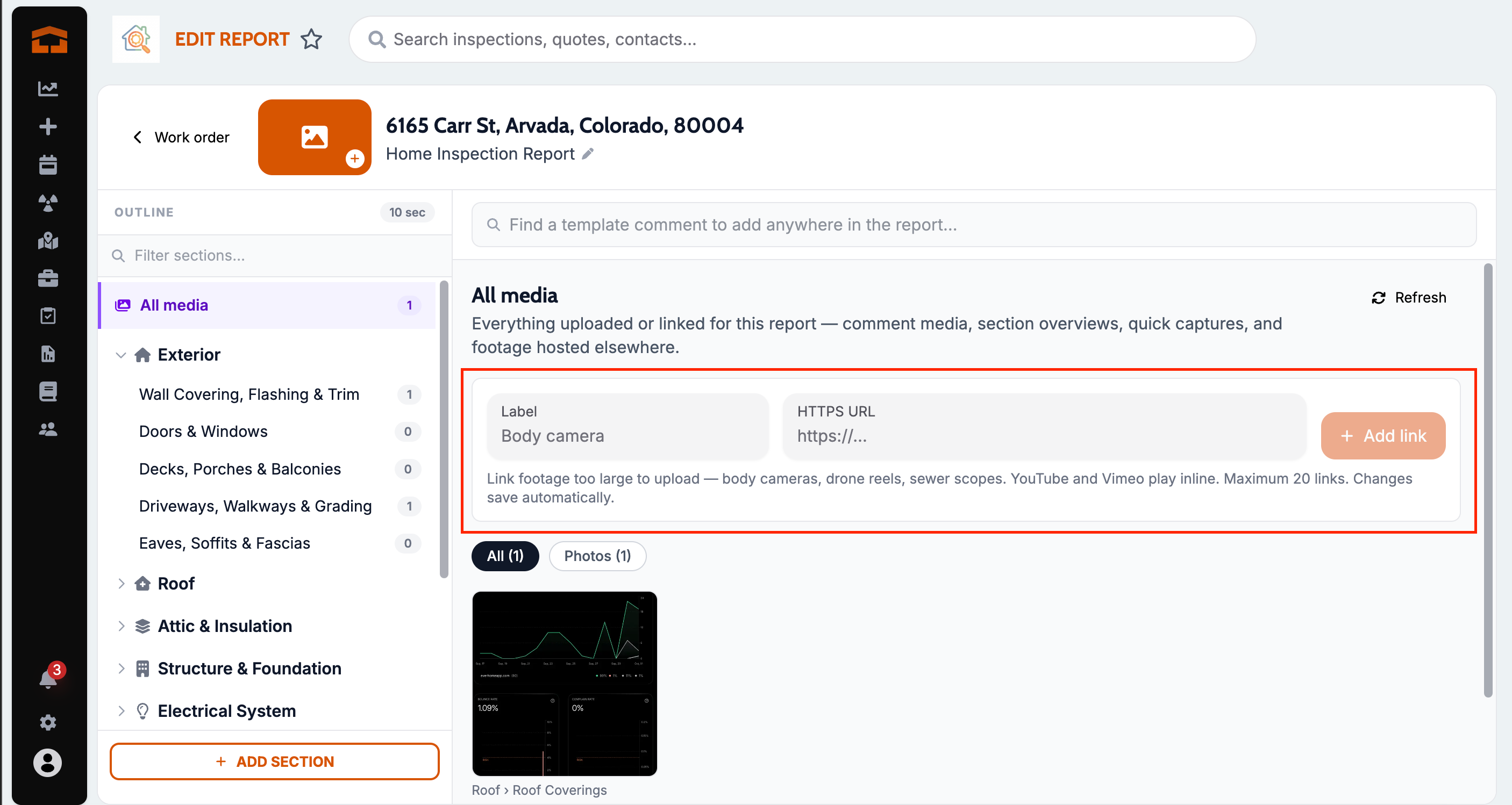
Linked media for QC on a report
What changed: Reviewers can add up to 20 web links to a report, for footage that lives outside Attik such as bodycam, drone, or sewer scope video. The links show only in the report editor's media panel. They are not shown to clients, not included in PDFs, and not copied to other reports.
Where to find it:
Open a report in the report editor.
Open All Media and add a link.
Improvements
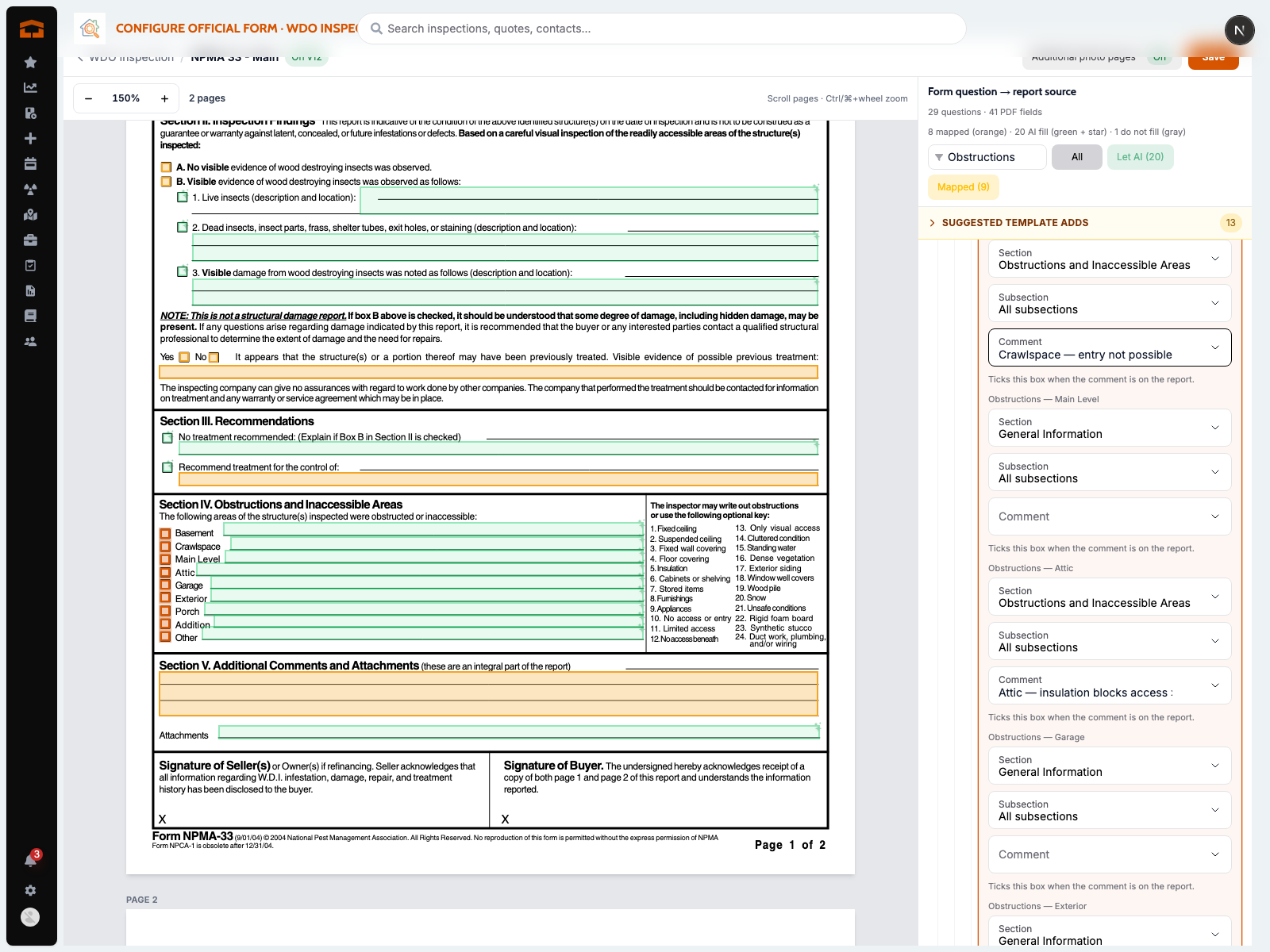
Map each comment option to its own form checkbox
What changed: In official form mapping, each checkbox can now be tied to its own comment option, so picking one option no longer blocks the others, and a checkbox ticks when its option is picked on the report. Comments of every type with options can be used.
Where to find it: A report template's official form mapping.
Arrange default photos
What changed: Template authors can now drag default photos into the order they want. On reports, the inspector's own photos come first and the template's default photos come last, and photos just uploaded to a comment are kept when it's saved.
Where to find it: A report template's comment → default photos.
Show number counts per template
What changed: Each report template can now turn the number counts on or off, falling back to the company setting. When counts are off, the severity row is left off the PDF summary page.
Where to find it: A report template's settings → Show number counts.
Standards of Practice at the end of the PDF
What changed: The full PDF report can now end with each section's Standards of Practice, in report order, instead of printing them inside the report. It's on by default and can be turned off.
Where to find it:
Open Report Settings.
Turn Standards of Practice in PDF on or off.
Better cover photo choice
What changed: Reports now pick the cover from your chosen cover photo or an exterior overview photo, and fall back to the property's Street View image when neither exists, instead of using an unrelated interior photo.
Where to find it: No new screen — takes effect after the update.
Smaller, faster report PDFs
What changed: Full report PDFs now build much faster and come out about half the size or less. Every report photo prints as a tile in the photo grid, including a section's only overview photo, while the cover photo stays at full quality.
Where to find it: No new screen — takes effect after the update.
Limitations in the summary PDF
What changed: The summary PDF now includes each section's limitations, listed ahead of the findings, with the limitation count in the section header.
Where to find it: The summary PDF from any Attik report.
See who added each comment in the report editor
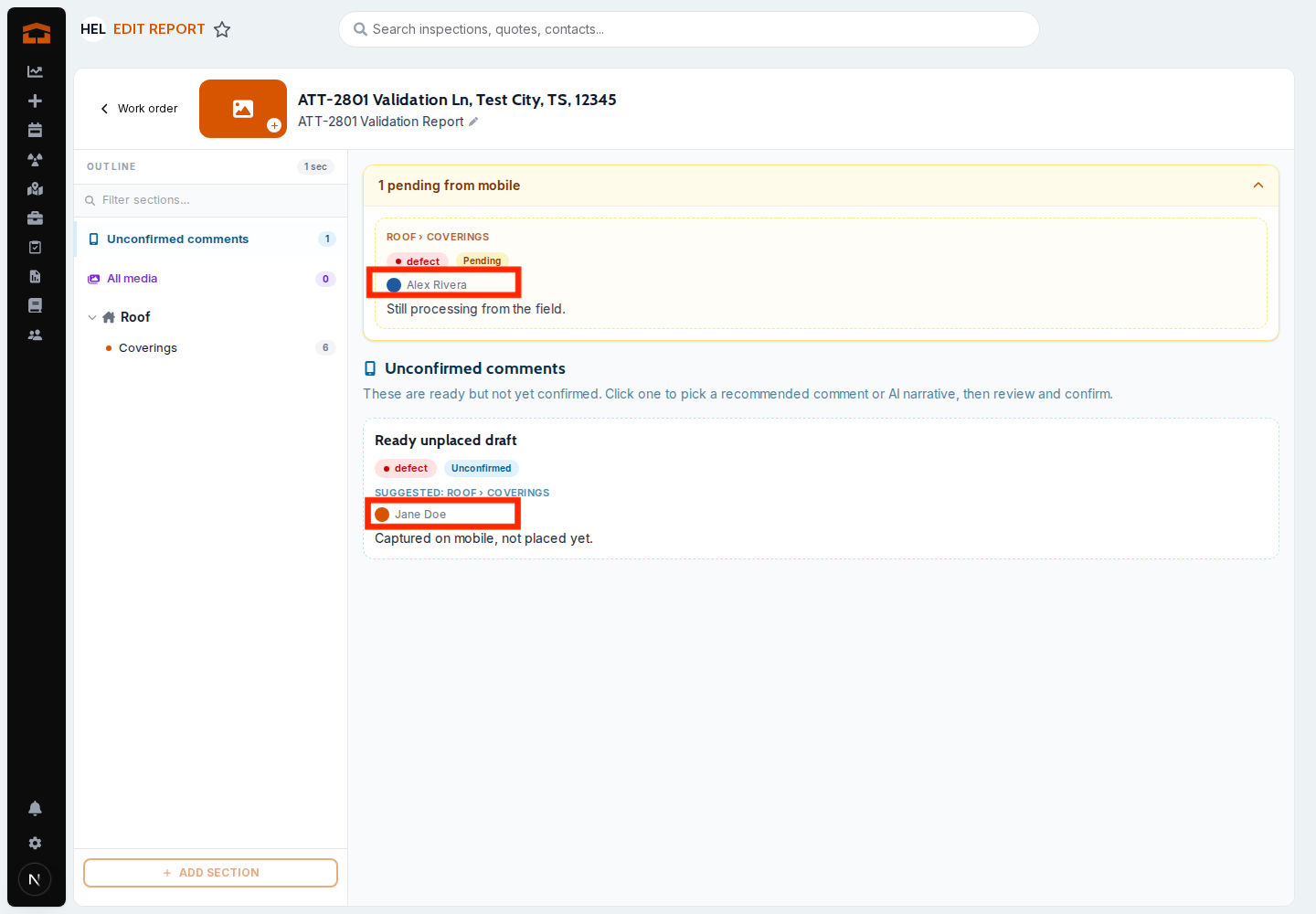
What changed: The web report editor now shows the inspector's name and photo on each comment, including pending and unconfirmed ones, so you can tell who entered what.
Where to find it: Open a report in the report editor.
Bug Fixes
Multi-select Styles & Materials picks are separated on the client report
What changed: When an inspector picks more than one Styles & Materials option, the client report now lists them separated by commas instead of running them together into one word. The PDF shows them the same way.
Where to find it:
Open a client report or its PDF.
Review the Styles & Materials for any item with more than one pick.
Applies to: Existing and future records.
Client report headers show the right inspectors
What changed: Client report headers and PDF covers now list only the inspectors who did that report's service. When nothing narrows it down, every inspector on the job is listed once.
Where to find it: Client reports and PDFs.
Applies to: Existing and future records.
Overview grid marks items Inspected
What changed: Items with a defect or info comment now show IN on the overview grid. An item with only a limitation still shows L alone. In the summary PDF, long severity names like Recommendation no longer break mid-word, and the System column is now labeled Section.
Where to find it: Client reports and the summary PDF.
Applies to: Existing and future records.
Long sections no longer break the full PDF
What changed: Reports with sections longer than about 11 pages now export to a full PDF instead of failing.
Where to find it: Full PDF export from a report.
Applies to: Existing and future records.
Client reports keep the template's order
What changed: Legacy-look client reports now show items in the template's order instead of reordering them by photo count or priority. Re-inspection items carried over still come first.
Where to find it: Legacy-look client reports.
Applies to: Existing and future records.
Comment titles stay with their photos
What changed: On legacy-look client reports, an info comment's title now sits right above its photos instead of floating apart from them.
Where to find it: Legacy-look client reports.
Applies to: Existing and future records.
Official form text stays readable
What changed: Text stamped onto official forms now prints at a steady, readable size and wraps in taller boxes instead of shrinking. AI-filled answers are kept short enough to fit each box.
Where to find it: Generated official forms.
Applies to: Future records only.
Lists on official forms use commas
What changed: Fields with more than one Styles & Materials pick, such as obstructions, now print separated by commas on official forms instead of semicolons.
Where to find it: Generated official forms.
Applies to: Future records only.
Official form mapping counts are accurate
What changed: The official form card now shows separate counts for fields set to always use, let AI choose, do not fill, and needs attention, instead of overcounting let AI choose.
Where to find it: Official Forms
Applies to: Existing and future records.