Attik Update - Straight-line Annotator, Annotation Preferences & Comment Lists (Mobile App)

Summary
The annotator has a straight-line tool, and Skip remaining makes it clear leftover photos in the batch are skipped.
CYA quick capture now supports VIDEO as well as PHOTO.
New comments keep the title you picked when you create them.
Choose photo annotation preferences by comment type; videos skip annotation while captioning still works.
Comment pickers follow template order, stay scoped to the current section, and stop showing duplicate rows.
Add photos to a comment still in the queue, promote custom comments to the template, and retry failed uploads in bulk from Outbox.
New Features
Straight-line tool and clearer Skip remaining
What changed
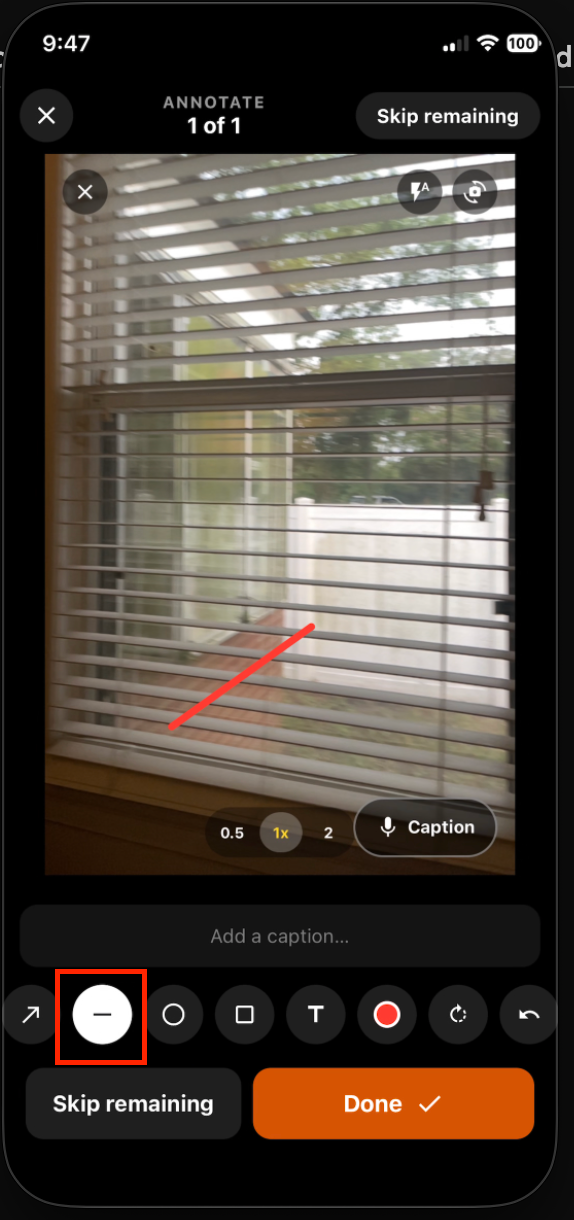
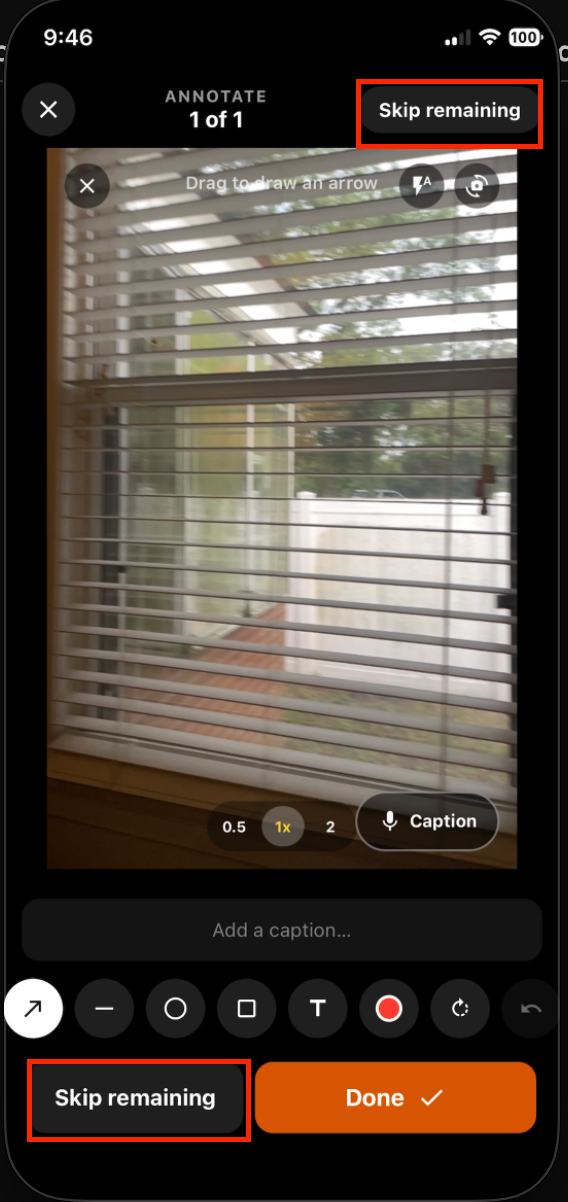
The annotator now includes a straight-line drawing tool. The skip action is labeled Skip remaining so it clearly means the rest of the photos in the batch will be skipped.
Where to find it:
Open an inspection report on mobile.
Go to the annotator.
Use the line tool in the drawing toolbar, or Skip remaining in the upper-right corner.
CYA quick capture video
What changed
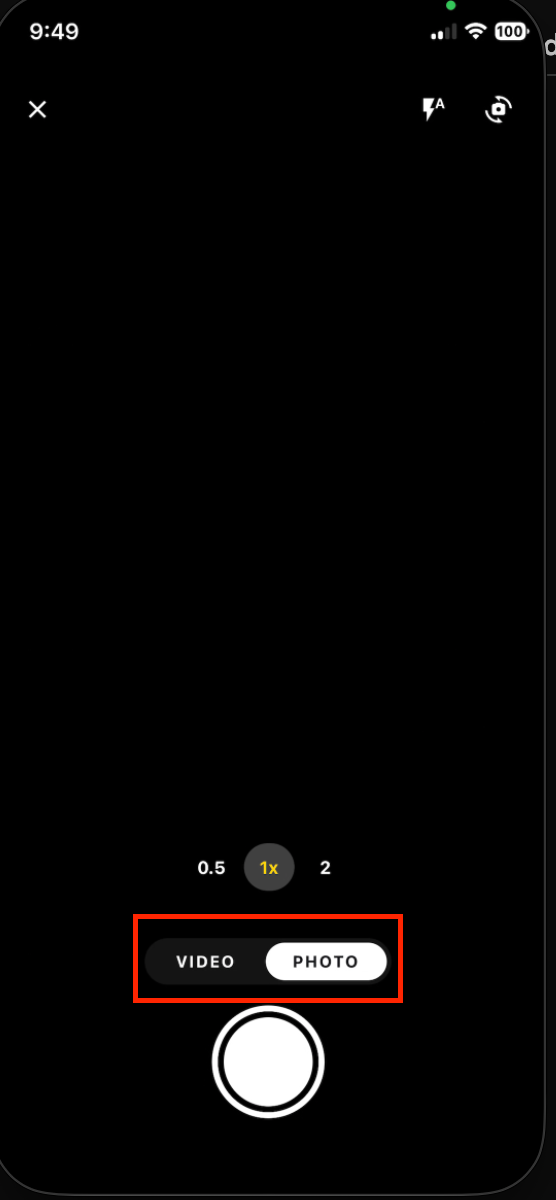
The CYA quick-capture camera now lets you switch to VIDEO and record, matching the other capture paths.
Where to find it:
Open an inspection report on mobile.
Open the camera from CYA quick capture.
Switch to VIDEO and record as usual.
Add photos to a comment still in the queue
What changed
You can attach photos to a comment while it is still processing in the queue, without waiting for it to finish or confirm first. After confirm, the appended photos stay on the comment.
Where to find it:
Open the report queue while a comment is still processing.
Open that comment’s actions and add photos.
Confirm the comment when you are ready.
Promote a custom comment to the template
What changed
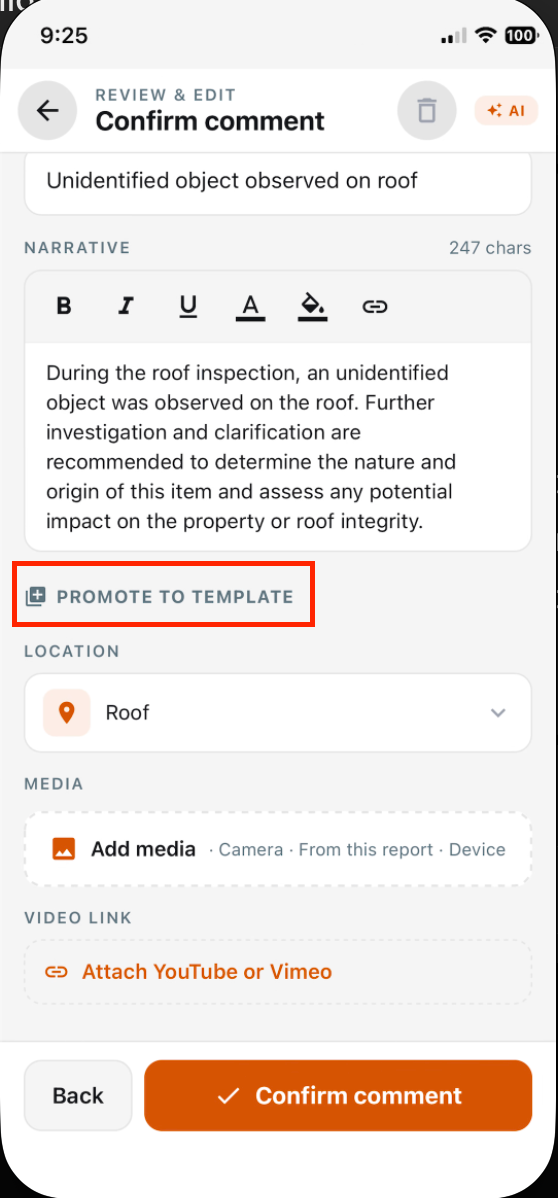
Authorized users can Promote to template so a custom comment written in the field is added to the company’s comment library for later inspections.
Where to find it:
Open a custom comment from the report queue or comment screen.
Choose Promote to template and confirm.
Setup:1. Grant template-management permission to the users who should promote comments.
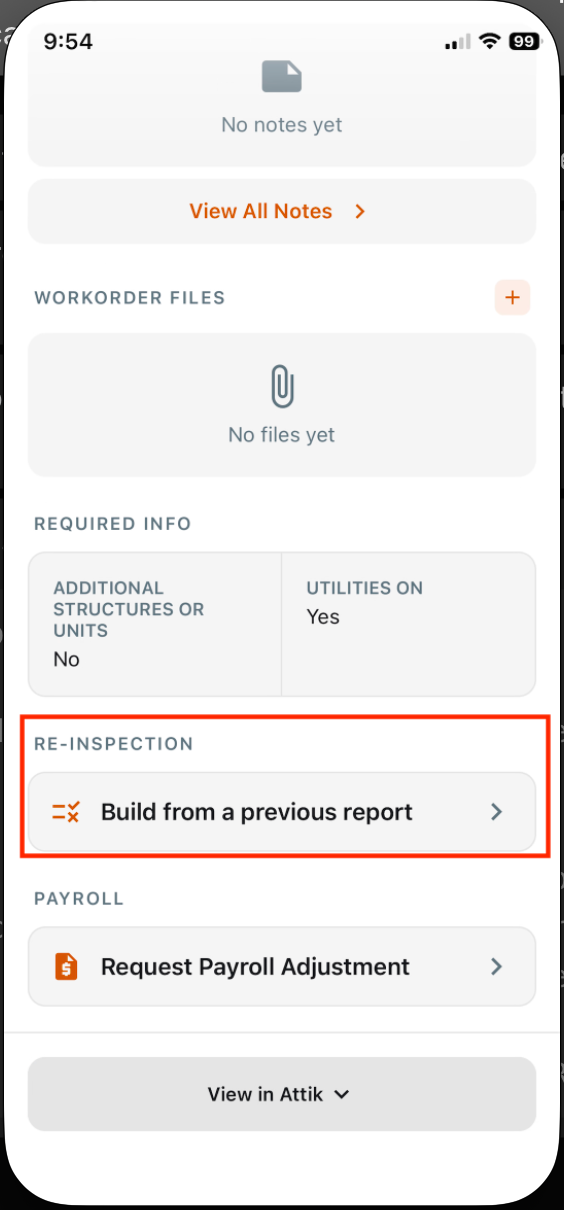
Build a re-inspection from a prior report
What changed On mobile, you can build a re-inspection from a completed report on a past job at the same address, choose which defects and limitations to carry forward, and set a Re-inspection outcome on each carried item while you review and edit the report. Where to find it:
Open the inspection.
Under Re-Inspection, tap Build from a previous Attik template report.
Under Previous inspections here, pick a completed report, set the Report name, select Items to re-inspect, then tap Build re-inspection.
On each carried item in Review & Edit, set Re-inspection outcome. Setup:
Optionally configure Re-Inspection Outcomes under Report Settings (web).
Improvements
Comment titles now persist from creation
What changed
New mobile comments now save the picked title when they are created, so titles no longer fall back to the narrative on comment lists or rendered reports.
Where to find it:
Open an inspection report on mobile.
Add a comment from a template or quick-add flow.
Save the comment and view it in the report.
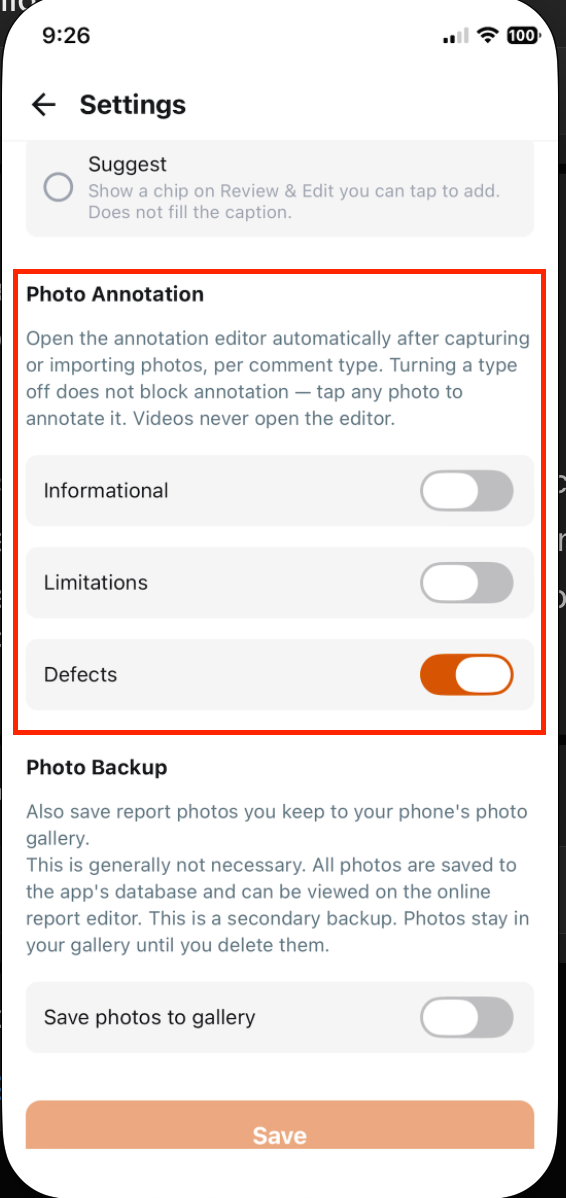
Photo annotation preference by comment type
What changed
You can turn photo annotation on or off per comment type in mobile settings. Videos no longer open the annotation screen (captioning still works). Gallery Upload onto an existing comment follows the same preference, with a Skip / Skip rest path for batches.
Where to find it:
Open mobile Settings and set the photo annotation preference for each comment type.
Capture or Upload photos on a comment to see the preference apply.
Record a video and confirm annotation does not open; caption the video from the existing caption path.
Clearer comment lists in the Report Writer
What changed
Comment pickers now follow the template catalog order after a web reorder, show only comments for the current section and subsection, and no longer multiply the same row. Info, Limitations, and Defects lists stay easier to browse.
Where to find it:
Open a section in the mobile Report Writer.
Open Info, Limitations, or Defects.
Confirm the list matches the template order and only belongs to that section.
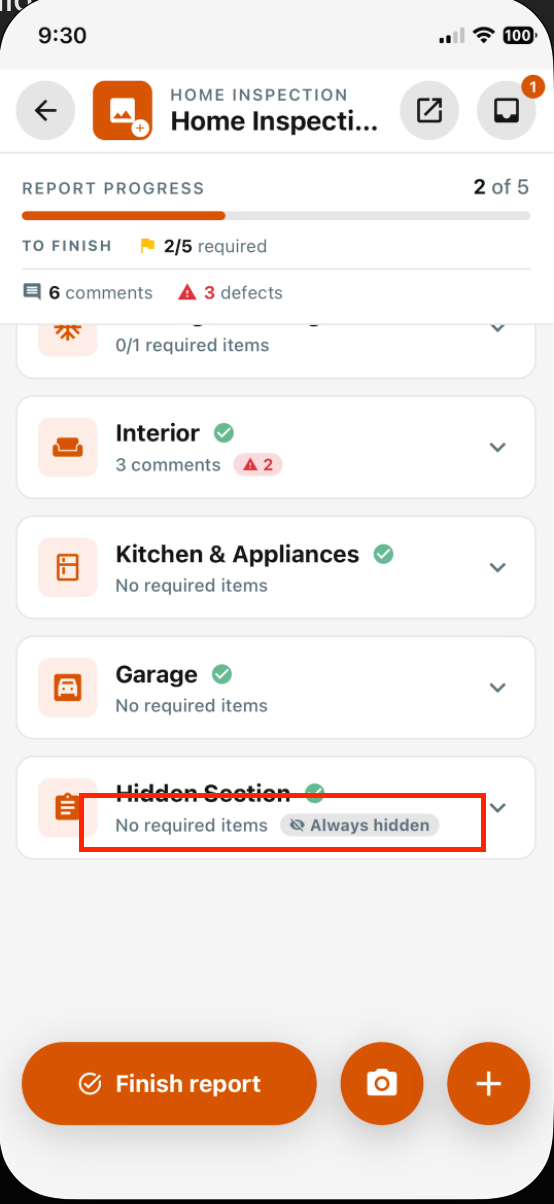
Hidden from Client section label
What changed
Sections excluded from the client portal and client PDF now show a Hidden from Client label in the mobile outline, so you can see in the field which sections the client will not receive.
Where to find it:
Open a report whose template has Hide from client portal turned on for a section.
Check the inspection outline and section headers for Hidden from Client.
One-handed camera zoom control
What changed
The in-app camera includes a more visible rotating zoom control so you can adjust zoom with one hand, instead of relying only on pinch or the lens pills.
Where to find it:
Open the camera during an inspection.
Use the rotating zoom control with one hand.
Retry all failed uploads from Outbox
What changed
When the queue Outbox has failed comment uploads, you can Retry all failed in one action. Per-item retry remains available, and items that fail again stay visible.
Where to find it:
Open the report queue.
Go to Outbox when failed uploads are present.
Tap Retry all failed, or retry a single item.
Bug Fixes
Payroll adjustment controls stay above the keyboard
What changed
On the payroll adjustment form, receipt attachment and Submit stay visible and tappable while you type, including when Description has focus. Standalone and job-linked entry points behave the same.
Where to find it:
Open a standalone or job-linked payroll adjustment.
Focus Description so the keyboard opens.
Attach a receipt and Submit without dismissing the keyboard first.
Applies to: Existing and future records