Attik Update - Official Forms on the Phone, View Report as Client & Clearer Outbox (Mobile App)

Summary
Generate, view and complete official forms from the phone
View the report as a client or agent from the app
The Outbox shows which photo, video or comment is stuck, and uploads resume on spotty signal
Jobs open without signal, and the job screen no longer errors offline
Reinspection fixes for outcomes, photos and required fields
Volume-button photos, tap to focus and one copy of each push notification
New Features
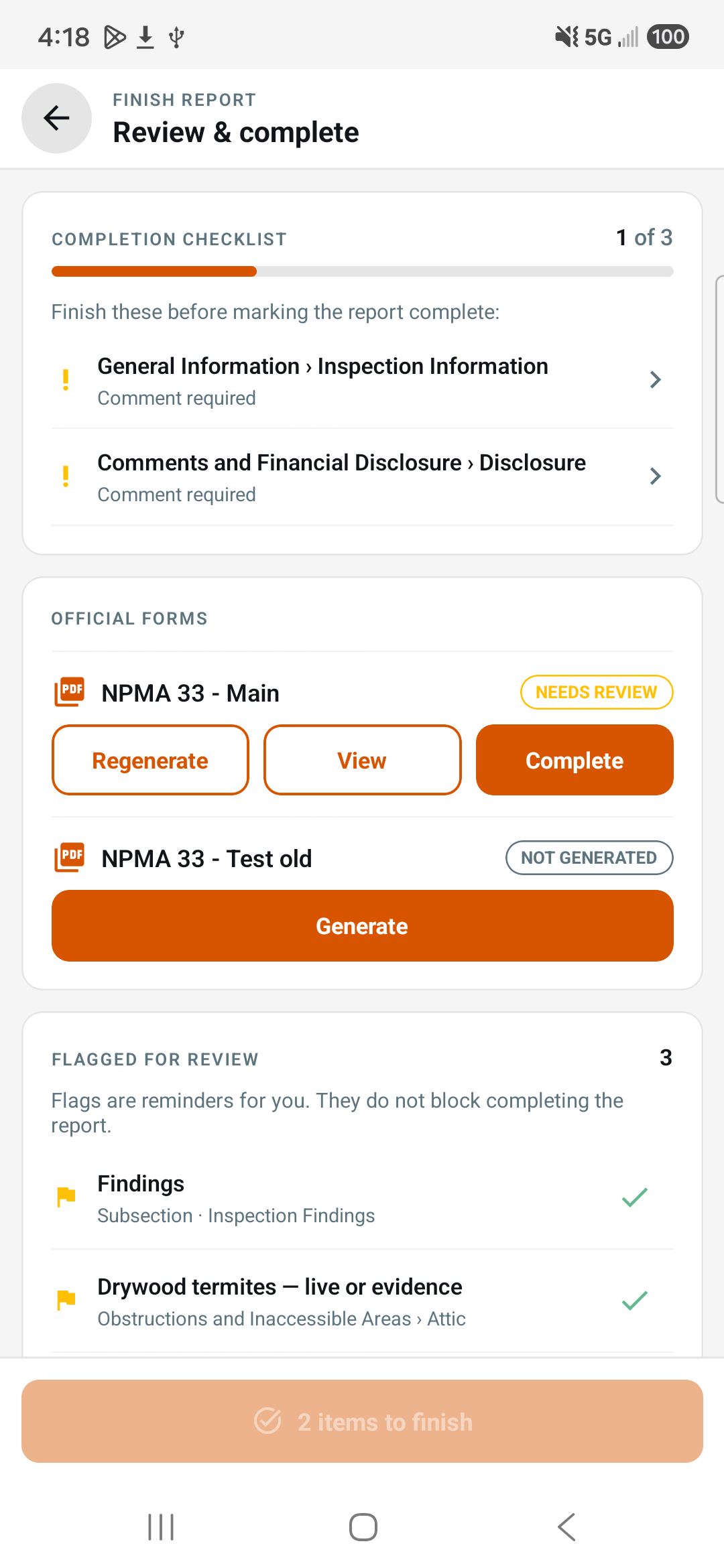
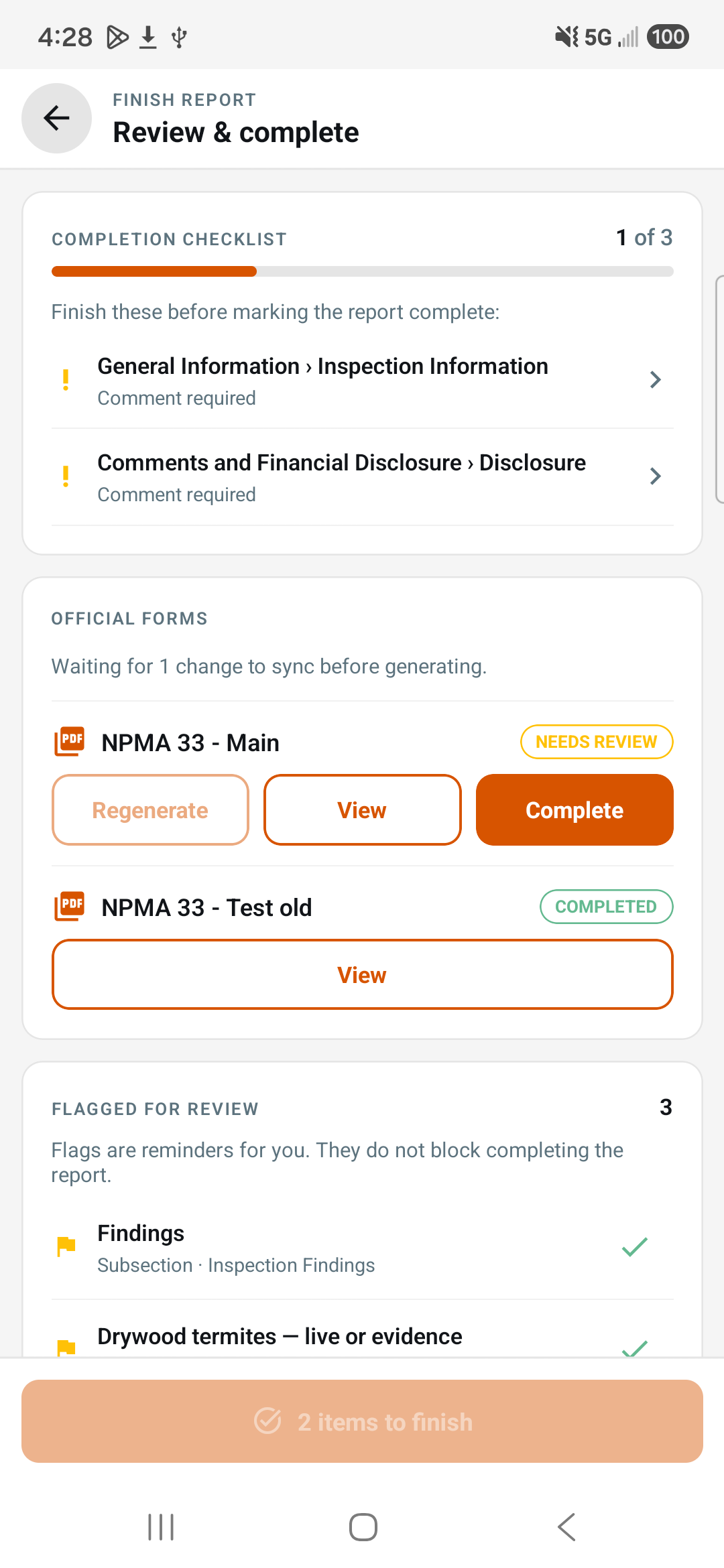
Generate, view and complete official forms on the phone
What changed: Official forms now show as cards under their report on the job, so you can Generate, View, Regenerate and Complete them from the app without going to a computer. Generating waits until you have signal and everything has synced, and Regenerate asks first because it replaces the current form.
Where to find it:
Open the job.
Find the official form card under its report, or open the report's Finish screen.
Tap Generate, then View; use the card's Actions menu to Regenerate or Complete.
Setup:
The official form must be turned on for the report template.
View the report as a client or agent from the app
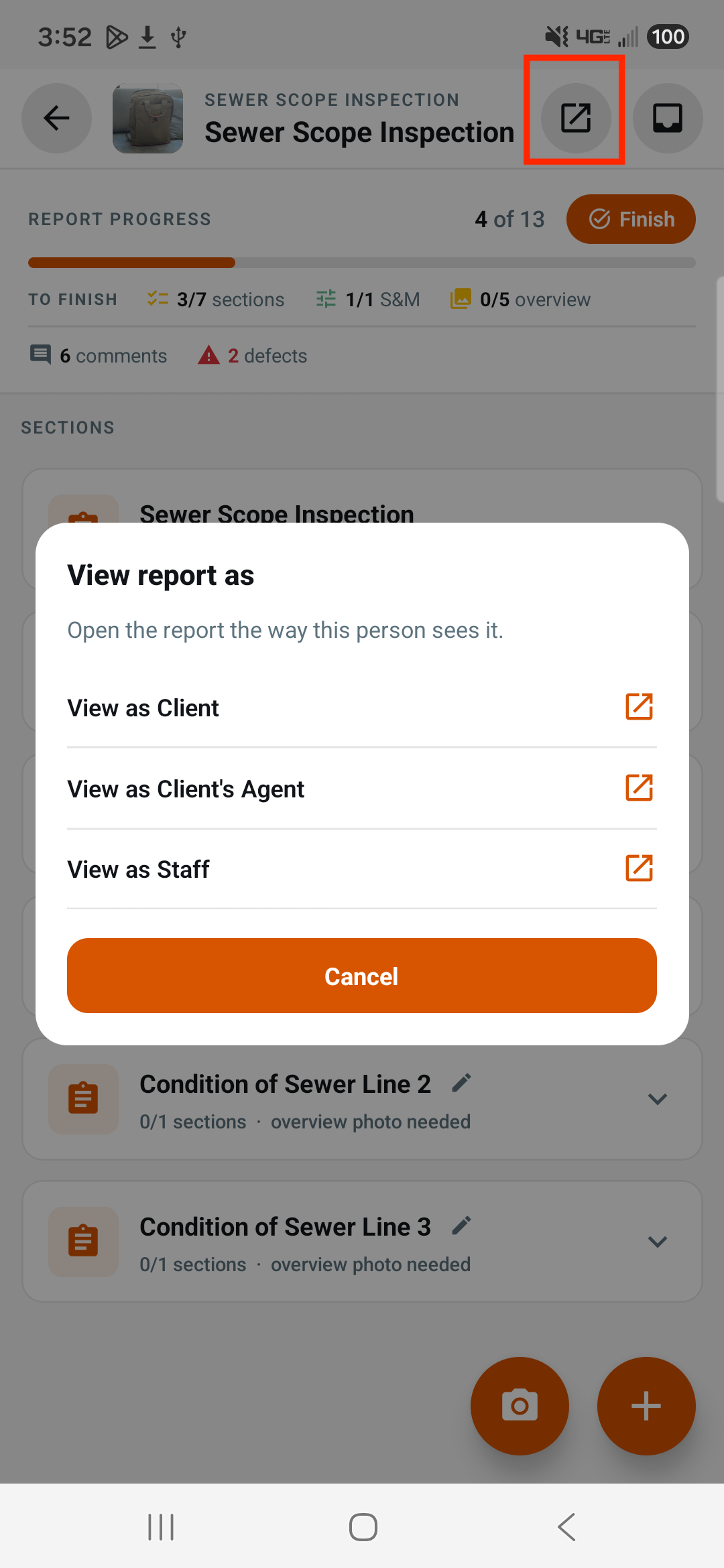
What changed: Tapping View report now asks who to view it as: each contact on the order by role, or Staff. Viewing as a client or agent shows exactly what they see, including Add to repair list and the AI agent, so you can demo them in the field.
Where to find it:
Open the report screen.
Tap View report.
Pick a contact or Staff.
Improvements
Outbox shows what is stuck
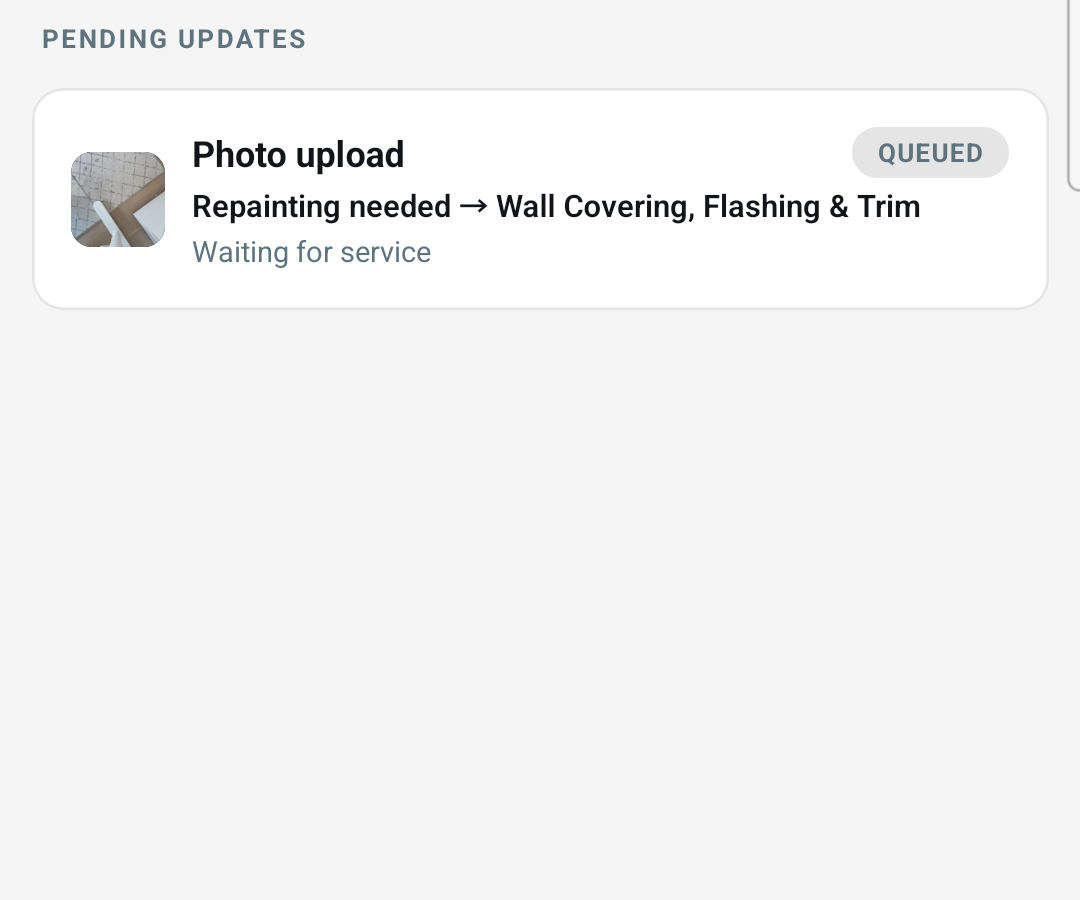
What changed: Each item in the Outbox now shows a thumbnail of the photo or video, the comment and subsection or section it belongs to, and whether it's a photo, video or caption, so you can find it on the report and decide what to do.
Where to find it: Outbox.
Get back to the report summary after completing
What changed: On a completed report, the outline's bottom button now reads Summary and opens the summary again.
Where to find it: Report outline, Summary button on completed reports.
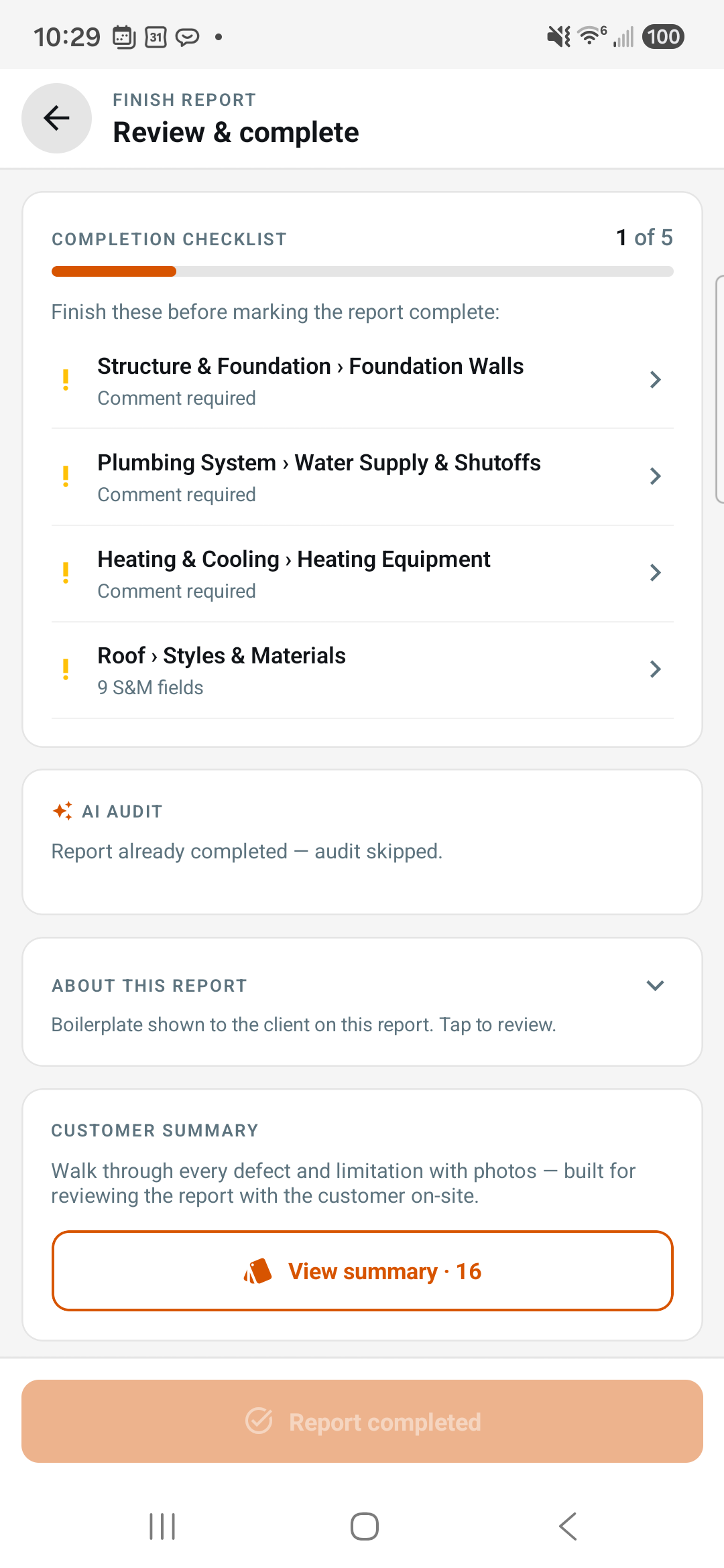
Complete replaces Remove on the reports list
What changed: The reports list Actions menu no longer has Remove, so a finished report can't be deleted by accident; use Archive to hide one. Attik reports get Complete, which opens the Finish screen with the usual checks.
Where to find it: Job screen, report card Actions menu.
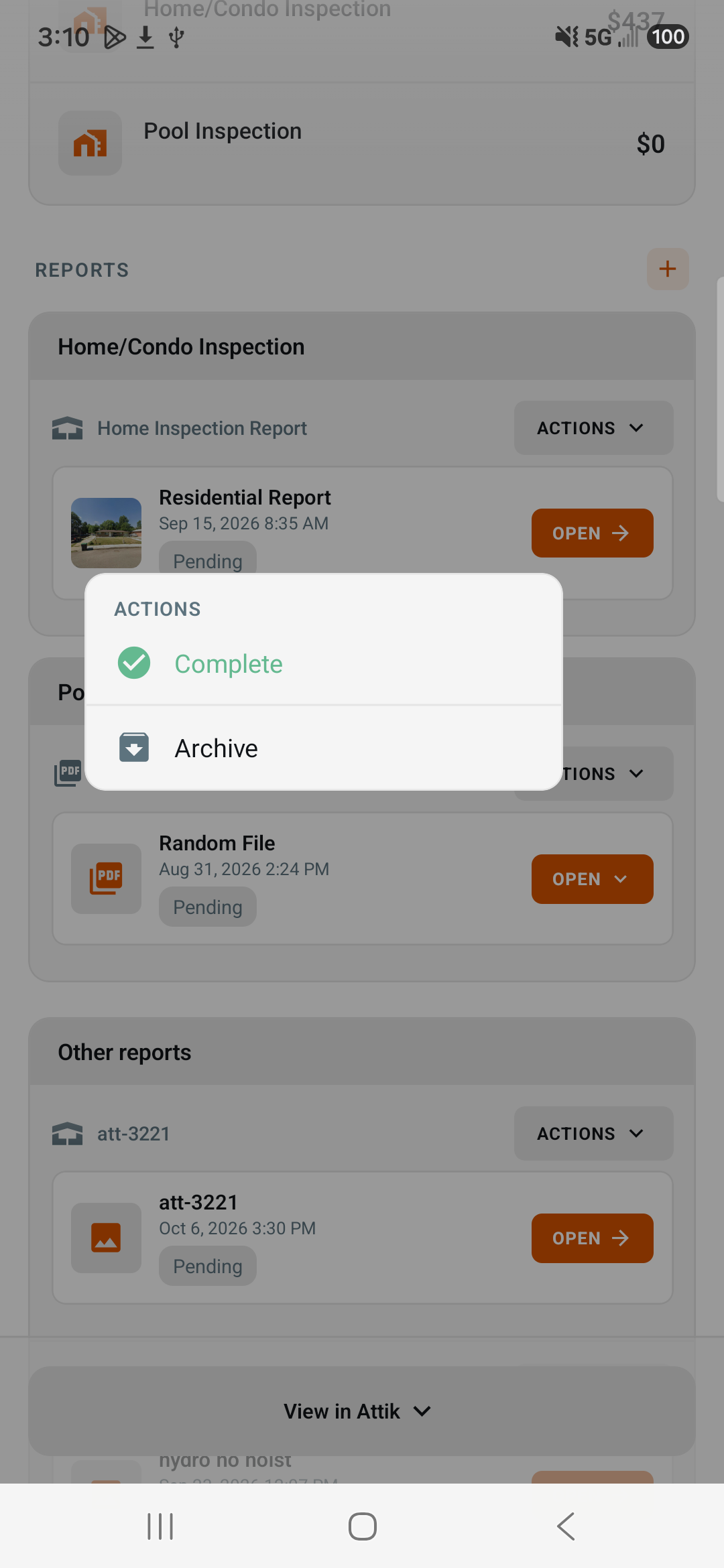
Brighter outlines in dark mode
What changed: Outlines and dividers around comments, chips and cards are easier to see in dark mode, and highlighted or selected text stays readable.
Where to find it: App-wide in dark mode.
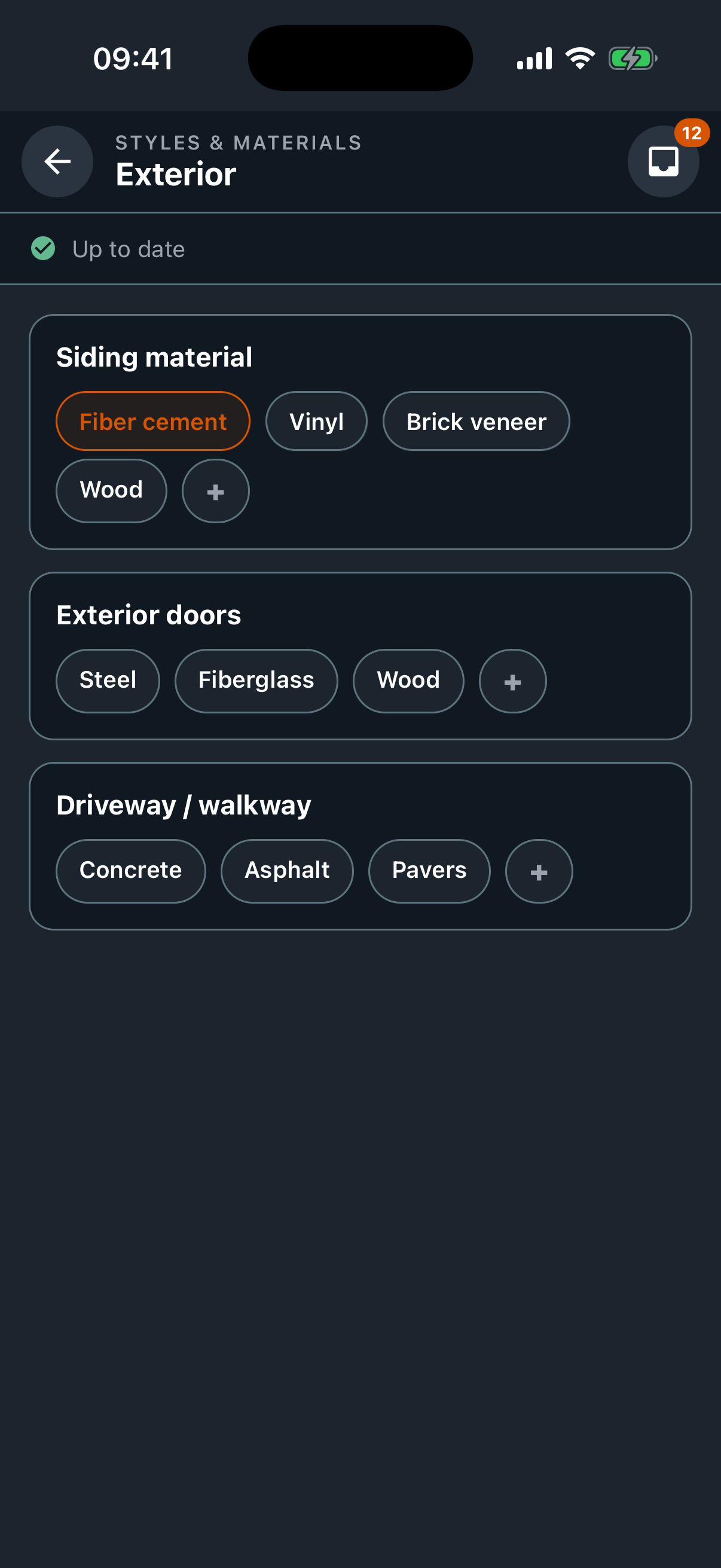
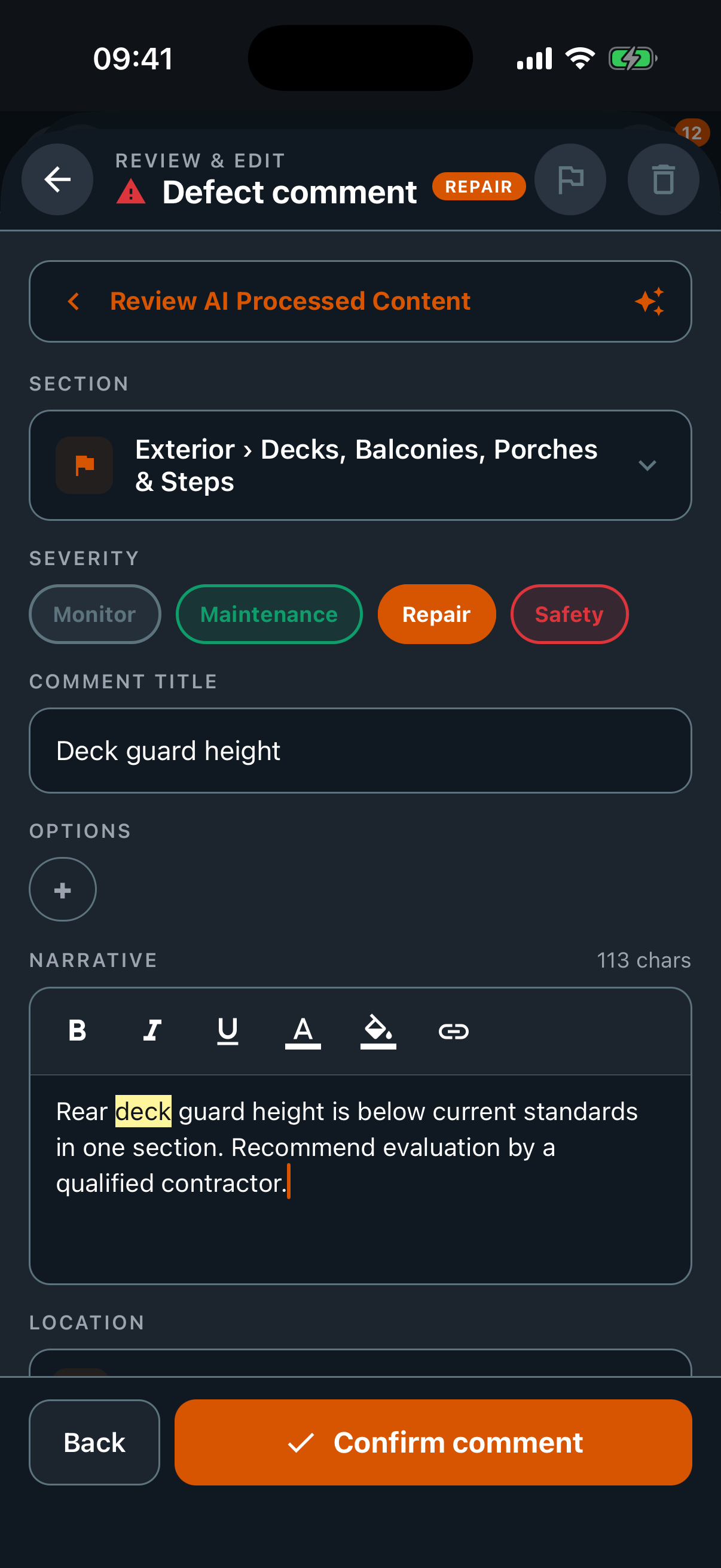
Original and reinspection photos are kept separate
What changed: On reinspections, photos are grouped by visit, such as Original inspection and 1st reinspection, with the newest visit first.
Where to find it: Reinspection reports in the report writer.
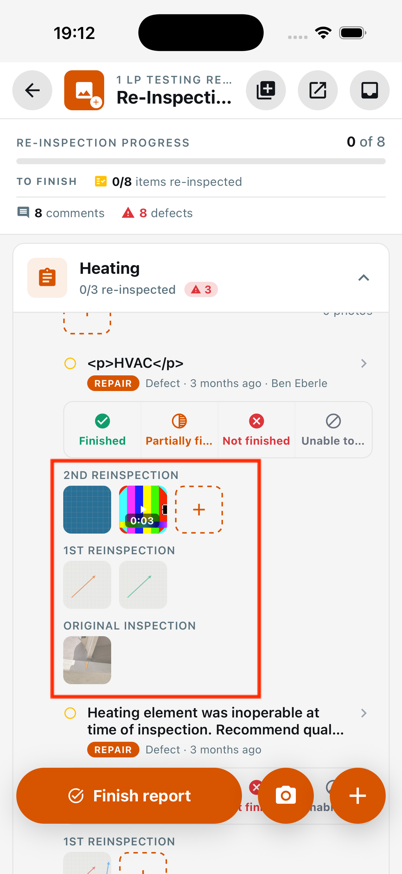
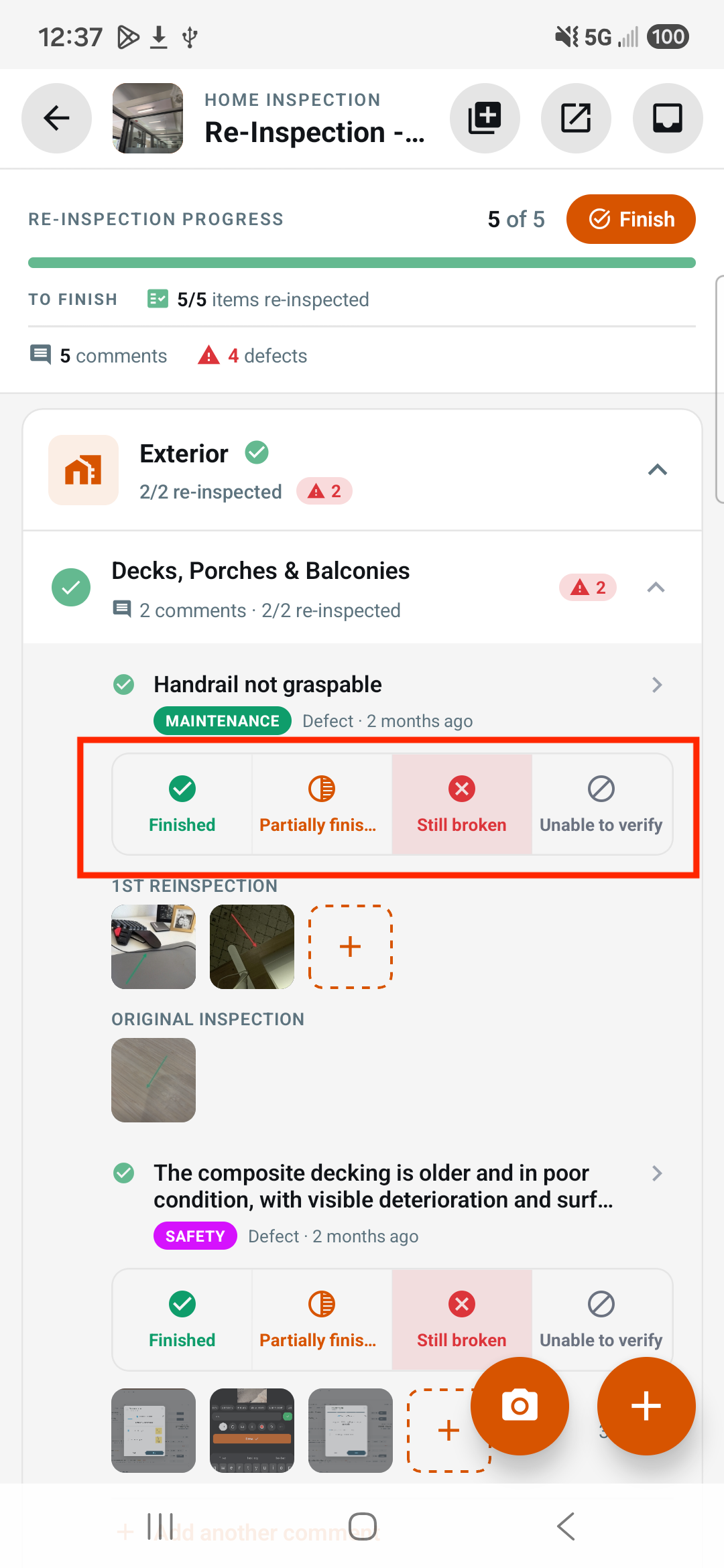
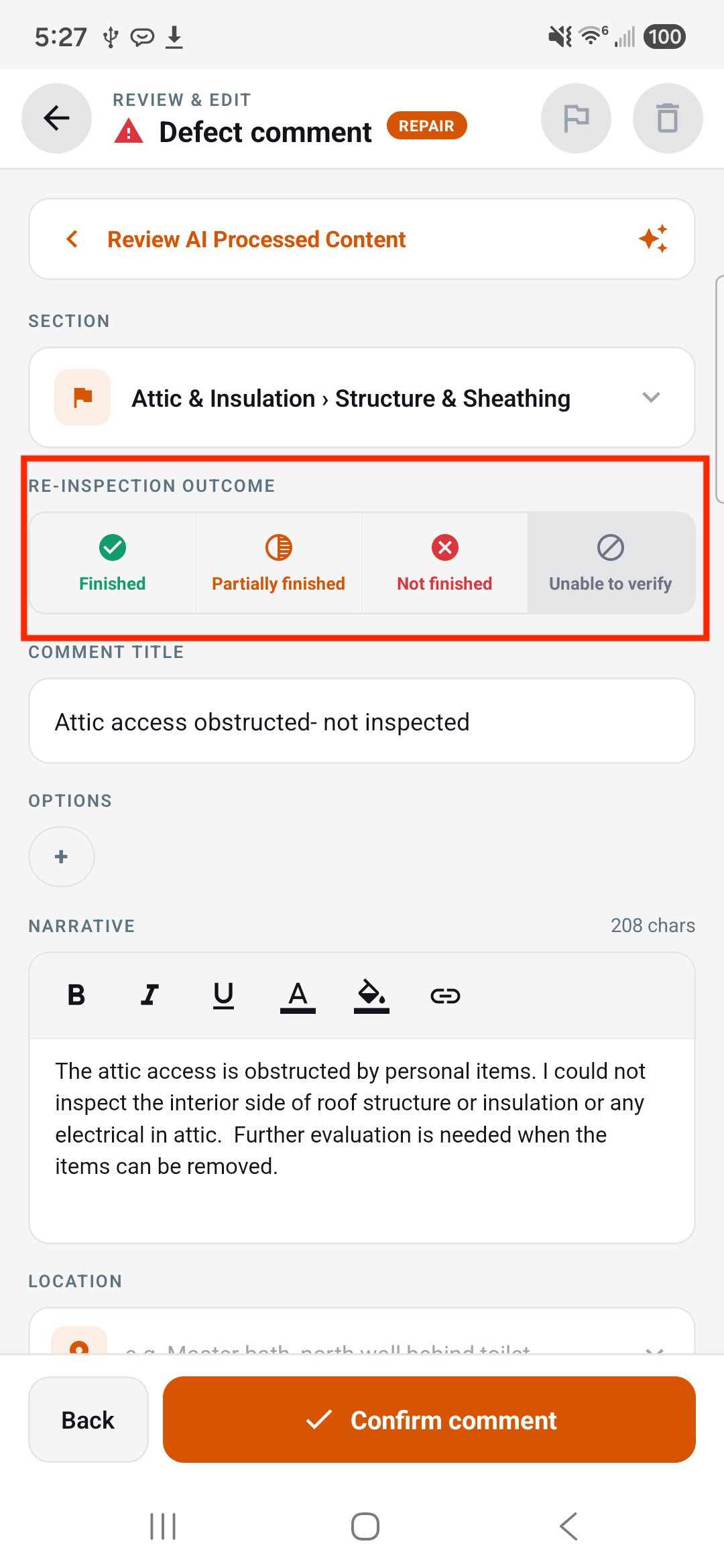
Change a reinspection outcome on the phone
What changed: You can now change a reinspection outcome after picking one, including after closing and reopening the app. Each carried item has a divider and shows its chosen outcome's icon and color by its title.
Where to find it: Reinspection reports in the report writer.
Applies to: Existing and future records
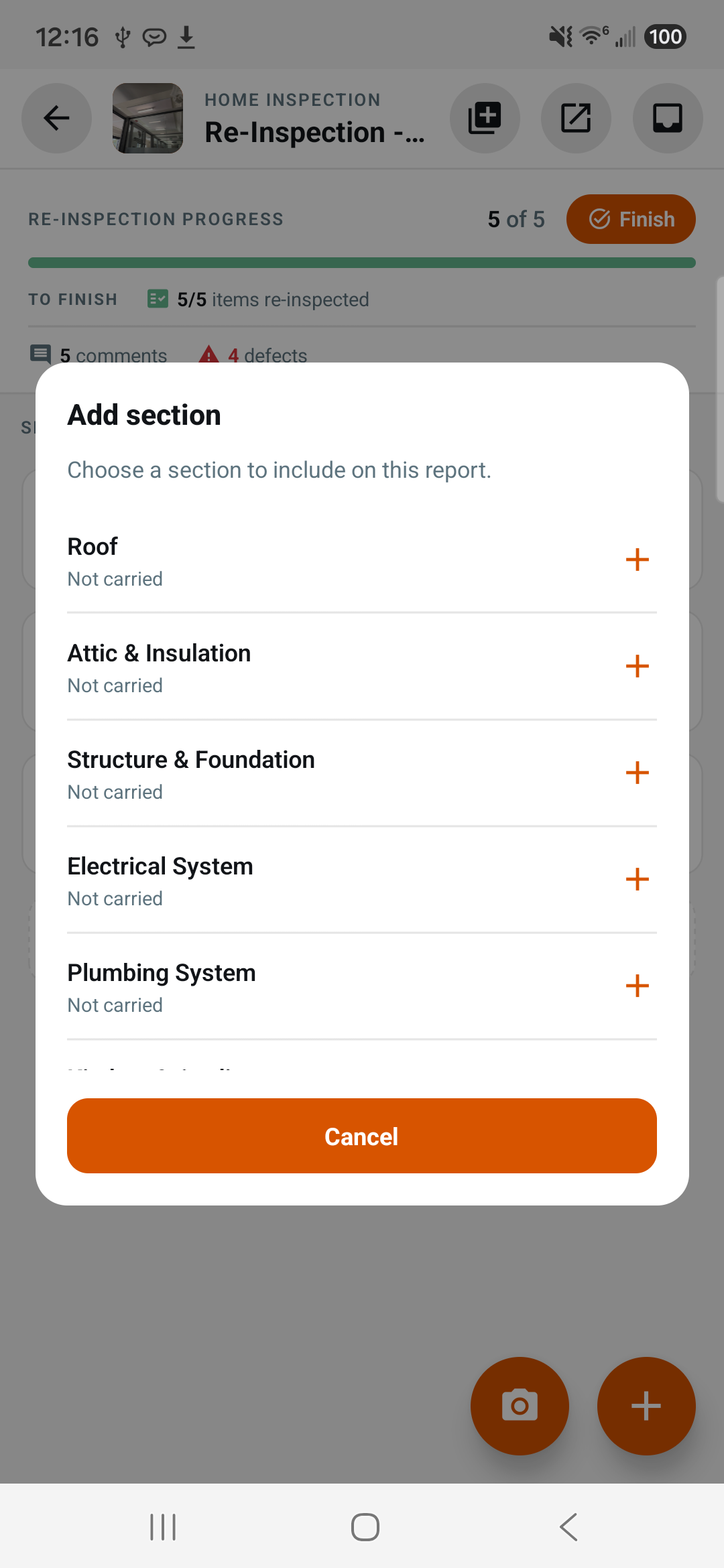
Reinspection rows that weren't carried over are labeled
What changed: On a reinspection, rows nothing was carried into are listed with a Not carried label and can still be added, instead of showing under Not present.
Where to find it: Reinspection reports in the report writer.
Phone storage stays in check
What changed: Photos and videos that are safely uploaded are now cleared from the phone after at most three days, and cleanup runs after you sign in instead of every time the camera opens. Anything not yet uploaded is never removed.
Where to find it: No new screen. Takes effect after the update.
Uploads pick up where they left off
What changed: On a spotty connection, larger photos and videos now resume from where they stopped instead of starting over on every retry, so big videos finish uploading.
Where to find it: No new screen. Takes effect after the update.
Today's jobs open without signal
What changed: Jobs now stay saved on the phone for 72 hours, and the schedule downloads today's and upcoming jobs while you have service, so jobs you haven't opened yet still open in a basement or crawlspace.
Where to find it: Schedule and job screen.
Chosen comments move to the top
What changed: When you reopen an item, the comments you already picked are listed first in their group (Info, Limitations, Defects). Rows don't move while you tap.
Where to find it: Report writer, item comment screen.
Finish screen follows your template's completion rule
What changed: The Finish screen still lists missing required items. Unless the report's template requires every item, it now asks "Complete anyway?" instead of blocking; when the template requires them, completing stays blocked.
Where to find it: Report Finish screen.
Add-on reports show the job's cover
What changed: Report cards on the job screen show the cover an add-on report borrows from the main inspection, including one picked offline. The Finish screen only asks for a cover on the main report, or on an add-on when the main report has none.
Where to find it: Job screen report cards and the Finish screen.
Update banner shows when you come back to the app
What changed: The "Update ready" banner now checks for updates when you return to the app, not just after a full restart. It stays hidden on the camera, annotate and compose screens so a restart can't drop unsaved captures.
Where to find it: Update banner. No new screen.
Reinspection photo arrows use the outcome color
What changed: Arrows on a new photo for a reinspection finding now start in that finding's outcome color, and the color stays in the palette if you switch away. Original photos keep their colors. ⚠ Confirm before publishing: confirm the app version that includes this.
Where to find it: Photo annotate screen on reinspections.
Bug Fixes
Volume buttons take a photo on iPhone
What changed: With the camera open on iPhone, pressing either volume button now takes a photo on every press, so you can shoot one-handed while holding a flashlight.
Where to find it: Camera, volume buttons.
Applies to: Existing and future records
Annotate screen no longer crashes on iPhone
What changed: Annotating a rotated or landscape photo on iPhone no longer freezes or crashes the app, so the markup you are adding isn't lost.
Where to find it: Photo annotate screen.
Applies to: Existing and future records
Reinspections don't ask for required general info again
What changed: On a reinspection, required fields such as Foundation Type, required Styles & Materials and required overview photos from the original report no longer show Needs attention or block completion. The cover photo is still required.
Where to find it: Reinspection reports in the report writer and the Finish screen.
Applies to: Existing and future records
One copy of each push notification
What changed: Push notifications such as Tomorrow's Schedule now arrive once instead of several times. If you use two phones on the same platform, notifications go to the one you signed in on most recently.
Where to find it: Push notifications.
Applies to: Future records only
Tap to focus works in the camera
What changed: Tapping the camera preview now focuses on that spot and holds it for 10 seconds or until you take the photo, for sharper close-ups.
Where to find it: Report camera.
Applies to: Existing and future records
Longer location tags no longer pick shorter ones
What changed: Tapping a location tag such as "Side of the building" no longer also fills in the shorter "Side" and "Building" tags.
Where to find it: Location tags on comments and photo captions.
Applies to: Existing and future records
A cleared location tag group stays empty
What changed: If your company or template removed every tag in a location tag group, the app no longer shows Attik's default tags there.
Where to find it: Location tags in the report writer.
Applies to: Existing and future records
AI stays out of captions in Suggest mode
What changed: With the AI caption setting on Suggest, AI text no longer fills in captions on its own, and a caption you type is always kept.
Where to find it: Settings, AI caption setting; photo captions.
Applies to: Future records only
Job screen works without signal
What changed: Backing out of a job with no signal no longer shows "Something went wrong." The saved job stays on screen with a banner to retry, and when nothing is saved you get Back and Retry.
Where to find it: Job screen.
Applies to: Existing and future records