Attik Update - Multi-select option groups, reinspection workflows & cleaner client reports

Summary
Template authors can add any number of multi-select option groups on one comment, import a section from another template, and turn Overview media off per section
Brands can choose whether Not present items stay on client reports and PDFs
Reinspection copy and build keep prior media, comments, and numbering cues
Client reports and PDFs show a cleaner Introduction, every observation photo with captions, and video thumbnails
Shared inspections sync across inspectors, and the web and staff report editors support bubble comments
New Features
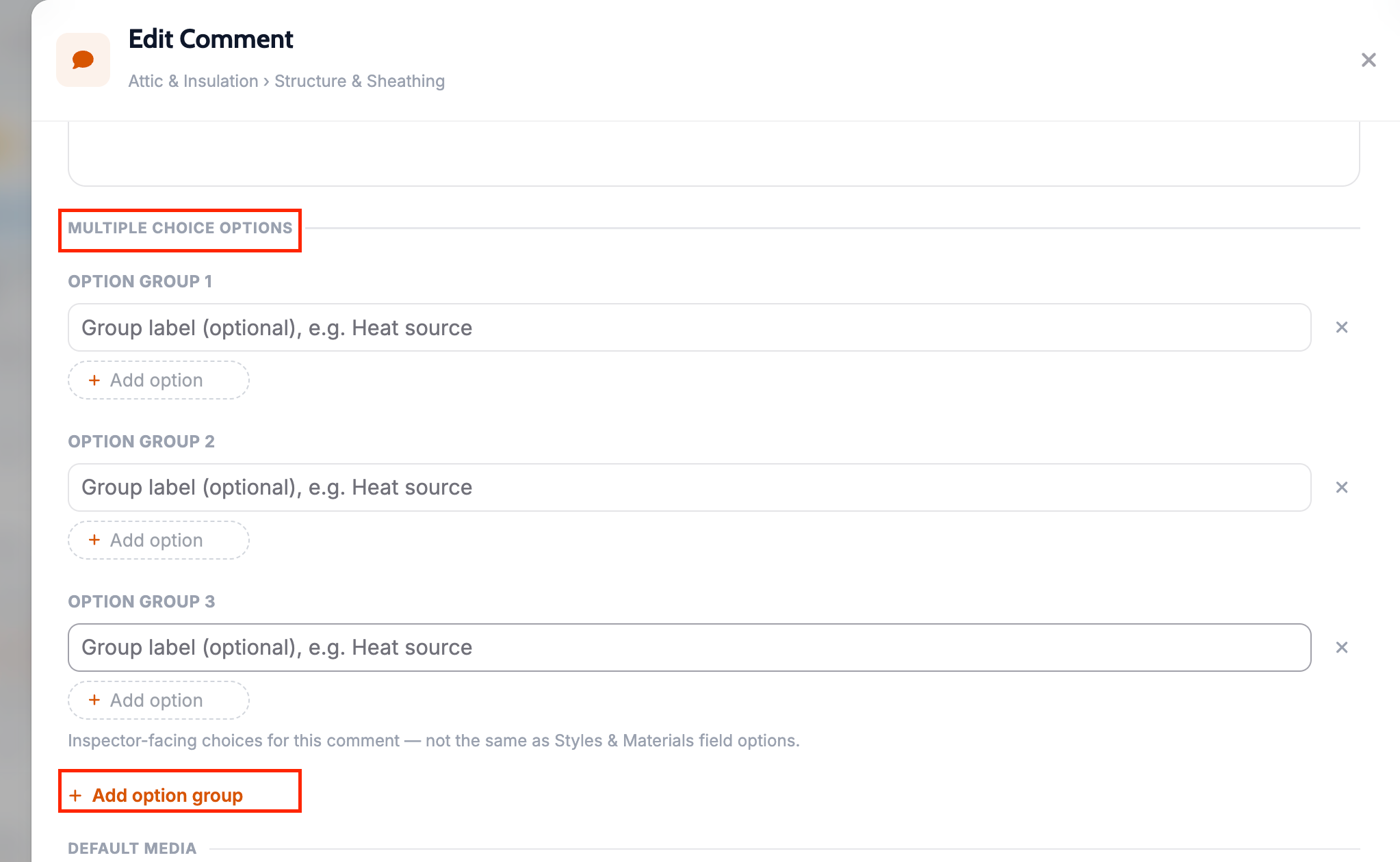
Multiple multi-select option groups on one comment
What changed: Template authors can add any number of labelled multi-select option groups on a single comment. Inspectors pick options in each group and attach photos on that same comment, and client reports and PDFs show each group once instead of repeating the choices under the narrative.
Where to find it:
Open a report template and edit a catalog comment.
Add one or more multi-select option groups with labels and choices.
On a report, select options in each group on that comment.
Import a section from another report template
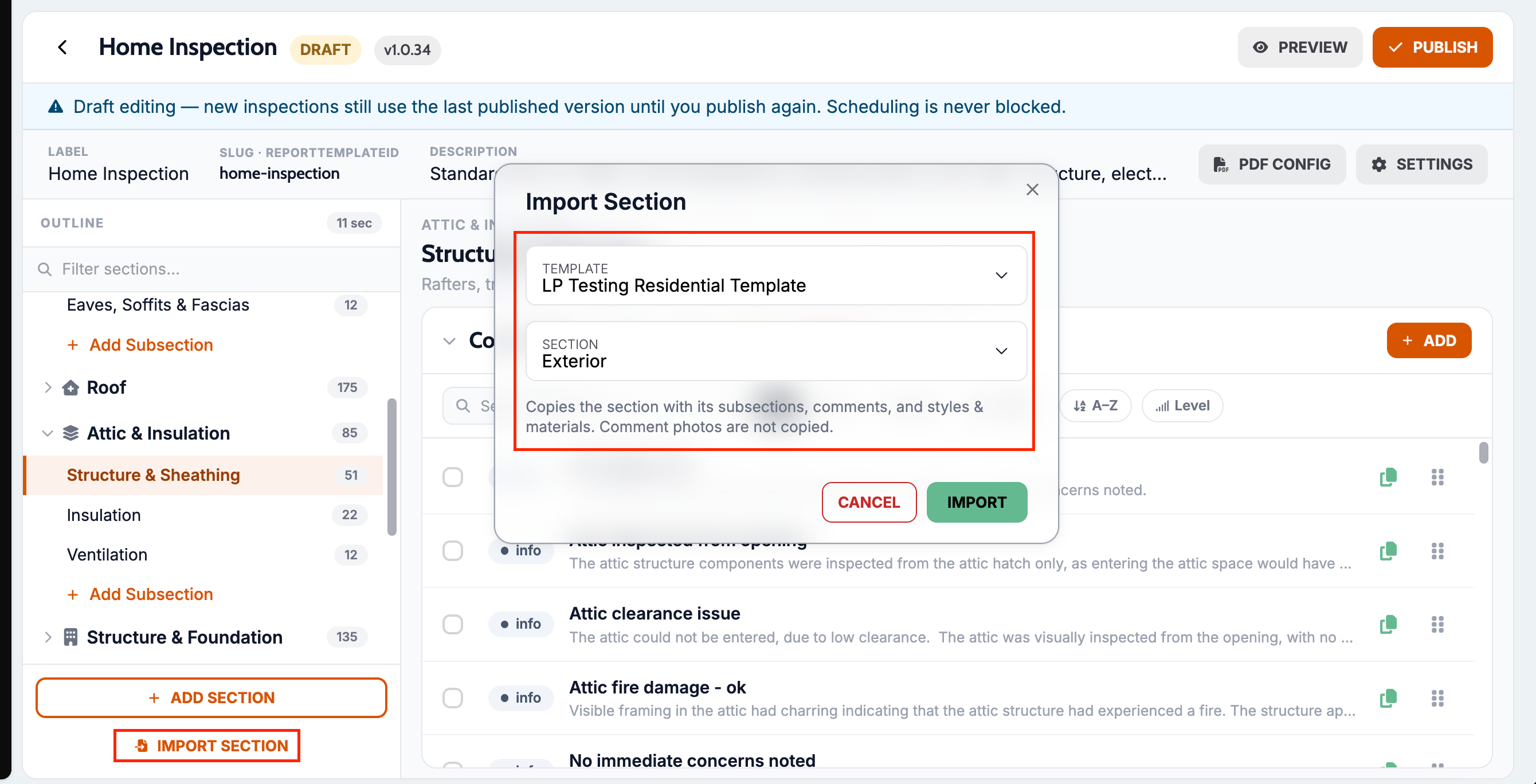
What changed: Copy one section, including its subsections, catalog comments, and Styles & Materials, from another template in your company into the template you are editing. The copy belongs to the destination template and can be edited independently.
Where to find it:
Open a report template in the template editor.
Use Import section and pick the source template and section.
Save. A published destination template returns to draft when you import.
Hide Overview media per section
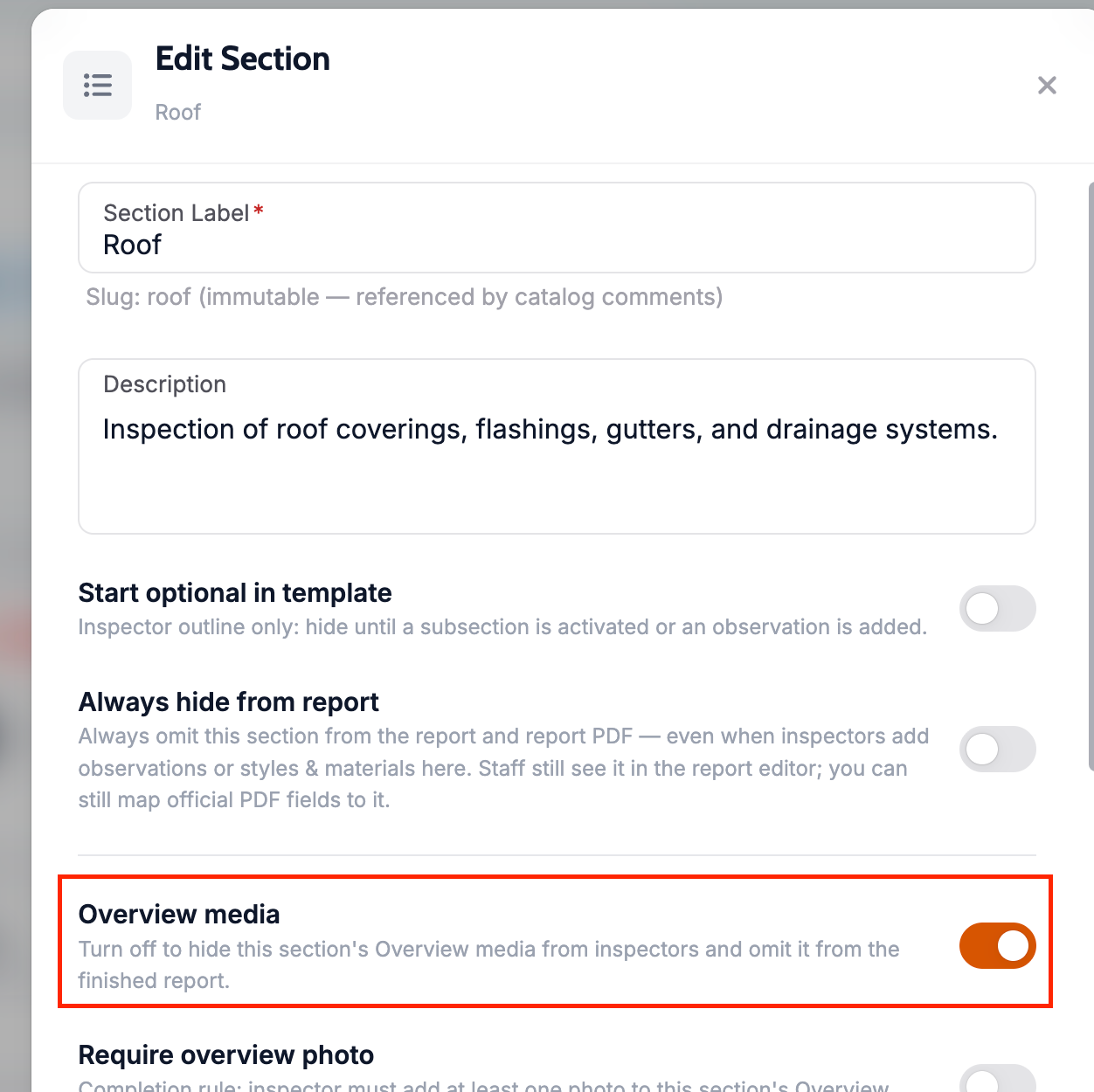
What changed: In template settings, turn Overview media off for a section so inspectors never see that Overview media row and the finished report has no empty Overview media slot. Existing templates stay on until you opt out.
Where to find it:
Open the report template.
Open the section settings for Overview media.
Turn Overview media off for sections you do not use.
Choose whether Not present items stay on the client report
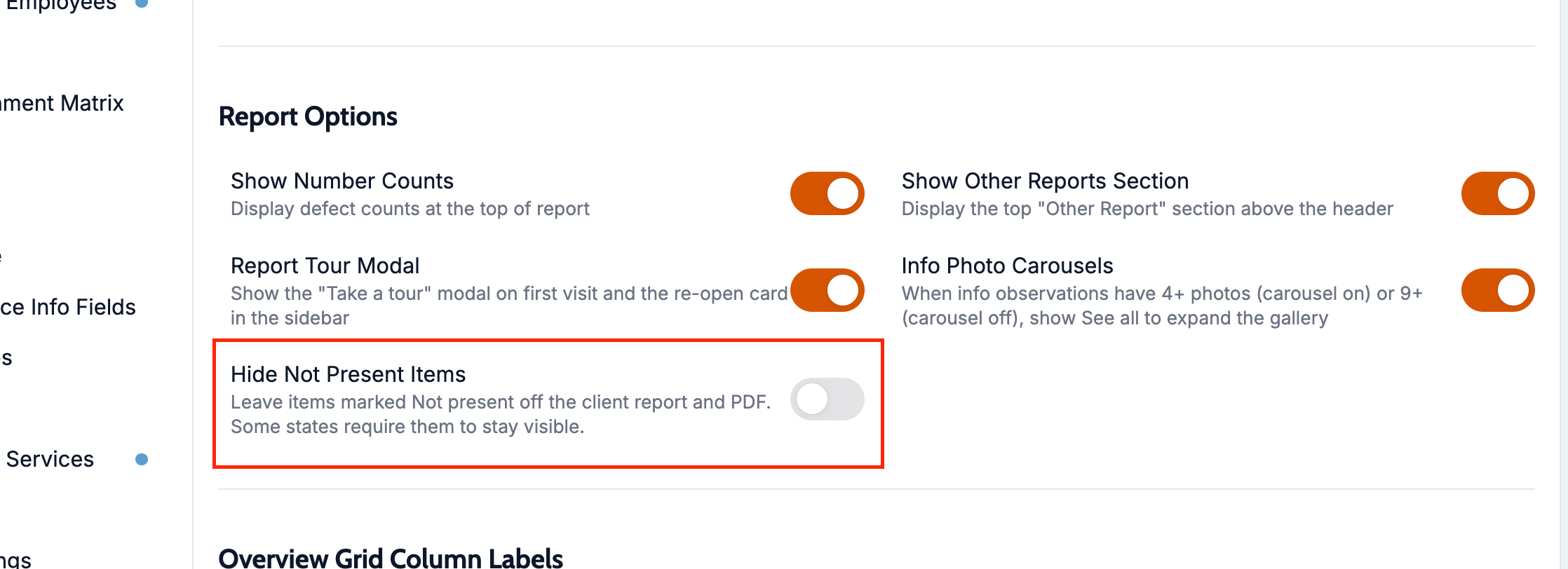
What changed: Brands can keep today's labelled Not present rows on the client report and PDF, or omit them from those surfaces. The default stays show-and-label. Inspectors can still see and undo Not present in the writer either way.
Where to find it:
Open company Report Settings.
Choose whether Not present items appear on the client report and PDF.
Setup:
Review disclosure rules for your states before switching to omit.
Reinspection copy and build
What changed: You can copy from a completed source without completing it again. Reinspection builds keep prior photos, videos, comments, and locations, show clearer build status, and support building an additional report on the same job with reinspection numbering and headers.
Where to find it:
Open an inspection and use the reinspection or copy actions.
Review the built reinspection report for prior items and outcomes.
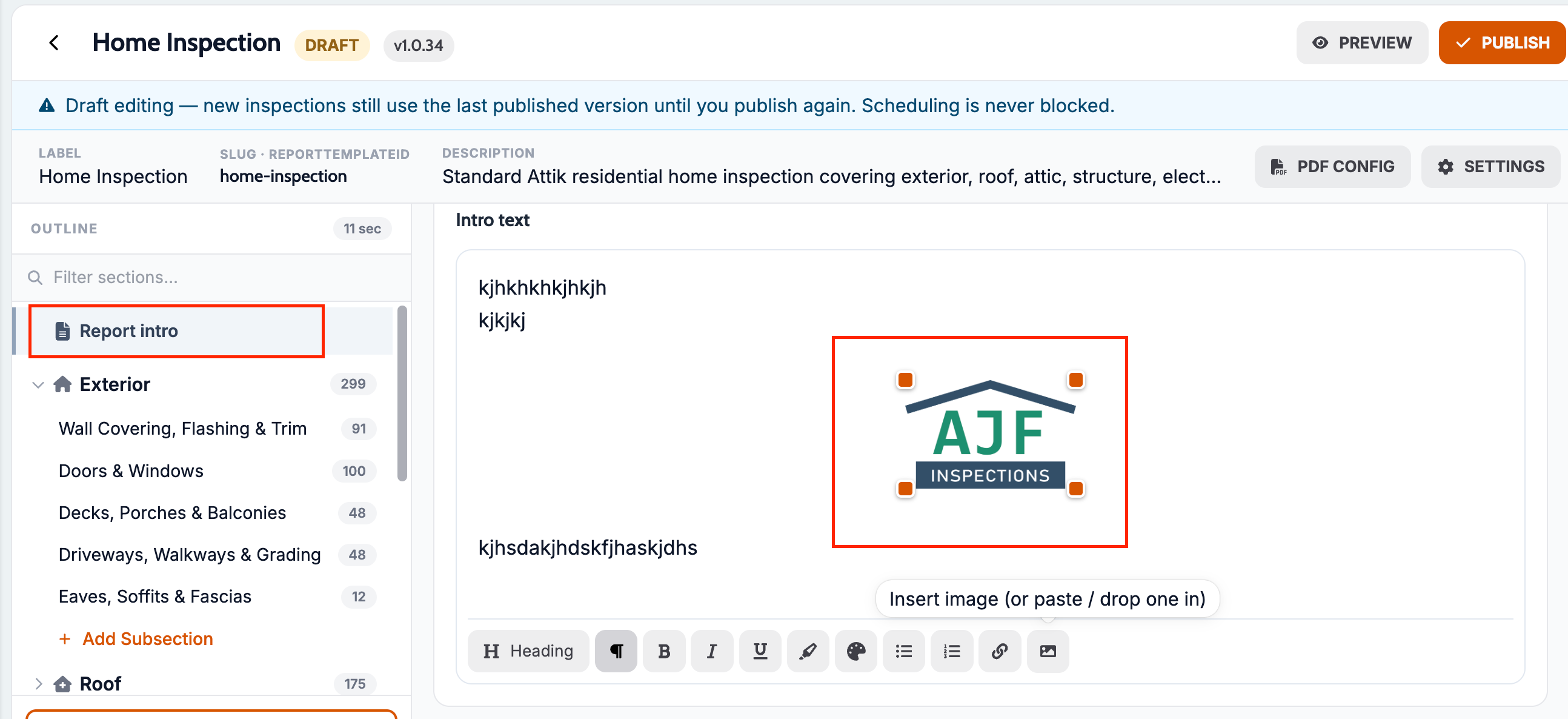
Images in the Report intro
What changed: Template authors can add images to the intro text, using the image button in the editor toolbar or by pasting or dropping a JPEG, PNG, or WebP up to 25MB. Images show centered in the Introduction on the client report and on the PDF.
Where to find it:
Open the report template and select Report intro in the outline.
In Intro text, add an image with the toolbar image button, or paste or drop one in.
Images in section overviews
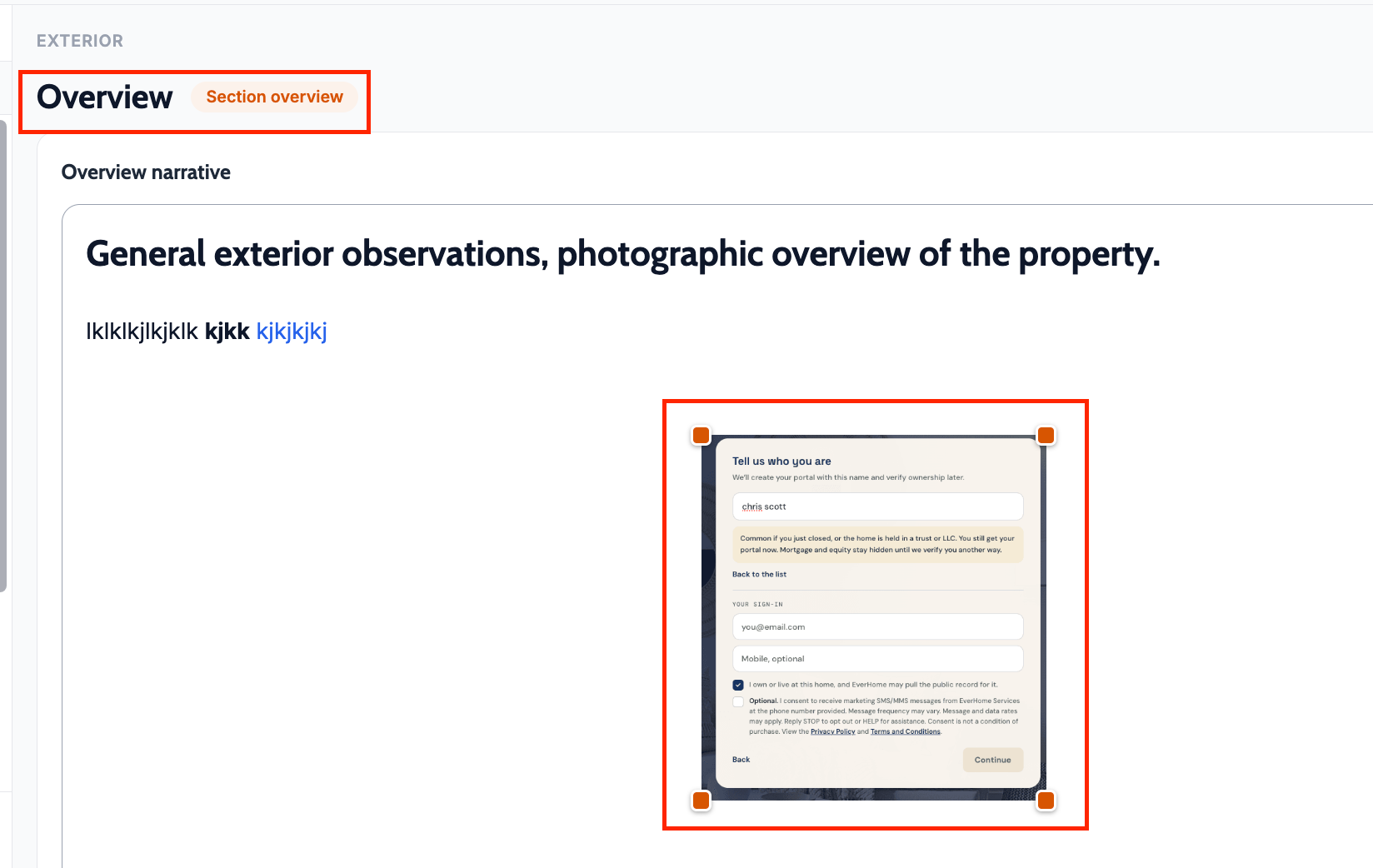
What changed: A section's Overview narrative can include images, added the same way as in the Report intro. They show centered in that section's overview on the client report and print with the section's overview photos on the PDF.
Where to find it:
Open the report template and select a section's Overview in the outline.
In Overview narrative, add an image with the toolbar image button, or paste or drop one in.
Turn off the intro on reports
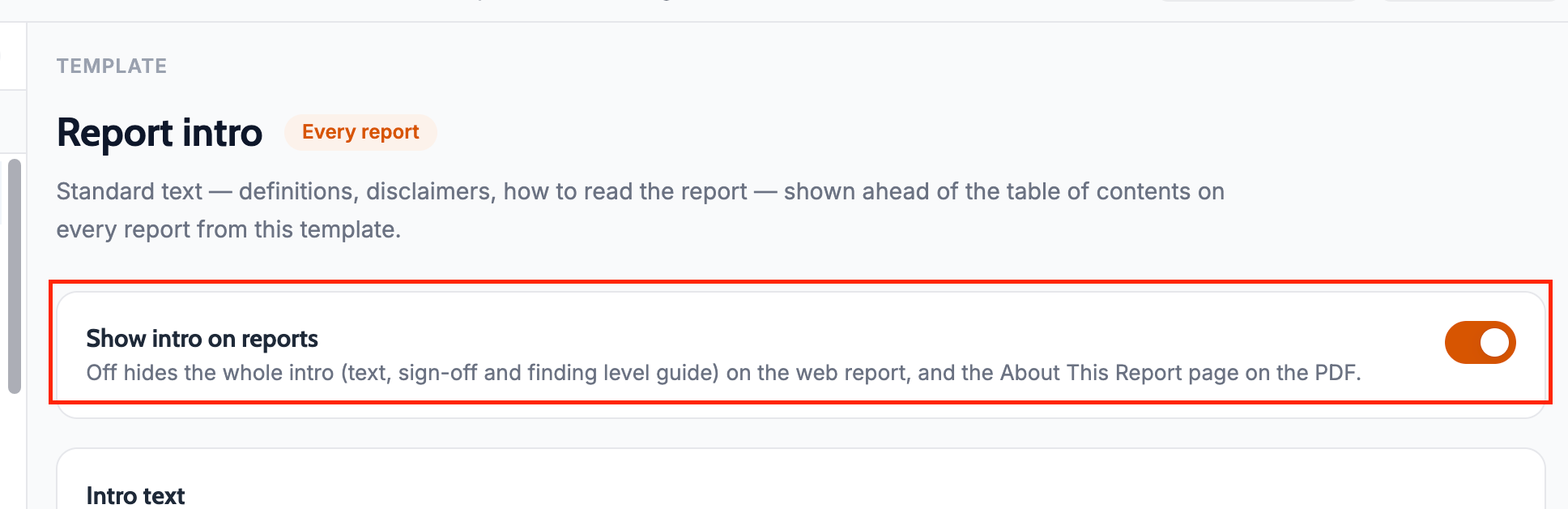
What changed: Template authors can hide the intro for reports from a template. Off hides the intro text, sign-off, and finding level guide on the client report, and leaves the About This Report page out of the PDF.
Where to find it:
Open the report template and select Report intro in the outline.
Turn off Show intro on reports.
Turn off the finding level guide
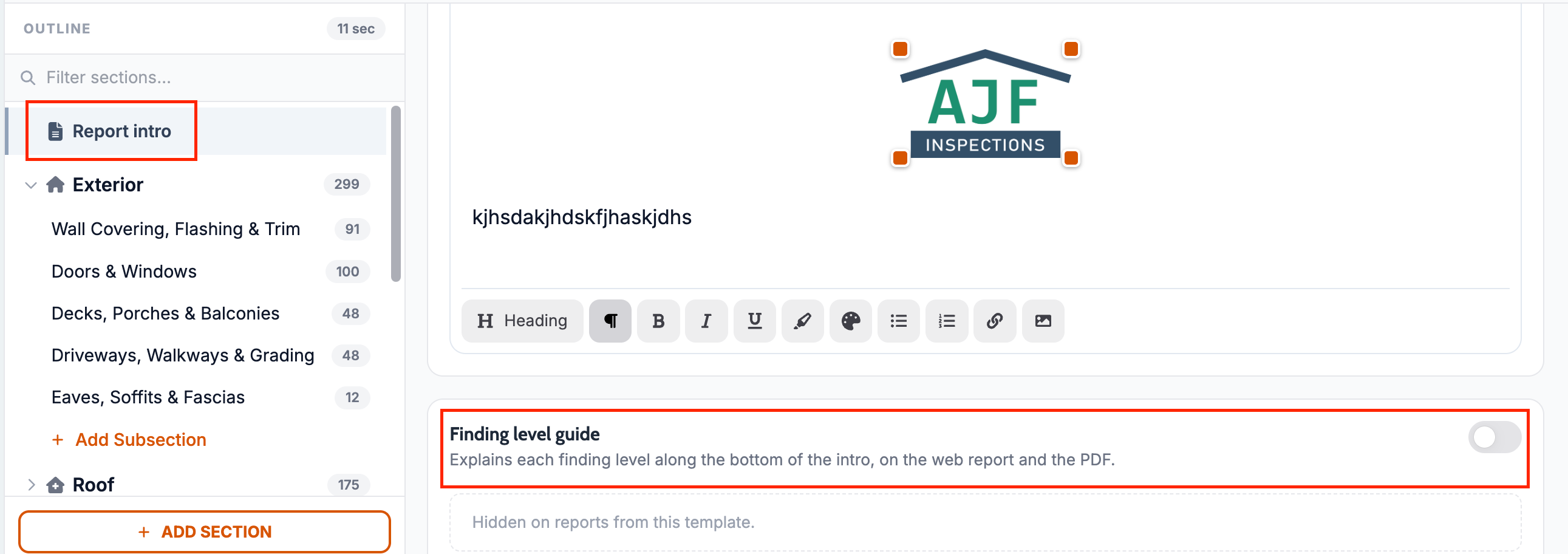
What changed: Template authors can hide the finding level guide, which explains each finding level along the bottom of the intro, on the client report and the PDF. While it is on, the template editor shows a preview of the guide built from the template's own levels.
Where to find it:
Open the report template and select Report intro in the outline.
Turn off Finding level guide.
Every observation photo and caption in the PDF
What changed: Inspection report PDFs print every observation and overview photo with its caption, instead of stopping after a fixed number of photos.
Where to find it:
Generate an inspection report PDF and open an observation with many photos.
Video thumbnails in the PDF
What changed: Report videos appear in the PDF as thumbnails that open the matching video on the web report.
Where to find it:
Generate an inspection report PDF for a report that includes videos.
Tap a video thumbnail to open it on the web report.
Improvements
Same field order on every comment editor
What changed: Web, staff view, and mobile comment editors use the same field order: section, severity, title, options, narrative, location, then media.
Where to find it:
Open a comment in the web report editor, View as Staff, or mobile Report Writer.
Live sync on shared inspections
What changed: When more than one inspector has the same inspection open, comment picks, media, and other edits sync without force-quitting the app. Concurrent catalog picks merge into one comment with combined media instead of overwriting each other.
Where to find it:
Open the same inspection on more than one device or in the web editor.
Make comment or media changes and wait briefly for the other session to refresh.
Optional sections stay locked until unlocked
What changed: Optional sections stay hidden until an inspector explicitly unlocks them. Template narrative or description alone no longer opens them in the writer or on the client report.
Where to find it:
Open a report whose template has optional sections.
Unlock a section only when you need it.
Default comment media from Spectora templates
What changed: Default Comment photos on Spectora-imported templates land as real Attik files and copy onto reports with the comment, instead of blank tiles or missing media.
Where to find it:
Open a Spectora-imported template and confirm Default Comment photos.
Add that catalog comment on a report and check the attached media.
Faster Client Care booked-date dashboards
What changed: Client Care dashboard queries that filter by booked date return more efficiently on large companies.
Where to find it:
Open the Client Care dashboard and use booked-date filters.
EverHome eligibility is opt-in per service
What changed: Services now count for EverHome only when they are marked EverHome Eligible. Only the job's primary service counts, and add-on services are ignored.
Where to find it:
Open Settings → Services.
Turn on EverHome Eligible for each service that should qualify.
Setup:
Review your services and mark the ones that should send to EverHome, since services that were never set are now off.
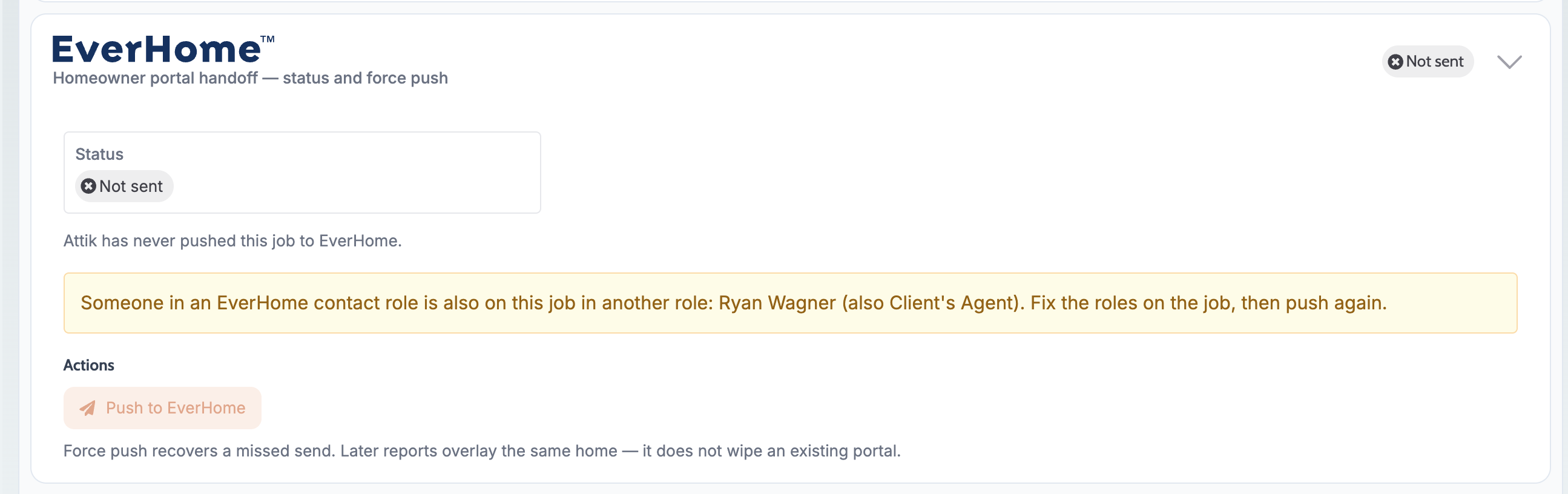
EverHome skips jobs where a contact holds two roles
What changed: When someone in an EverHome contact role is also on the job in another role, such as a buyer's agent also entered as the client, the job is not sent to EverHome automatically or by push. The job's EverHome panel names who is affected so staff can fix the roles and push again.
Where to find it:
Open the job and expand EverHome.
Fix the contact roles named in the warning, then use Push to EverHome.
Bug Fixes
Overview comments and media on the client report
What changed: Overview subsection comments, text, and photos now appear in the legacy client report skin and PDF instead of being skipped.
Where to find it:
Open a completed client report that has overview comments and photos.
Applies to: Existing and future records.
Observation body no longer repeats the title
What changed: When an inspector confirms a catalog comment without notes, the report shows the title once and leaves the body blank instead of repeating the title as body text.
Where to find it:
Confirm a catalog comment with options or media only, then review the client report or PDF.
Applies to: Existing and future records.
Bubble comments in the web report editor
What changed: Multi-select bubble comments work in the web report editor. New catalog comments follow template order, and adding the same catalog comment twice is blocked.
Where to find it:
Open the web report editor on a report.
Add or edit a multi-select catalog comment and save the picks.
Applies to: Existing and future records.
Bubble comments and location tags in View as Staff
What changed: In View as Staff, multi-select bubble comments save correctly, and staff can chain multiple location tags the same way as elsewhere.
Where to find it:
Open a report in View as Staff.
Edit a bubble comment and location tags.
Applies to: Existing and future records.
Styles & Materials values with semicolons
What changed: Free-text Styles & Materials values that contain semicolons stay as one value instead of splitting into incorrect chips on the report and PDF.
Where to find it:
Enter or import a Styles & Materials value that includes a semicolon.
Save and review the report.
Applies to: Future records only.
Removed optional sections stay off the client report
What changed: Optional sections the inspector removed or never activated are omitted from the client report and PDF instead of printing as full Not present blocks.
Where to find it:
Remove an optional section on a report, then open the client report or PDF.
Applies to: Existing and future records.
Introduction heading and intro text on the client report
What changed: The intro on the client report is labeled Introduction instead of Intro. When a template's Report intro is empty, the client report and the PDF About This Report page no longer show stock intro text your company never wrote.
Where to find it:
Open a completed client report or its PDF and review the Introduction.
Applies to: Existing and future records.