Attik Update - Full-Page Reinspection Picker, YouTube in Report Intros & Information/Limitation Colors (Report Writer & Mobile App)

Summary
Build a reinspection from a full-page picker with report-style defect and limitation cards, bubble picks and editable titles and text
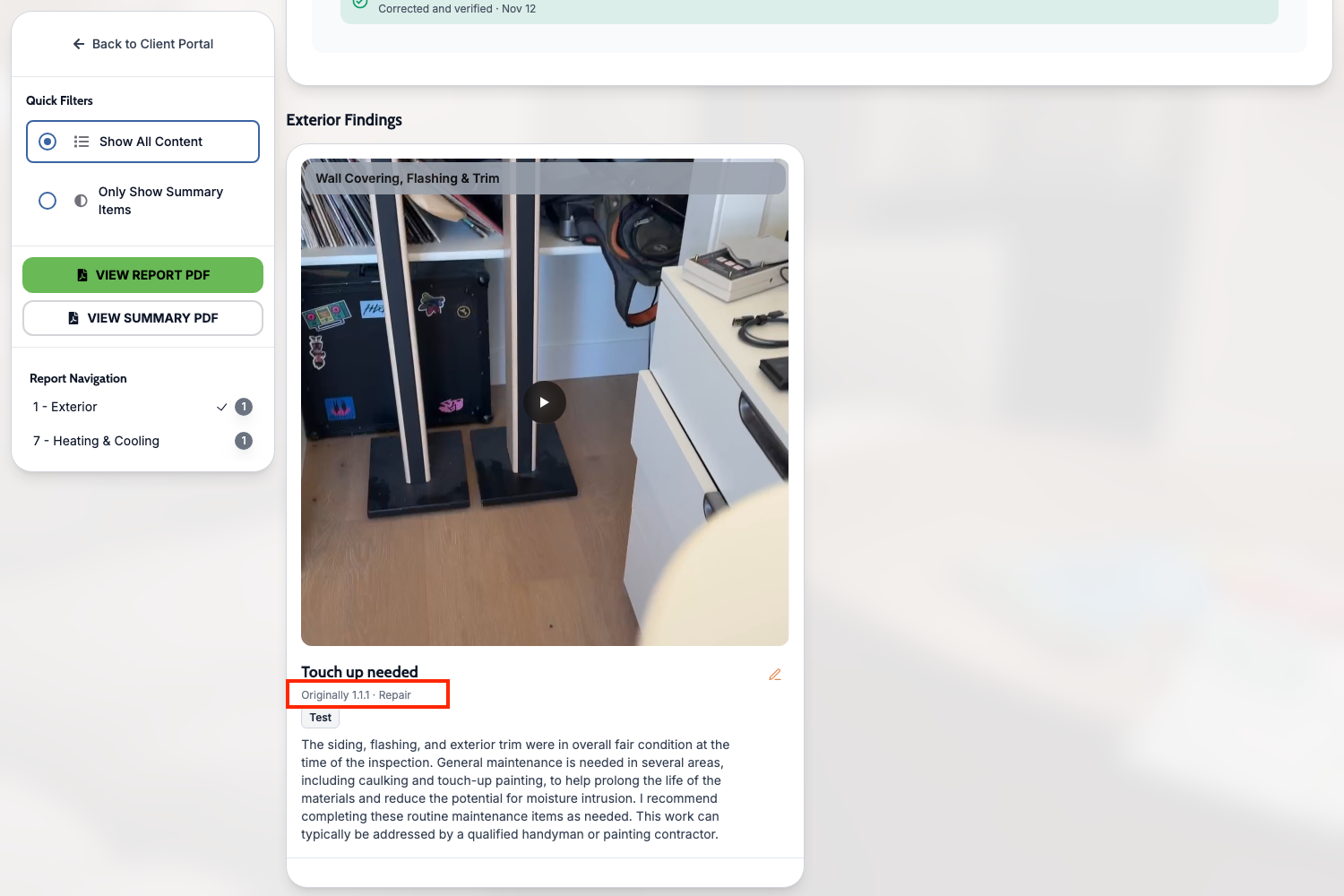
Reinspections keep each carried defect's original number, and item numbers now count defects only so the web report and PDFs match
Write a separate introduction for reinspection reports, and embed YouTube videos in the report intro and section overviews
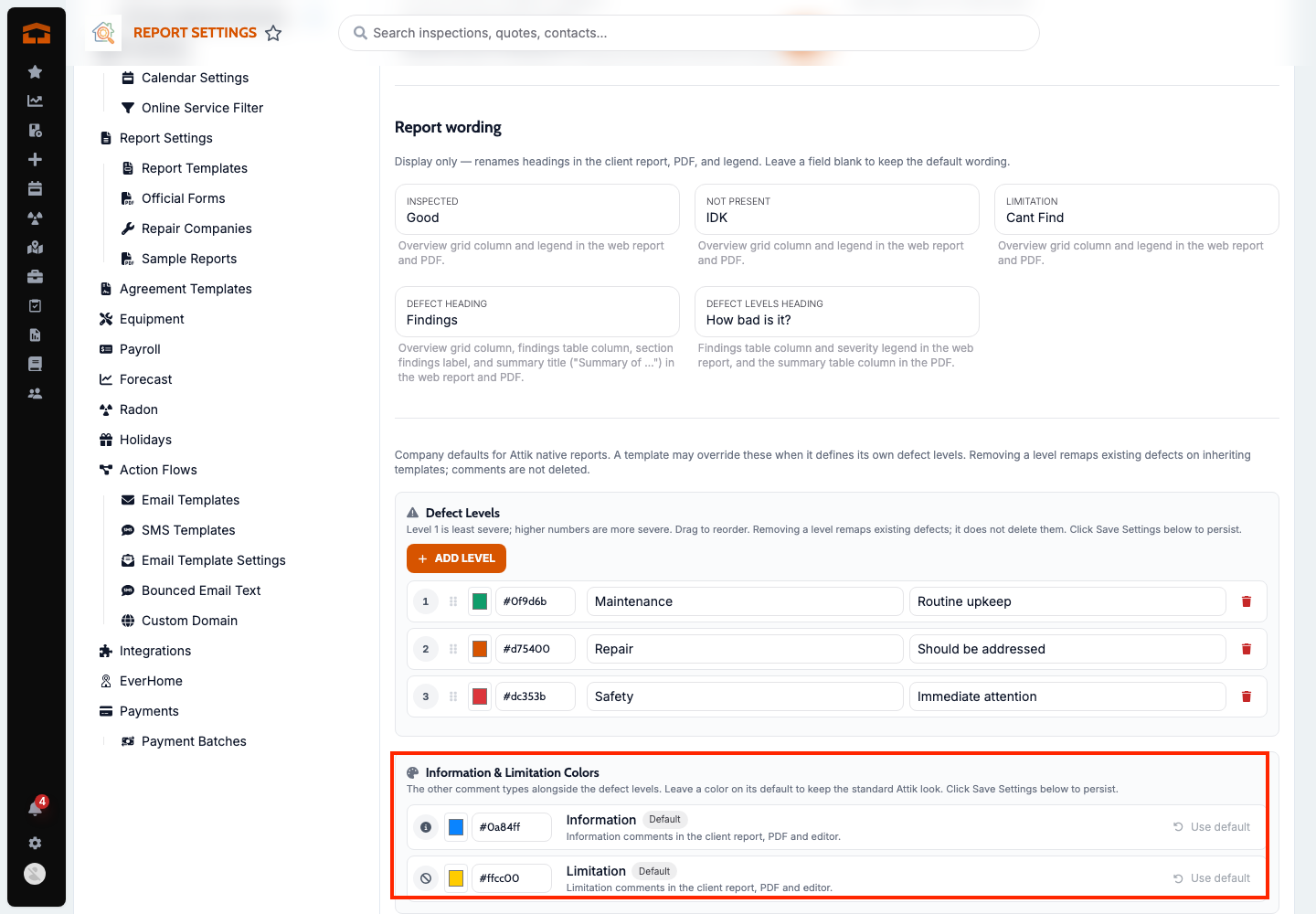
Set your company's Information and Limitation colors once and see them on the client report, PDFs and report writer
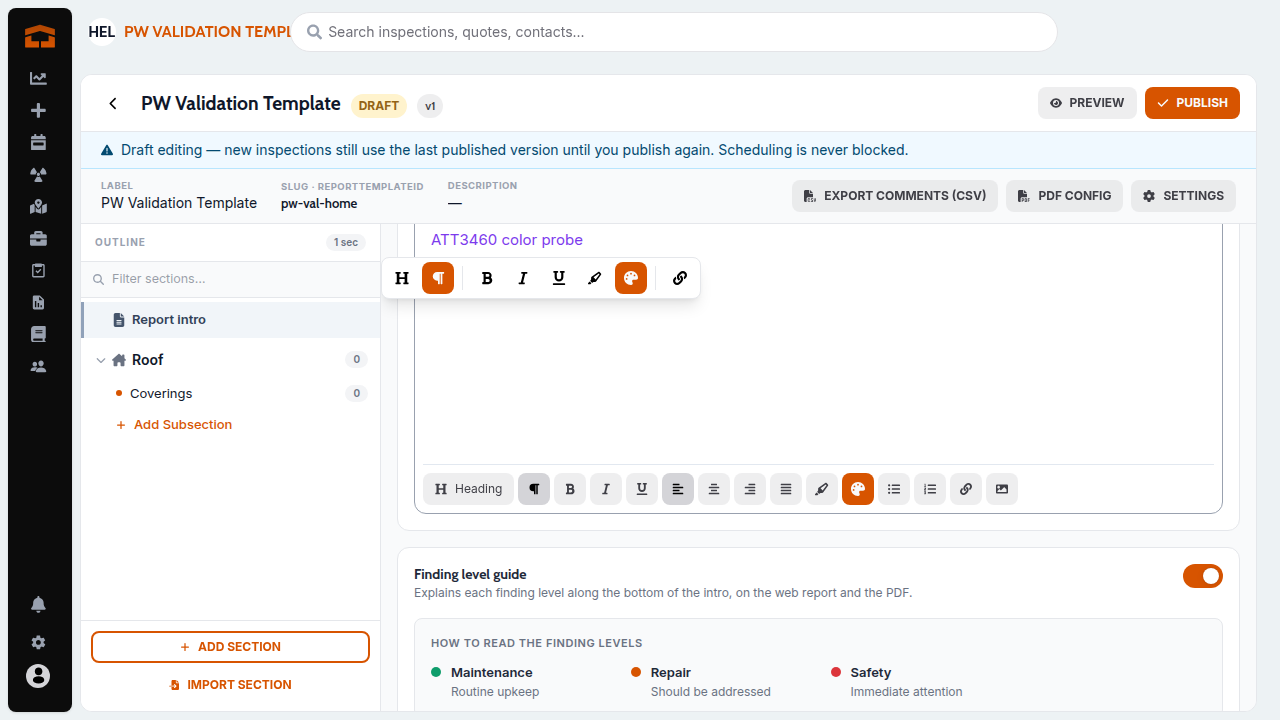
One rich-text editor for the intro, overviews and Standards of Practice, with font size, alignment, indent and any text color
Official form edits stick through regenerate, and mobile fixes for the outline, AI comment keyboard, overview photos, annotate hint and copying notes
New Features
Pick reinspection items from a full page of report-style cards
What changed: Build Re-inspection and Import From Original Report now open on their own page instead of a pop-up. Defects and limitations show as cards that look like the report, grouped by section, with type chips in your report colors and each comment's selected bubble choices under its narrative. Tap a card to select it. Opening a photo or playing a video doesn't change the selection, and the photo viewer now covers the whole screen. You can edit a carried item's title and text while building; the edits apply only to the reinspection, never the original report. Info items are no longer offered, only defects and limitations, on the web and in the mobile app. Leaving the page discards your picks.
Where to find it:
Open the work order and go to the report.
Choose Build Re-inspection, or Import From Original Report on an existing reinspection.
Tap the cards you want to carry over, edit any titles or text, and finish the build.
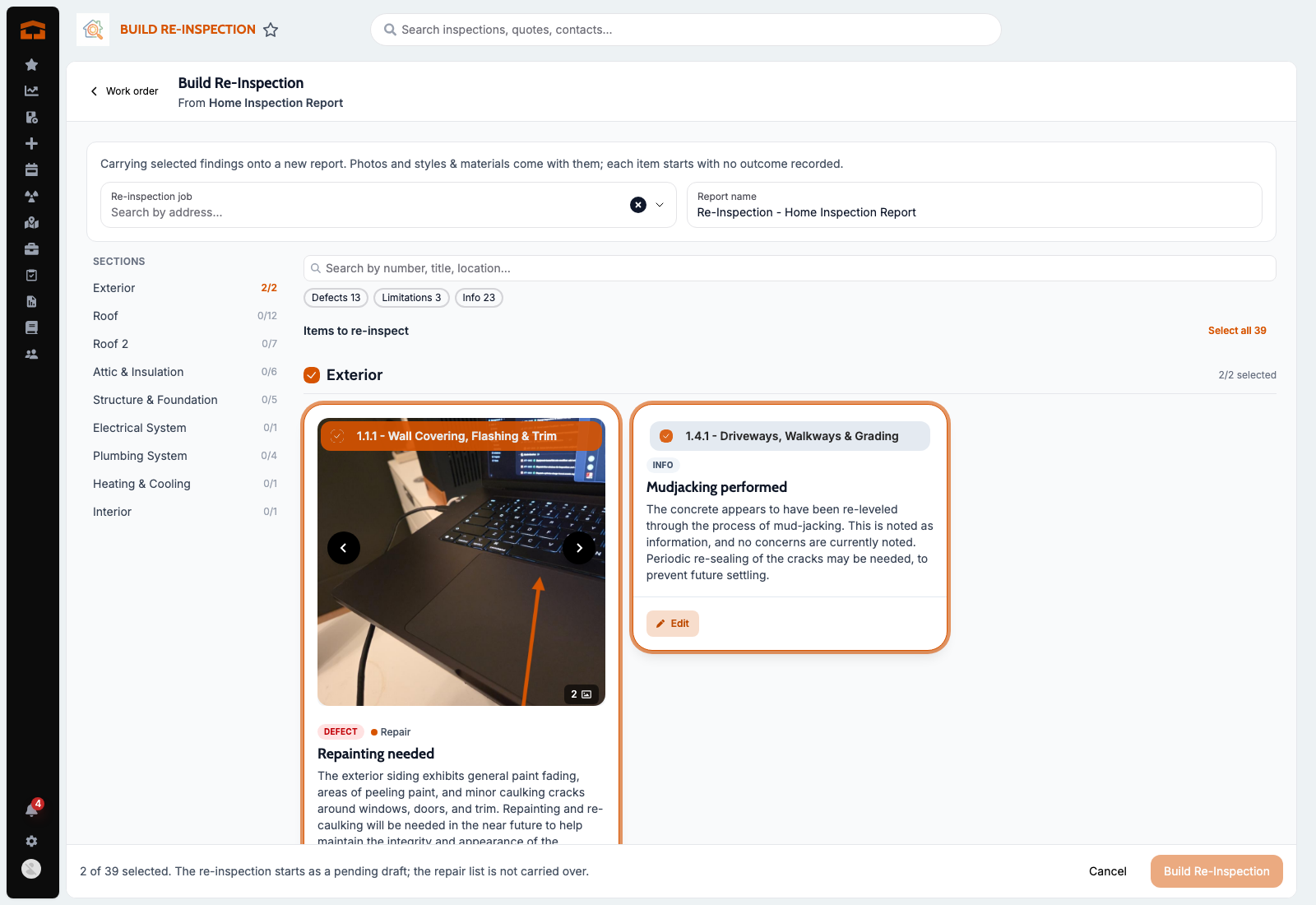
Separate introduction for reinspection reports
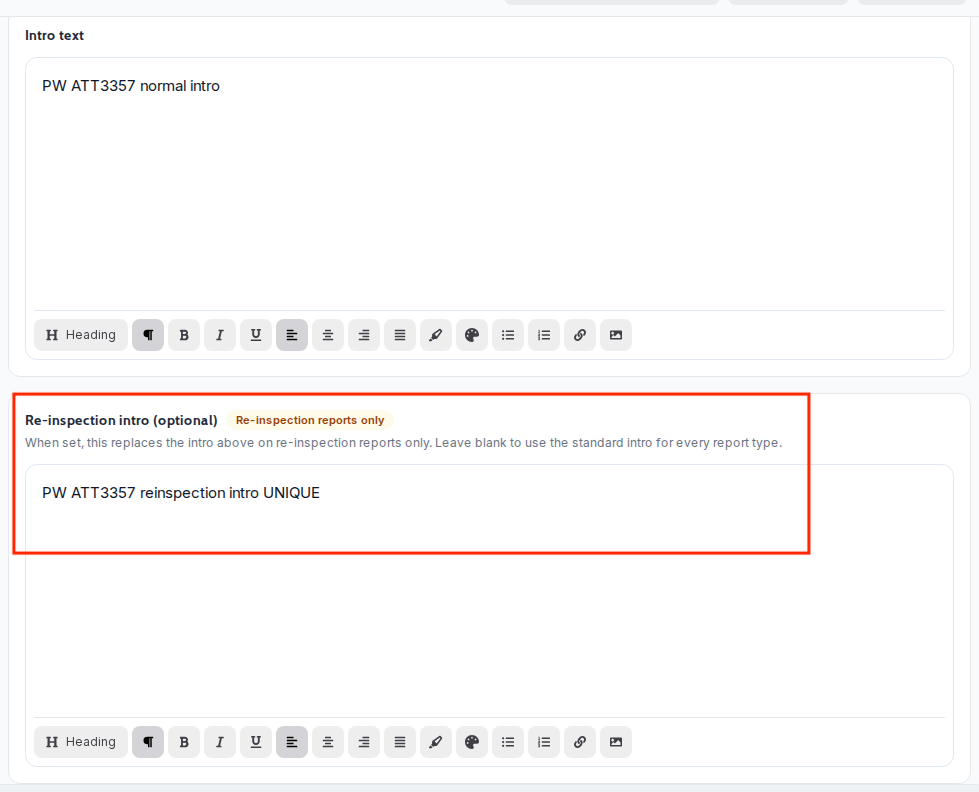
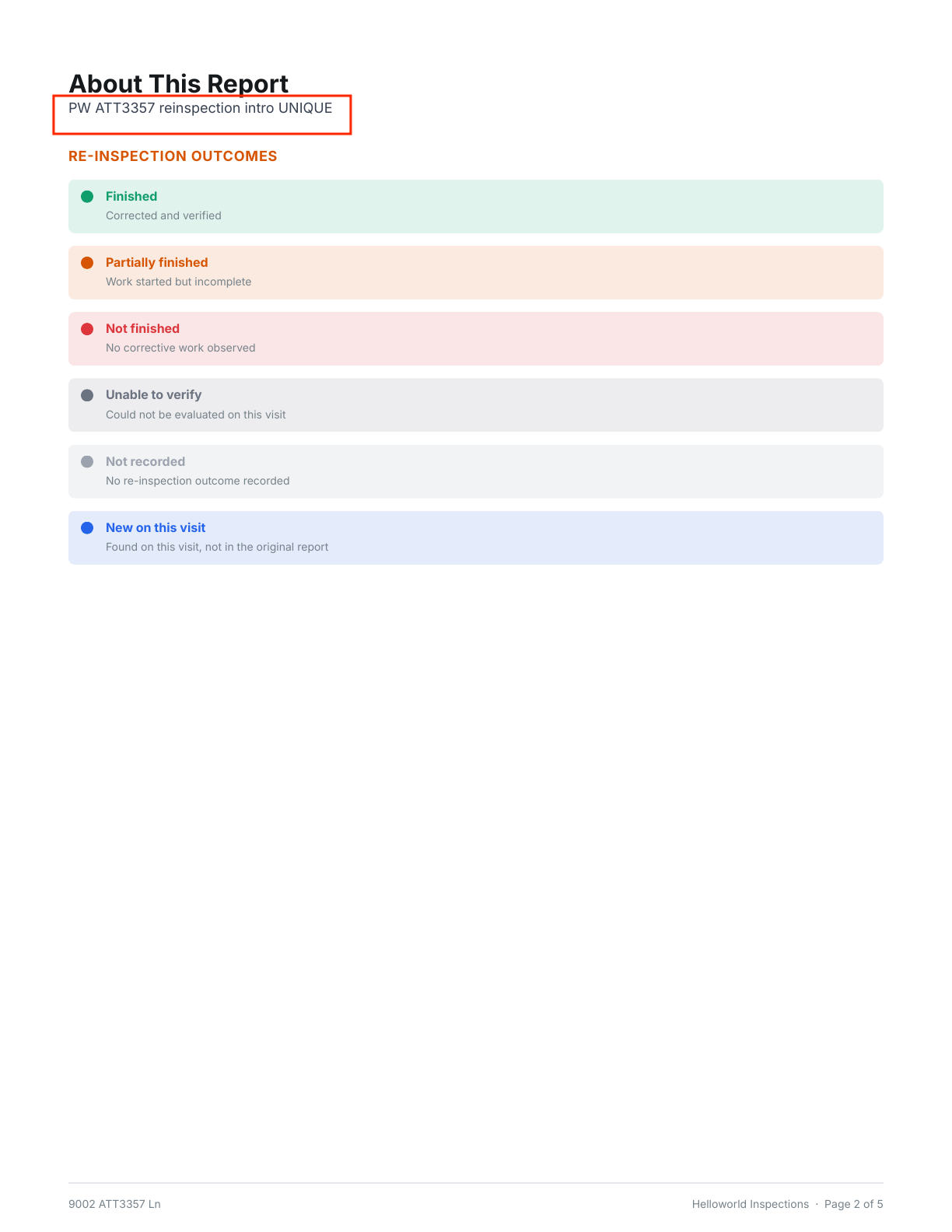
What changed: A report template can now have its own reinspection introduction. Reinspection reports show it on the web report and PDF instead of the normal introduction; if it's left empty, they show the normal introduction as before. Normal reports are unchanged.
Where to find it:
Open the report template in the template editor.
Find the reinspection introduction next to the normal introduction.
Write the reinspection introduction and save.
YouTube videos in the report intro and section overviews
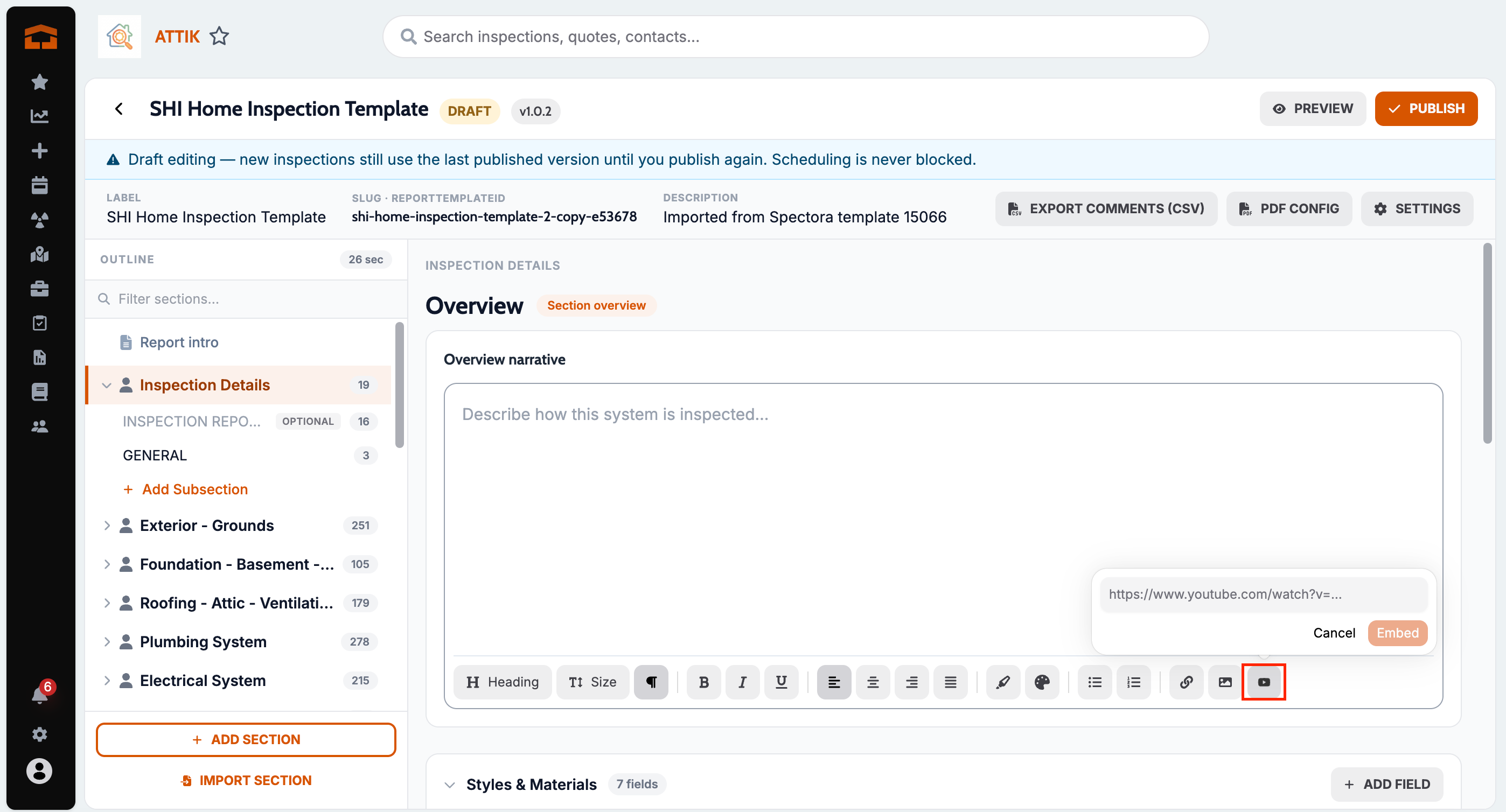
What changed: Template authors can embed a YouTube video in the report introduction and in section overviews by pasting a link or using the YouTube button in the toolbar. The video plays in the client report, centered in every report style, and the PDF shows a thumbnail that links to the web report.
Where to find it:
Open the report template in the template editor.
In the introduction or a section overview, paste a YouTube link or use the YouTube toolbar button.
Set your own Information and Limitation colors
What changed: Companies can now pick one color for Information and one for Limitation, the same way Defect Levels work. The colors show on the client report in every style, the full and summary PDFs, the report writer type chips, and the reinspection picker's limitation cards. The legacy report style also draws a left accent line on limitation comments, like information. Count bubbles in the report navigation now stay neutral instead of taking the worst severity color. Until you set a color, reports look the same as today.
Where to find it:
Open report settings, where the Defect Levels and Re-Inspection Outcomes colors are.
Set the Information and Limitation colors and save.
Setup:
Optional. Reports keep today's colors until you change them.
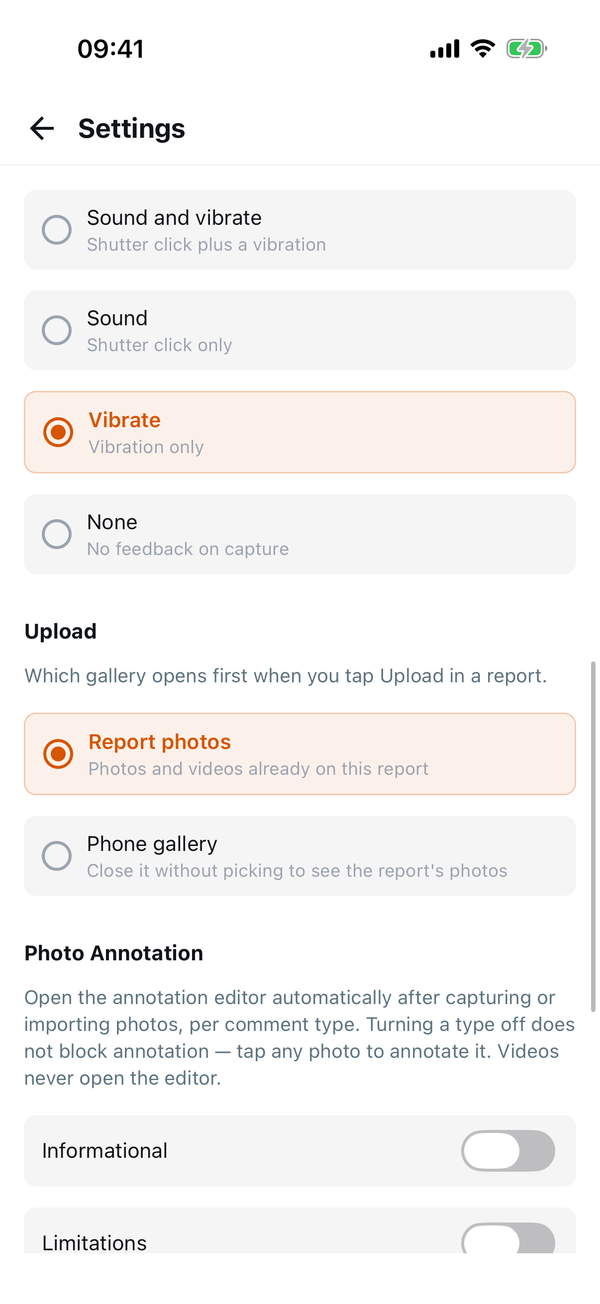
Choose which gallery Upload opens first
What changed: Inspectors can choose whether Upload opens the report's photos (the default, as today) or the phone's photo gallery. With the phone gallery first, closing it without picking brings up the report's photos, so there's always a way back. The setting applies everywhere Upload appears, including comments, Review & Edit, Overview and the cover photo.
Where to find it:
Open Settings in the app.
Under Upload, choose Report photos or Phone gallery.
Improvements
Reinspections keep the original item number
What changed: On a reinspection report, a defect carried over from the original report no longer gets a new number in its top banner. It shows only its original number, as "Originally #". New defects found on the reinspection are numbered after the original report's highest number in that subsection (for example, after 8.13.3 comes 8.13.4). A reinspection built from another reinspection keeps the original numbers.
Where to find it: Reinspection reports on the web, full PDF and summary PDF.
One rich-text editor for intros, overviews and Standards of Practice
What changed: The report introduction, reinspection introduction, section overviews and Standards of Practice now share one editor with font size, alignment, indent, link preview, grouped toolbar buttons and a text color picker that takes any color, including a hex value. Text pasted with its own colors, for example from Spectora, can now be recolored or reset to Default. Section overviews in the PDF keep their bold, sizes, alignment and lists instead of turning into plain text, and Standards of Practice keep their nested numbering and indents on the web and in the PDF. Quote blocks, divider lines and similar tags are no longer kept in section overviews; their text stays.
Where to find it:
Open the report template in the template editor.
Edit the introduction, a section overview or the Standards of Practice.
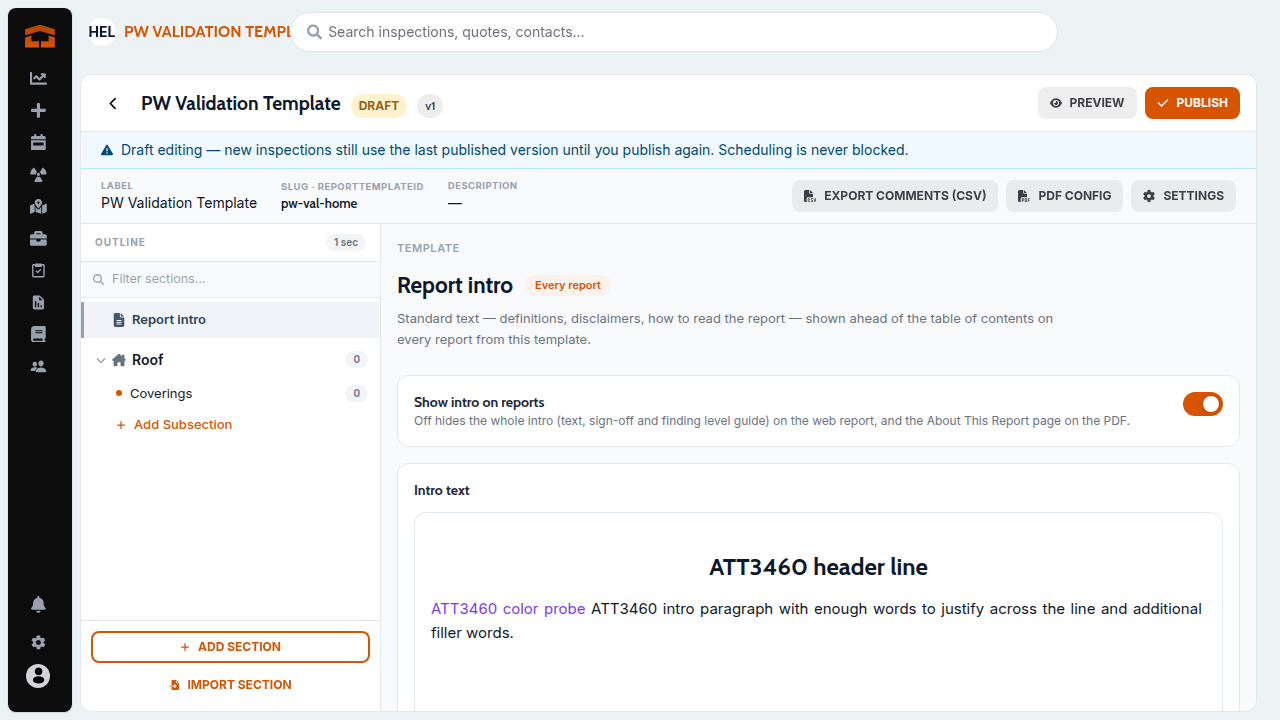
Your photos show before default photos
What changed: On a comment, the inspector's own photos now show first and the template's default photos show last in the app, matching the web editor, client report and PDF.
Where to find it: Report writer, comment photos.
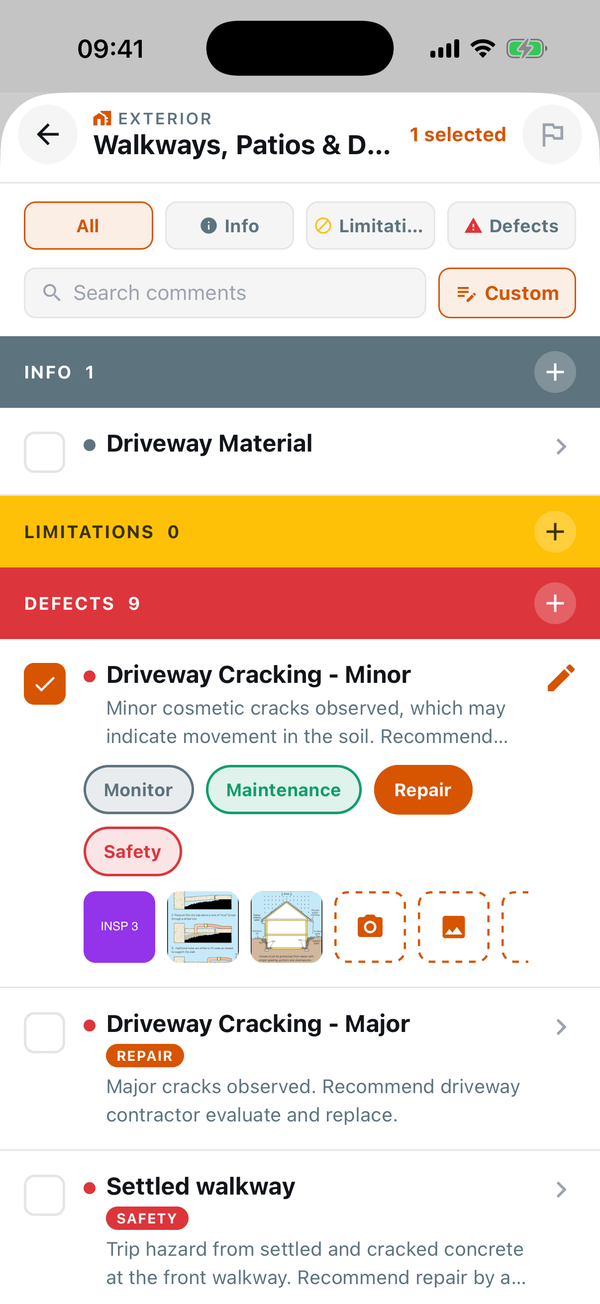
Item numbers count defects only and match the PDF
What changed: Only defects get an item number now. Information and limitation comments no longer use up a number, so a subsection's defects read .1, .2, .3 with no gaps, and the same defect has the same number on the web report, the full PDF and the summary PDF. For example, a subsection with a limitation and two defects now prints 8.13.1 and 8.13.2 instead of 8.13.2 and 8.13.3. Existing PDFs rebuild with the new numbers the next time they're opened.
Where to find it: Client report, full PDF and summary PDF. No new screen; takes effect after the update.
Applies to: Existing and future records
Simpler reinspection outcome labels
What changed: Outcome labels on reinspection PDFs no longer start with "Re-inspection:", and "Originally #" shows only on defects, since information and limitation items aren't numbered on the original report.
Where to find it: Reinspection reports on the web and PDF.
Bug Fixes
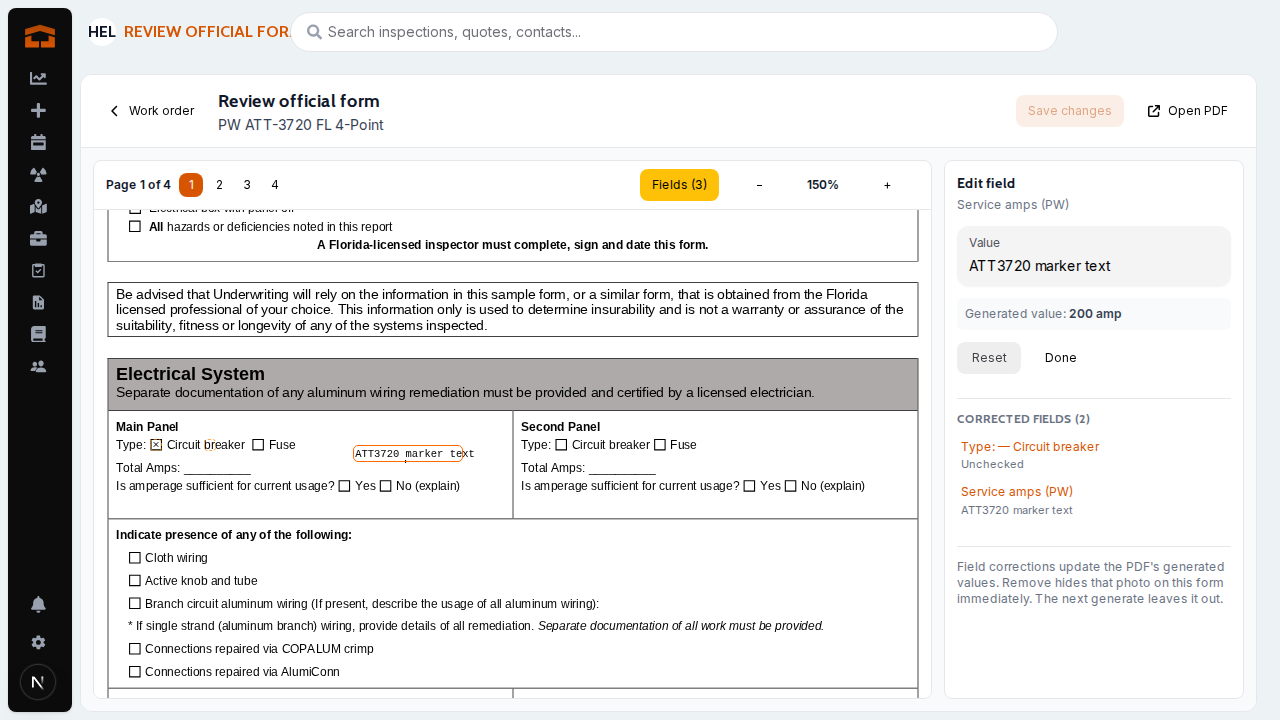
Official form edits stick, including unchecks and regenerate
What changed: In official form review, unchecking a box, clearing a text field and other edits now save and show when the form is reopened, and they carry over when the form is regenerated. Edits show right away, with no flash of the old page while it re-renders.
Where to find it: Official form review.
Applies to: Unclear from release evidence
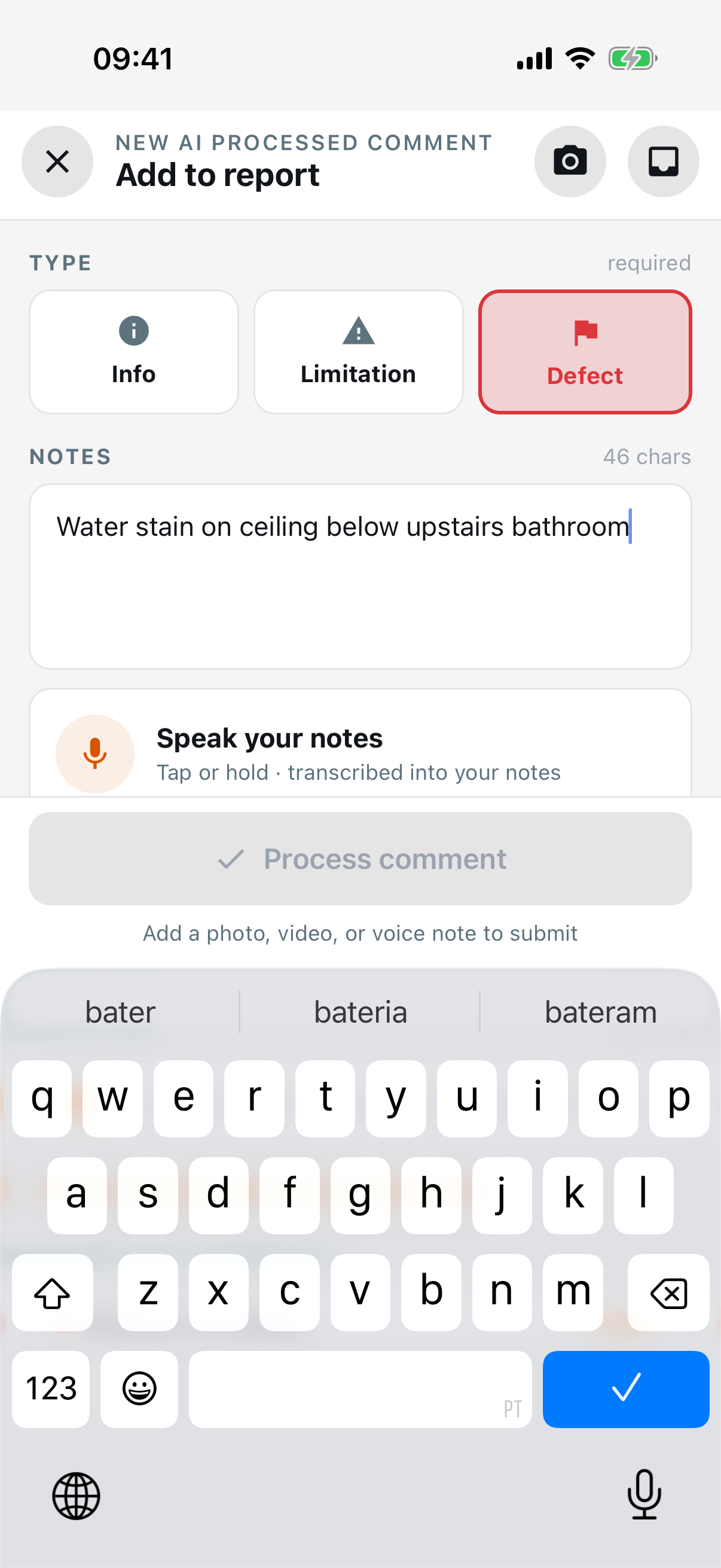
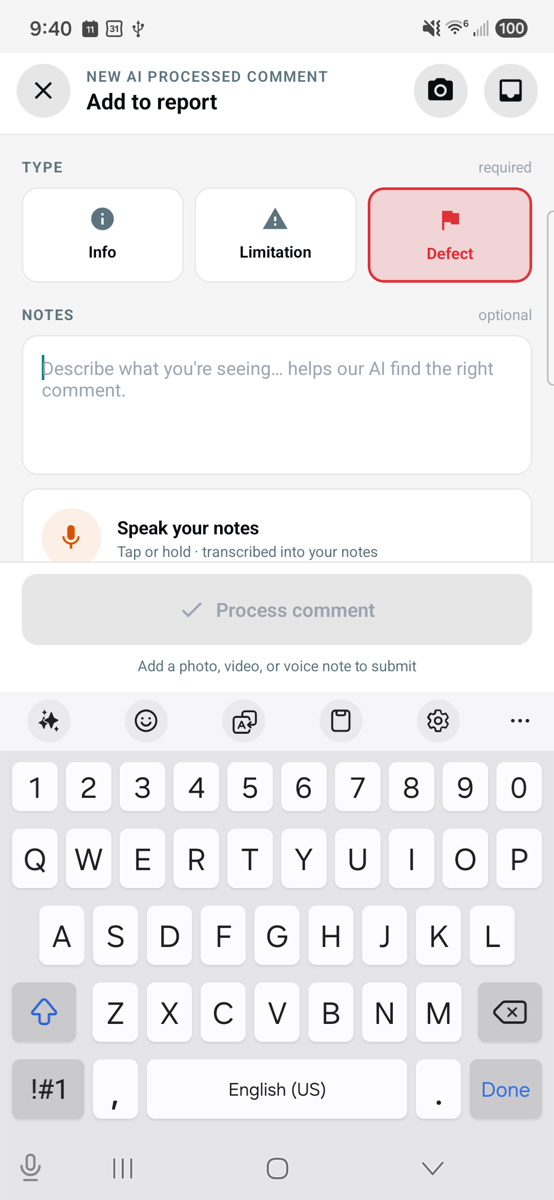
Close the keyboard on the new AI comment screen
What changed: On the new AI comment screen, the Notes keyboard now has a Done key, and dragging the form also closes the keyboard. Your text stays and you stay on the screen, instead of having to leave with ✕. Notes no longer takes typed line breaks; dictated or pasted ones still come through.
Where to find it: New AI comment screen.
Applies to: Existing and future records
Pasted text keeps bold and italic
What changed: Pasting into any rich-text editor keeps bold and italic, and intro images show again on the legacy client report.
Where to find it: Template editor and the legacy client report.
Applies to: Existing and future records
Outline subsections open on the first tap
What changed: After expanding a section in the report outline, the first tap on a subsection, Overview Media or Styles & Materials row now opens it instead of being ignored.
Where to find it: Report outline.
Applies to: Existing and future records
Overview photos stay deleted
What changed: An overview photo deleted while it was still uploading no longer comes back after the next sync.
Where to find it: Overview Media.
Applies to: Future records only
Annotate hint stays out of saved photos
What changed: The "Drag to draw an arrow" hint no longer gets saved onto photos, including when you rotate a photo on the annotate screen without drawing. Photos that already have the hint saved on them are not changed.
Where to find it: Photo annotate screen.
Applies to: Future records only
Copy part of a job note
What changed: Inspectors can now select and copy part of a note, such as a gate code or phone number, instead of nothing at all. On iPhone, mentions in a note show as plain @Name text.
Where to find it: Job screen, notes.
Applies to: Existing and future records