Attik Update - Duplicate Report Sections, Bounced Email Texts & New Reports Hub Columns

Summary
Duplicate sections in a report and edit photos and videos from the web report
Clients get a text when an email bounces, and bounces and declined payments show in the activity feed
New Reports Hub columns, plus open search results and calendar jobs in new tabs
Staff stay signed in at busy times, and report PDFs refresh after mobile edits
Discounts, bundles, kept prices and refund credits now show correctly on charges and invoices
Fixes for online booking double-booking, on-time confirmations, required info, payroll, email templates and more
New Features
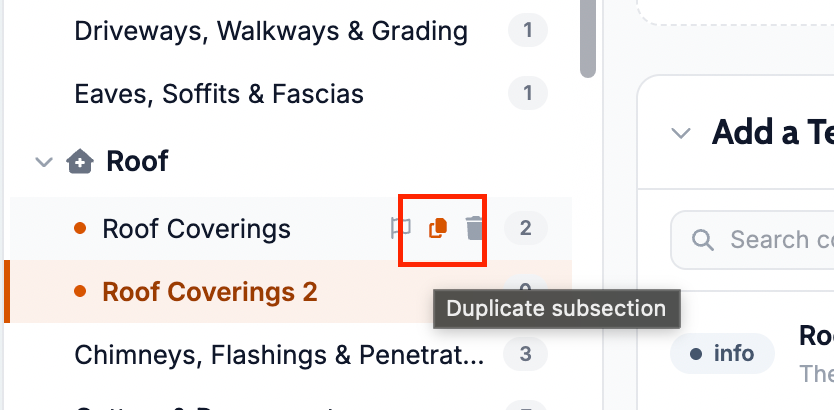
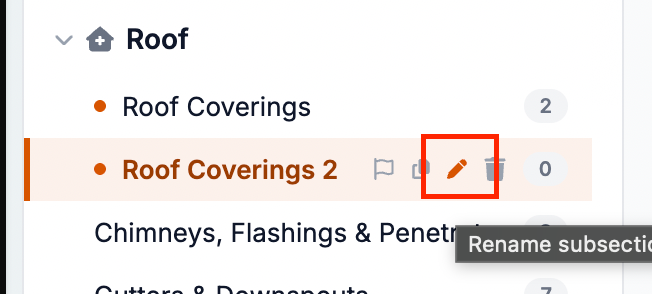
Duplicate sections in a report
What changed: In the web report editor outline, you can now duplicate a section or subsection for just that report, such as adding a second bathroom. The template stays the same, and you can add, move, and edit comments on the copy as usual.
Where to find it: Web report editor outline, Duplicate section (or the subsection versions).
Edit photos and videos from the web report
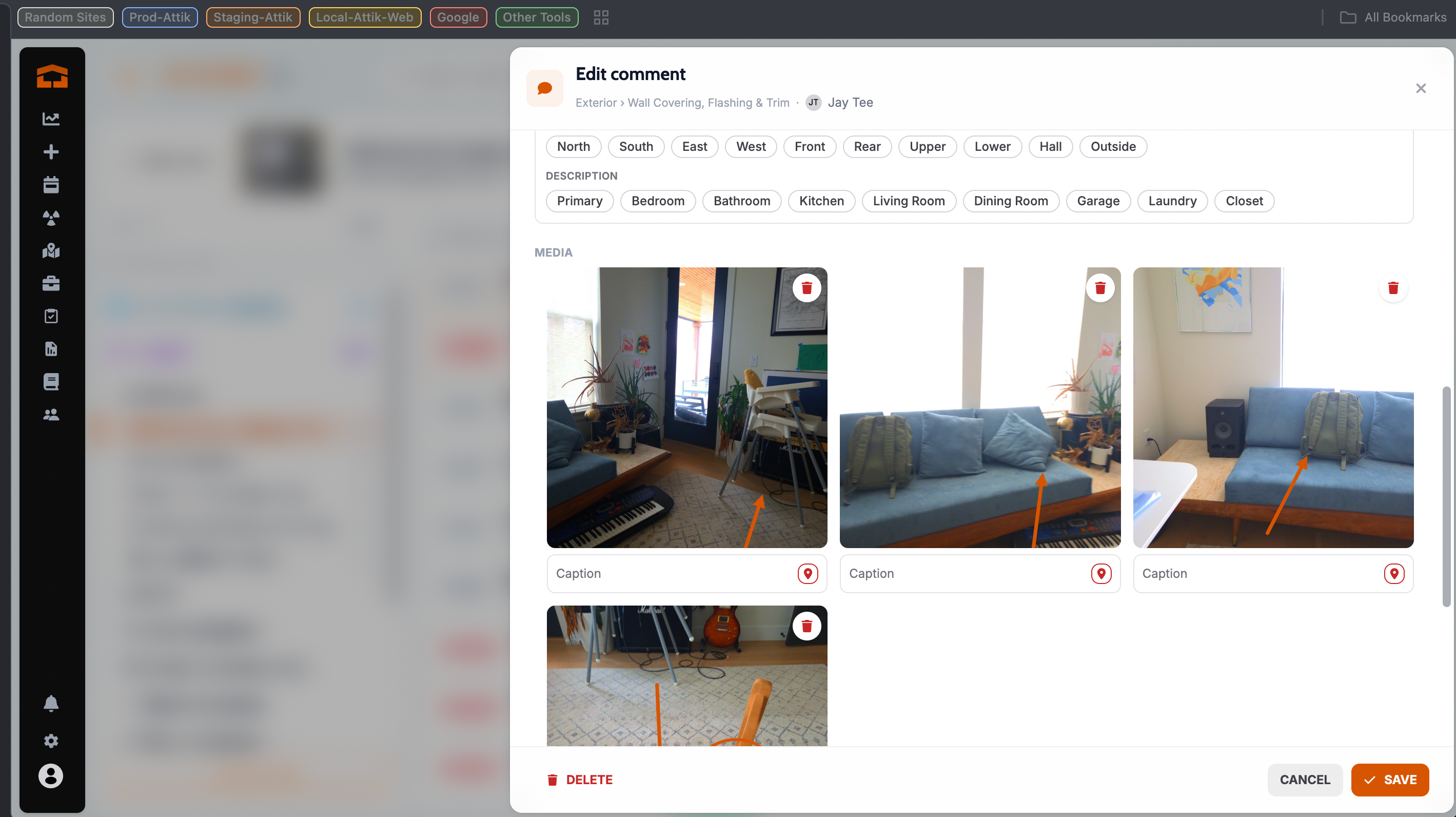
What changed: The comment editor on the web report now has a Media field where you can add, remove, and reorder photos and videos and edit their captions.
Where to find it: Web report, the edit pencil on a comment, then Media.
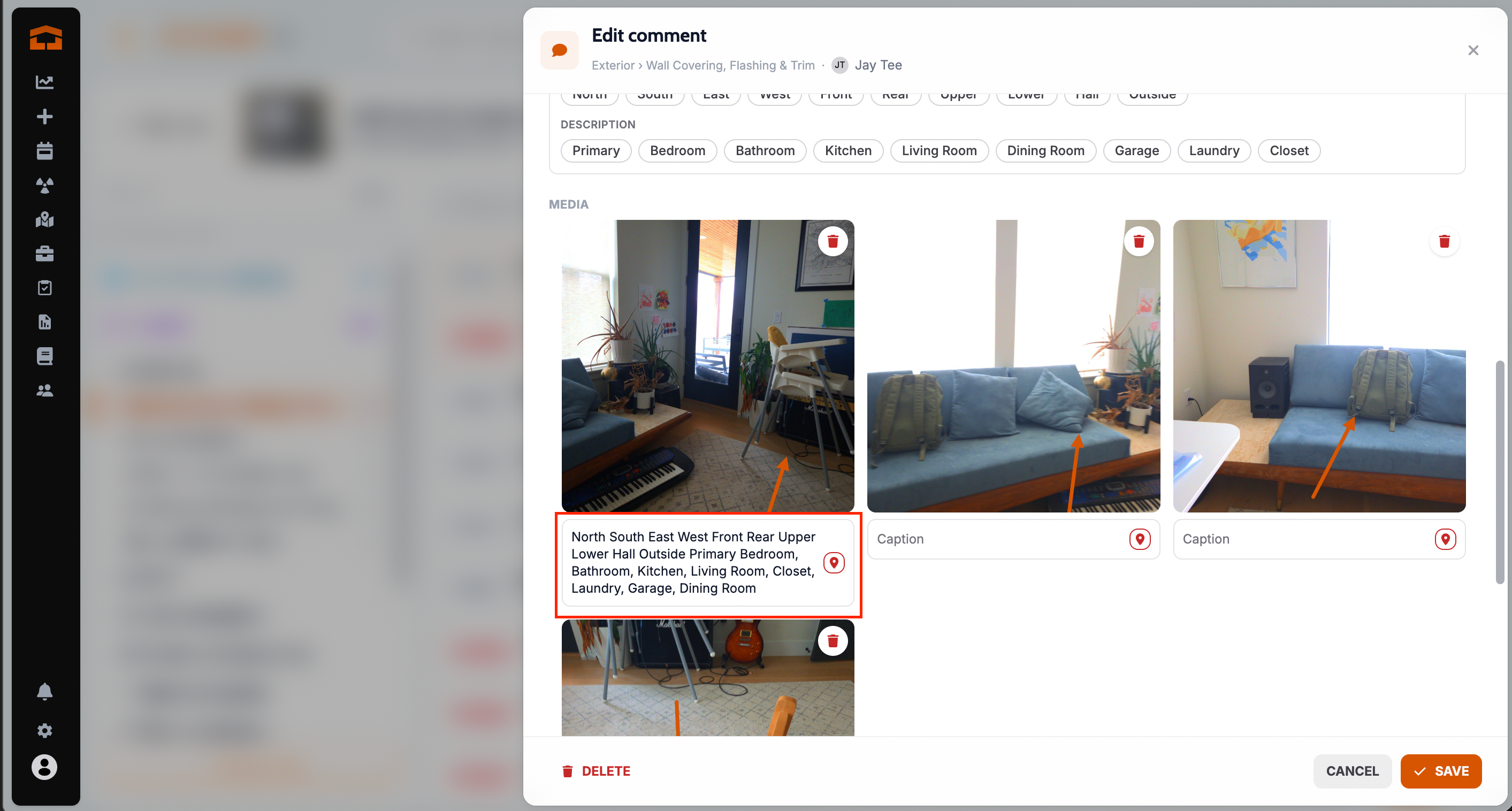
Location tags in photo captions
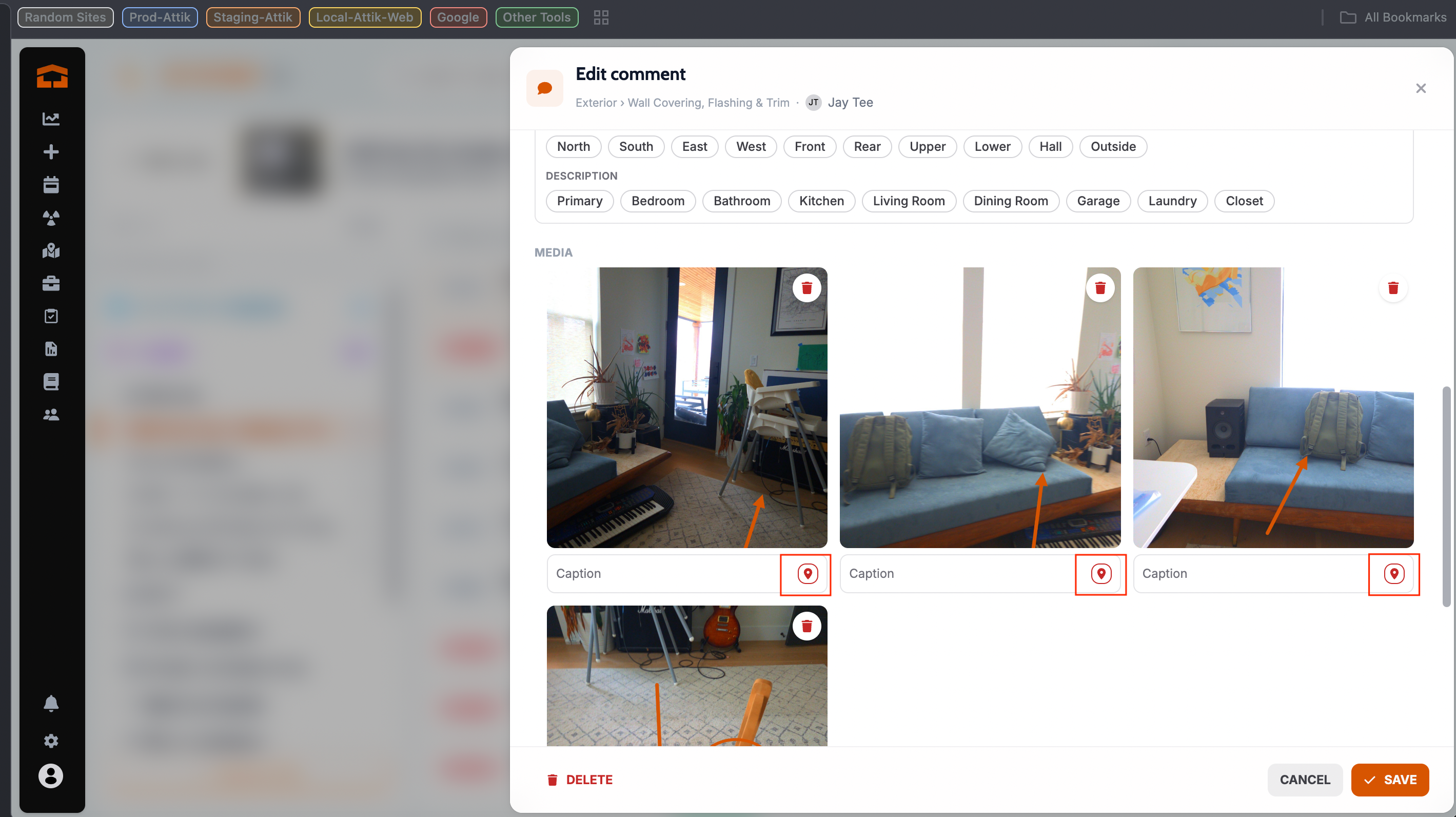
What changed: Each photo caption now has a location pin that shows your company's location tags. Tap a tag to add it to the caption, and tap it again to remove it. Photos also show in a three-column grid.
Where to find it: Photo captions in the web report editor and in the comment editor on the published web report, Add location tags.
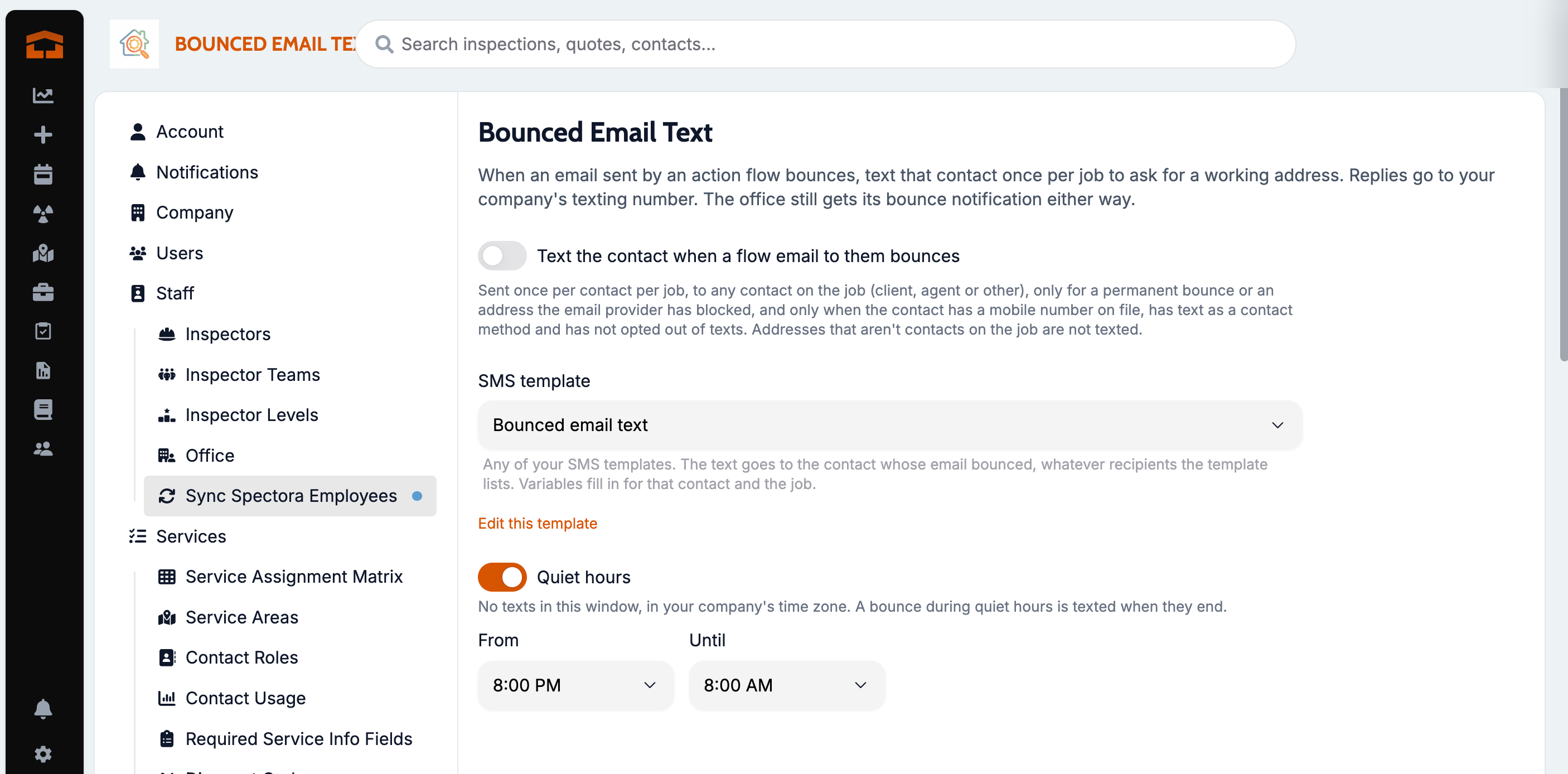
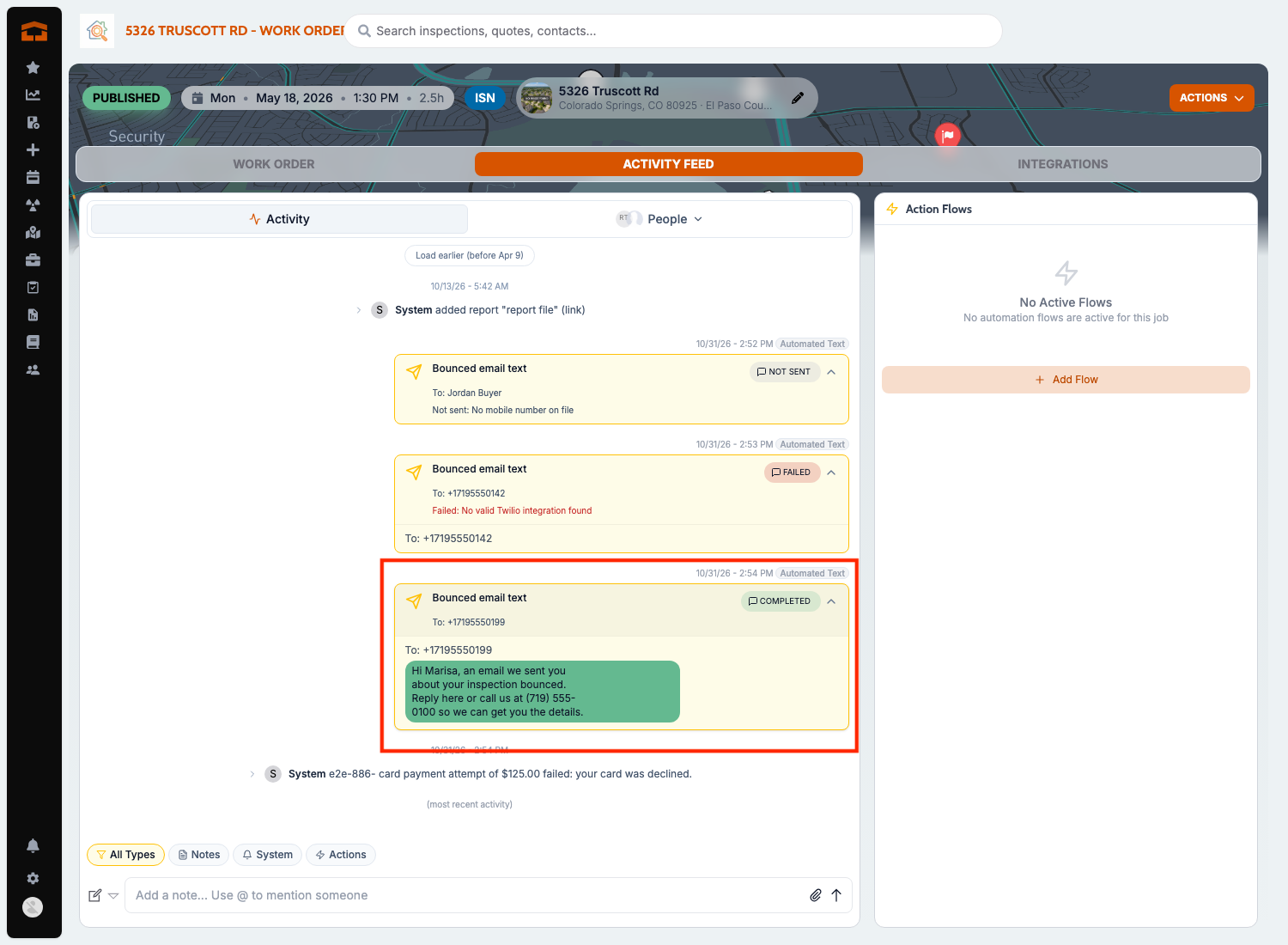
Clients get a text when an email bounces
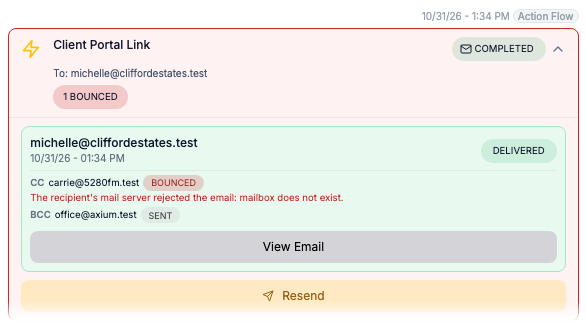
What changed: When an email to a client bounces, Attik now texts the client once for that job so they can fix their address. Bounced emails, declined payments and the automatic text are also logged in the job activity feed. ⚠ Confirm before publishing: confirm whether this text is on for every company or needs to be turned on.
Where to find it: Work order, activity feed
Improvements
Long locations wrap in the comment editor
What changed: The location box on a comment now grows up to four lines, so long locations are easy to read and edit. Saved locations still show on one line in the report.
Where to find it: Comment editor in the web report editor and on the published web report.
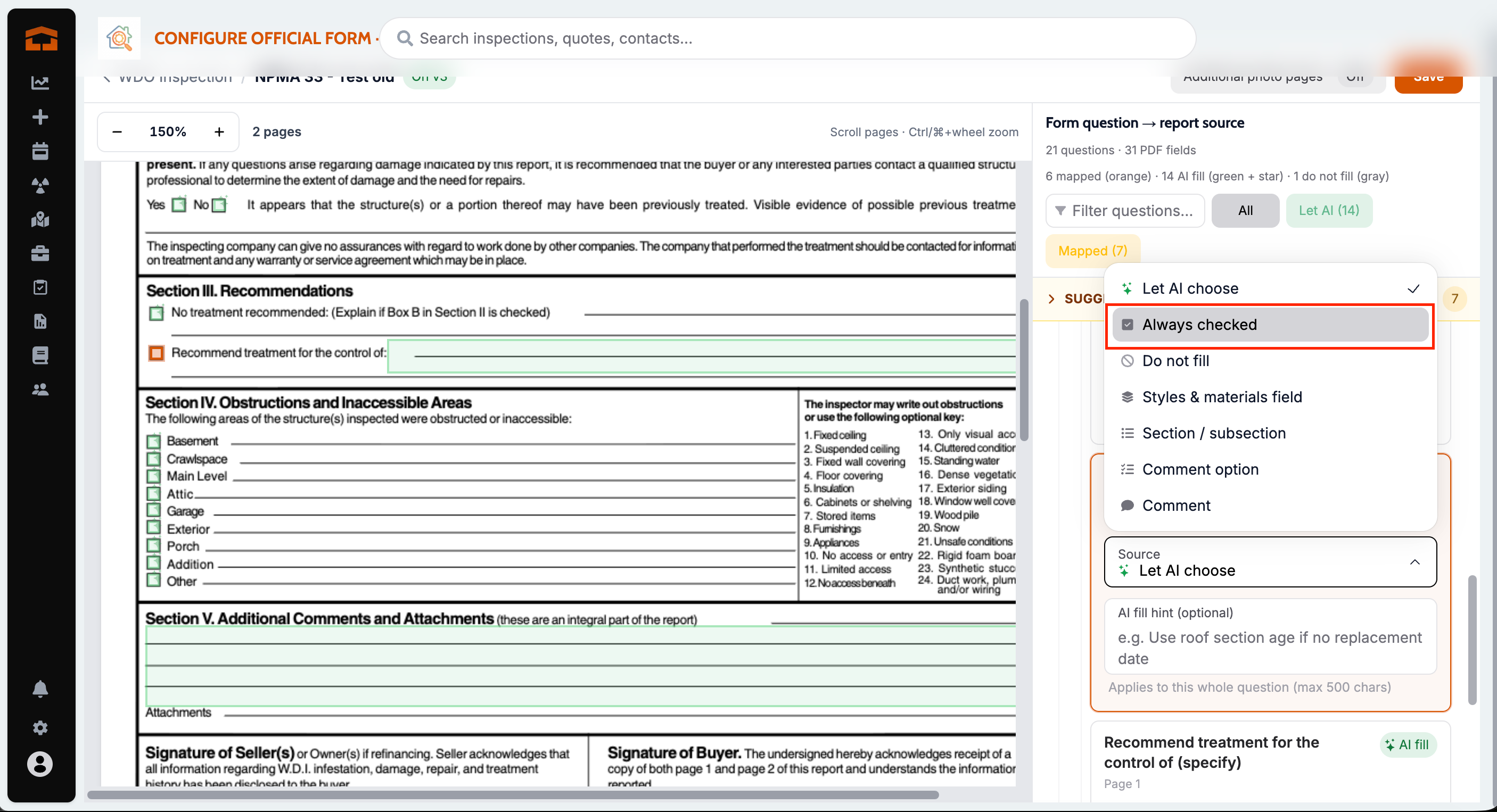
Official forms fill more fields
What changed: Mapped official form fields now fill from every report section, including sections hidden from the client, and fields set to Let AI draw on the best-matching part of the report. A new Always checked option checks a box on every report. If AI filling fails, the form keeps its mapped values and shows a warning.
Where to find it: A report template's official form mapping, and the official form card and review page on the work order.
Bounced emails show on the send
What changed: Emails that bounce or are blocked by the recipient are now marked on the send instead of showing as sent, so you can see which address failed.
Where to find it: Work order, activity feed
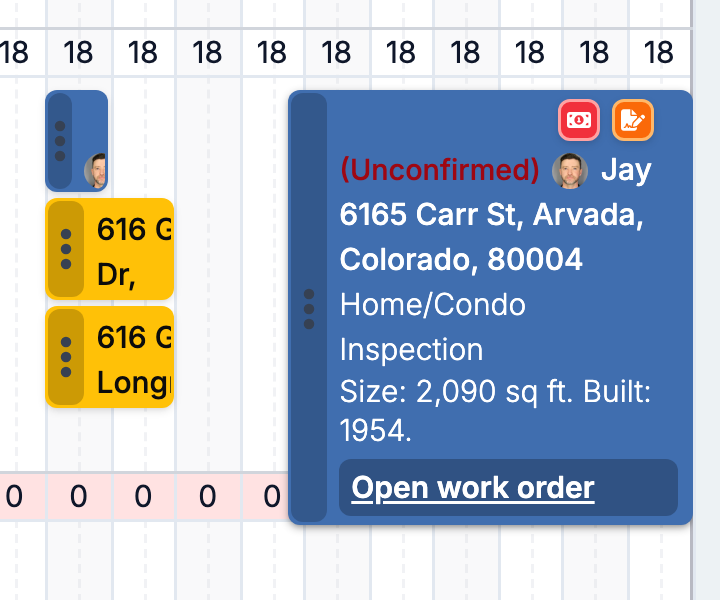
Tap a calendar job to see details on a phone browser
What changed: On a phone, tapping a job on the calendar now opens the job details card first. Opening the work order is a separate tap.
Where to find it: Calendar on a phone browser
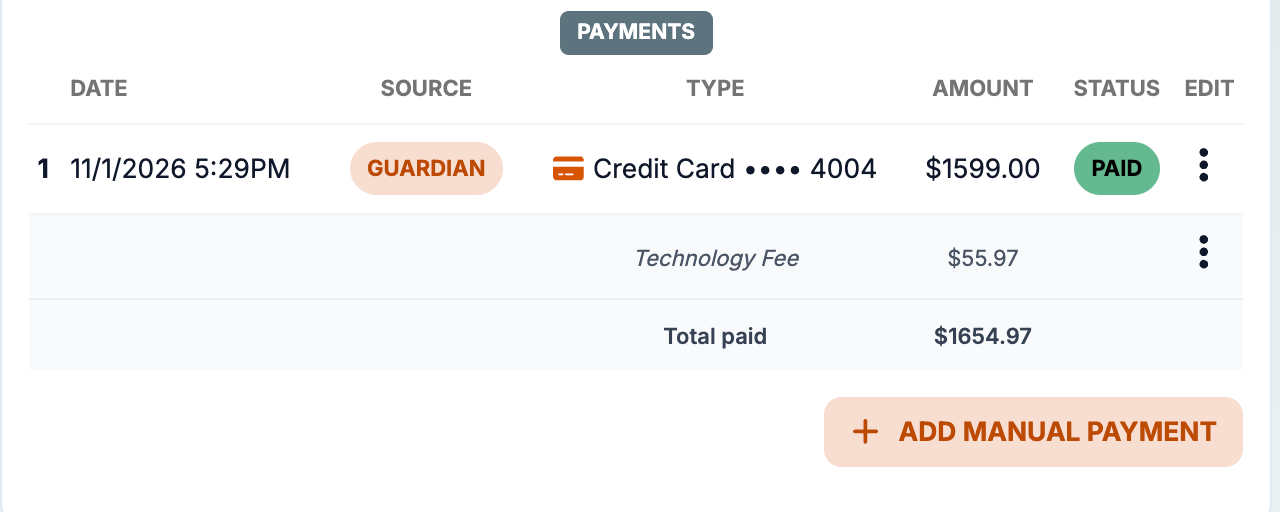
Total paid by client on payments with a fee
What changed: When a payment has a separate Pay at Close or card fee line, the work order now shows the total the client paid, so you can quote the full amount.
Where to find it: Work order, Charges & Payments
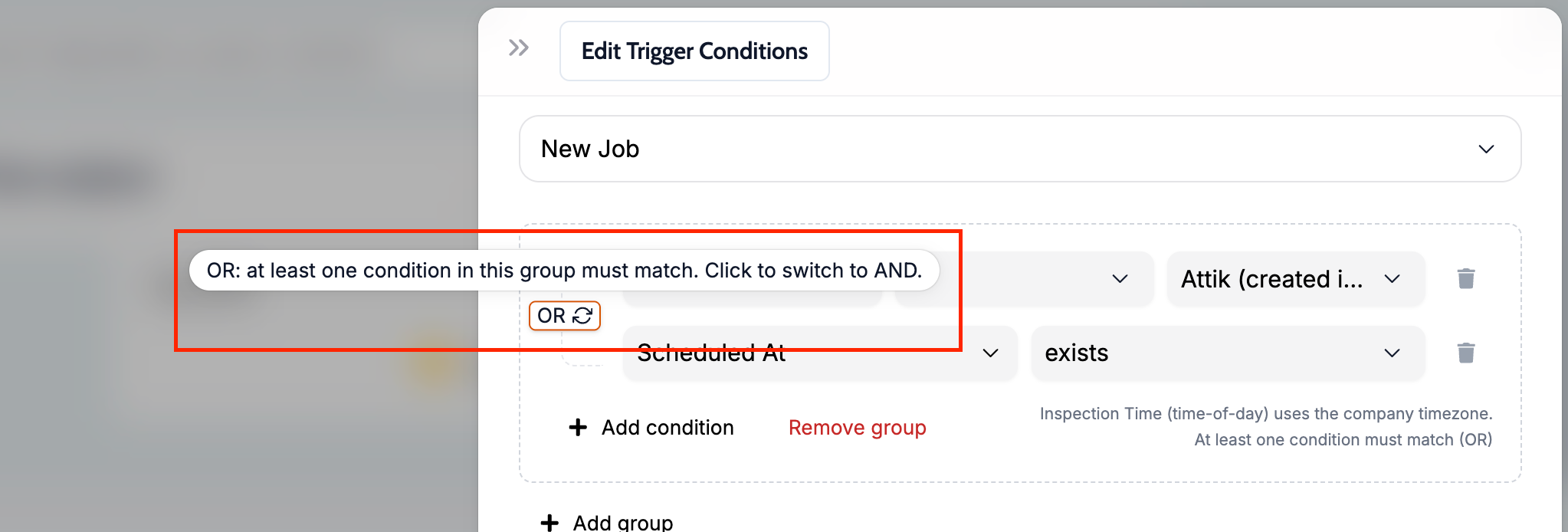
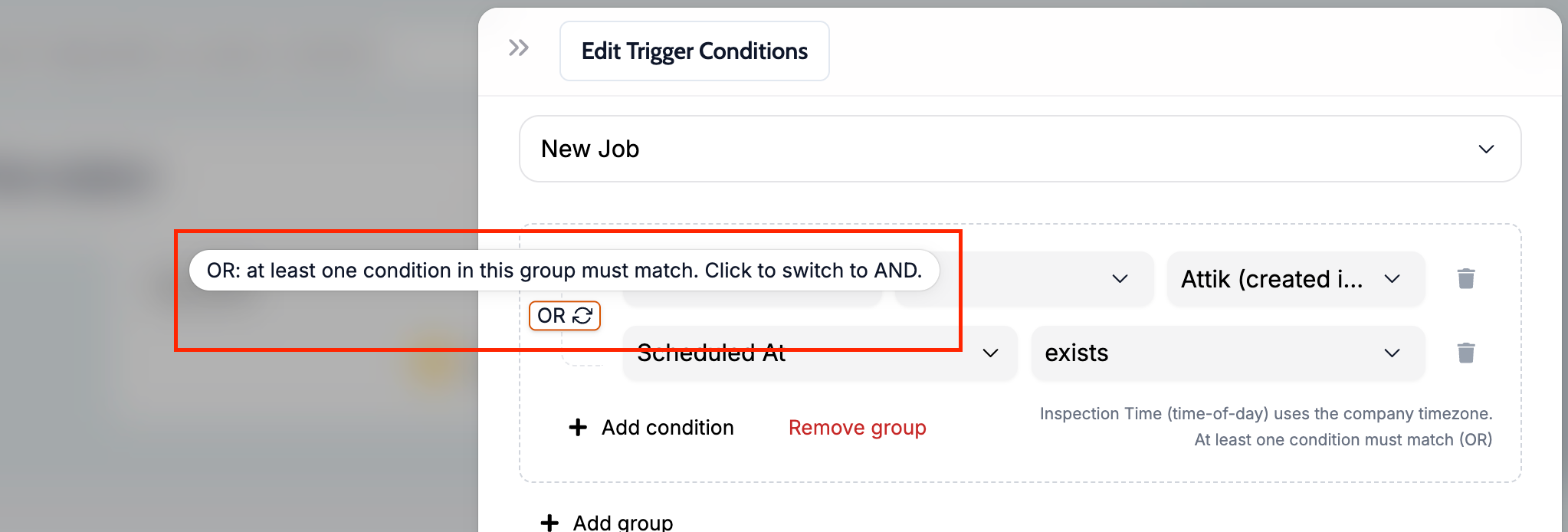
AND/OR help in action flow conditions
What changed: The AND/OR choice in conditions now has tooltips explaining each option, and the group label updates to match the option you picked.
Where to find it: Action flow, conditions
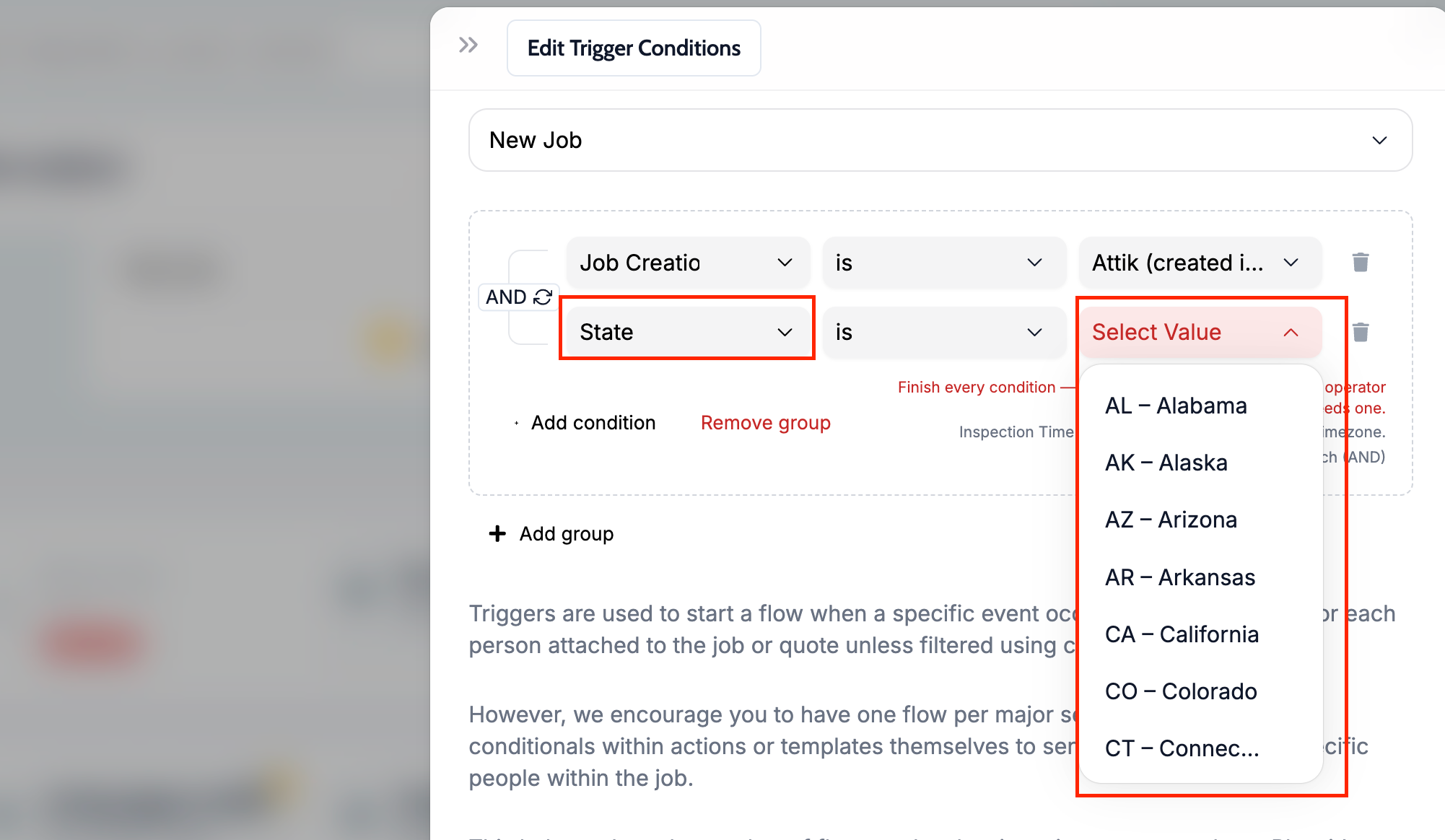
Pick states from a dropdown in conditions
What changed: State conditions now use a dropdown of 2-letter state codes, and jobs and quotes always store the state as a 2-letter code, so state-based conditions and forms match reliably. Existing saved state conditions were converted.
Where to find it: Any conditions editor, State field
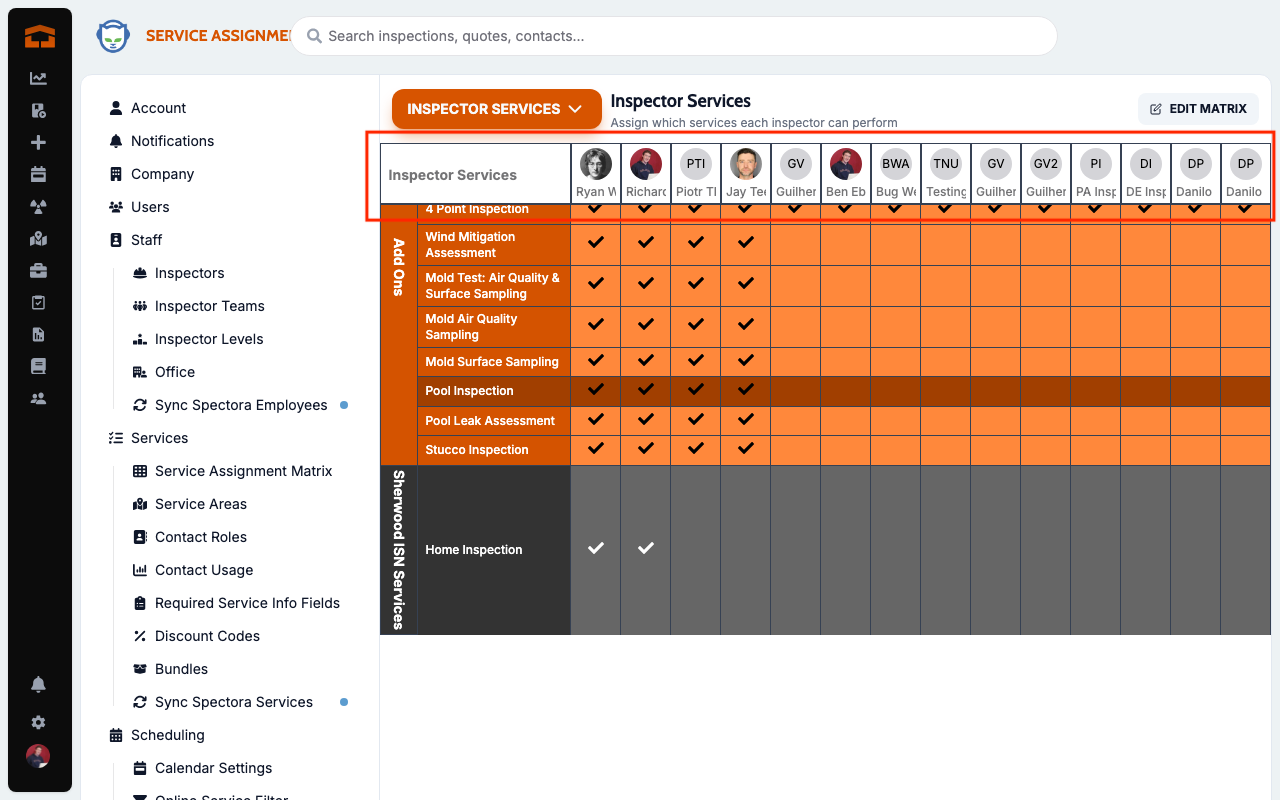
Assignment matrix header stays visible
What changed: The header row in service assignment matrices now stays pinned at the top while you scroll down long service lists.
Where to find it: Settings, service assignment matrix
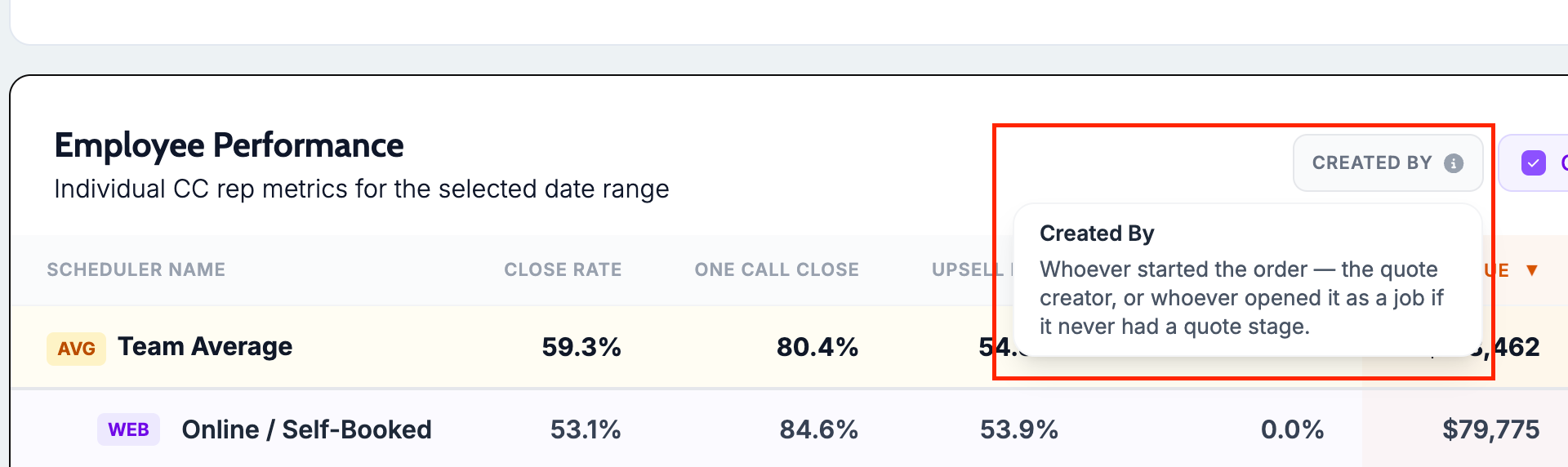
Close rate always credits Created By
What changed: The Close Credit toggle is gone from the Employee Performance table. Close rate now always credits whoever created the quote or order, with a tooltip explaining Created By.
Where to find it: Client Care Dashboard → Employee Performance
Limitations show in Only Show Summary Items
What changed: Turning on Only Show Summary Items in the web report now keeps limitations visible, matching View Summary PDF. Sections with limitations stay open and show only their limitations, and informational comments stay hidden.
Where to find it: Published web report, Only Show Summary Items.
New Reports Hub columns
What changed: Reports Hub now has columns for contact mailing address and business name, closing date, separate inspection date and inspection time, a link to each work order, and ISN IDs on imported records, so exports need less cleanup.
Where to find it: Reports Hub, column picker
Every action flow step shows in the activity feed
What changed: Each action an action flow runs on a job now appears in the activity feed, so you can see the full history of what was sent.
Where to find it: Work order, activity feed
Open search results in new tabs
What changed: In global search, Cmd-click or Ctrl-click (or right-click and open in a new tab) to open a result, and your search and results stay put so you can open several in a row.
Where to find it: Global search in the top bar
Right-click calendar jobs to open in a new tab
What changed: Inspection blocks on the calendar now work like normal links: right-click to open in a new tab or window, or copy the link. Clicking and dragging work as before.
Where to find it: Calendar
Radon Settings follows the Radon Chart order
What changed: Inspectors in Radon Settings now appear in the same order as the Radon Chart, with Calibration last.
Where to find it: Settings → Radon
Zestimate saved on online orders
What changed: Online orders now save the Zestimate like internal bookings do. Staff can see it on the work order and use it in conditions; customers never see it while booking.
Where to find it: Work order
Uncancel sends confirmations again
What changed: Uncancelling a job now re-runs the job confirmed actions, such as confirmation emails, for the new time. The separate uncancelled trigger has been removed.
Where to find it: Action flows, Job Confirmed trigger
No expanded-area fee on Office services
What changed: When the primary service on a quote or job is an Office service, the expanded service area fee is no longer added.
Where to find it: Quote and work order charges
ISN import brings contact notes and labels
What changed: Importing from ISN now copies contact notes and labels onto the Attik contact, keeping any tags you already have.
Where to find it: Contacts, imported ISN contacts
More reliable help doc editing
What changed: The help doc panel was rebuilt so autosave is reliable: no lost text, stuck Saved status or empty drafts.
Where to find it: Company Handbook, help docs
Thumbtack quote requests sound like a homeowner
What changed: The message prefilled on Thumbtack quote requests now reads like a homeowner asking for quotes, without the line about preferring email quotes.
Where to find it: No new screen. Takes effect on new Thumbtack quote requests.
Bug Fixes
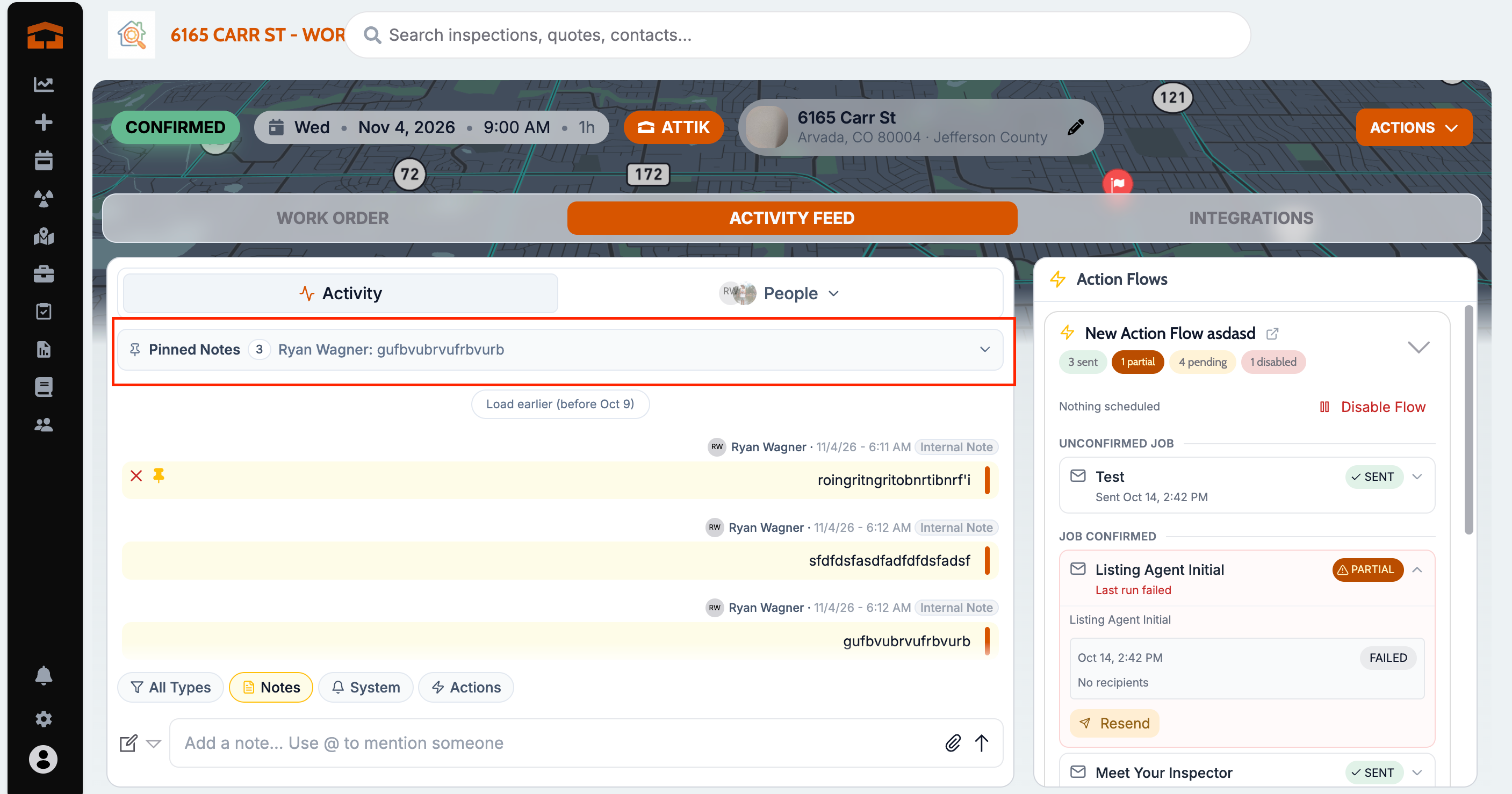
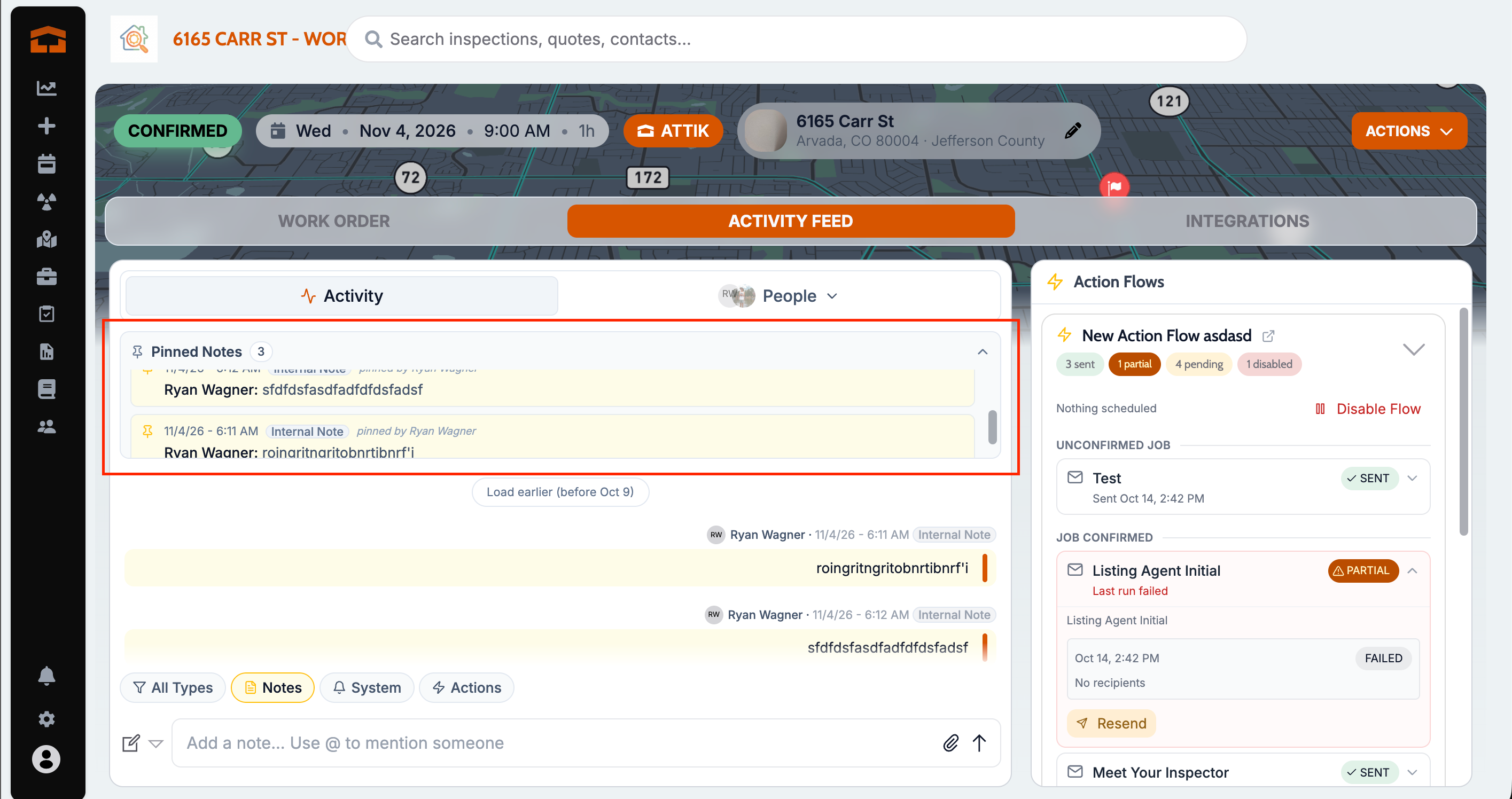
Pinned notes no longer crowd the activity feed
What changed: You can now collapse pinned notes so the activity feed and add note stay easy to reach.
Where to find it: Work order, activity feed
Applies to: Existing and future records
Kept price stays kept
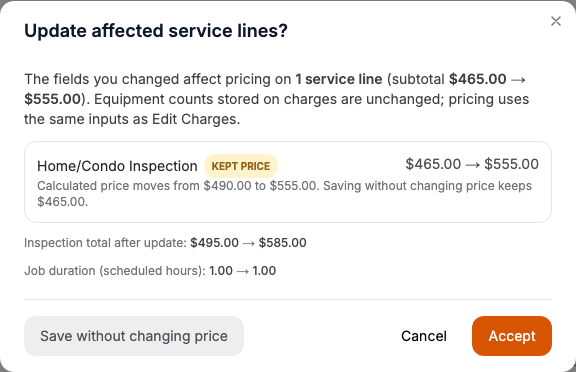
What changed: When you choose Save without price change after a property or required info change, Edit Charges no longer brings back the higher price later.
Where to find it: Work order, Edit Charges
Applies to: Future records only
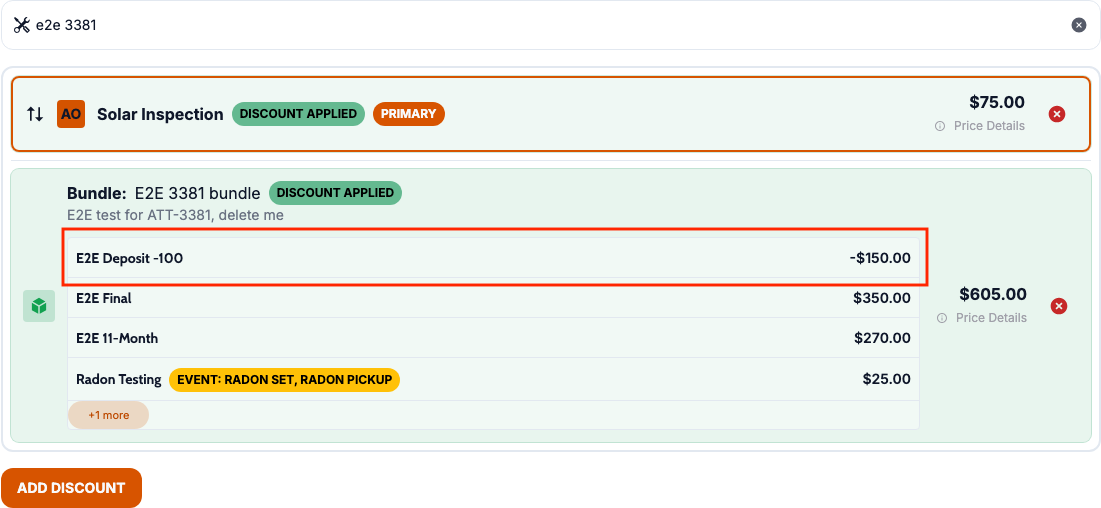
Bundle discounts apply with a negative fee
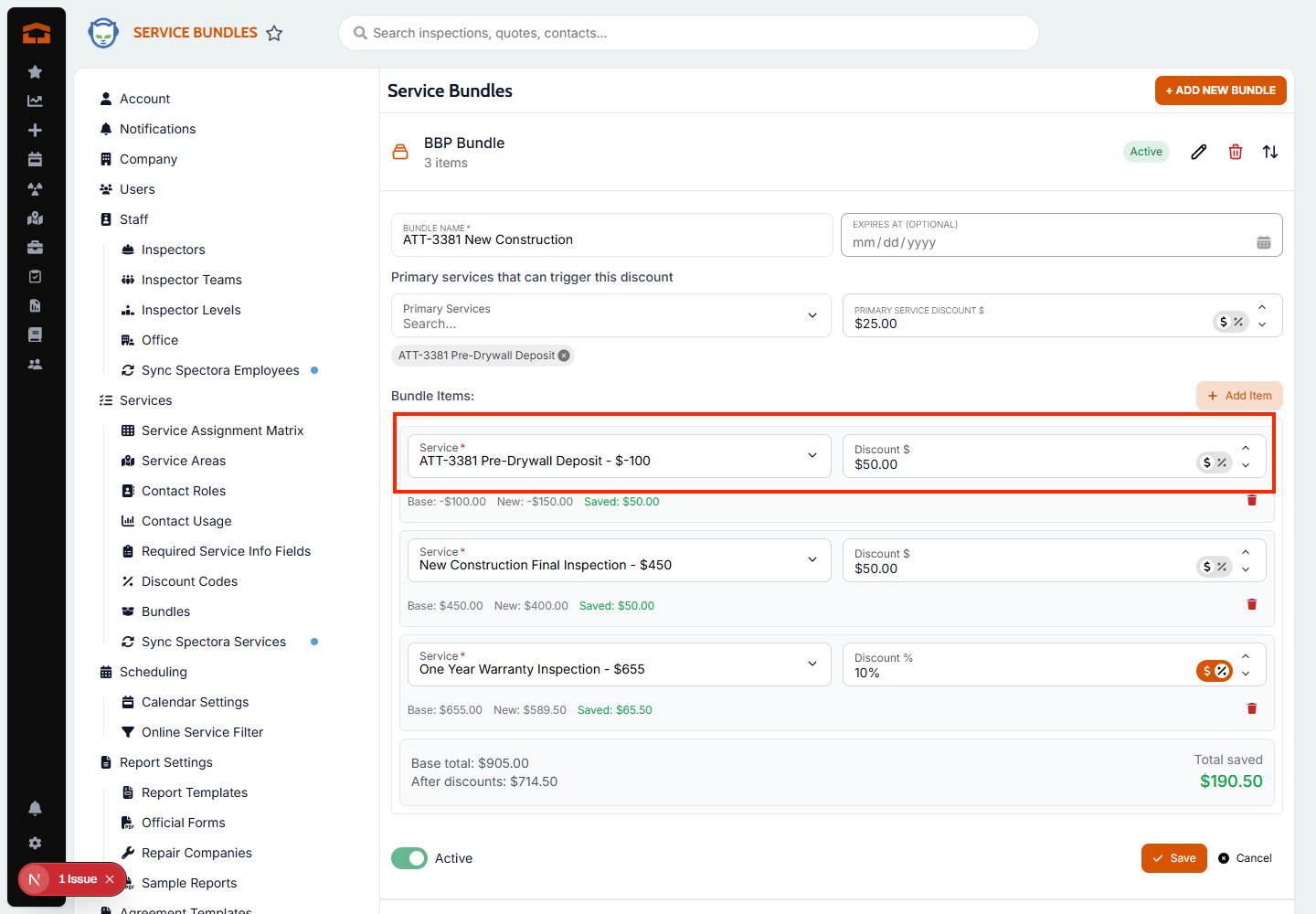
What changed: Bundles that include a negative base fee now apply their discount, and bundled lines can be edited.
Where to find it: Work order, Edit Charges
Applies to: Future records only
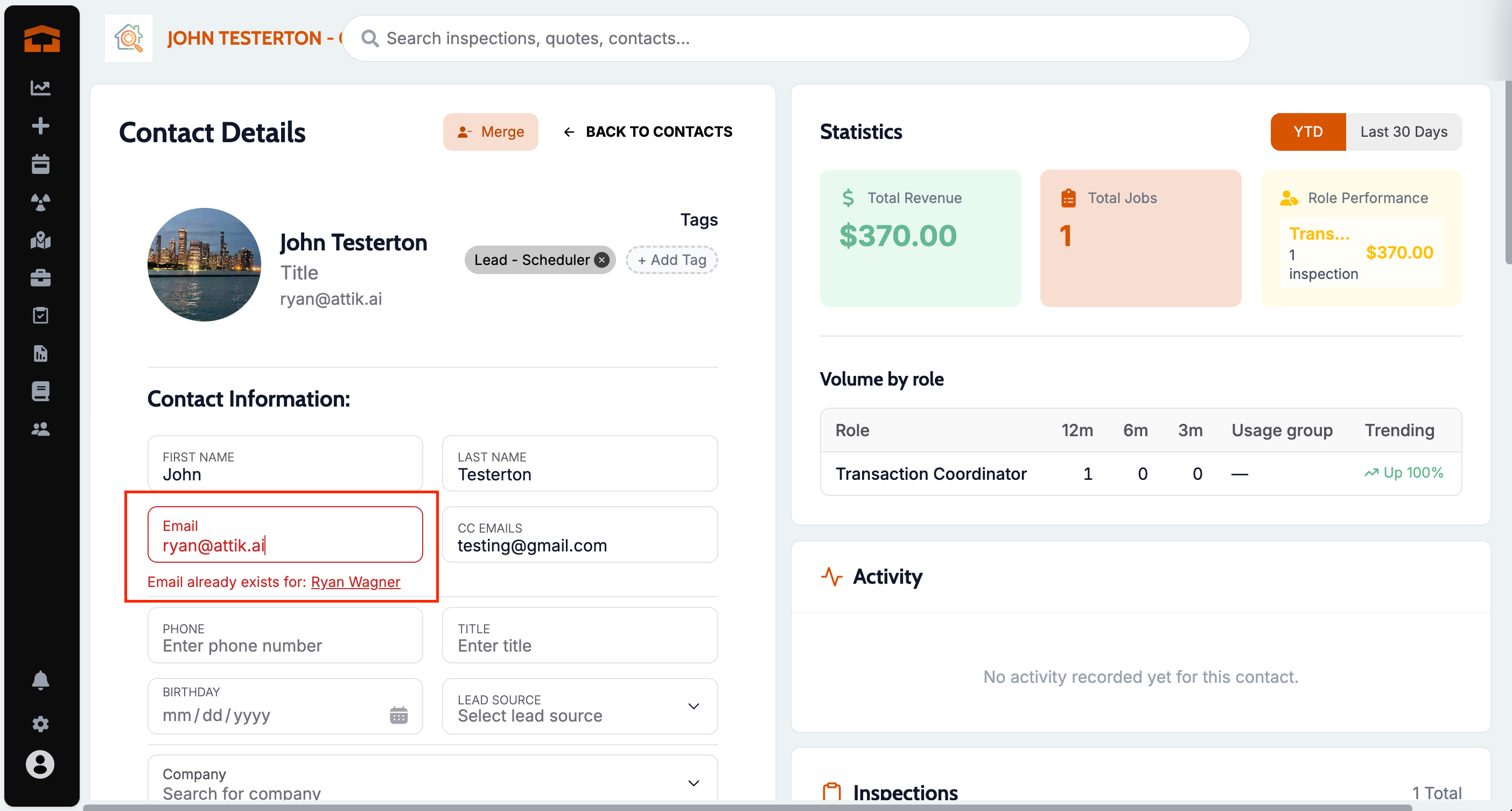
Merged or hidden contacts free up their email
What changed: Inactive, archived or merged contacts no longer block their email address from being used on another contact. A prompt now displays when an email from an existing client is added to a contact profile.
Where to find it: Contacts
Applies to: Existing and future records
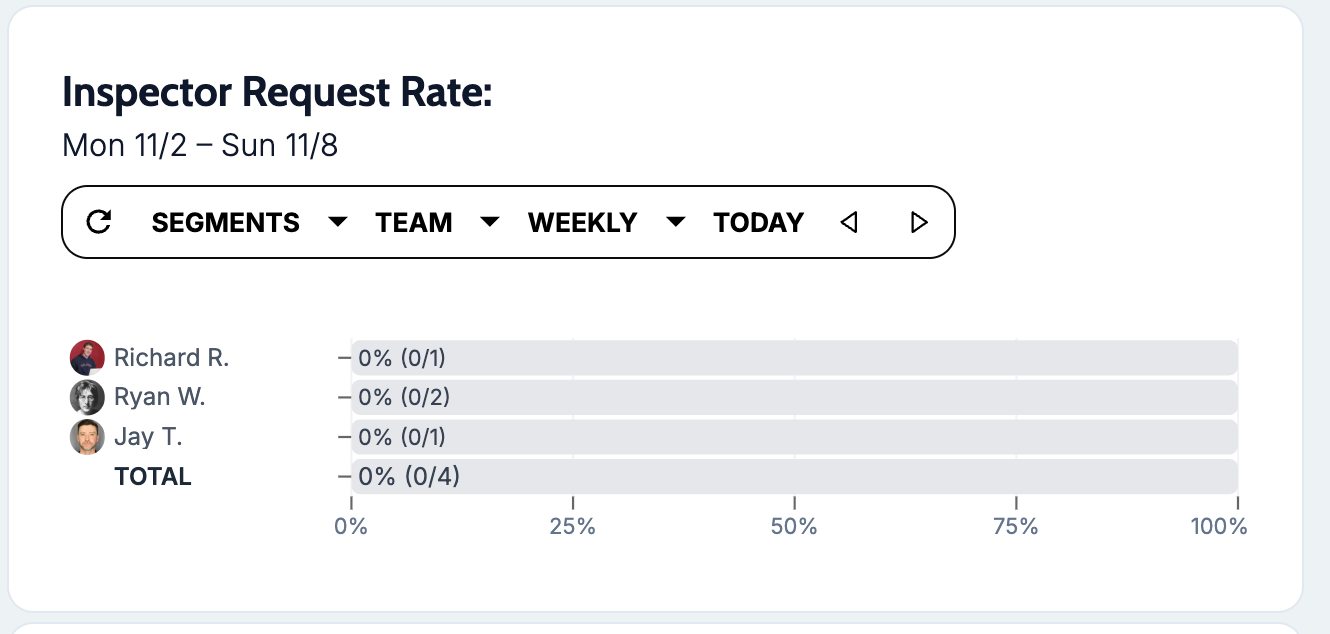
Request Rate always shows job counts
What changed: The Inspector Request Rate and Inspector Balance widgets now always show the job counts next to the percentage, for example 0% (0/5), even when the bar is short.
Where to find it: Dashboards, Inspector Request Rate and Inspector Balance widgets
Applies to: Existing and future records
Adding a help doc no longer crashes the tab
What changed: Adding or editing a help doc no longer crashes the browser tab, and one click on Add Document makes one draft.
Where to find it: Company Handbook, Add Document
Applies to: Existing and future records
Photos look upright in the web app and PDF
What changed: Photos are made upright once when captured or imported, and that same upright photo is used in the web app and PDF. Photos converted from iPhone HEIC keep the orientation the inspector saw.
Where to find it: No new screen. Takes effect after the update.
Applies to: Future records only
Forecast saves when an inactive segment still has a budget
What changed: Saving the monthly forecast no longer fails when a segment that was turned off still has budget amounts.
Where to find it: Settings, then Forecast.
Applies to: Existing and future records
Payroll entries save on the day you pick
What changed: Hours, miles, and adjustments added with Add New now save on the date you picked, even when your computer is in a time zone east of the company's.
Where to find it: Payroll Adjustment Management, Add New.
Applies to: Future records only
Calendar time slots stay on the right hour on daylight saving days
What changed: On the day the clocks change, inspector time slots, recurring blocks, and multi-day walks now show and book at their set local time instead of an hour off. This covers Sun Nov 1 and every future time change, in every time zone.
Where to find it: No new screen. Takes effect after the update on the Calendar and in online booking.
Applies to: Existing and future records
Online booking times load without slowing the app
What changed: Searching for open inspection times in online booking, the client quote time picker, and the Reschedule window no longer freezes the app for other users at larger brands. The times offered are the same as before.
Where to find it: No new screen. Takes effect after the update.
Applies to: Existing and future records
Hand-entered payroll hours show on the right day
What changed: Hours entered by hand now show on the day they were entered for in the payroll hours list, weekly overtime, the timesheet report, and hours variance, instead of sometimes landing on the next day. Afternoon entries on the last day of the week are no longer left off the timesheet report.
Where to find it: No new screen. Takes effect after the update in Payroll Adjustment Management and the timesheet report.
Applies to: Existing and future records
Staff stay signed in at busy times
What changed: Signed-in staff are no longer sent to the login page when the app is busy. If a page can't load, it now shows an error, and Try Again reloads the page.
Where to find it: No new screen. Takes effect after the update.
Applies to: Existing and future records
Report PDFs refresh after mobile edits
What changed: When a completed report is edited in the mobile app, its PDF is rebuilt so it shows the latest changes instead of an older copy.
Where to find it: No new screen. Takes effect on the report PDF after the update.
Applies to: Unclear from release evidence
Watch video in the PDF opens the video
What changed: Watch video in a report PDF now opens the video itself instead of a Page Not Found page when the report hasn't been released.
Where to find it: No new screen. Takes effect on PDFs created after the update.
Applies to: Future records only
Shared report photos stay when one copy is deleted
What changed: Deleting a photo from one place in a report, such as Overview or a cover, no longer removes it from other places that still use it, including a client's repair list.
Where to find it: No new screen. Takes effect after the update.
Applies to: Future records only
Comments follow the template order everywhere
What changed: Comments now show in the template's order in the web report editor, the client report, and the PDF. A subsection you reordered by dragging keeps your order.
Where to find it: No new screen. Takes effect after the update.
Applies to: Existing and future records
Official forms name the current inspector
What changed: After a job is reassigned, official forms now show the current inspector, matching the report PDF.
Where to find it: No new screen. Takes effect on official forms generated after the update.
Applies to: Future records only
EverHome gets every informational comment
What changed: Reports sent to EverHome now include every informational comment in full. Before, long comments were cut short and reports with more than 100 informational comments were missing some.
Where to find it: No new screen. Takes effect on reports sent to EverHome after the update.
Applies to: Future records only
App stays fast during payment updates
What changed: When FlexFund sent the same blocked payment status again and again, each repeat was saved over the payment record, which slowed the app on the evening of Friday, Oct 30. Now each blocked status is saved once and repeats are ignored, so the app stays quick and reliable while payments update.
Where to find it: No new screen. Takes effect after the update.
Applies to: Existing and future records
Booking a job creates each report once
What changed: Booking a job now creates exactly one report for each required report type. Before, some jobs got two copies of every report right after booking.
Where to find it: No new screen. Takes effect on jobs booked after the update.
Applies to: Future records only
Phone annotations stay on the web report and PDF
What changed: Arrows, boxes and other markup added to a photo in Attik Mobile now stay on the photo in the client web report and PDF after the phone syncs it again. Before, a later upload of the same photo could replace the annotated copy.
Where to find it: No new screen. Takes effect on photos synced after the update.
Applies to: Future records only
Online booking no longer double-books inspectors
What changed: Online booking now refuses a time that overlaps an inspector’s existing job or event, including after staff move a job.
Where to find it: Online booking
Applies to: Future records only
Swap suggestions respect the booking cutoff
What changed: Swap suggestions in online booking now follow the Online Booking Cutoff Time, like the regular time slots.
Where to find it: Online booking
Applies to: Existing and future records
Discounts show only on discounted lines
What changed: Invoices and work orders now show promo and bundle labels and crossed-out prices only on lines that were actually discounted, and the primary service now shows its strikethrough when discounted.
Where to find it: Invoice; work order Charges & Payments
Applies to: Existing and future records
Requested-inspector fee kept when editing property details
What changed: Saving property or required info on a job with a requested inspector now keeps the requested-inspector fee.
Where to find it: Work order, property details
Applies to: Future records only
Correct credit after removing a service with a refunded card fee
What changed: Removing a paid service after a card fee refund now shows the full credit for the removed service.
Where to find it: Work order, Charges & Payments
Applies to: Existing and future records
Weekend commission paid without a weekday rate
What changed: Inspectors with a weekend commission rate but no weekday rate now get their weekend commission in payroll.
Where to find it: Payroll
Applies to: Existing and future records ⚠ Confirm before publishing: confirm whether past payroll periods recalculate.
Saving one required info answer keeps the others
What changed: Saving one required info field no longer clears other required answers on the same job, such as a lockbox code.
Where to find it: Work order, required info
Applies to: Future records only
Duration changes save with locked inspector and additional inspectors
What changed: Changing a job’s duration from the reschedule window now saves on jobs with a locked inspector and additional inspectors with the full crew kept on the rescheduled job.
Where to find it: Work order, Reschedule
Applies to: Existing and future records
Editing an event keeps every inspector
What changed: Editing a single calendar event now saves all the inspectors you selected, not just the first.
Where to find it: Calendar, edit event
Applies to: Existing and future records
Clearing an event note saves
What changed: Emptying the Notes box on an event and saving now removes the note.
Where to find it: Work order, Edit Event
Applies to: Existing and future records
Confirmation texts go out on time
What changed: Confirmations and other event-triggered messages now send on time, even during busy reminder hours.
Where to find it: Action flows
Applies to: Future records only
Sent reminders show as sent after a date change
What changed: A reminder that already went out now shows as sent after the inspection date changes, so you won’t resend it with Send now.
Where to find it: Work order, Actions panel and activity feed
Applies to: Existing and future records
Action menu opens on tap
What changed: The bottom-right action menu now opens on tap, so every option, such as payroll’s Add Adjustment, works on a tablet or touchscreen.
Where to find it: Payroll, Calendar, Radon and other pages with the bottom-right action menu
Applies to: Existing and future records
Deleting an email template keeps shared blocks
What changed: Deleting one email template no longer removes global blocks that other templates still use.
Where to find it: Settings, Email Templates
Applies to: Future records only
Editing a global button block opens the editor
What changed: Choosing Edit on a saved global button block now opens the button editor instead of an error page.
Where to find it: Settings, Email Templates
Applies to: Existing and future records
Reactivated users stay on Instance Management lists
What changed: Reactivating a user now restores their access, and they stay findable on the Instance Management user lists.
Where to find it: Instance Management, users
Applies to: Existing and future records
All instances dashboard views save
What changed: Users with all-brands access can now save dashboard views that include brands they are not members of.
Where to find it: Dashboards, saved views
Applies to: Existing and future records
QuickBooks payments follow the invoice customer
What changed: Payments sent to QuickBooks now land on the same customer as their invoice when the invoice is later corrected to the client.
Where to find it: Settings → Integrations → QuickBooks
Applies to: Existing and future records ⚠ Confirm before publishing: confirm whether existing payments resync automatically or need the bulk fix.
Inspection date sent to Haven binders
What changed: New Haven (HomeBinder) binders now include the inspection date instead of arriving blank.
Where to find it: No new screen. Takes effect when a new binder is created.
Applies to: Future records only