Attik Update - AI Comments, Customer Summary Filters & Media Capture Updates (Mobile App)

Summary
AI-generated comments follow your notes or dictation, shaped for defects, limitations, and information
Filter the customer summary by defect severity or limitations for post-inspection walkthroughs
Flag items for later, set custom defect severity while writing, and complete required comments before publish
Media upload, gallery video backup, and cover-photo checks are clearer and more reliable
The Outbox now shows what each item is doing and which ones need you, and the header badge matches it
Photos from your library, including iPhone HEIC photos, upload as upright JPEGs, and one bad photo no longer drops a whole comment from the report
⚠️ Important: How to Get This Update
This release came out as an over-the-air update, so you don't need to download anything from the App Store or Google Play.
Fully close the Attik app and reopen it. Do this at least twice.
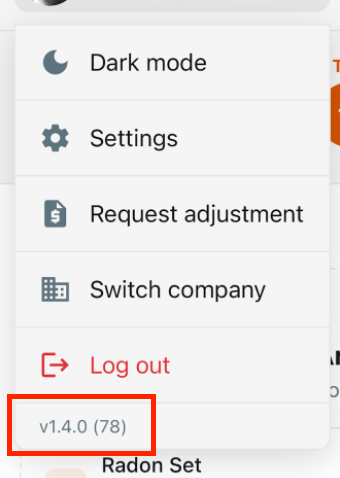
Your app will still say version 1.4.0. That's expected.
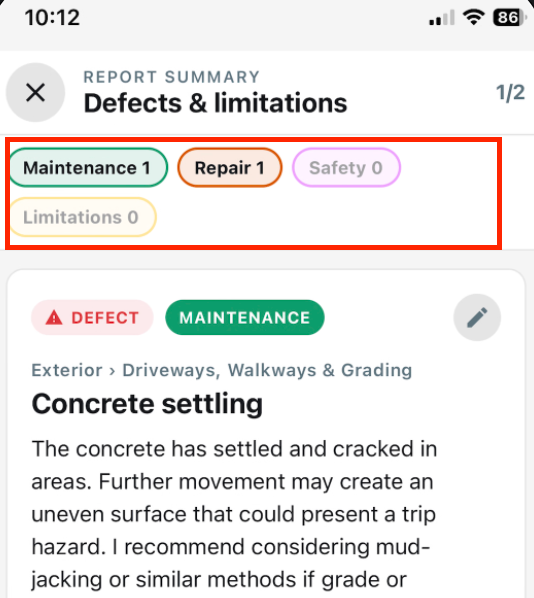
To confirm you have the update, open a report's customer summary. If you see the new severity filter buttons across the top, you're on the latest version.
New Features
AI-generated inspection comments
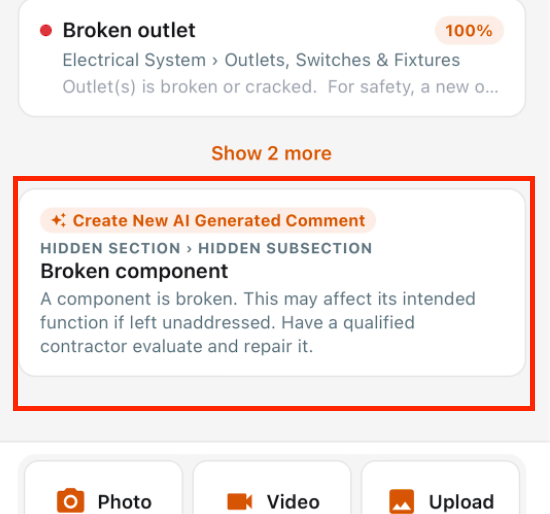
What changed: AI suggestions now use the inspector's notes or dictation as the primary source. Defect comments include the observation, why it matters, and a recommendation; limitation and information comments follow their appropriate formats.
Where to find it: In a comment, choose Use AI generated narrative.
Filter the customer summary
What changed: Filter the customer summary by your company's defect severity levels, limitations, or no severity. Multiple filters can be selected while preserving report order, so walkthroughs can focus on major issues.
Where to find it: Open the customer summary from the finish workflow, then select the filter options.
Required comments and inline answers
What changed: Required template comments now count toward report progress and can prevent publishing until complete. Multiple-choice answers appear directly on the subsection screen for faster selection.
Where to find it: Open a report subsection with required or multiple-choice comments.
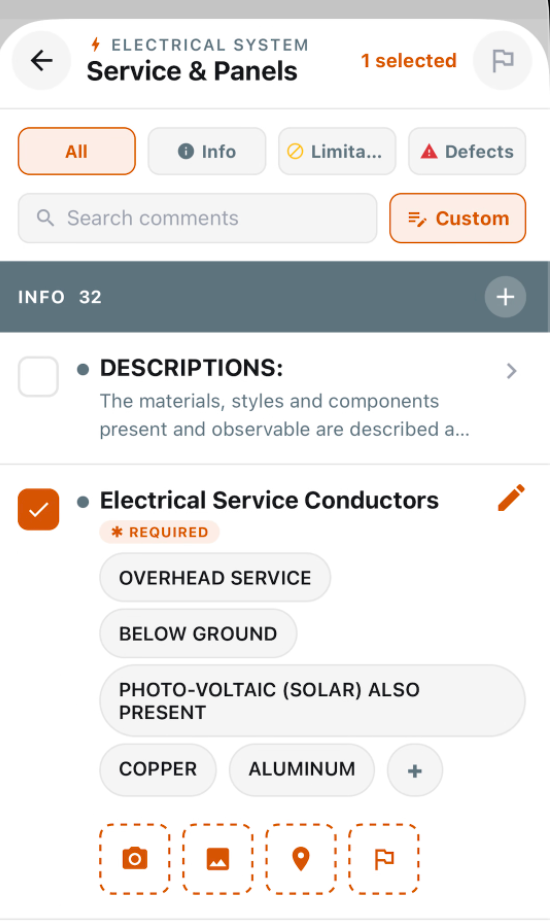
Flag items for later review
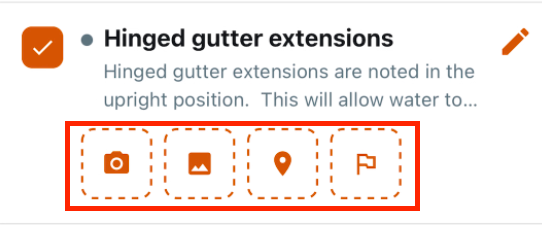
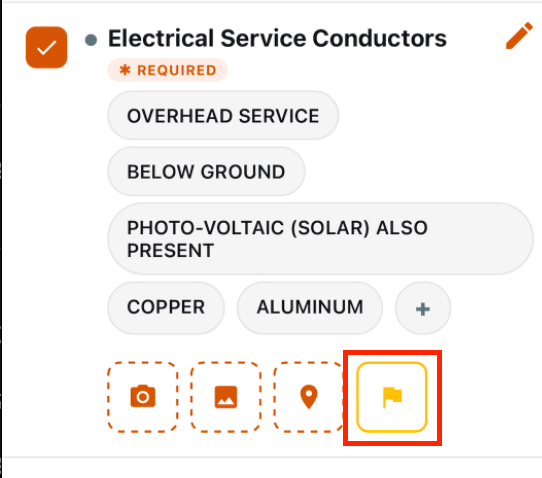
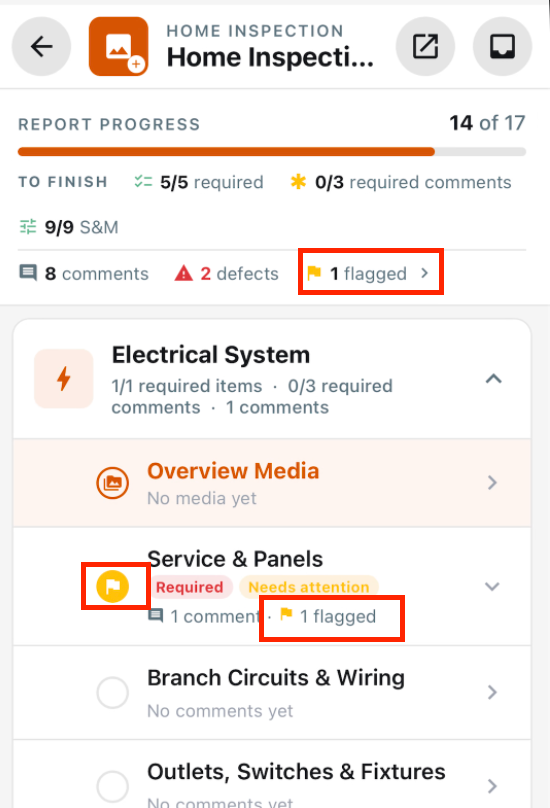
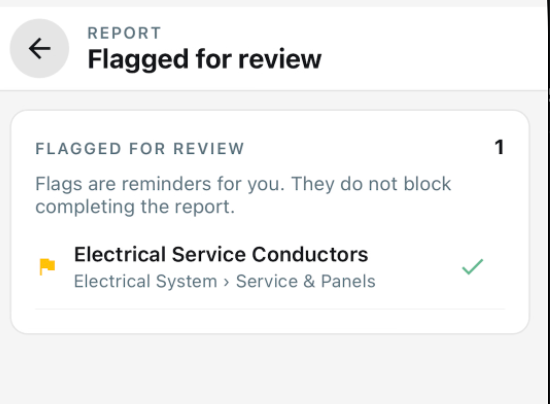
What changed: Flag sections, subsections, and comments to revisit later. Outstanding flags appear during report finishing but do not block publishing.
Where to find it: Use the flag action on a section or comment, then review outstanding items from the finish workflow.
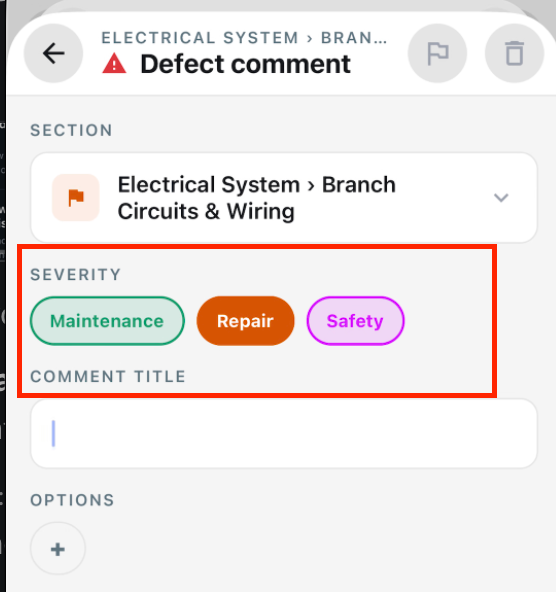
Set severity while writing a custom comment
What changed: Choose a company-defined defect severity while creating a custom comment, without returning to a separate editing screen.
Where to find it: From a subsection, choose Add custom comment, then select the severity while writing the defect.
Improvements
Clearer Outbox statuses
What changed: Each Outbox item now shows UPLOADING, WAITING, NEEDS ATTENTION, or FAILED instead of sitting on SYNCING forever. An item waiting on something that failed is flagged right away with a reason, and Retry or Retry all checks it again.
Where to find it: The Outbox tab.
See and fix failed photos on a comment
What changed: If a photo can't be processed, its thumbnail now shows a failed state with Retry and Remove photo, and the comment says how many photos are missing from the report. Retry reprocesses the photo on the server, so you no longer have to delete and re-add the comment.
Where to find it: The comment's photos, and the photo thumbnails in the subsection list.
Imported videos follow the two-minute limit
What changed: Videos added from your photo library are now limited to two minutes, the same as videos recorded in the app.
Where to find it: Adding a video from your photo library to a report.
Faster report writing and review
What changed: Opened sections move into view, selected comments keep their actions, and photos save automatically when leaving a comment. The unnecessary Done step has been removed.
Where to find it: Use the report writer as usual.
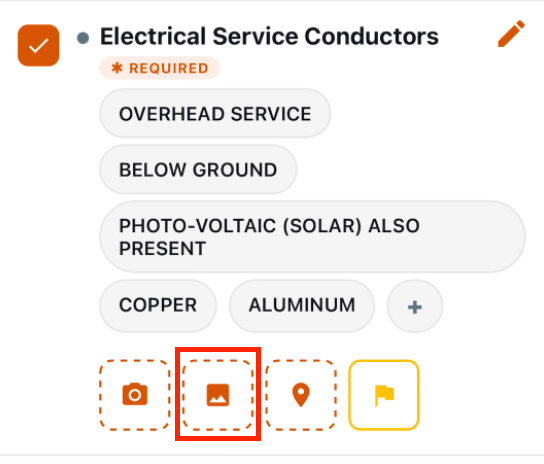
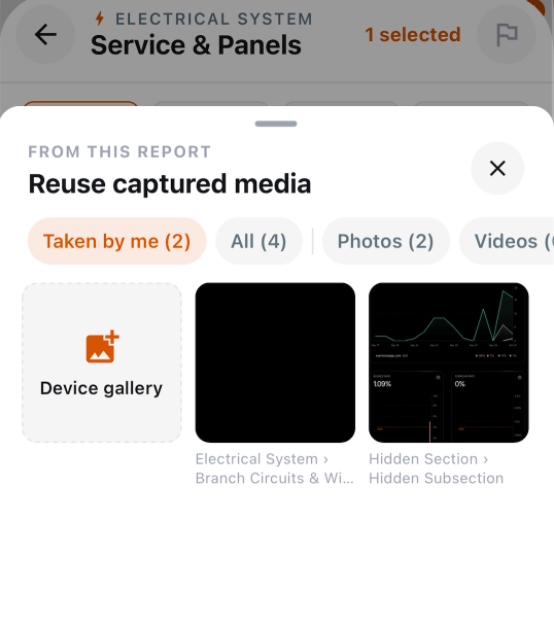
Upload opens the report gallery directly
What changed: Upload opens the report gallery directly, with a Photo library tile for device media. Camera, photo, video, and upload actions are presented consistently across report media entry points.
Where to find it: In comment media, Compose, Review & Edit, Overview photos, or cover photo workflows.
Video capture and gallery backup
What changed: Videos are saved to the phone gallery when gallery backup is enabled. The recording timer and pending caption or dictation indicator now follow device rotation.
Where to find it: Record a video in a report with gallery backup enabled.
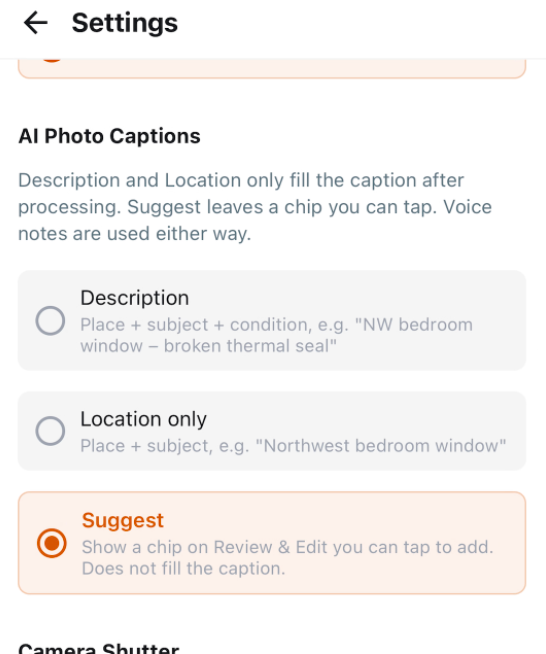
Suggested photo captions by default
What changed: Photo caption suggestions are now the default for new users and users without a previous selection. Existing explicit caption preferences remain unchanged.
Where to find it: Photo caption settings.
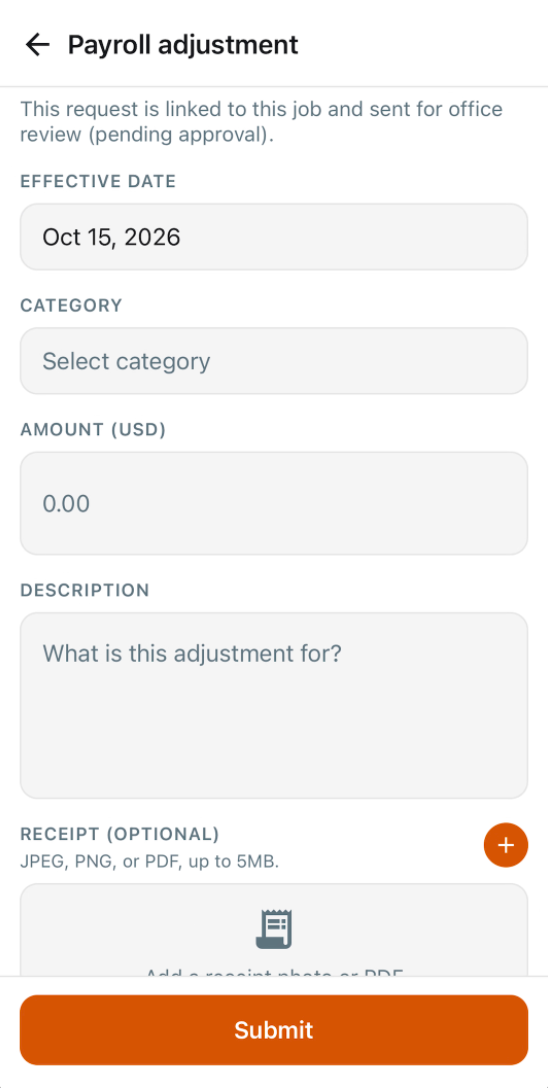
Easier payroll adjustments
What changed: Mobile payroll adjustments no longer ask inspectors to choose Taxable status manually. The optional note field is available where supported, while tax treatment is derived from the adjustment category.
Where to find it: Create a payroll adjustment from a job or the payroll adjustment workflow.
Optional sections stay hidden until added
What changed: Optional sections remain hidden on the outline until an inspector adds content or unlocks them. Default-checked comments alone no longer make unused sections appear.
Where to find it: Start or edit a report with optional template sections.
Team inspection selections stay in sync
What changed: Multiple-choice selections and location changes made during team inspections are retained instead of being lost while the comment is syncing.
Where to find it: Work on the same inspection from multiple devices.
Keep inspector-chosen locations and annotation colors
What changed: Location tags stay empty unless the inspector entered them, and informational and limitation annotation arrows use the colors set on the template.
Where to find it: Comments with locations or informational and limitation annotations in the report writer.
Bug Fixes
Library photos no longer drop out of the report
What changed: Photos picked from your photo library, including iPhone HEIC photos and some Android photos, are now converted to real JPEGs and saved upright before upload. Before, some of these photos failed processing and their whole comment was left off the published report.
Where to find it: No new screen — takes effect after the update.
Applies to: Future records only.
One failed photo no longer removes the whole comment
What changed: If a photo on a comment still can't be processed, the comment's text and its other photos now publish to the report, and the failed photo is flagged in the app instead.
Where to find it: Published reports, and the comment in the app.
Applies to: Future records only.
Long videos finish uploading
What changed: Report videos, including longer clips, now upload straight from the phone instead of timing out and starting over from zero. When you're offline, an upload stops quickly instead of holding up the rest of the Outbox.
Where to find it: No new screen — takes effect after the update.
Applies to: Existing and future records.
Header badge matches the Outbox
What changed: The upload count badge in the report header now shows the same number as the Outbox tab, instead of a much larger count.
Where to find it: The badge in the report header.
Applies to: Existing and future records.
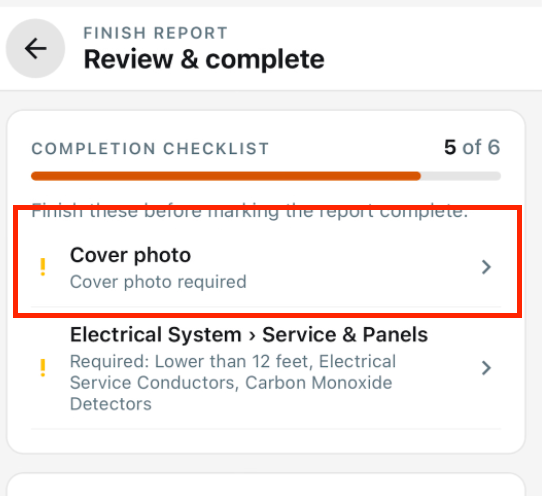
Missing cover photo warning
What changed: Completing an inspection without a cover photo now shows an unresolved checklist item that takes the inspector directly to the cover photo workflow.
Where to find it: Open the final checklist before completing an inspection.
Applies to: Existing and future records.
Tapping a comment opens Review & Edit
What changed: Tapping a selected comment or its photo now opens Review & Edit instead of the old expanded panel. Comment flags remain available from the compact row.
Where to find it: Tap a selected comment or photo in the report writer.
Applies to: Existing and future records.
Find inspection searches by address only
What changed: Inspectors can search for inspections by property address only. Searching another inspector's name no longer exposes that person's jobs.
Where to find it: Find inspection.
Applies to: Existing and future records.